Python Algorithm Integration
1. Preface
This manual is intended to guide developers on how to connect their Algorithm to SimOne. Through detailed steps and examples, it helps developers get started quickly and complete the Algorithm Integration.
Note
For Python interface information, please first refer to C++_Python Interface Language Support
2. Environment Setup
2.1 Interpreter Version
This tutorial is written based on Python 3.6.4. Other versions can also be used normally. It is recommended to use the Interpreter bundled with the SimOne software.
2.2 Interpreter Location
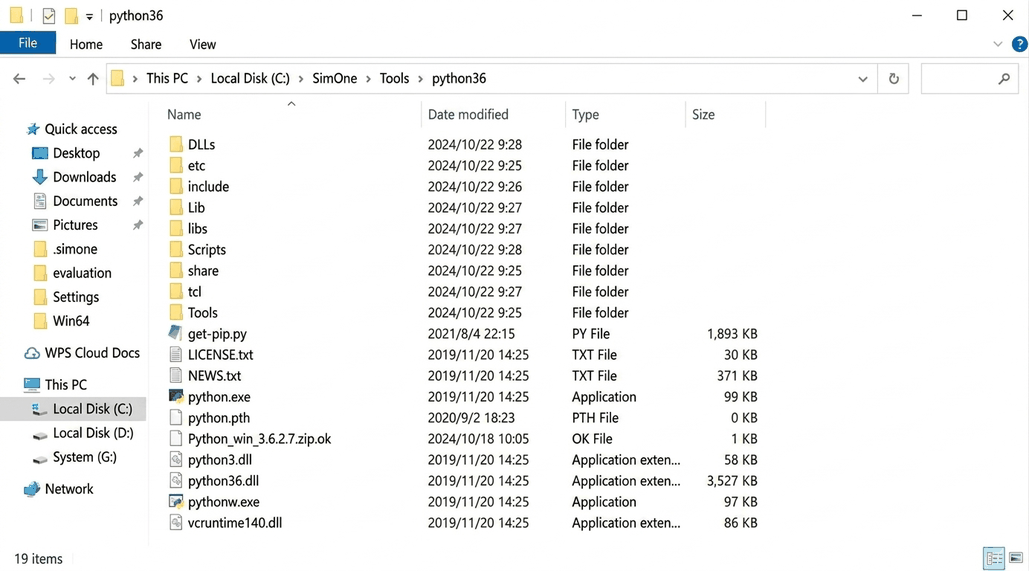
The SimOne software includes a recommended Interpreter. The Interpreter is located in the specified directory at \SimOne\Tools\python36 (applicable to the Windows installer; for Linux, please refer to the actual installation directory).
2.3 Development Tools
- IDE: PyCharm
3. Algorithm Integration Steps
3.1 Opening the Algorithm Sample Project
After SimOne is installed, the API library and sample files are located in the following directory:
C:\SimOne\SimOneAPI\lib\Win64
This directory contains .dll, .pyd, .py, and other files. Among them, PythonAPISample.py is the Python Algorithm sample.
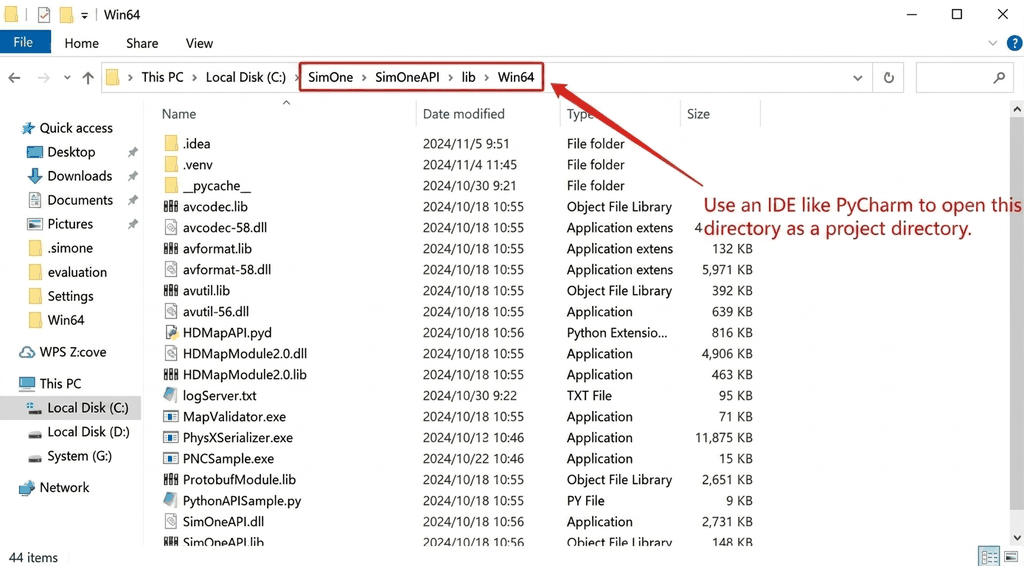
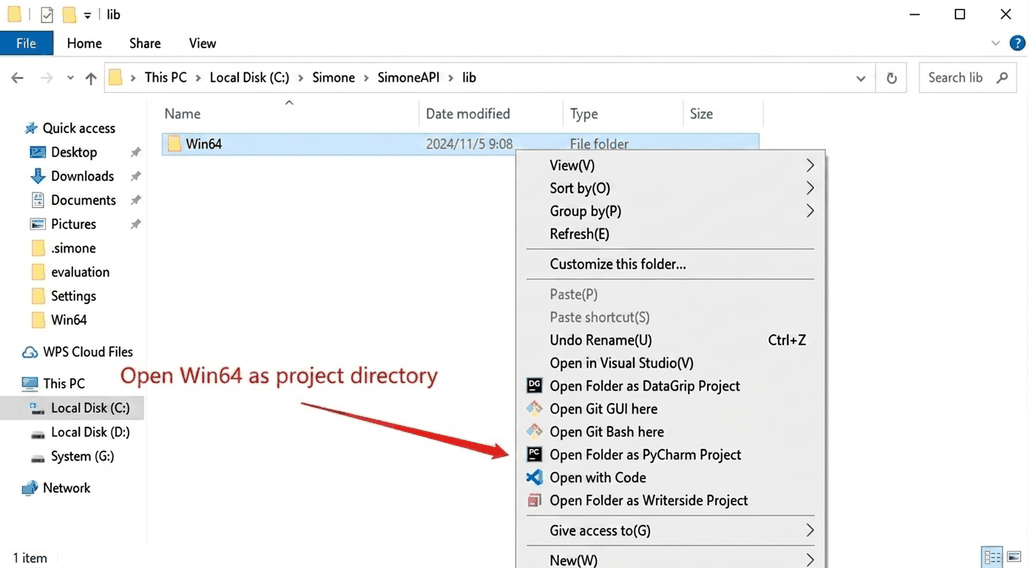
Using an IDE such as PyCharm, open the Win64 directory as the project root. You can right-click on the directory and select Open Folder as PyCharm Project.
3.2 Running the Algorithm Sample
Open PythonAPISample.py in PyCharm and execute the following in the bottom terminal:
python .\PythonAPISample.py
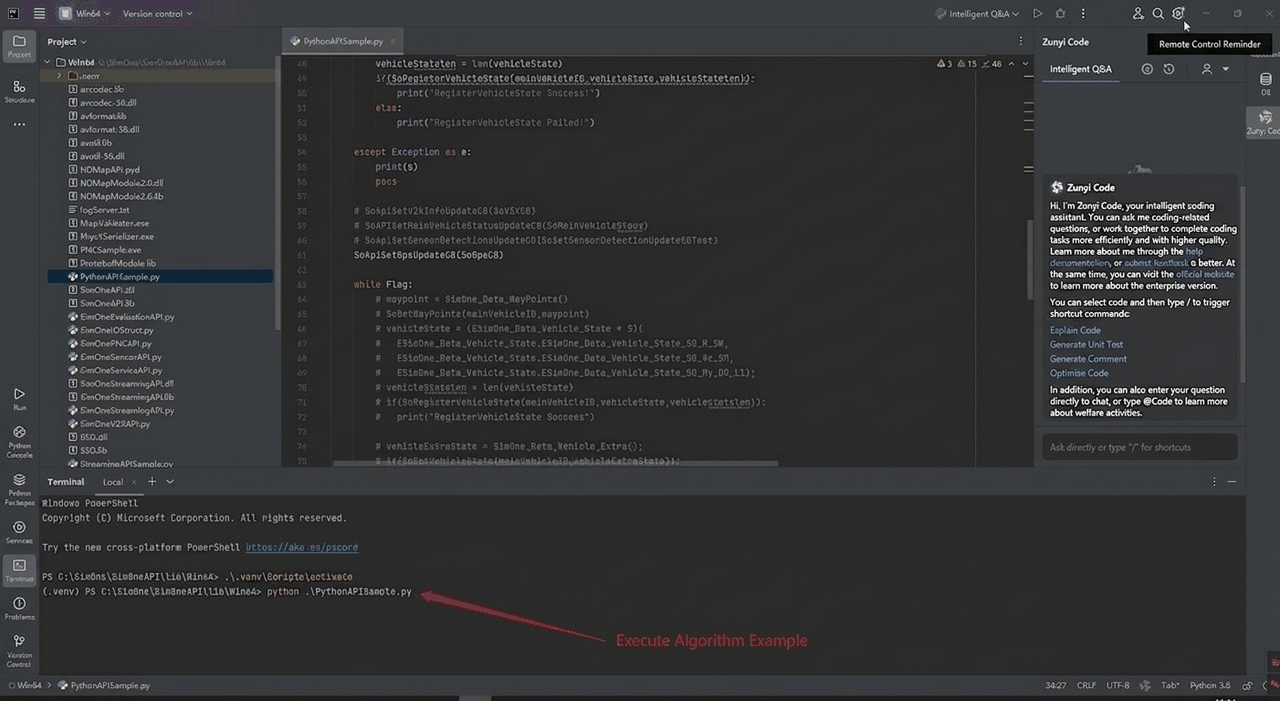
After the script starts, it will continuously attempt to connect to the SimOne Simulator (default address 127.0.0.1:23789). Repeated waiting logs in the output are normal — the script is in a waiting for connection state and will automatically complete the connection once a SimOne Use Case is launched.
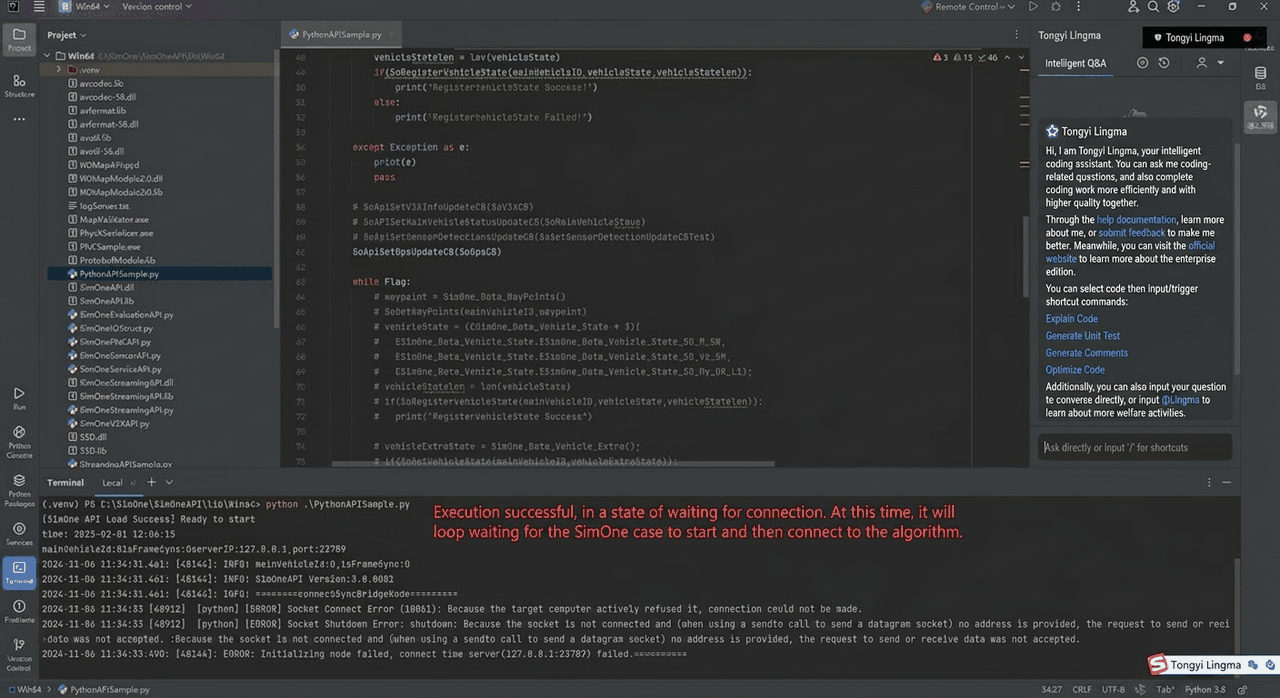
3.3 Running a Scenario Use Case
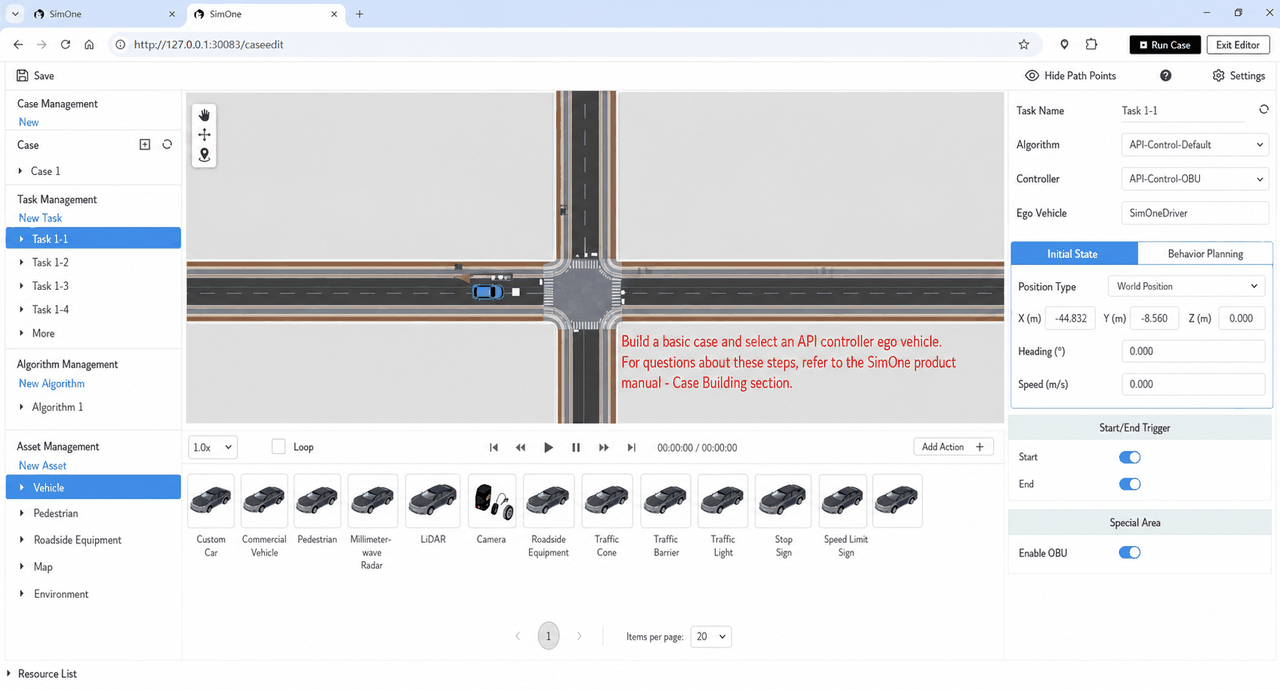
Step 1: Build a Scenario Use Case
Open the SimOne platform (default address 127.0.0.1:30083), create or open a Use Case in the Scenario Editor, and set the Ego Vehicle Controller to API Controller (select "Default Controller" as the controller type, with both Lateral/Longitudinal Control enabled).
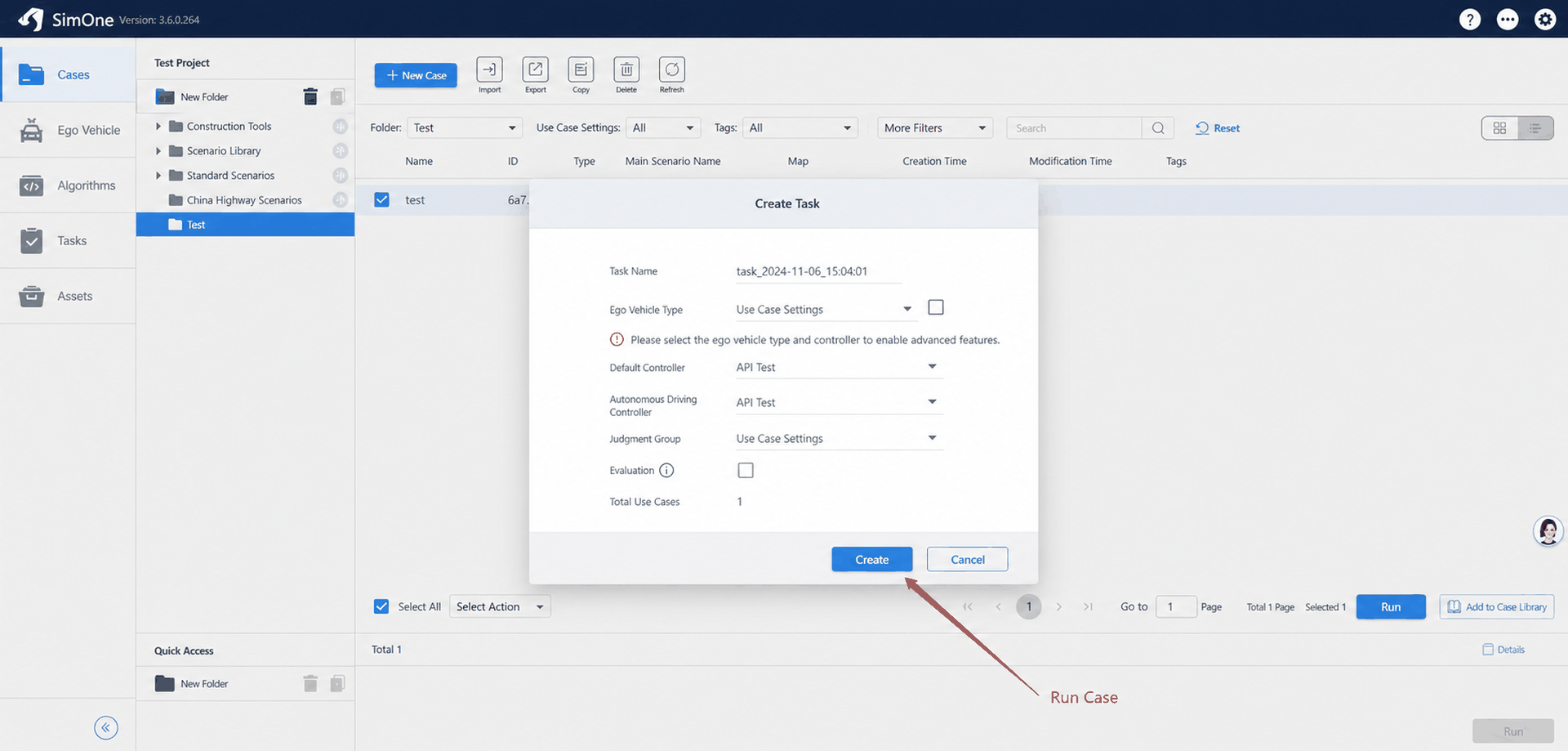
Step 2: Create and Run a Simulation Task
Go to the Use Case Management page, select the target Use Case and click Run. In the pop-up new task dialog, set both the Default Controller and the Autonomous Driving Controller to API Algorithm, then click Create to submit the task.
3.4 Checking the Connection Status
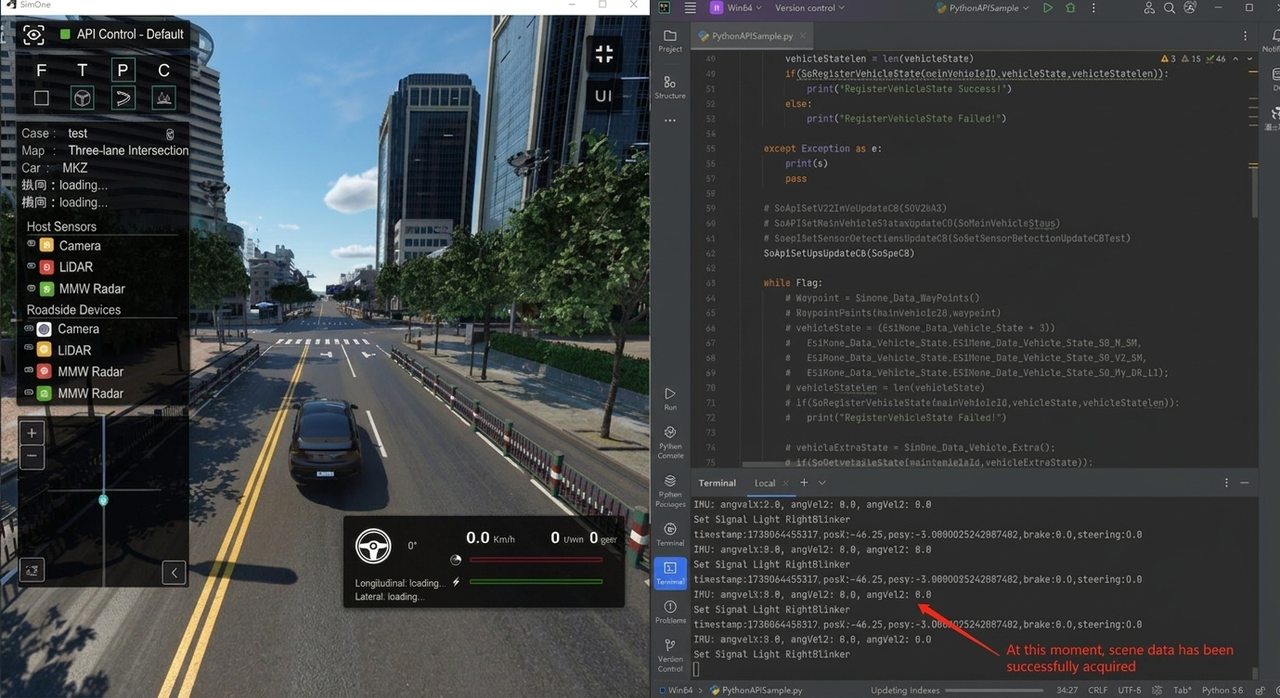
After the Simulation Task starts, the PyCharm terminal will begin continuously outputting scenario data (including IMU angular velocity, Ego Vehicle position, braking, steering, and other information). At the same time, the SimOne 3D simulation interface will show the vehicle operating normally, indicating that the Python Algorithm has been successfully connected.