Project Settings
Project Settings (Team Edition)
Core value of project isolation: In SimOne Team Edition, the platform implements a project isolation mechanism to enable independent management of use cases, Ego Vehicles, algorithms, resources, tasks, and other content. This satisfies both the need for improved internal data organization efficiency and cross-team collaboration, while ensuring that resources and tasks across projects remain independent and clearly controlled. Currently, only a single default project — the "Default Team" — is supported. Future versions will gradually enable parallel multi-project management to accommodate more complex team collaboration scenarios.
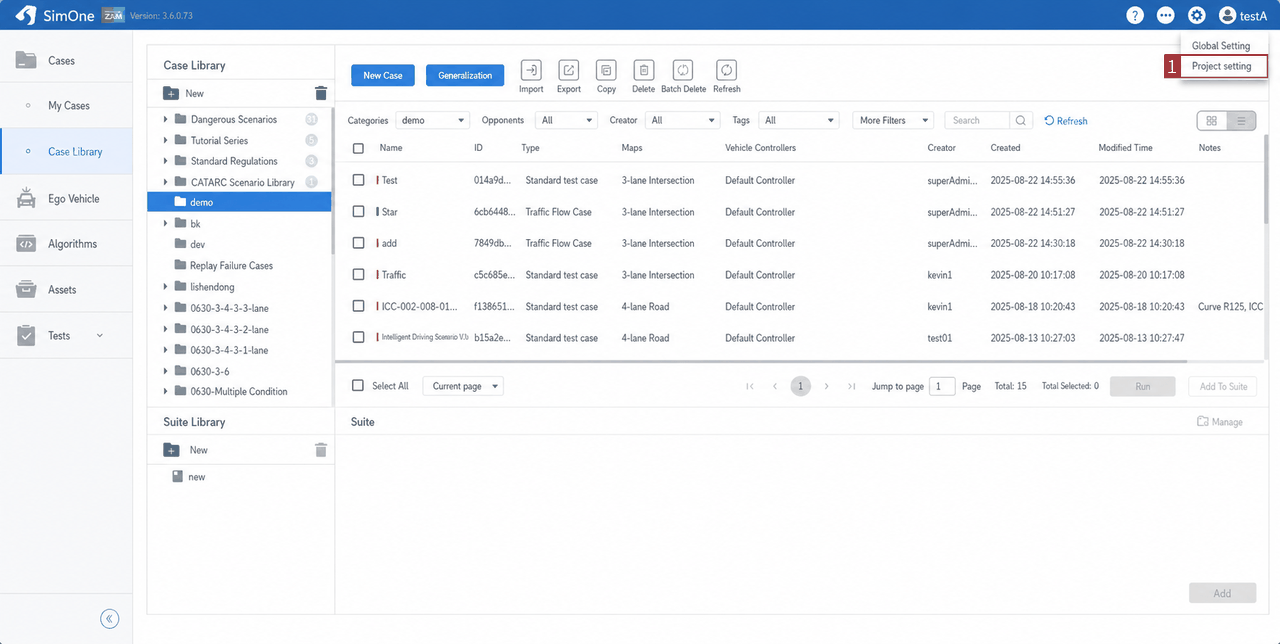
Entry point for Project Settings (requires Project Administrator permissions): In the SimOne platform, if the current account has Project Administrator permissions, navigate to Settings (top-right corner) → Project Settings to enter the project information management page. Here you can configure and maintain the project name, description, member permissions, and other settings.
1. Project Information
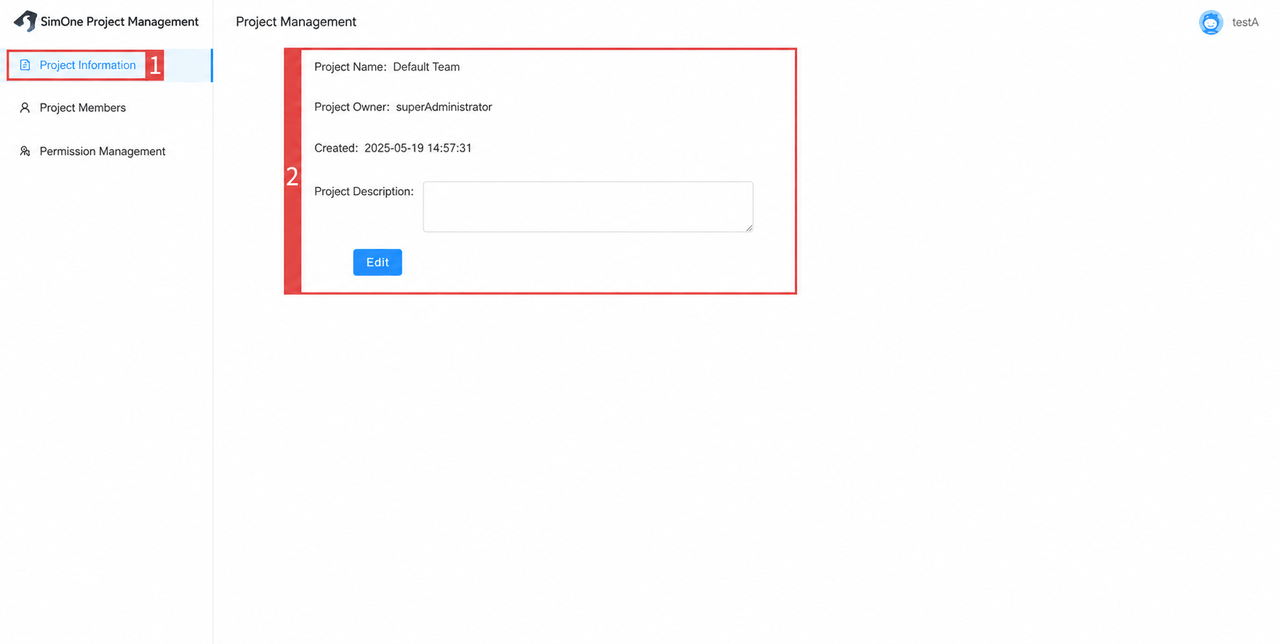
In the Project Settings page, click the button on the left sidebar to enter the Project Information module. Here you can view the basic information of the current project, including the project name, project owner, creation time, and description. Currently, users can only add and edit project notes, which can be used to provide project background, collaboration instructions, or other administrative details.
2. Project Members
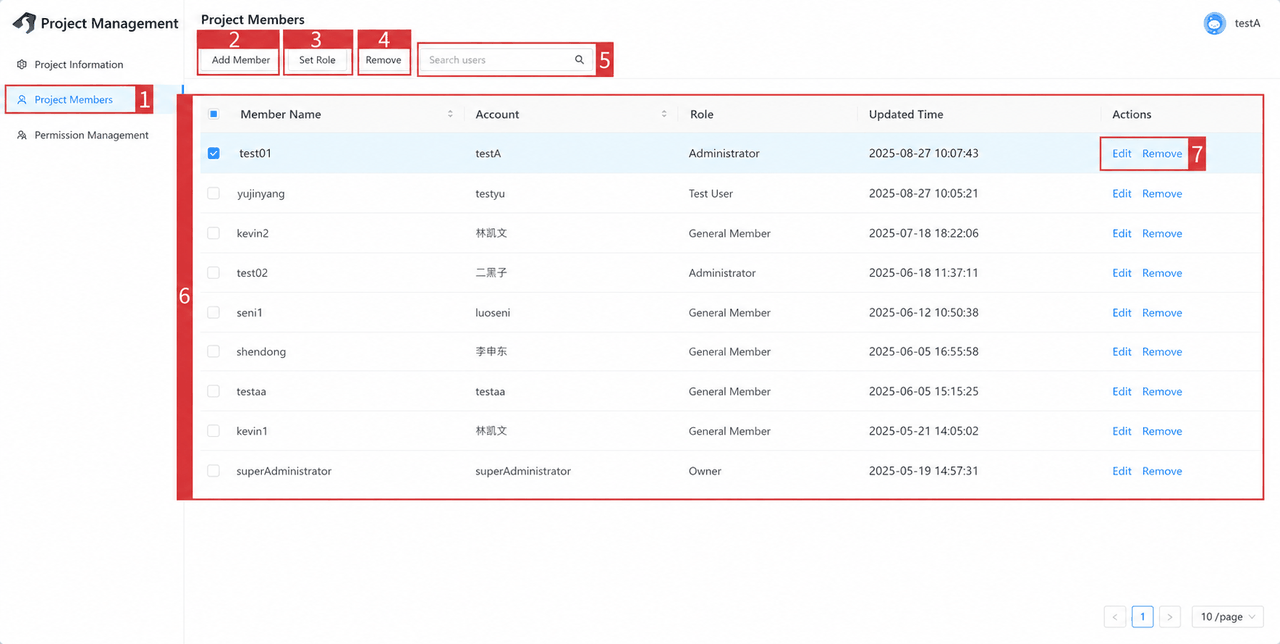
In the Project Settings page, click the button on the left sidebar to enter the Project Members module. Here you can manage the members of the current project, including adding and removing members, and assigning project roles to members.
| ID | Feature | Description |
|---|---|---|
| 1 | Project Members | Click the button to open the Project Member Management module page. |
| 2 | Add Member | Click to open a dialog that supports searching for accounts by username or display name to add as project members. |
| 3 | Set Role | Supports batch-selecting project members to modify their roles. |
| 4 | Remove | Supports batch-removing project members. |
| 5 | Member List | Displays the current project's member list, showing each member's username, display name, and project role. |
| 6 | Actions | Supports editing or removing individual project members. You can edit a member's project role or remove the member from the project. |
3. Permission Management
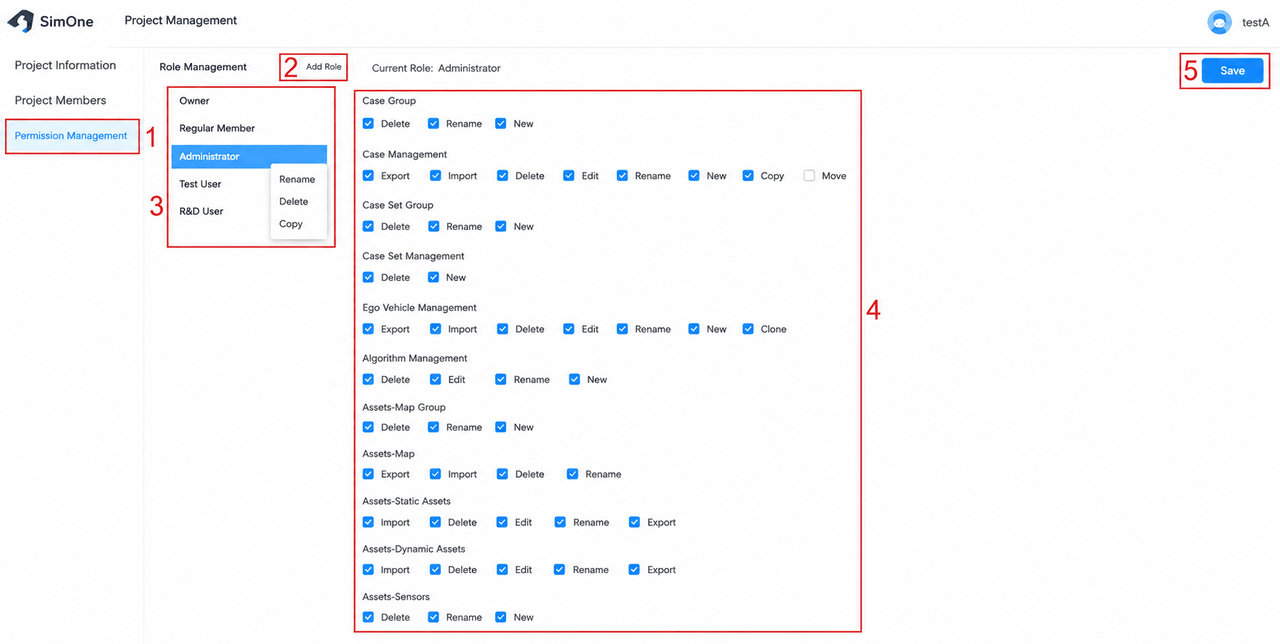
In the Project Settings page, click the button on the left sidebar to enter the Permission Management module. Here you can manage the role hierarchy of the current project and configure fine-grained operation permissions for each role across functional modules.
| ID | Feature | Description |
|---|---|---|
| 1 | Permission Management | Click the button to open the Project Role Permissions module page. |
| 2 | Add | Click the button to add a new project role. |
| 3 | Role List | Displays the current project role list. Newly added roles support rename, delete, and copy operations. |
| 4 | Permission Settings | For the selected role, shows the configured operation permissions for each functional module and supports modification. |
| 5 | Save | After modifying the operation permission configuration for a role, click this button to save the changes. |