Triggers & Judgment Configuration
This Section Contains
| Section | Description |
|---|---|
| Atomic Judgment Parameters | Parameter reference and configuration for platform built-in atomic judgment conditions |
| Lua Script Judgment Management | Write and upload custom Lua scripts for complex logic judgments |
| Judgment Group Management | Combine multiple judgment conditions into reusable Judgment Groups |
1. Use Case Run Control Methods
Use case run control for autonomous driving algorithm simulation testing requires precise management of two key phases: use case start and use case termination. The platform provides two control methods that can be selected or combined as needed:
- Start/End Triggers: Designed for automated testing with fixed workflows. Trigger conditions are configured in advance in the editor, enabling automatic use case start and termination without any manual intervention.
- Judgment Conditions: Designed for result-oriented functional verification testing. Conditions are evaluated dynamically based on real-time data during simulation. When a preset judgment rule is satisfied, the use case can be terminated automatically. Judgment conditions support three flexible configuration methods — Atomic Judgment, Lua Script Judgment, and Judgment Group:
(1) Atomic Judgment: Platform-built-in judgment templates for standard functional verification, covering common indicators such as Pull Over, Lane Departure, Lane Change, and Collision. No custom configuration is needed — users simply select the desired template for quick setup.
(2) Lua Script Judgment: Users can write custom Lua scripts to implement complex multi-parameter logic judgments. Once written, scripts are uploaded to the platform and can be invoked to meet customized testing requirements.
(3) Judgment Group: For complex functional verification scenarios, multiple atomic judgments and Lua scripts can be combined into a Judgment Group. Once configured and saved, a Judgment Group can be reused and added directly to multiple test use cases.
2. How to Configure Start/End Triggers
2.1 Set the Start Trigger
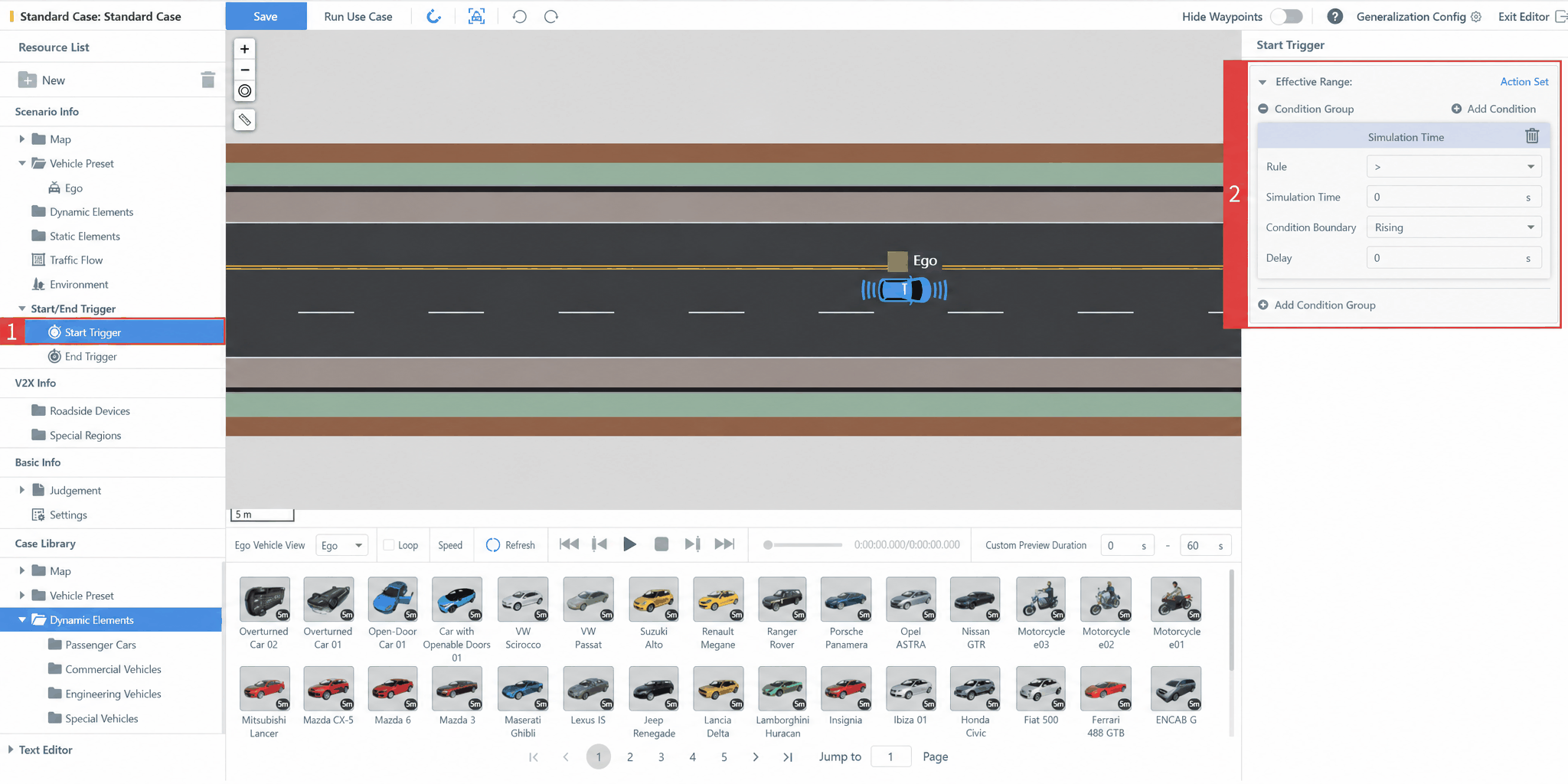
The Use Case Start Trigger initiates the test when a certain condition (or group of conditions) evaluates to True. Every test use case requires a Start Trigger. SimOne adds a default Start Trigger to each newly created use case, with the start condition set to simulation time greater than 0 s — meaning the Ego Vehicle's or Opponent Vehicle's behavior planning events are triggered by default once the simulation time exceeds 0 s. If a separate start condition is defined in the behavior planning, that condition takes precedence.
In the use case editor, select Start Trigger in the left-side panel, click Condition Group → Simulation Time to configure the simulation time. By default, the editor triggers the Ego Vehicle's or Opponent Vehicle's behavior planning actions when the simulation time exceeds 0 s.
2.2 Set the Use Case End Trigger
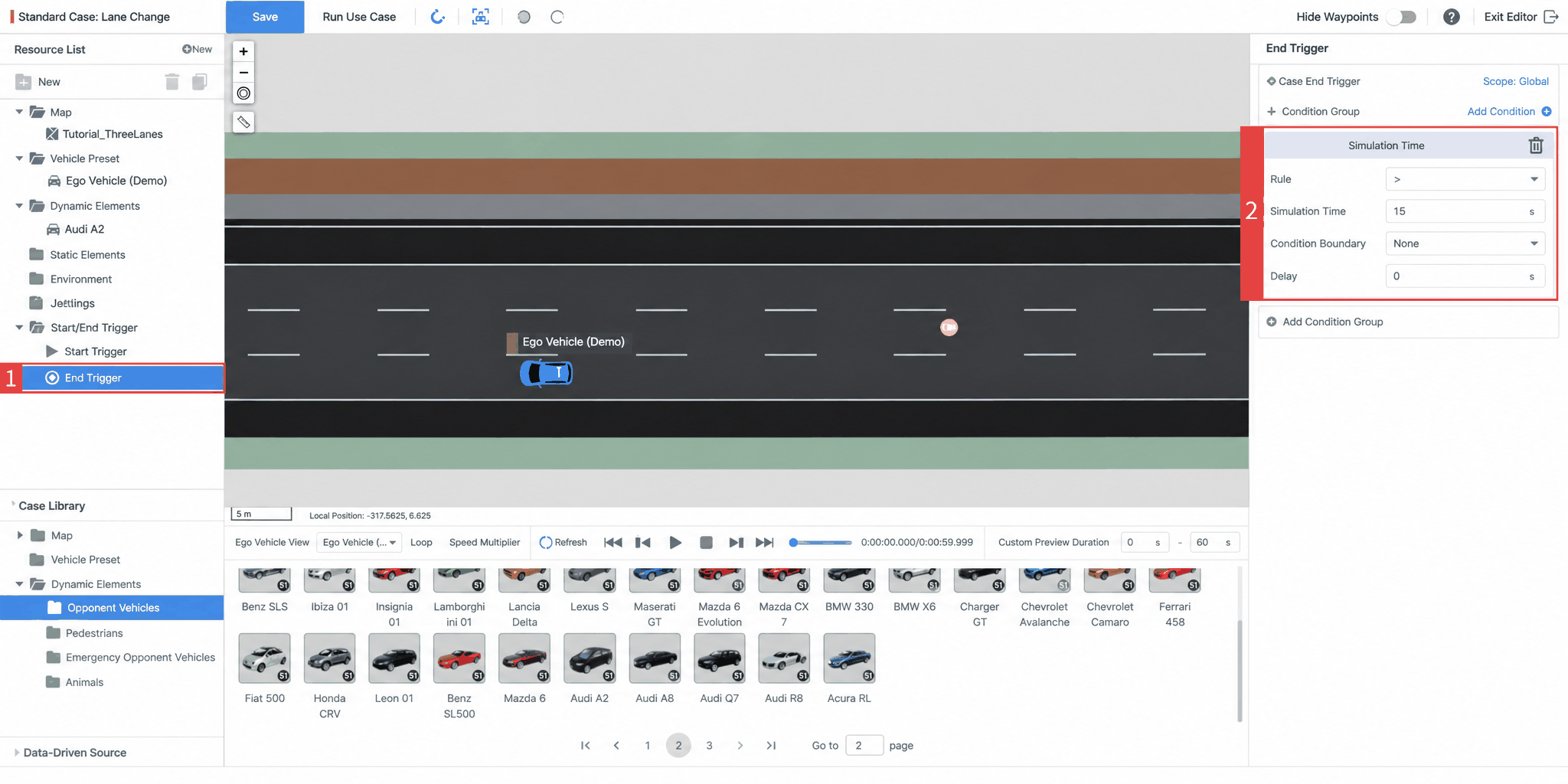
The Use Case End Trigger terminates the test when a certain condition (or group of conditions) evaluates to True. Every test use case requires an End Trigger. SimOne adds a default End Trigger to each newly created use case, with the end condition set to simulation time greater than 60 s — meaning the system automatically ends the test when the simulation time exceeds 60 s and no Case Failure criterion has been triggered. Users can customize the use case End Trigger.
In the use case editor, select End Trigger in the left-side panel, click Condition Group → Simulation Time to configure the simulation time. The editor defaults to ending the test at 666 s, which users can modify as needed.
3. How to Configure a Judgment
3.1 Set an Atomic Judgment
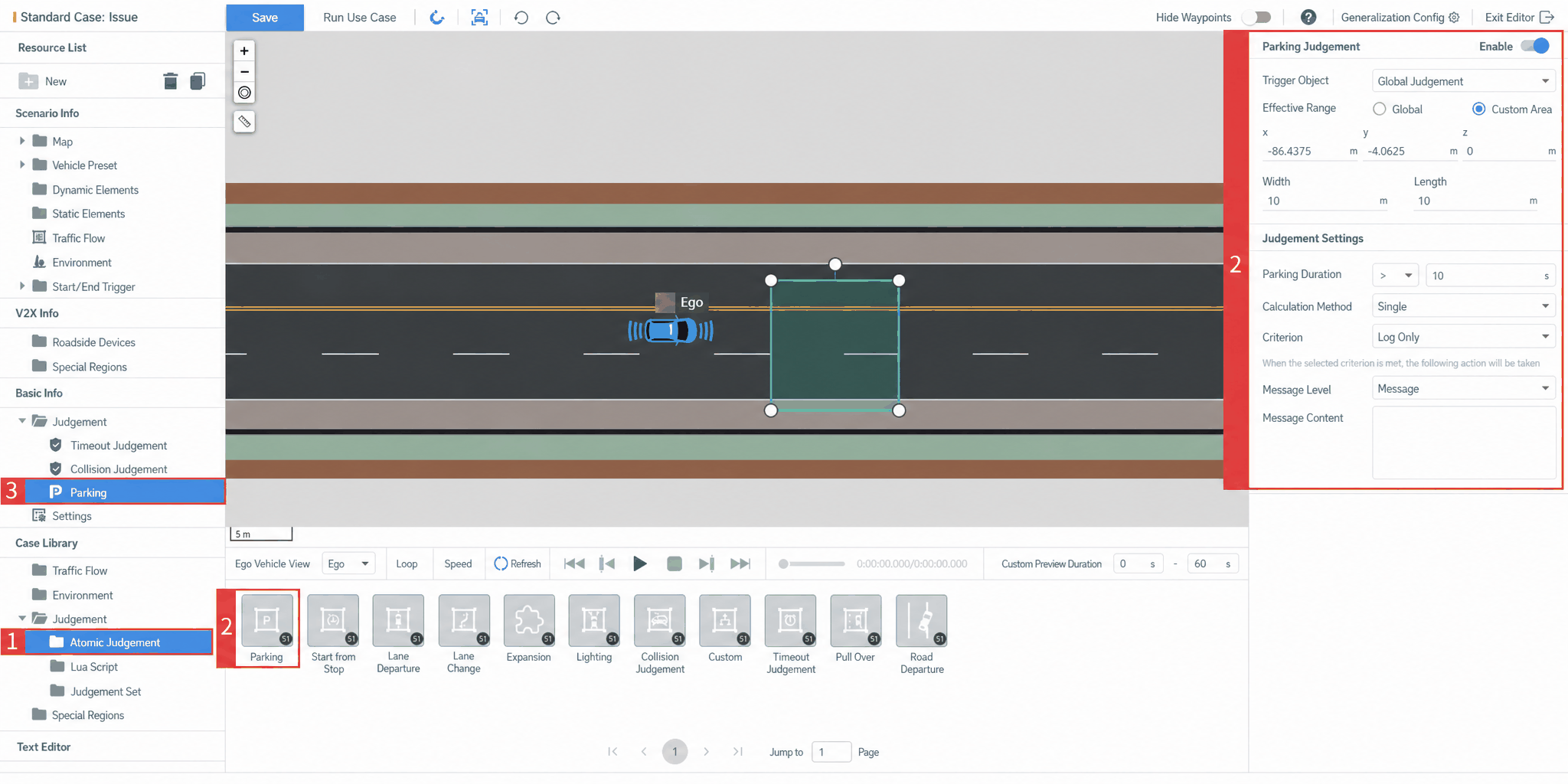
In the use case editor, click Use Case Resource Library → Judgment → Atomic Judgment in the left-side panel, select Pull Over, and drag it into the editor viewport. Relevant parameter settings can be adjusted in the right-side properties panel.
- Effective Object: Defaults to all Ego Vehicles globally; users can specify a particular Ego Vehicle.
- Effective Scope: Supports Global and Custom Area. Users can modify parameters to adjust the custom area range, or drag the four corners of the rectangular area in the viewport to resize it.
-
Judgment Settings:
- Pull Over-related conditions can be configured.
-
Criterion: Supports Case Failure and Log Only.
- When Case Failure is selected, the test stops once the condition is met.
- When Log Only is selected, the test continues after the condition is met until the use case ends or another Case Failure condition is triggered.
- Message Type: Includes Info, Warning, and Error.
- Message Content: Users can enter custom text in this field.
3.2 Set a Lua Judgment
Lua judgment only supports global judgment, and only one active Lua judgment can be configured per use case.
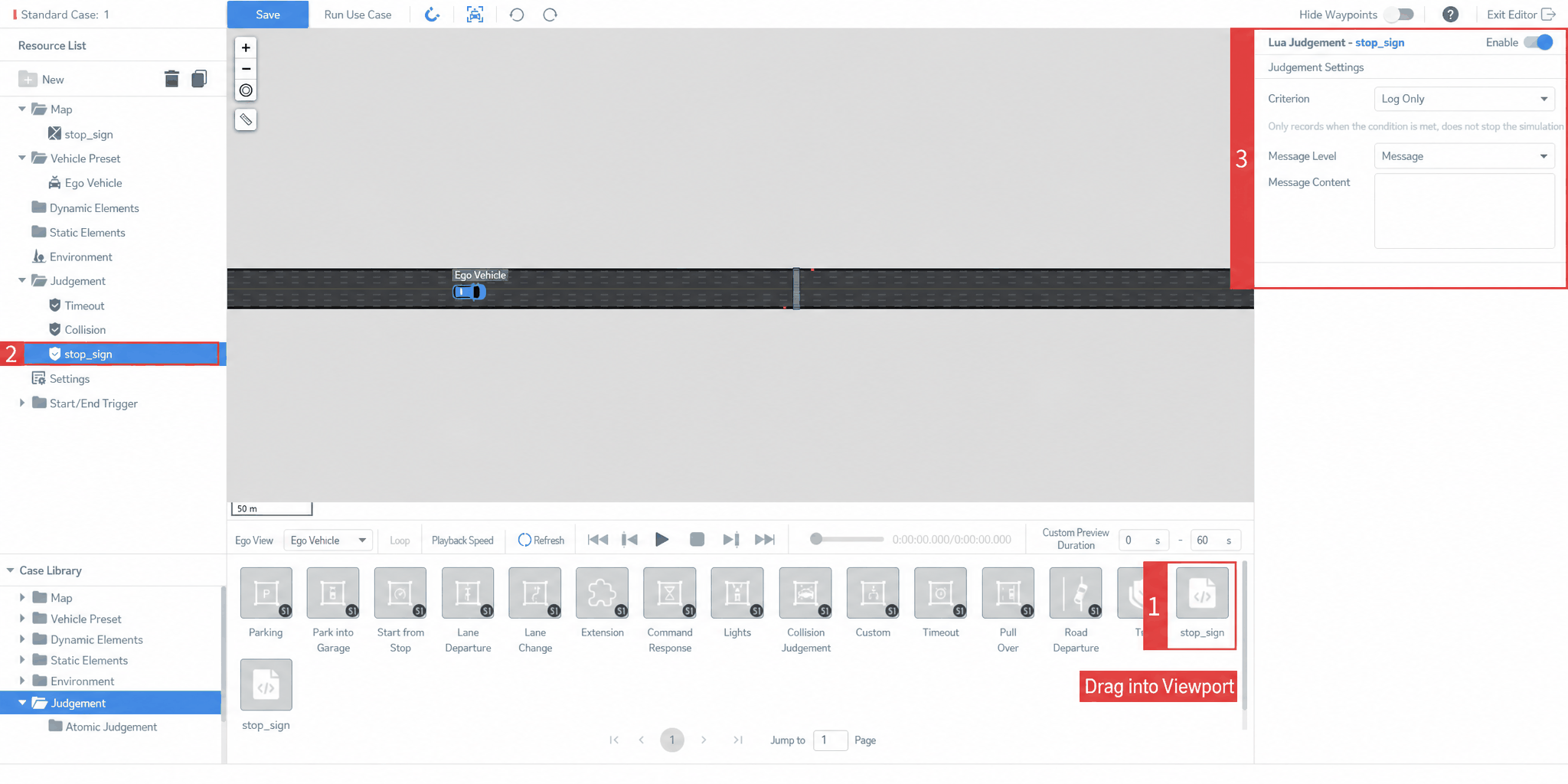
In the use case editor, click Use Case Resource Library → Judgment → Lua Script in the left-side panel, select the stop_sign script, drag it into the viewport, and configure the Enable, Criterion, and Message Level settings in the right-side panel.
4. How to View Judgment Results
4.1 View During Task Execution
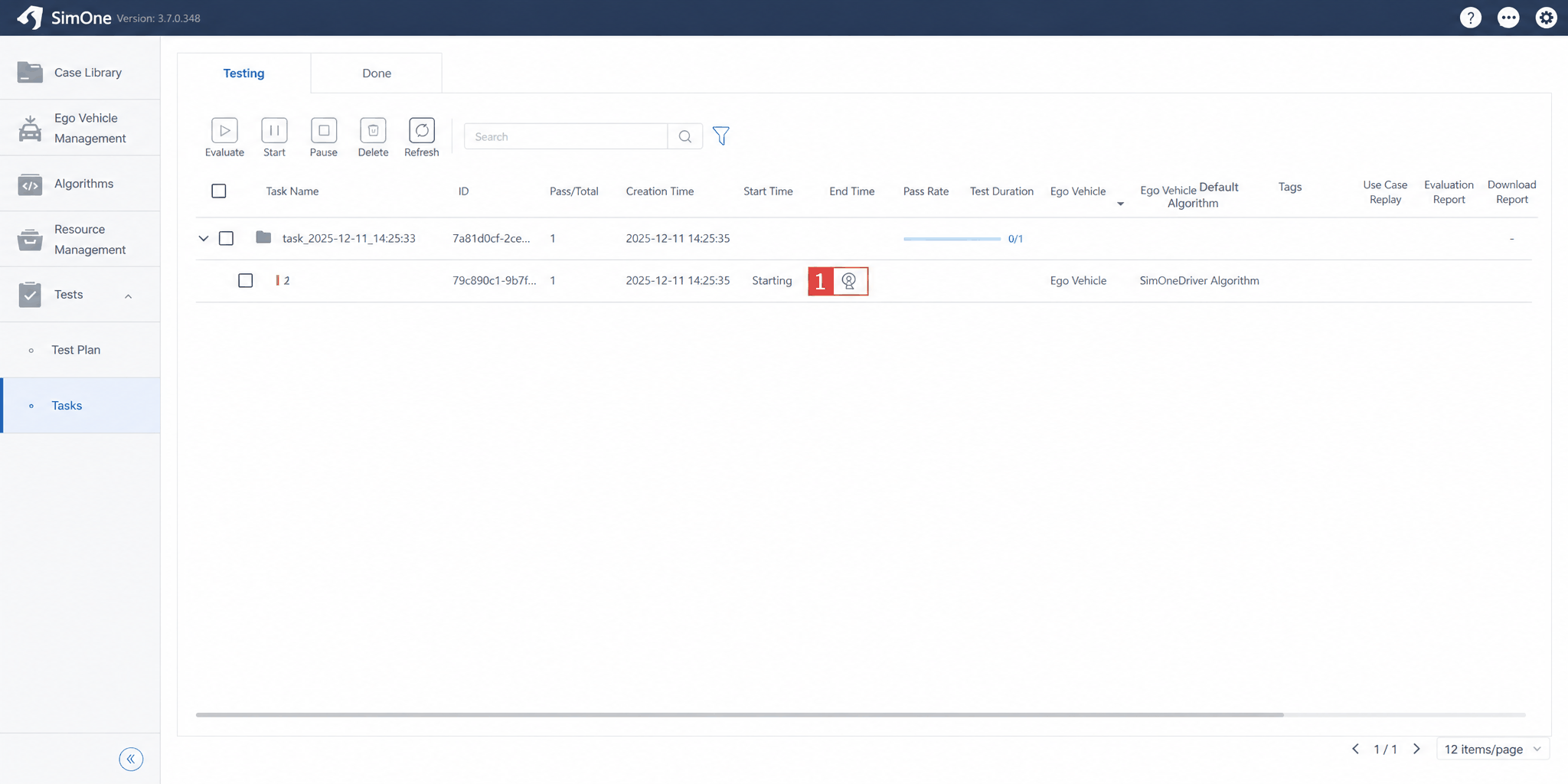
Save the use case in the editor and run the use case. In Task Management → Running list, select the running use case and click Video Monitoring to observe the use case execution.
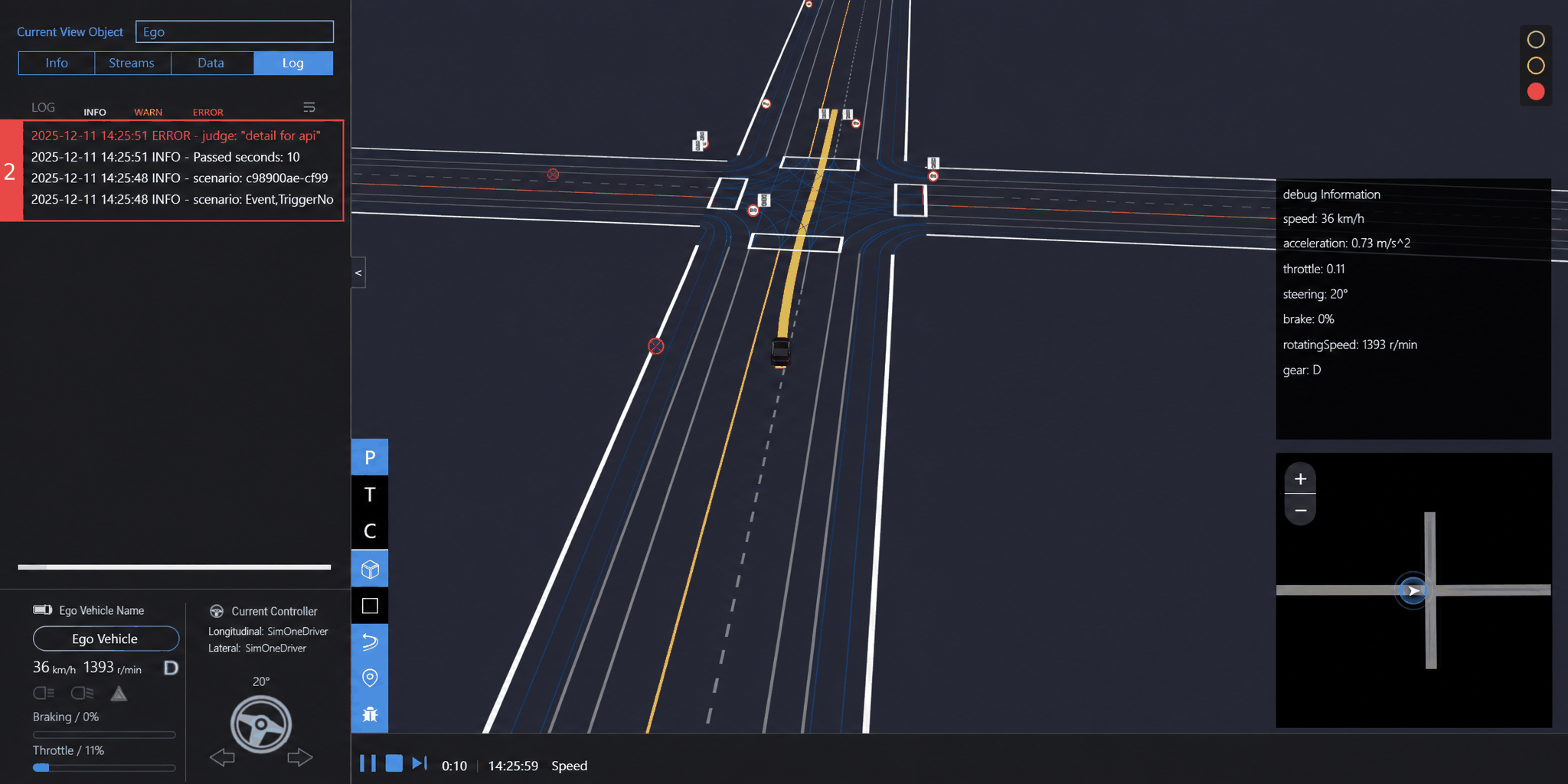
When a judgment is triggered, the message content can be viewed in the Observer.
4.2 View in Task Results
- In the Task Management → Completed list, select the executed task. For use cases terminated due to a triggered judgment, judgment information is displayed in the list.
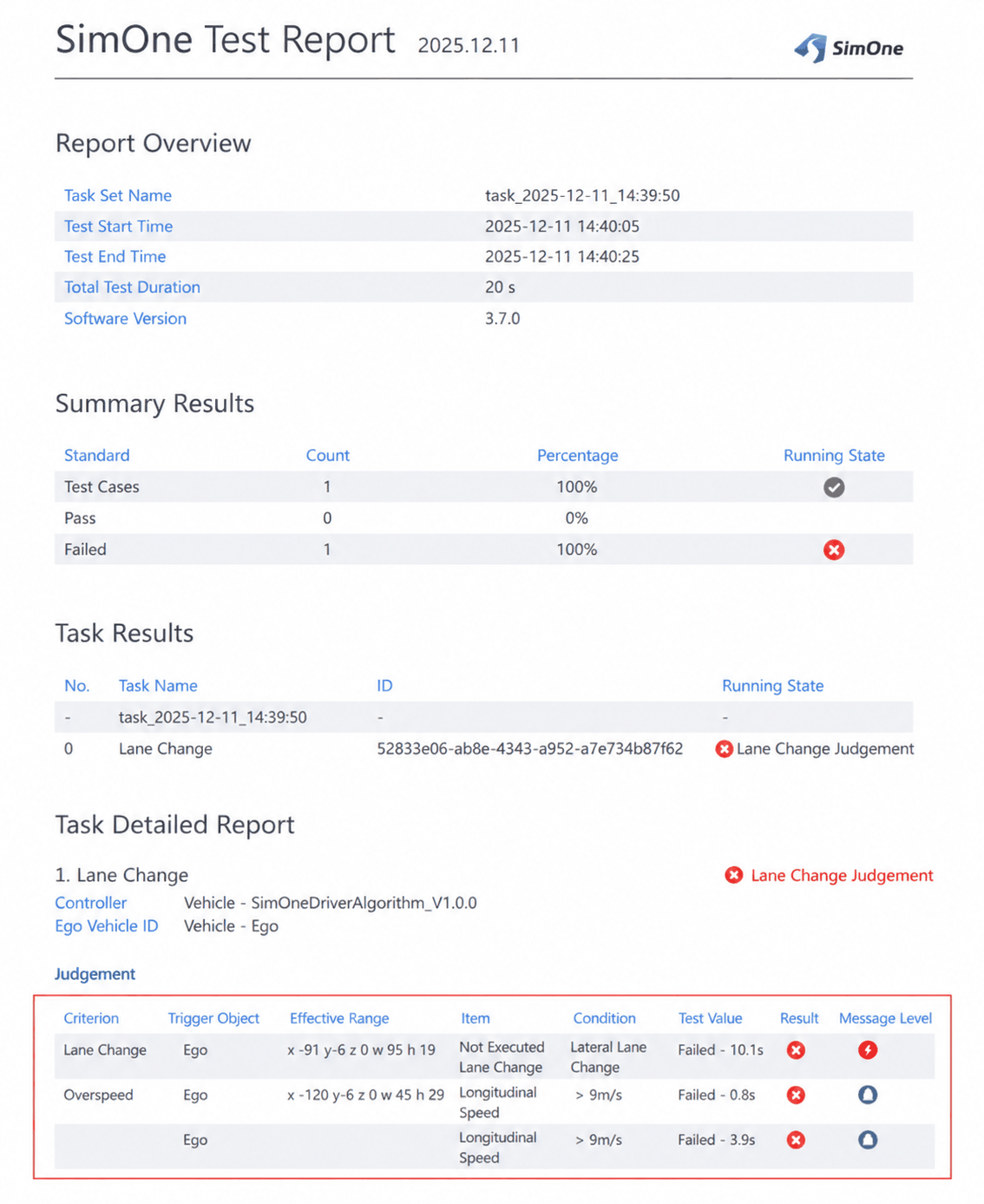
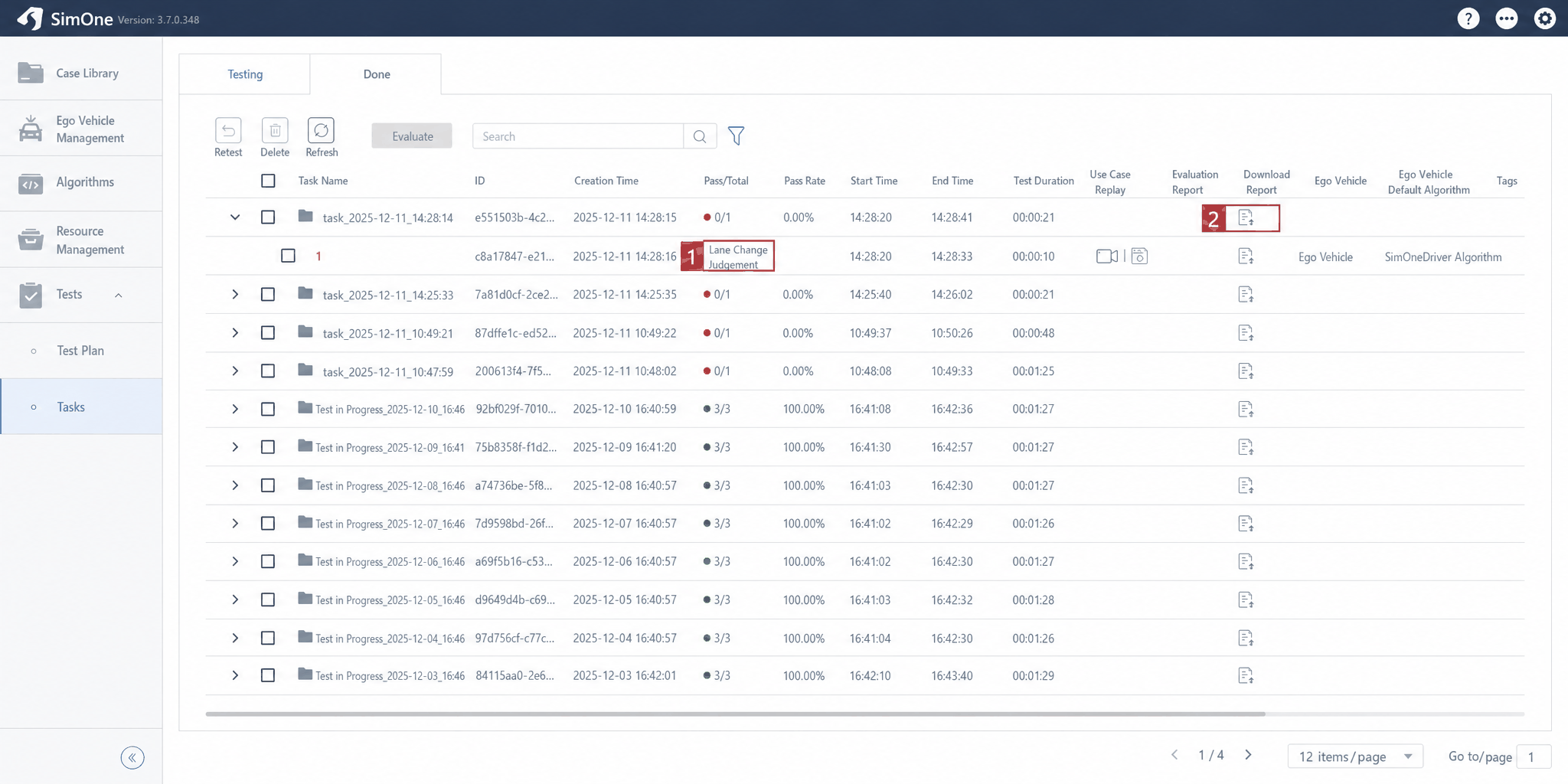 2. In the Task Management → Completed list, select the executed task and click Download Report to view the detailed judgment record for the use case in the report.