Scene Generalization
Scene generalization is one of the key capabilities for closed-loop validation of autonomous driving systems. Its core logic and value are as follows:
- Functional Principle: Based on existing WorldSim scene data, a parameterization control mechanism automatically generates diverse scene variants without manual construction, covering a broader and more complex range of driving scenarios.
- Core Value: By combining key variables such as weather, lighting, and behavior strategies in multiple dimensions, the system can systematically expand the ODD (Operational Design Domain) boundary of the autonomous driving system, while also supporting in-depth analysis of anomalous behavior and long-tail risks both within and beyond that boundary.
- Practical Benefits: Significantly improves test coverage and validation efficiency, and enhances the algorithm's generalization capability and robustness in the real world. It is a critical supporting module for closed-loop validation, risk assessment, and continuous iterative optimization of autonomous driving systems.
1. Add Generalization Parameters
In SimOne, users can follow the procedure below to quickly build a wide-coverage test case set by adding generalization parameters, reducing the cost of manual case construction and improving simulation test coverage and validation efficiency.
1.1 Select Generalization Elements
- Enter the Case Editing Interface: In the "Case Management" module, locate and select the target case for scene generalization, then double-click to open the case editor.
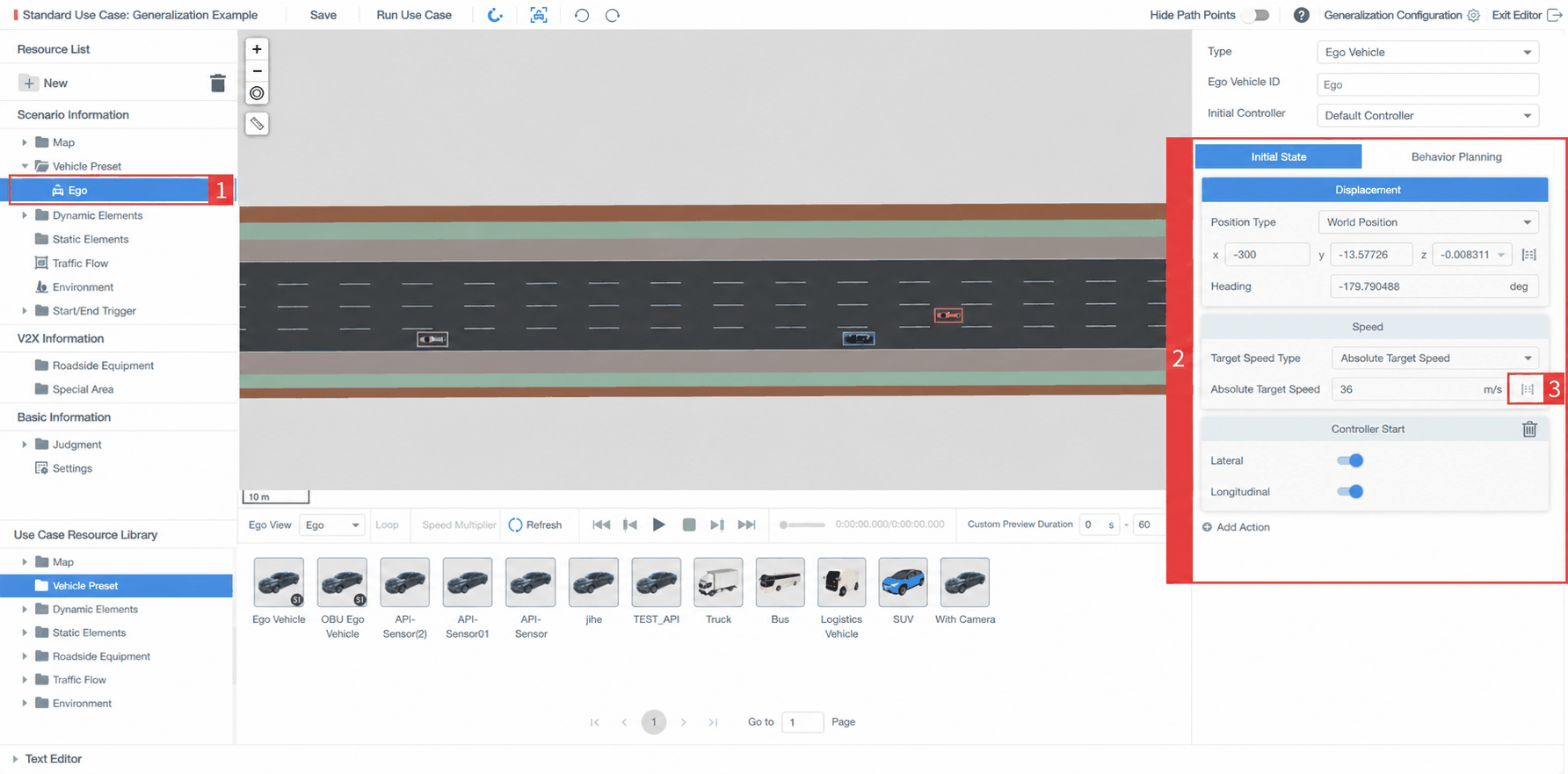
- Select Target Scene Elements: In the "Resource List" on the left side of the editor, select the scene elements to generalize based on your testing needs. Supported element types include: Ego Vehicle, dynamic elements (e.g., other vehicles, pedestrians), and static elements (e.g., water horses, barriers).
- View and Trigger Generalization Parameter Configuration: After selecting a specific element, the "Properties Panel" on the right side of the editor displays the generalization parameters supported by that element. For parameters labeled "Supports Generalization", click the corresponding icon to start adding and configuring generalization parameters.
1.2 Select a Generalization Method
When adding a generalization parameter to a case for the first time, users must first specify a generalization method. The platform's scene generalization feature is based on the OpenSCENARIO standard and supports two methods: Deterministic Distribution and Stochastic Distribution, described as follows:
Deterministic Distribution:
- Applicable Scenarios: Only for cases where parameter values are discrete and enumerable (e.g., Ego Vehicle speed options: 20 km/h, 30 km/h, 40 km/h).
- Generation Logic: The system combines all parameter values to automatically generate a fixed number of scene variants. The number of generated cases equals the product of the number of options for each parameter (similar to a Cartesian product).
- Core Value: Achieves comprehensive coverage of parameter values. Suitable for exhaustive testing to ensure all critical parameter combinations are validated without omission.
Stochastic Distribution:
- Applicable Scenarios: For cases where parameter values are continuous (e.g., the distance range between the Ego Vehicle and an obstacle: 10–50 m) or not enumerable.
- Generation Logic: Users define the number of cases to generate. The system uses random sampling based on the configured parameter range and distribution strategy to generate scene variants.
- Core Value: Eliminates the need to enumerate parameter values one by one, efficiently covering high-dimensional parameter spaces. Simultaneously simulates real-world driving uncertainty (e.g., random lane-change timing of different vehicles), improving the realism of test scenarios.
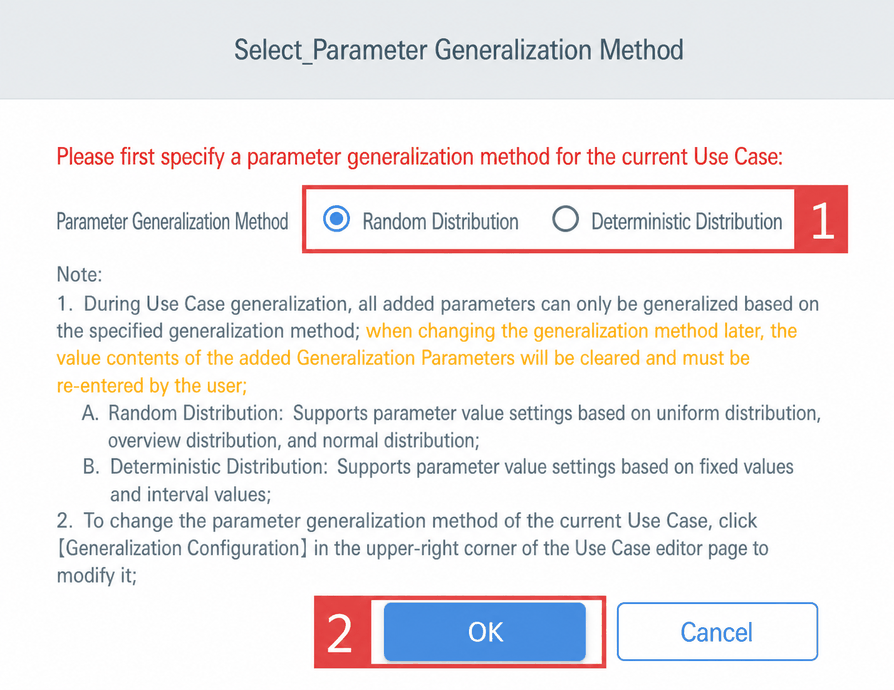
1.3 Add Generalization Parameters
In the case editor, users can view the supported generalization parameters for the selected scene element in the right-side properties panel. Click the icon to enter the parameter configuration interface, where specific value methods and ranges can be set:
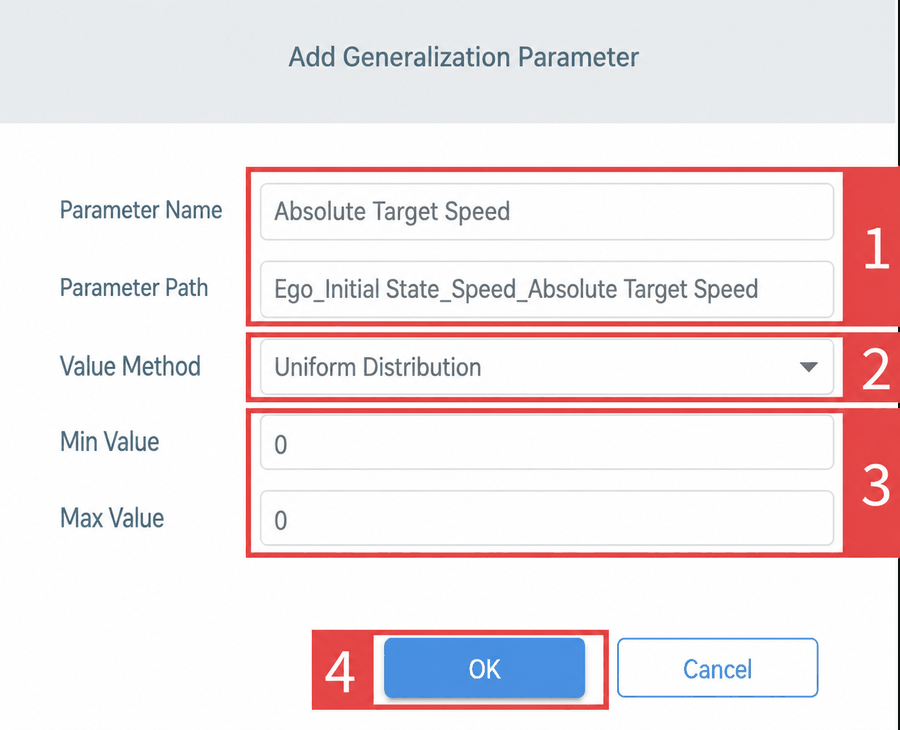
(1) Parameter Name & Path: Clearly displays the currently selected generalization parameter information to help users verify the parameter content.
(2) Value Method: Different value methods are supported for different generalization types:
(a) Stochastic Distribution: Supports Uniform Distribution, Normal Distribution, Probability Distribution — each requiring the user to fill in the corresponding value range. (b) Deterministic Distribution: Supports Fixed Value and Interval Value — each requiring the user to fill in the corresponding value range.
| Generalization Method | Value Method | Description | Reference |
|---|---|---|---|
| Stochastic Distribution | Uniform Distribution | Set a minimum and maximum value. The system samples uniformly at random within that range. Suitable for modeling continuous variables with equal probability. | 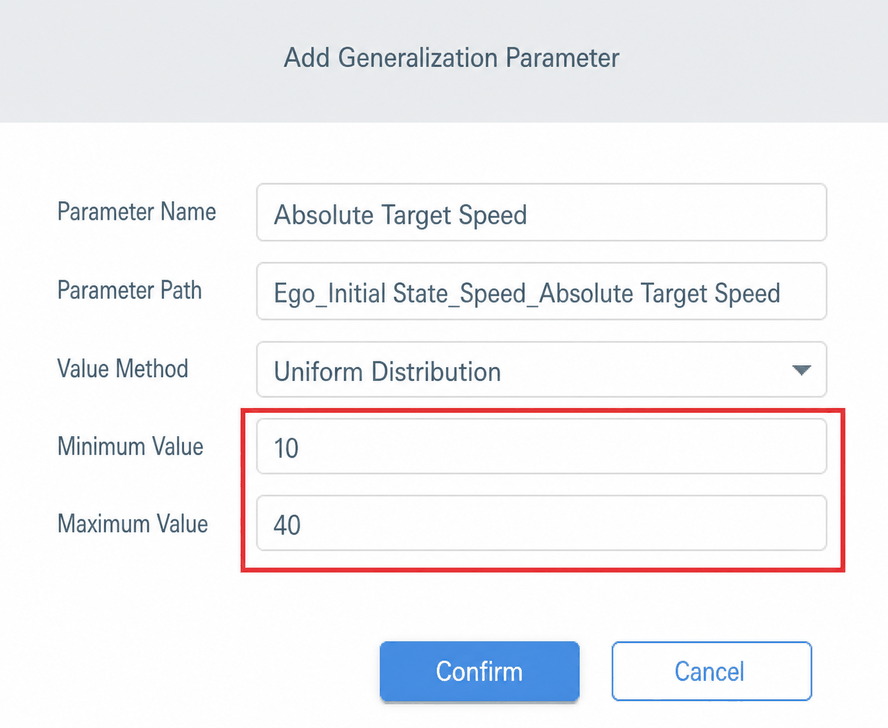 |
| Normal Distribution | Set minimum, maximum, mean, and standard deviation. The system samples according to a normal distribution curve. Suitable for modeling concentrated continuous variables in real-world scenarios. | 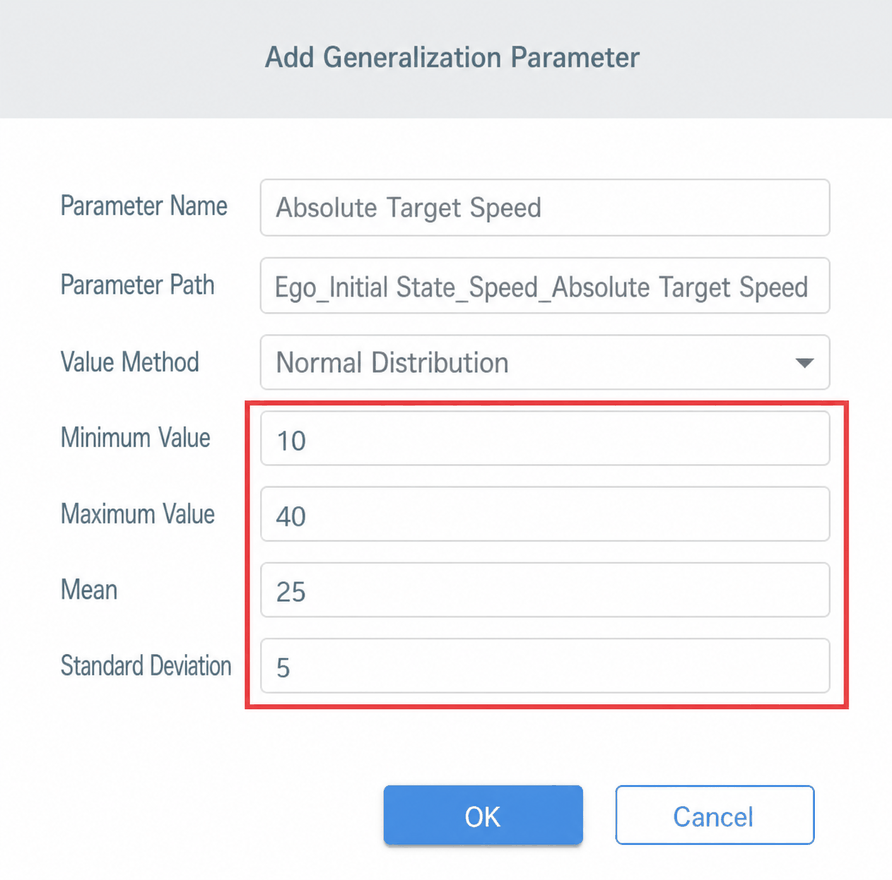 |
|
| Probability Distribution | Set multiple specific values and their corresponding probabilities. The sum of all probabilities must be ≤ 1. Suitable for modeling discrete event probability distributions. | 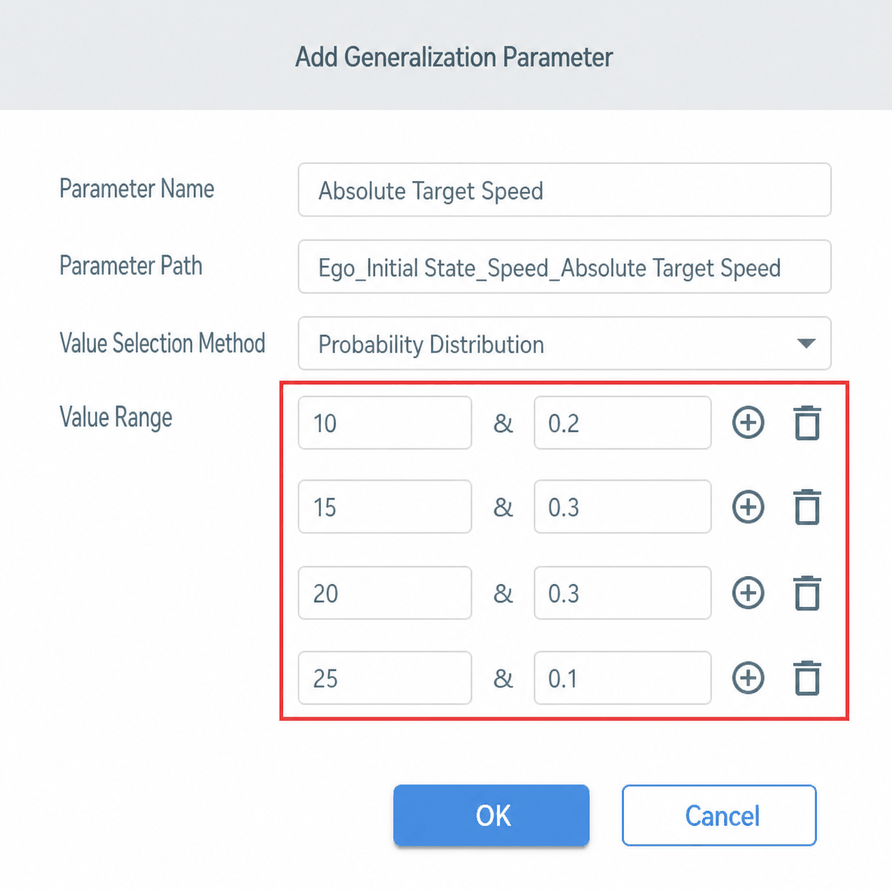 |
|
| Deterministic Distribution | Fixed Value | Set multiple specific parameter values separated by commas (,). The system generates scene variants by iterating through each value. Suitable for exhaustive testing. | 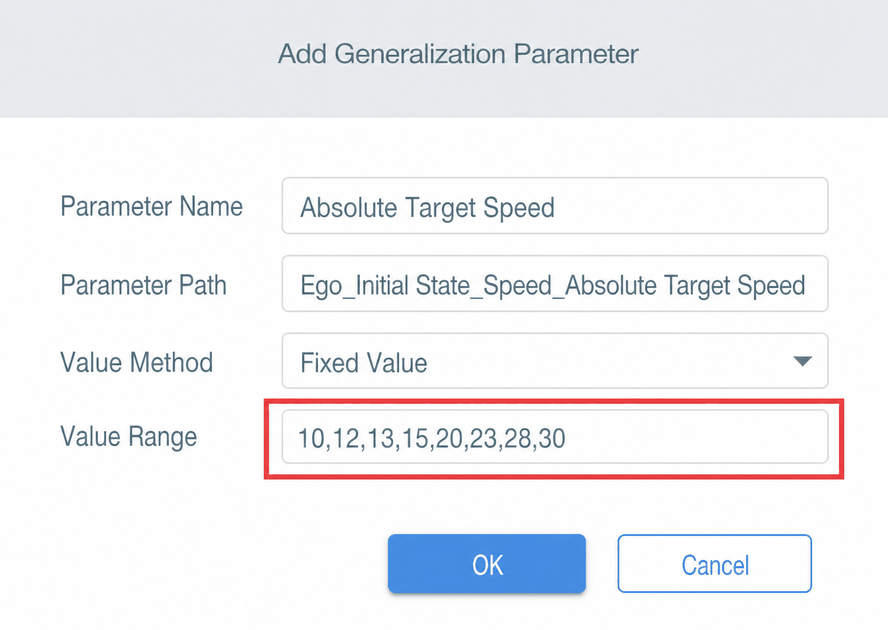 |
| Interval Value | Set a minimum, maximum, and step value. The system generates values at fixed intervals within the specified range. Suitable for constructing regularly distributed continuous variables. | 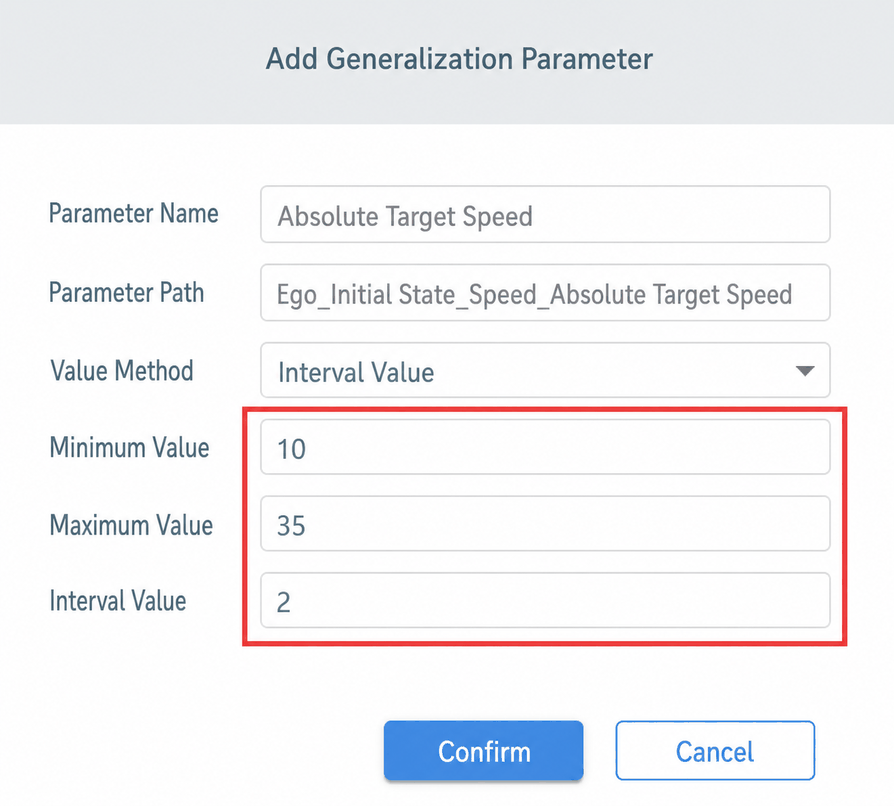 |
(3) Value Range: Fill in the specific value range information based on the selected value method.
(4) Confirm: Click the button to add one generalization parameter for the selected element to the generalization configuration list.
2. Manage Generalization Configuration
In SimOne, go to the "Case Management" module, select the case for scene generalization, and double-click to open the case editor.
- In the upper-right corner of the case editor, click Generalization Config to enter the generalization configuration management page.
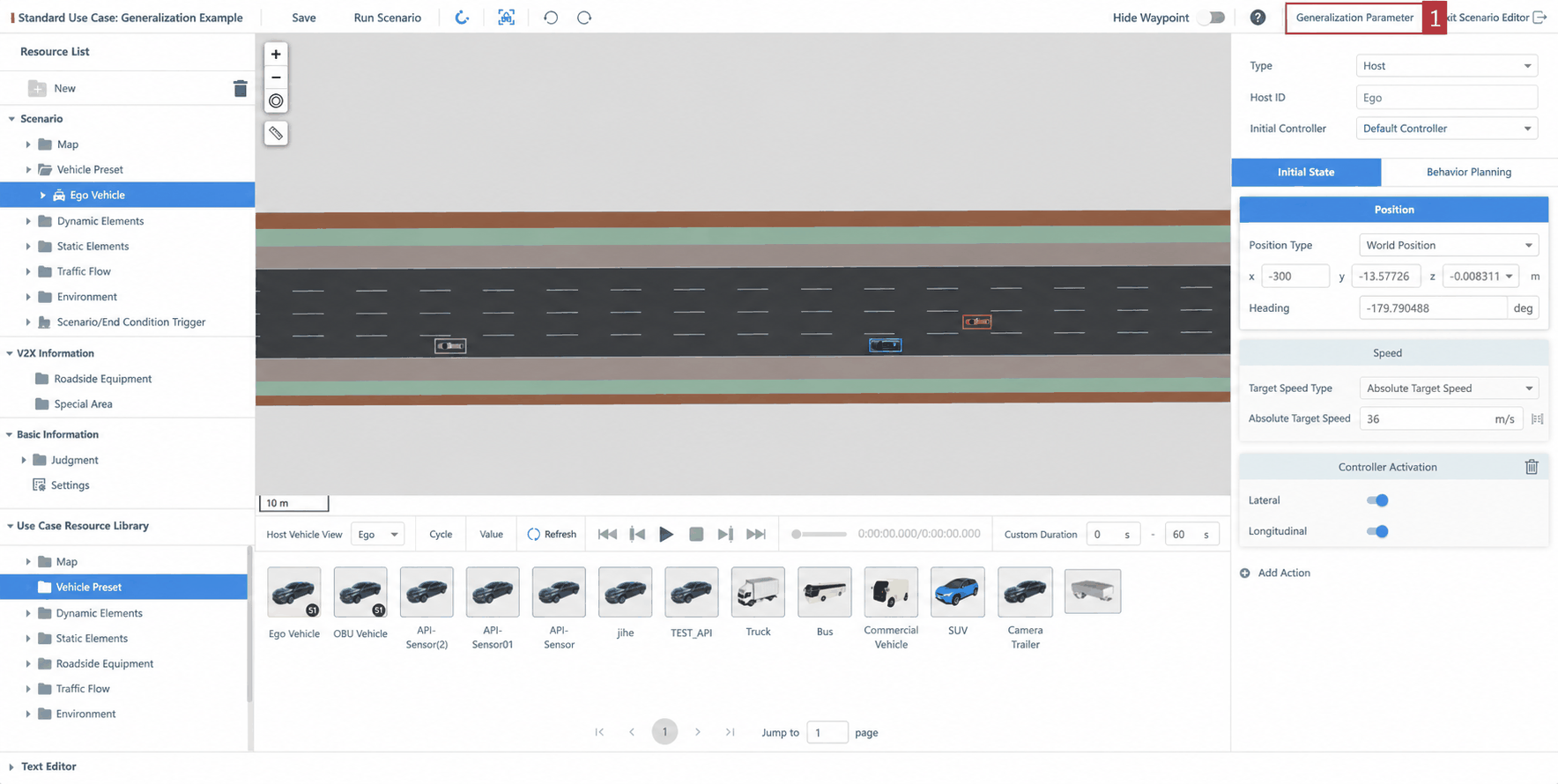
- Core operations in the generalization configuration page:
a. Parameter Settings: Flexibly configure "Basic Info" (e.g., generalized case name prefix, save location) and "Global Generalization" parameters (including environment factors and road friction coefficient ranges).
b. Parameter Management: Supports modifying and deleting added generalization parameters, with batch deletion of redundant parameters.
c. Constraint Configuration: Define logical constraints between parameters using custom mathematical formulas for precise and reasonable scene generation control.
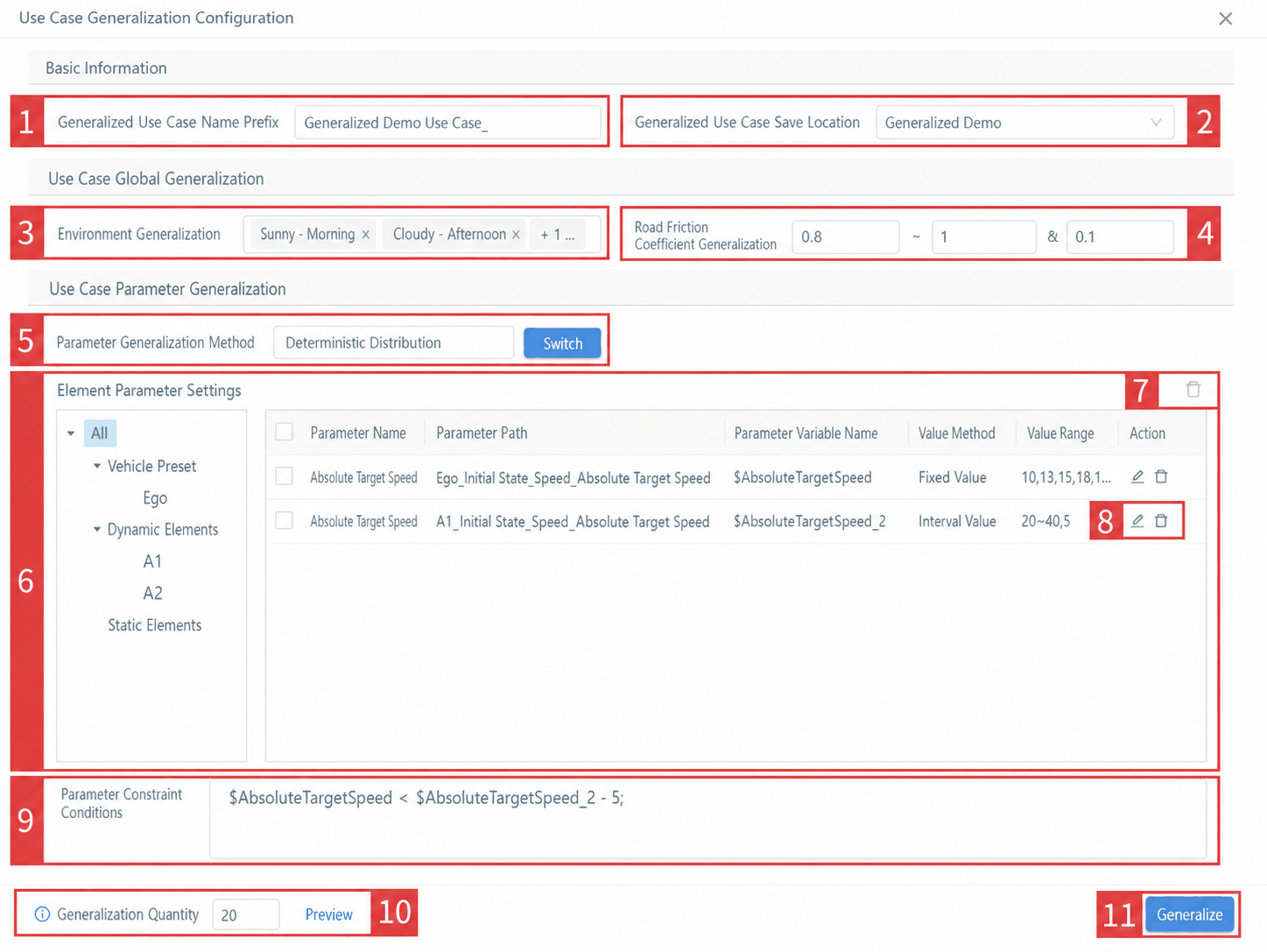
| ID | Feature | Description |
|---|---|---|
| 1 | Generalized Case Name Prefix | The system uses the current case name as the prefix by default. Users can customize it. All generalized test cases will be named with this prefix plus a sequential number. |
| 2 | Generalized Case Save Location | Empty by default. Users can select an existing case group from the dropdown to specify where generated cases are saved. |
| 3 | Environment Generalization | Users can select a pre-configured environment list from the resource list to perform combined generalization of lighting and weather conditions. |
| 4 | Snap to Lane Center | Supports generalization of road surface friction coefficient. Users can only set the minimum value, maximum value, and step value; the system generates values at fixed intervals within that range. |
| 5 | Generalization Method | Displays the currently selected generalization method. Click the "Switch" button to open a dialog for changing the method. |
| 6 | Generalization Parameter List | Displays the list of added generalization parameters. Supports quick search by element in the left element list, and allows modifying or deleting individual parameters. |
| 7 | Batch Delete | Users can select multiple added generalization parameters via checkboxes and batch-delete them. |
| 8 | Parameter Edit | Supports modifying or deleting individual generalization parameters. |
| 9 | Parameter Constraints | Users can define logical constraints between parameters using custom mathematical formulas referencing parameter variable names. |
| 10 | Generalization Count | Users can define the number of cases to generate and preview the generalized parameter combination list. |
| 11 | Generalize | Click to generate specific generalized cases based on the configured parameters. |
3. Preview Generalization Parameter List
In the "Generalization Config" management interface, click the Preview button at the bottom to open a dialog showing the complete generalized result list based on the current global generalization parameters, element generalization parameters, and generalization count.
- This helps users fully understand the test coverage of the current configuration, visually verify the reasonableness of parameter combinations, and supports continuous optimization and fine-grained control of generalization results.
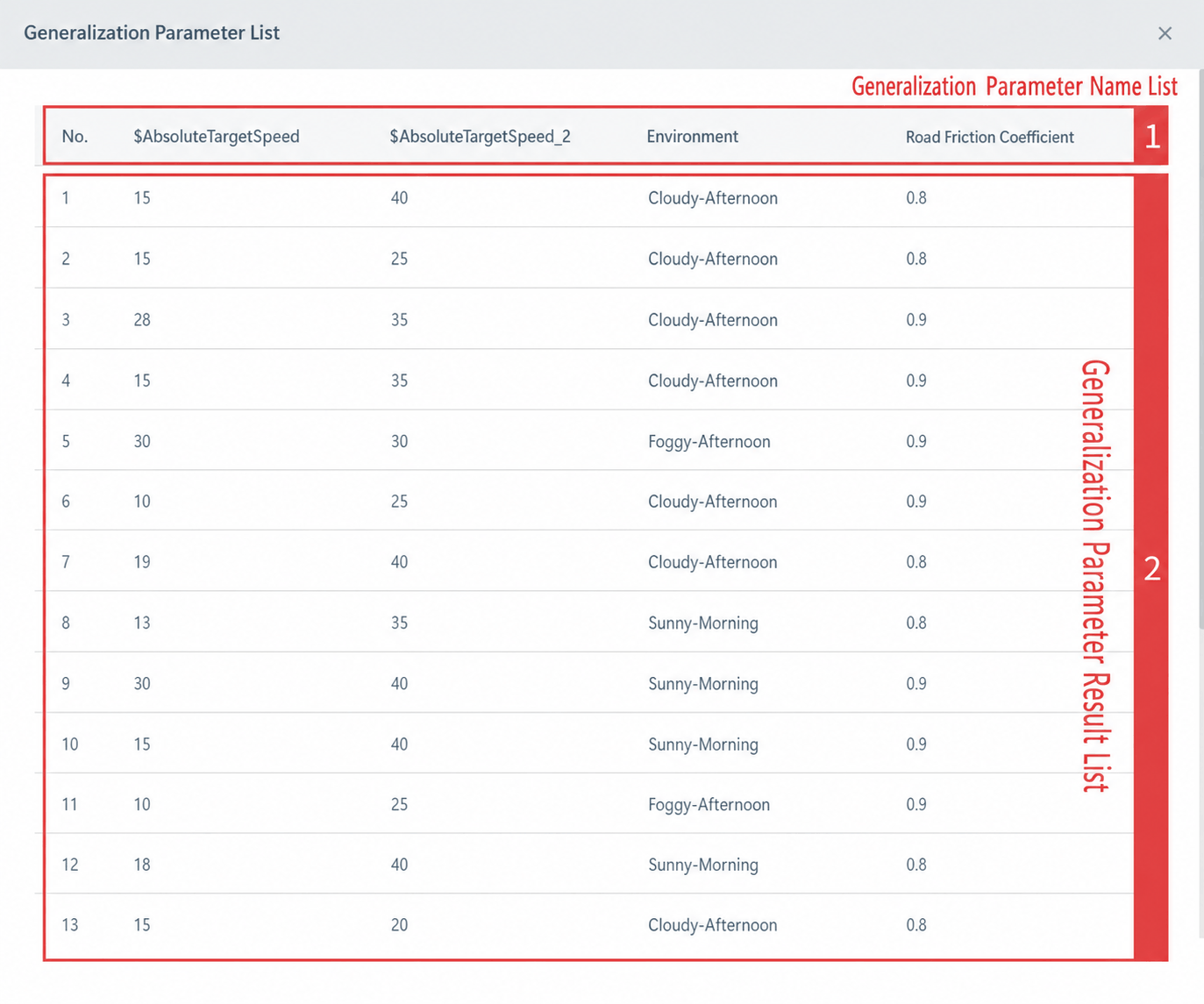
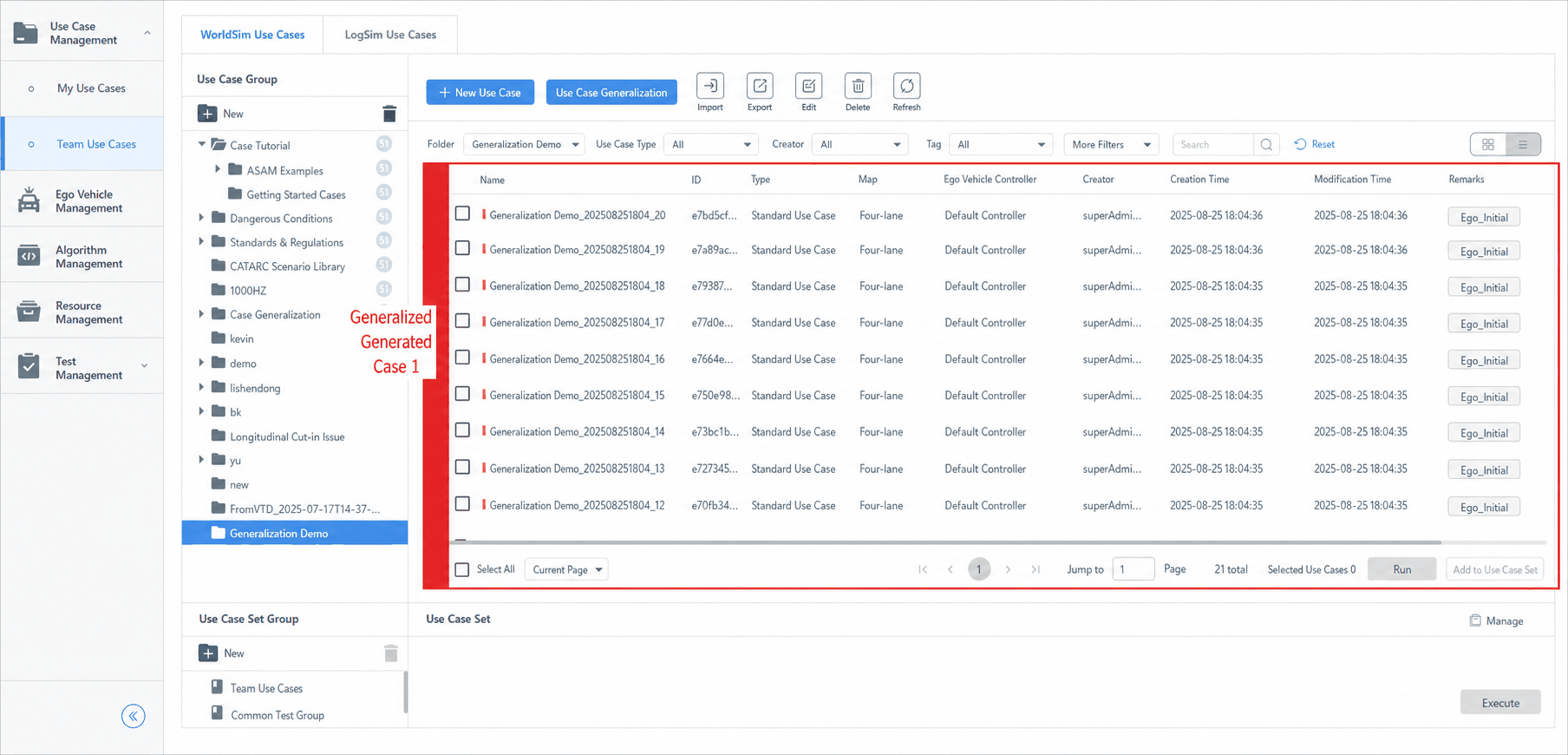
4. View Generalized Cases
In the "Case Management" list, open the "Generalized Case Save Group" folder. The system displays all generalized test cases automatically generated under that group via the generalization configuration, enabling unified viewing, categorized management, and subsequent execution.