Control Traffic Lights
1. Applicable Scope
Traffic light control is only supported in Standard Cases. Traffic Flow Cases and Playback Cases do not currently support this feature.
2. Traffic Light Control Methods for Standard Cases
Standard Cases provide two traffic light control methods — choose based on your requirements:
- Global Traffic Light Control: Uniformly configures all traffic lights in the map, including batch setting of light states and synchronizing signal timing.
- Element Behavior Planning Control: Adds behavior planning actions to specific elements to enable independent state switching and fine-grained control of the traffic light corresponding to that element's lane.
2.1 Global Traffic Light Control
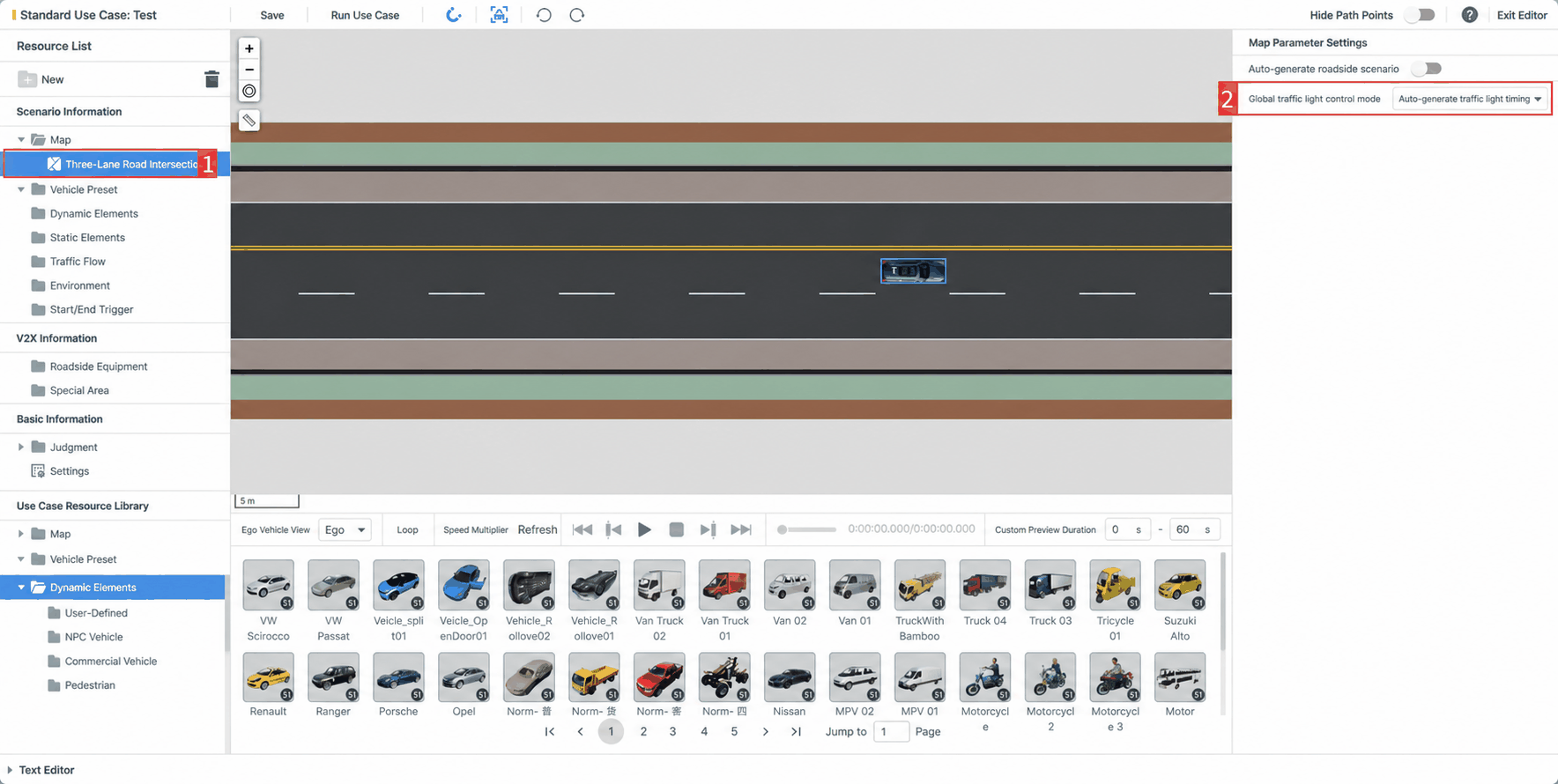
In the Standard Case editor, select the "Map List" on the left, then configure global traffic lights in the "Properties Panel" on the right. Four global control modes are supported:
- Auto-generate traffic light timing (system default): When a new Standard Case is created, traffic light timing is automatically generated based on SUMO.
- Default Always-Green: All traffic lights in the map remain permanently green.
- Default Always-Off: All traffic lights in the map remain in an off (extinguished) state.
- Manual timing configuration (custom): Users can manually configure the switching sequence and states for each traffic light group. The properties panel displays lights grouped by junction, enabling unified timing configuration for an entire junction or individual state settings per light for fine-grained control.
Key Features:
- Traffic Light ID: Click the locate icon next to "Traffic Light ID" at the top of the list to highlight the corresponding traffic light's position in the viewport, helping users understand which roads it controls.
-
State Settings: Supports independent state configuration for each traffic light group. Seven states are available:
- Green, Green Flashing
- Yellow, Amber Flashing
- Red, Red Flashing
- Off
-
Timing Settings: Supports "Add All" and "Delete All" operations for traffic light timing, enabling batch switching control for the current junction.
2.2 Element-based Traffic Light State Control
In the Standard Case editor, users can add a Behavior Planning → Traffic Light Switch action to an element to independently control the traffic light state for that element's lane, enabling flexible traffic light management during simulation testing.
2.2.1 Create a Traffic Light Switch Action
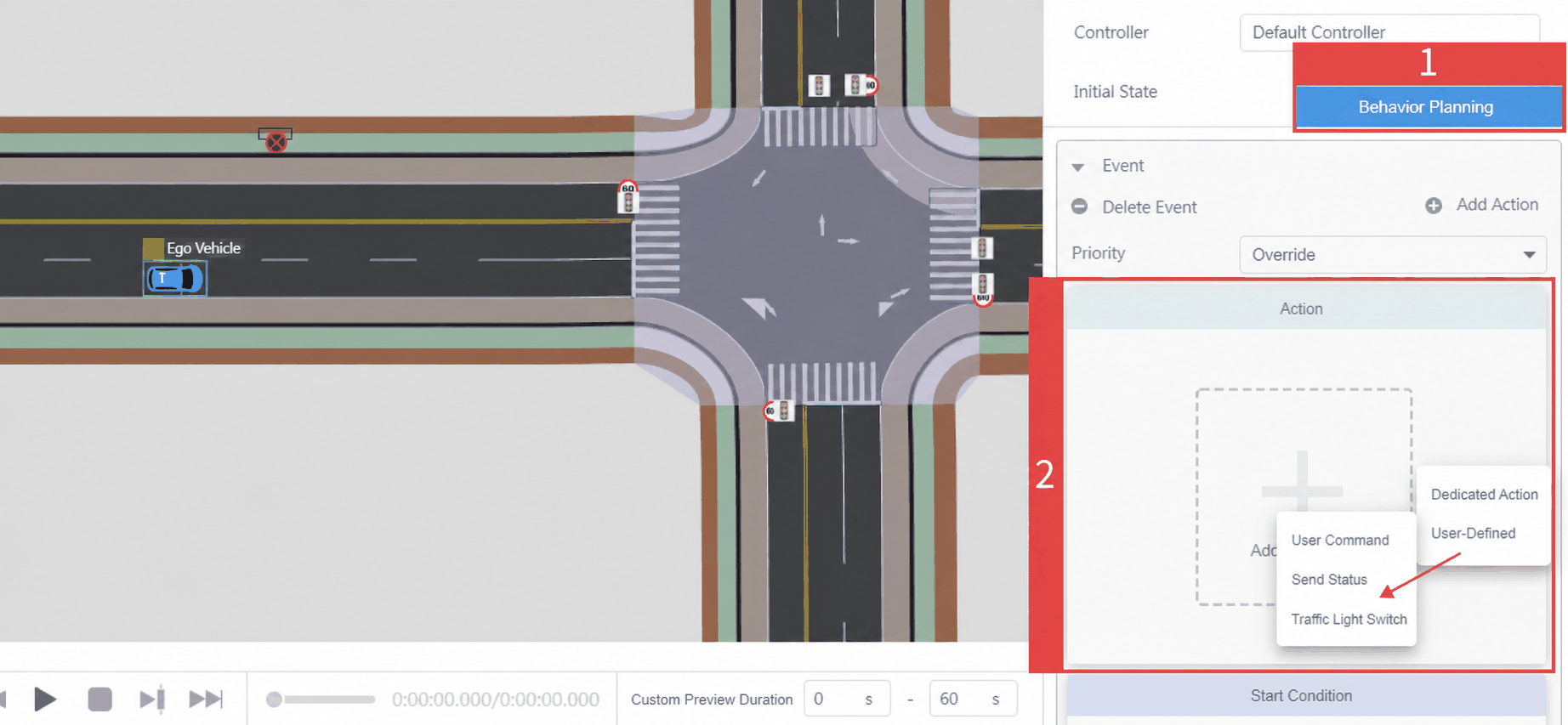
Select an element in the "Viewport" of the case editor, click the "Behavior Planning" panel on the right, and add a User-Defined → Traffic Light Switch action.
2.2.2 Configure Light State Change Rules
2.2.2.1 Define the Control Target and Default Timing
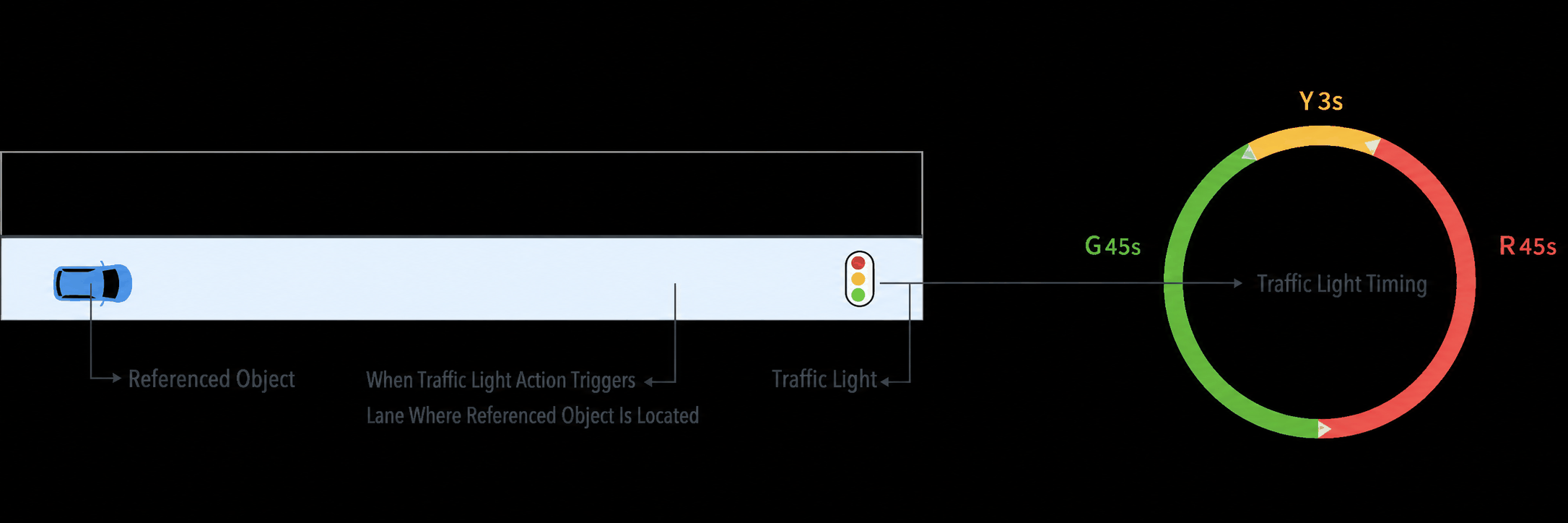
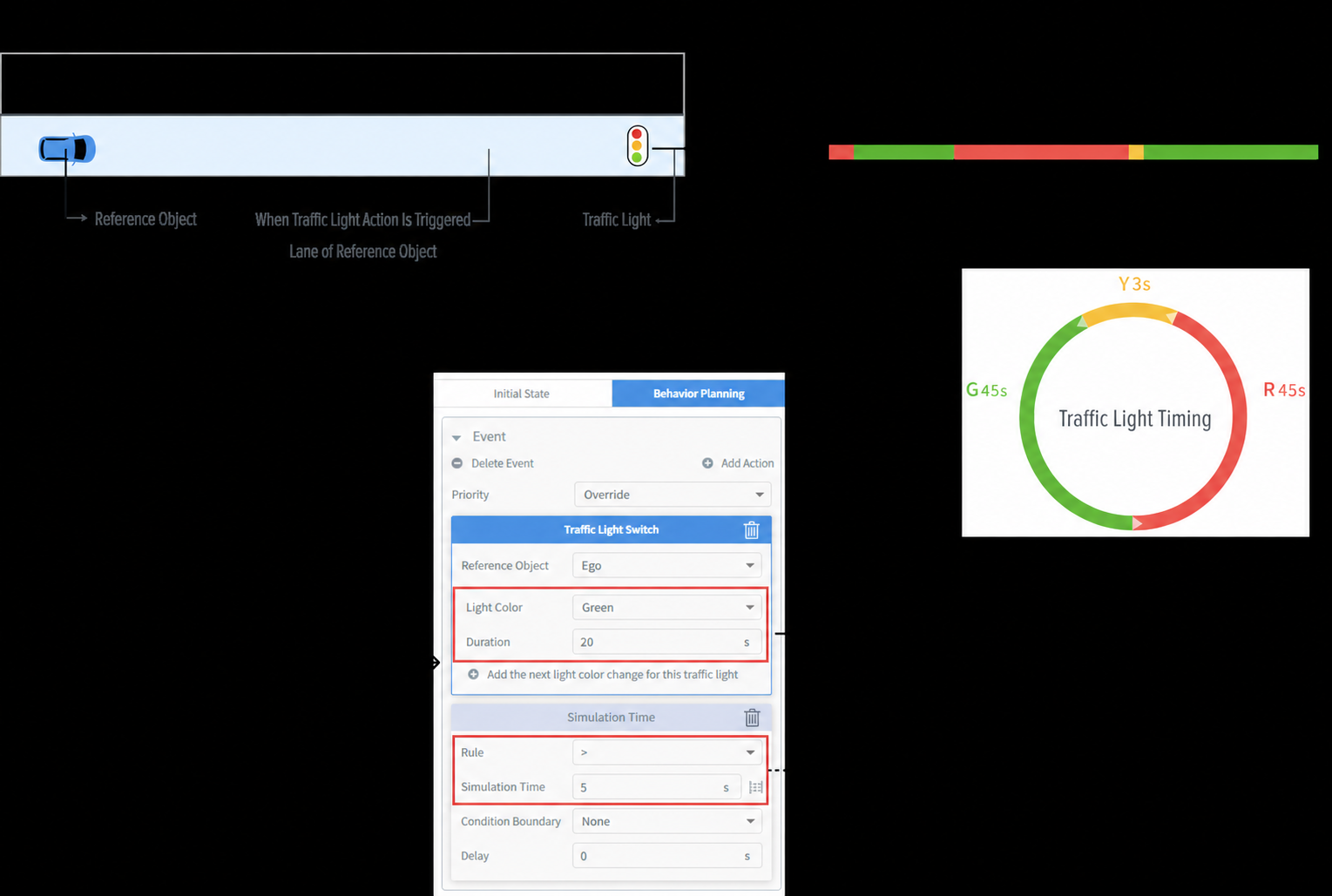
- Control Target: The traffic light being adjusted — the junction traffic light in the lane direction of the referenced object at the time the Traffic Light Switch action is triggered.
- Default Timing: When no Traffic Light Switch action is configured, the traffic light follows its default timing (example default: red 45 s, yellow 3 s, green 45 s). Subsequent configurations modify this default.
2.2.2.2 Configure Light State Changes
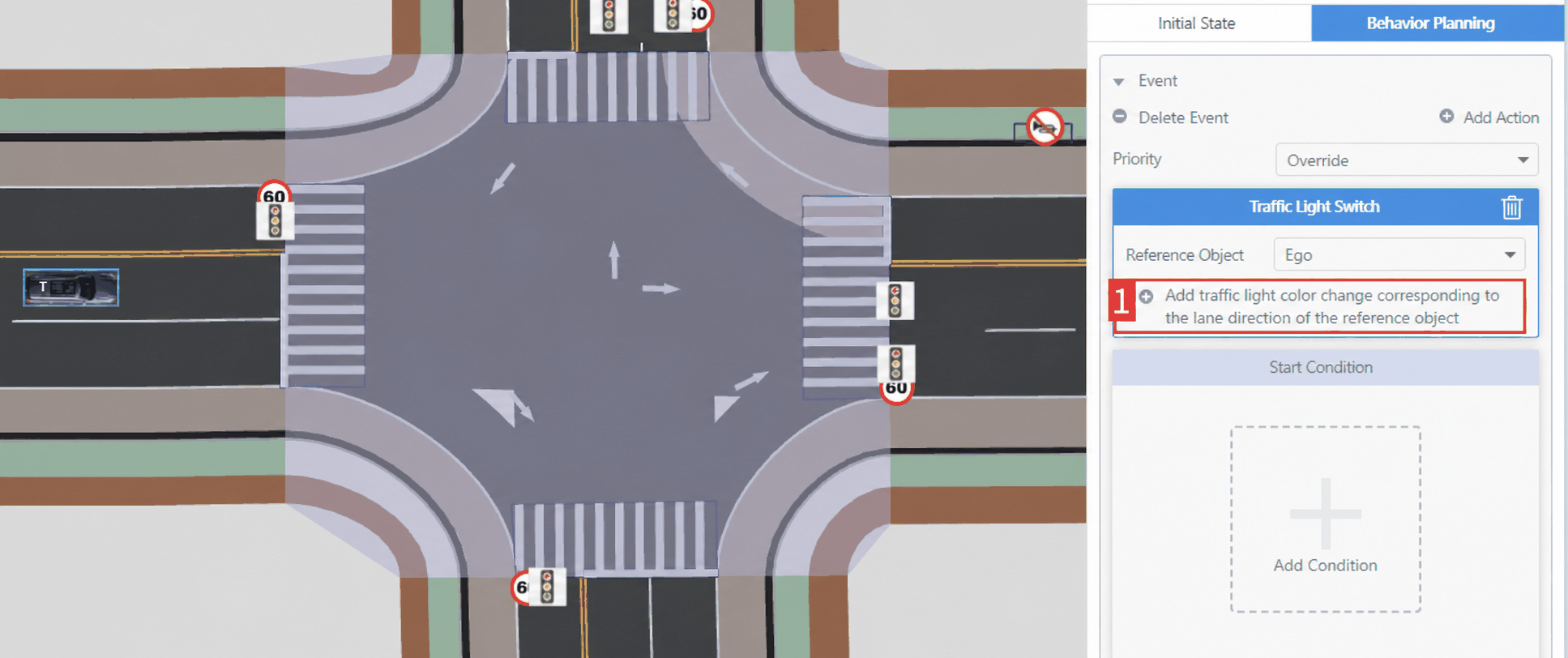
(1) In the Traffic Light Switch action configuration panel, click Add light state change for traffic light in the referenced object's lane direction to enable custom light state settings.
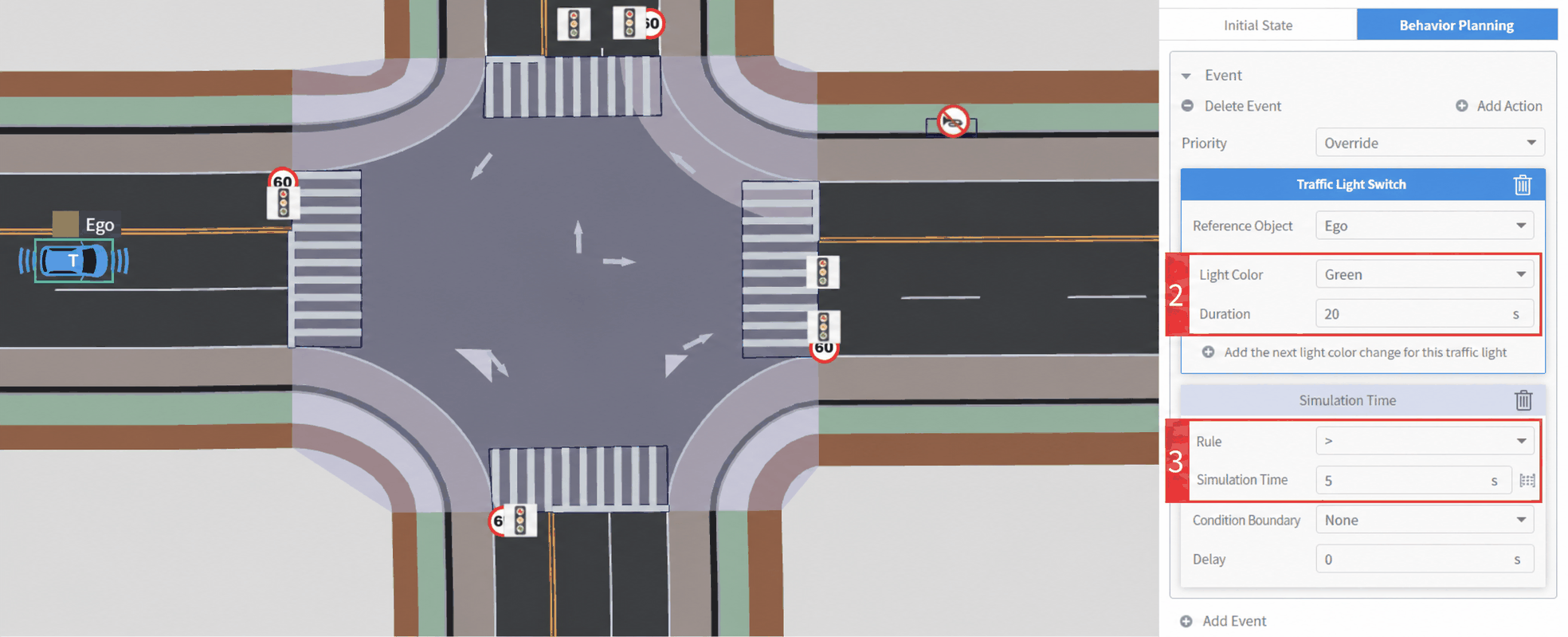
(2) In the configuration fields that appear, select the target Light Color (example: green) and set the Duration (example: 20 s).
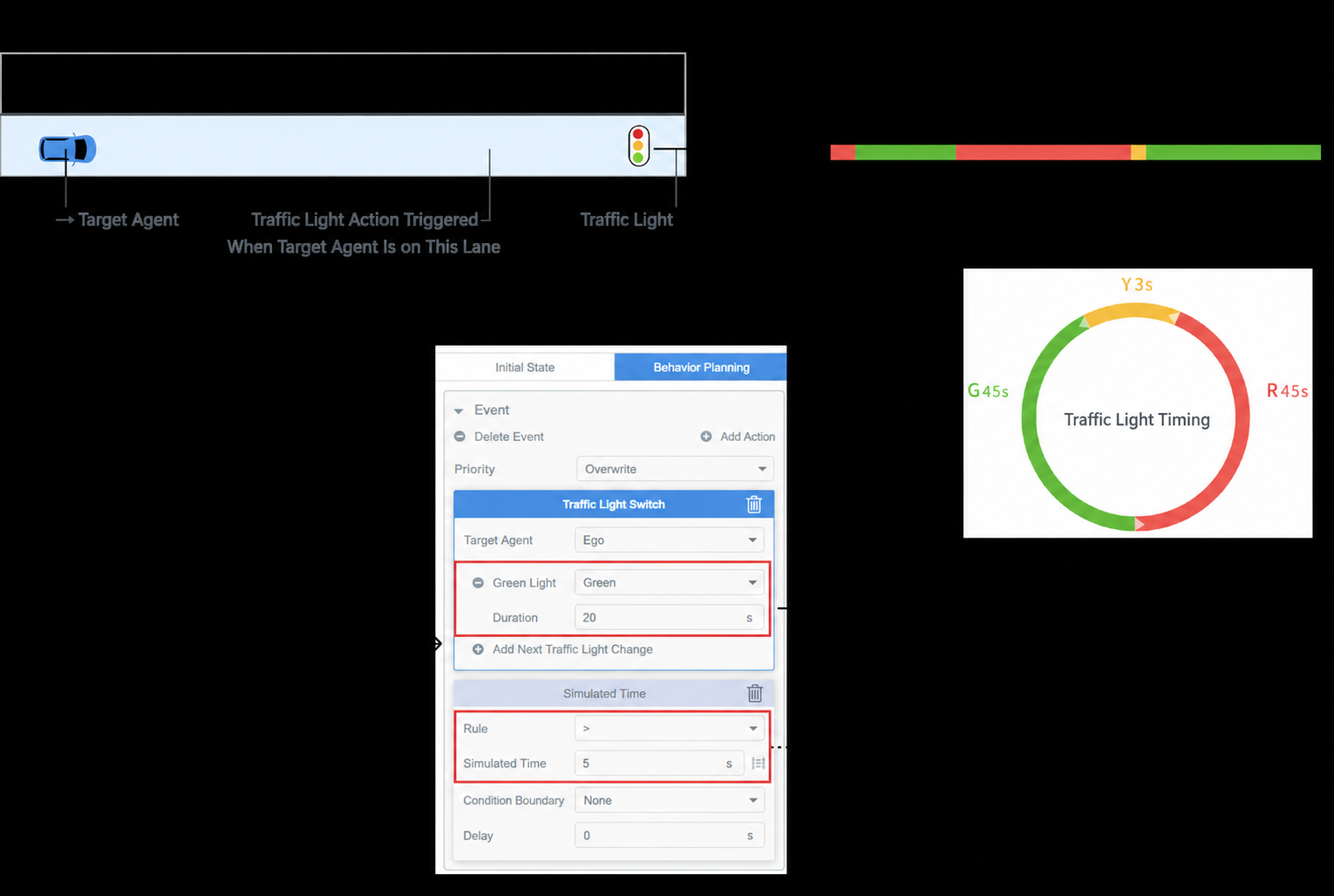
(3) Set the Traffic Light Switch start condition to simulation time greater than 5 s, then save the settings.
2.2.2.3 Traffic Light Response Logic
Based on the default traffic light timing and the configured Traffic Light Switch rules, run the case. The traffic light state sequence visible in the simulation visualization is:
- For the first 5 s, the traffic light displays red per the default timing.
- At 5 s, the Traffic Light Switch condition is triggered. The traffic light responds to the configured settings and displays green from 5 s to 25 s.
- After 25 s, once the Traffic Light Switch action completes, the traffic light reverts to the default timing, displaying red again for 45 s.
Click the Run Case button in the editor to observe the traffic light state transitions in real time during simulation.