Run a Built-in Use Case
Abstract
Welcome to SimOne! In this section, we skip all complex configuration and run a system-preset standard Use Case directly. In just 1 minute, you can see how an autonomous vehicle operates in a simulated world.
1. Run a Use Case
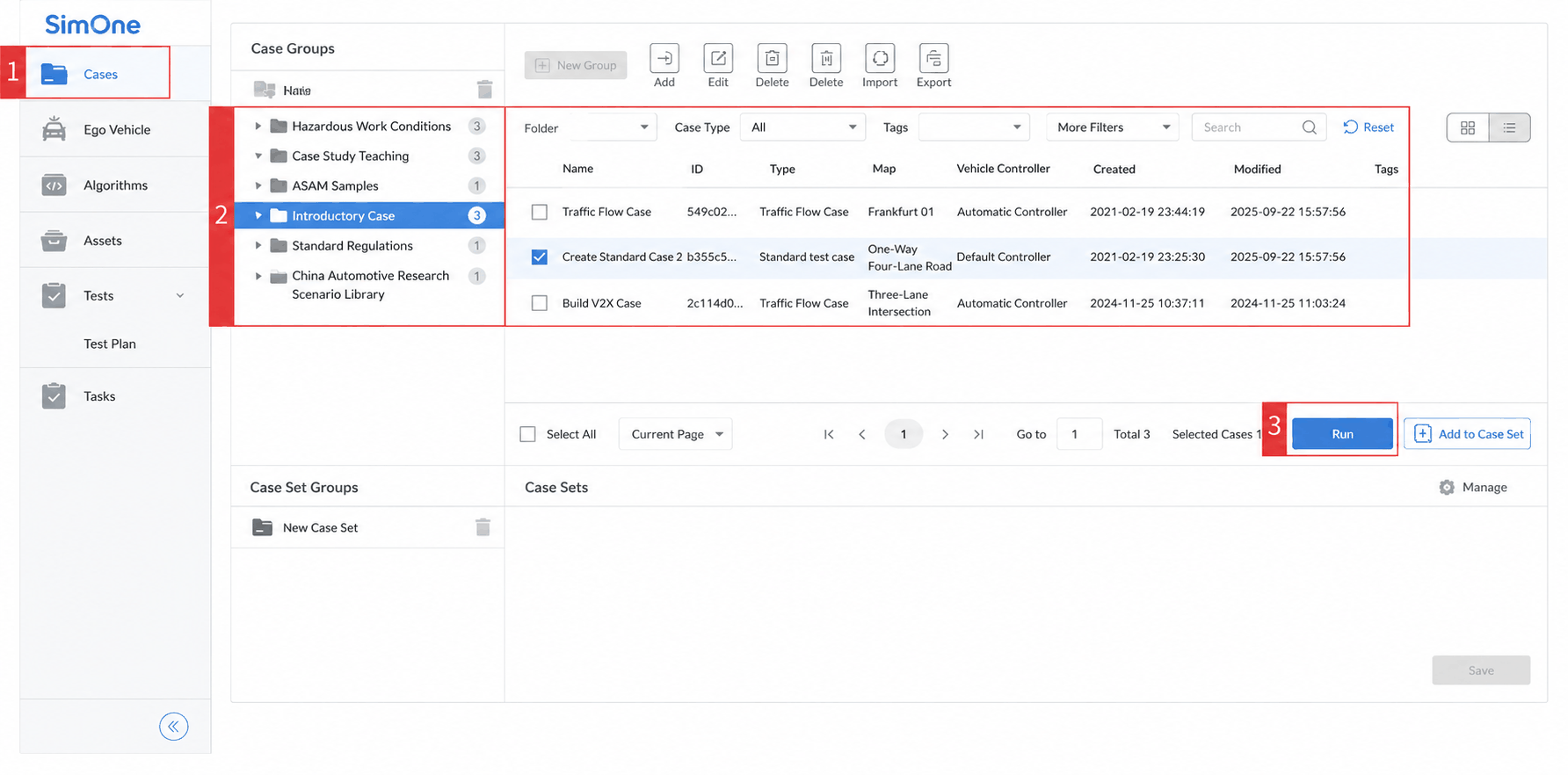
The SimOne platform provides a built-in Use Case library for quick standard testing. As shown, go to the Cases page, select a built-in Use Case, and click the Run button.
2. Create a Task
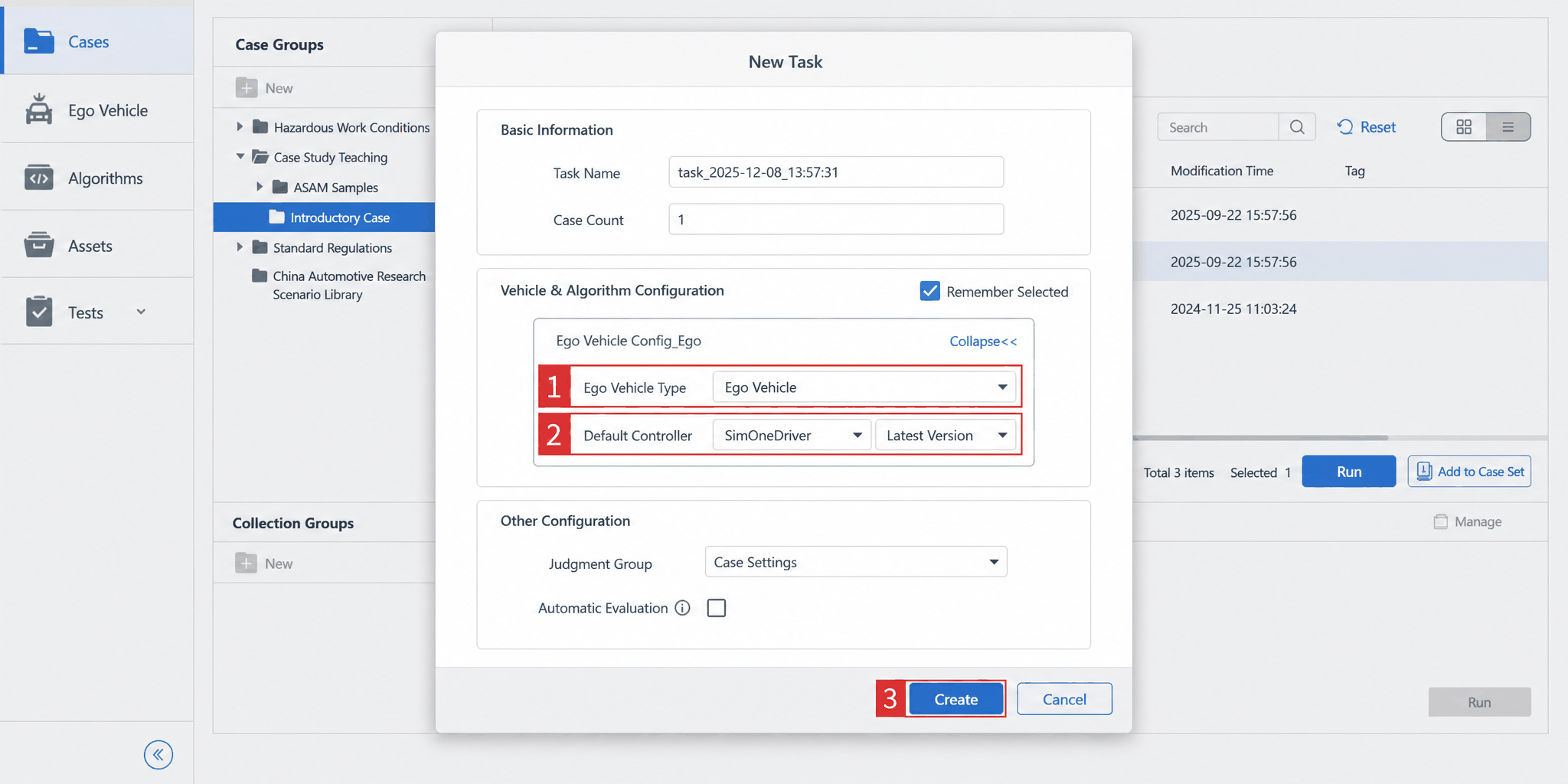
(1) After clicking Run, a new task window appears.
(2) For first-time users, no configuration changes are needed. The system defaults to the SimOneDriver algorithm (autonomous driving mode). Simply click the Create button in the lower-right corner of the window to start the simulation.
Advanced Options (Feature Preview)
If you have specific testing requirements, you can adjust the following parameters before creating:
-
Switch the ego vehicle model:
- Current state: The system default ego vehicle is used.
- Description: After completing Ego Vehicle Management and configuring your own vehicle (e.g., different-sized sedans or trucks), you can select and switch to other vehicle models from this dropdown.
-
Switch control mode (algorithm): The "Default Controller" dropdown supports three modes:
- Autonomous driving (default): Keep
SimOneDriverselected; the vehicle drives automatically according to the Use Case logic. - Manual driving: Select
Manual. Once the task starts, you can control the vehicle with the keyboard (WASD or arrow keys). -
Custom algorithm:
- Current state: The list may be empty.
- Description: After completing Algorithm Management and uploading your custom algorithm (C++/Python/Simulink), you can select it here for validation.
- Autonomous driving (default): Keep
3. Monitor Real-Time Simulation Status
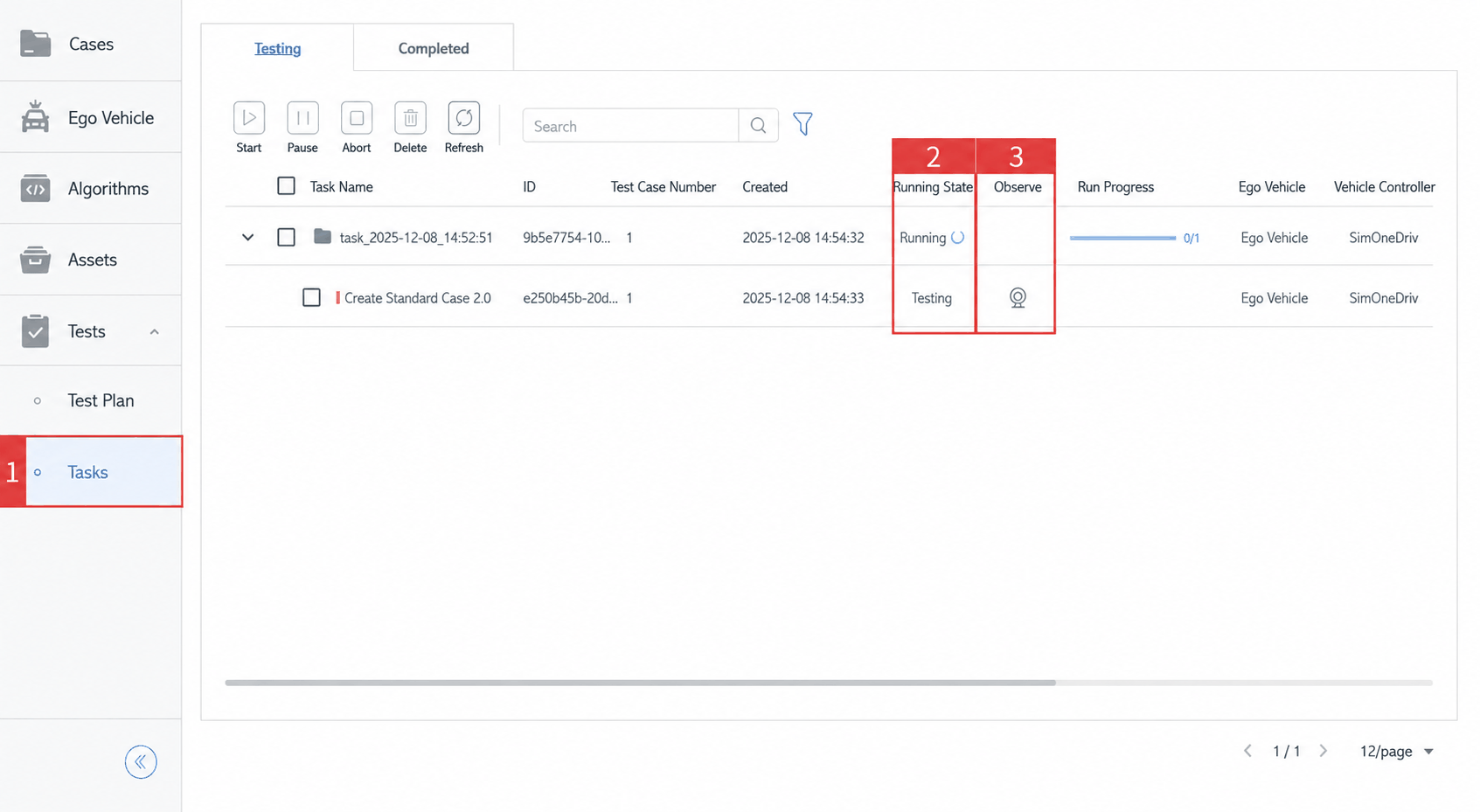
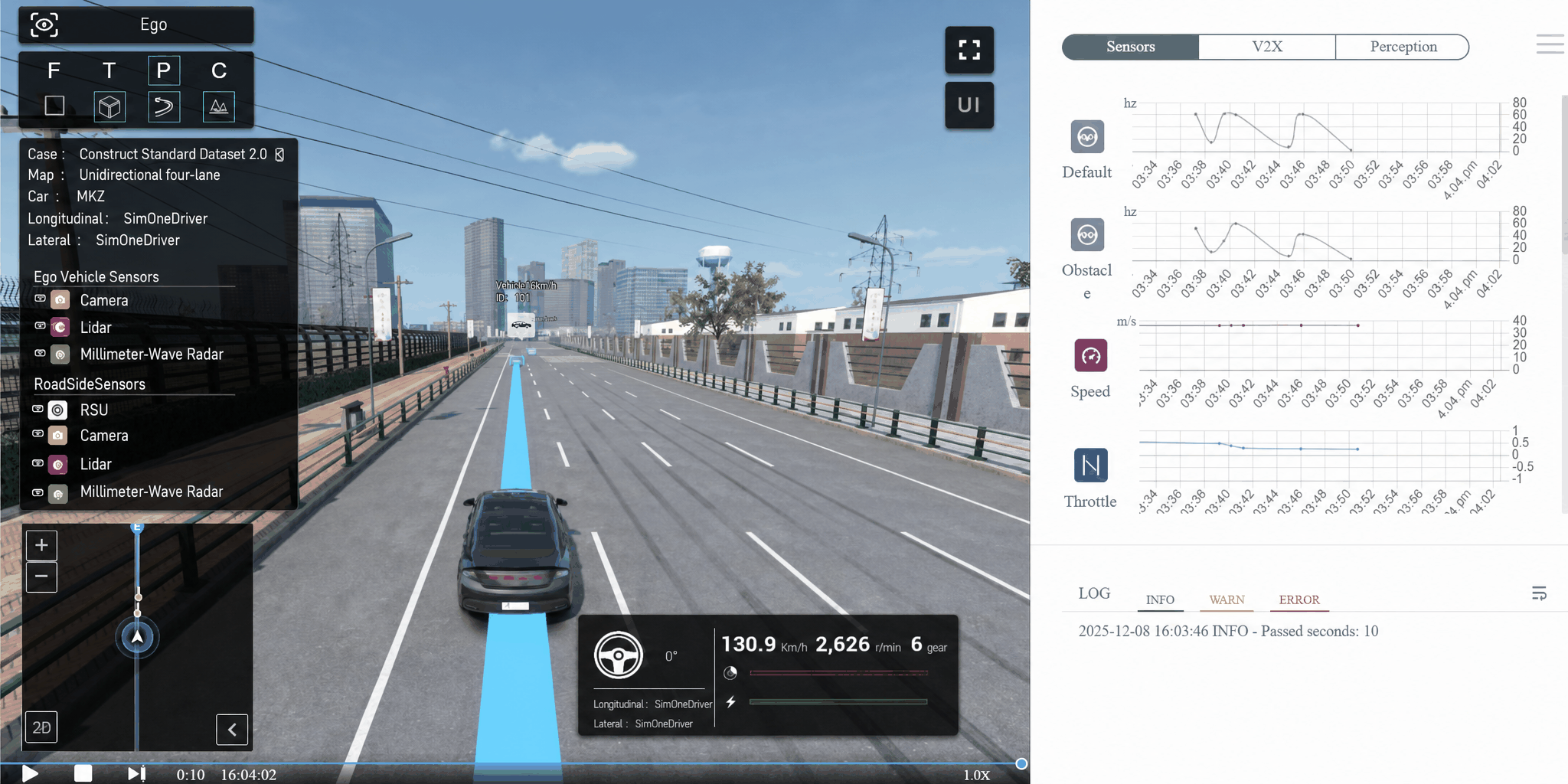
The run status of the Use Case can be viewed in the Tasks page. After the task is created, the visualization monitoring window pops up automatically. In this window, you can observe the vehicle driving status, surrounding simulation environment, and test logs in real time.
Tip
If the window does not pop up, click the Video Monitor button in the task list to open it manually.
Note
The rendering quality of the simulation view (high-fidelity / simplified) depends on your initialization settings and does not affect functional operation.
4. Use Case Playback
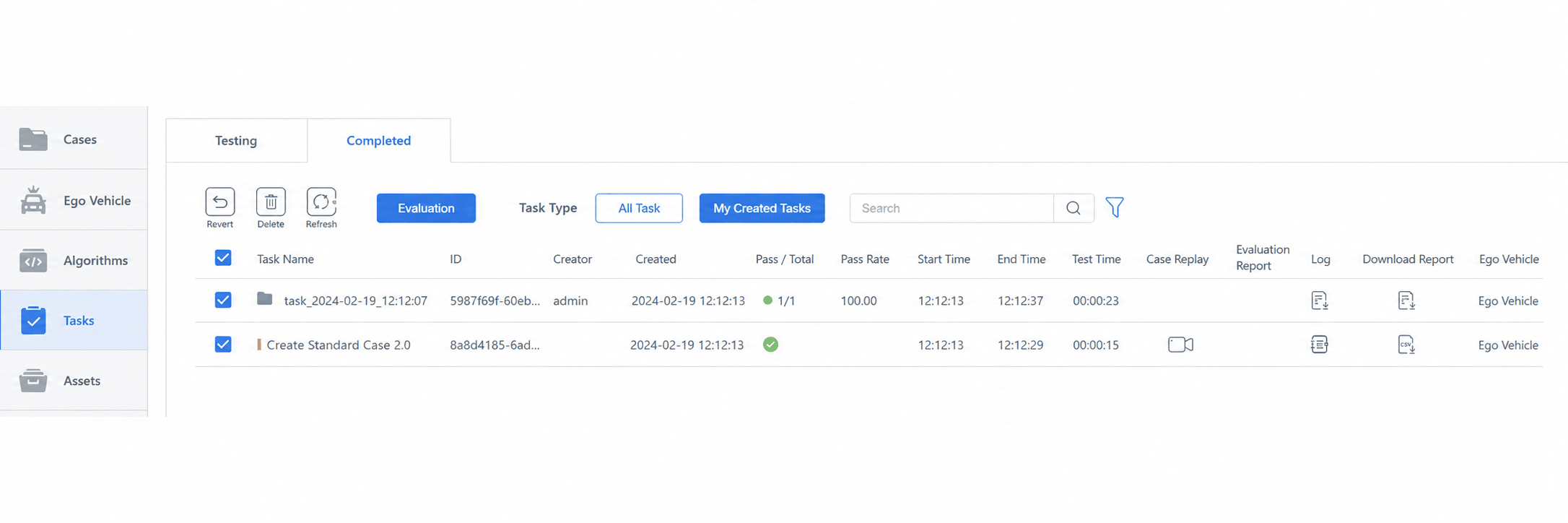
After the task finishes, the visualization window closes and the completed task appears in the Completed list. In the completed list, you can select Use Case Playback to review the execution.
5. Download Test Results
If you want to further review the output of this run, you can download the Test Report or Individual Use Case Data Package from the Completed list for analysis of run performance and test data.
Info
For field descriptions in the report, see Task Result Analysis.
Next Steps
If you want to try a custom ego vehicle, custom algorithm, or more advanced evaluation methods, continue reading the Learning Map on the home page and navigate to the relevant topic section.