C++ Algorithm Access
Note
This tutorial uses the AEB Algorithm as an example. Other algorithms can also be integrated using this tutorial.
For C++ interface information, please refer to C++_Python Interface Language Support first.
1. File Definitions
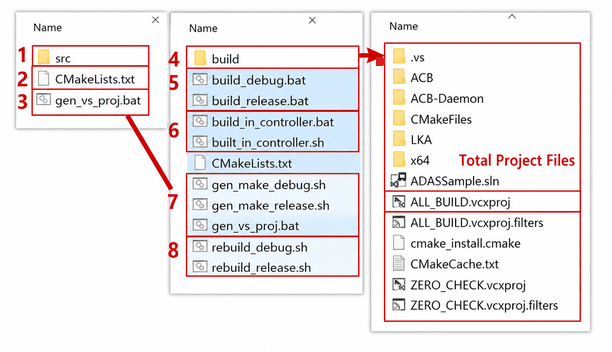
| No. | File (files highlighted in blue in the above image are for Windows) | Description |
|---|---|---|
| 1 | src folder | Contains sample code |
| 2 | CMakeLists.txt | Script for configuring and generating the project build system using the CMake build tool |
| 3/7 | gen_vs_proj.bat/gen_make_debug.sh/gen_make_release.sh | Executables for generating the Algorithm project |
| 4 | build folder | Generated Algorithm project folder |
| 5/8 | build_debug.bat/build_debug.sh/rebuild_debug.sh | Executables for (re)generating the debug Algorithm Executable on Windows/Linux |
| build_release.bat/build_release.sh/rebuild_release.sh | Executables for (re)generating the release Algorithm Executable on Windows/Linux | |
| 6 | built_in_controller.bat/built_in_controller.sh | Executables for generating the Controller on Windows/Linux |
2. Getting Started — Windows
2.1 Environment Preparation
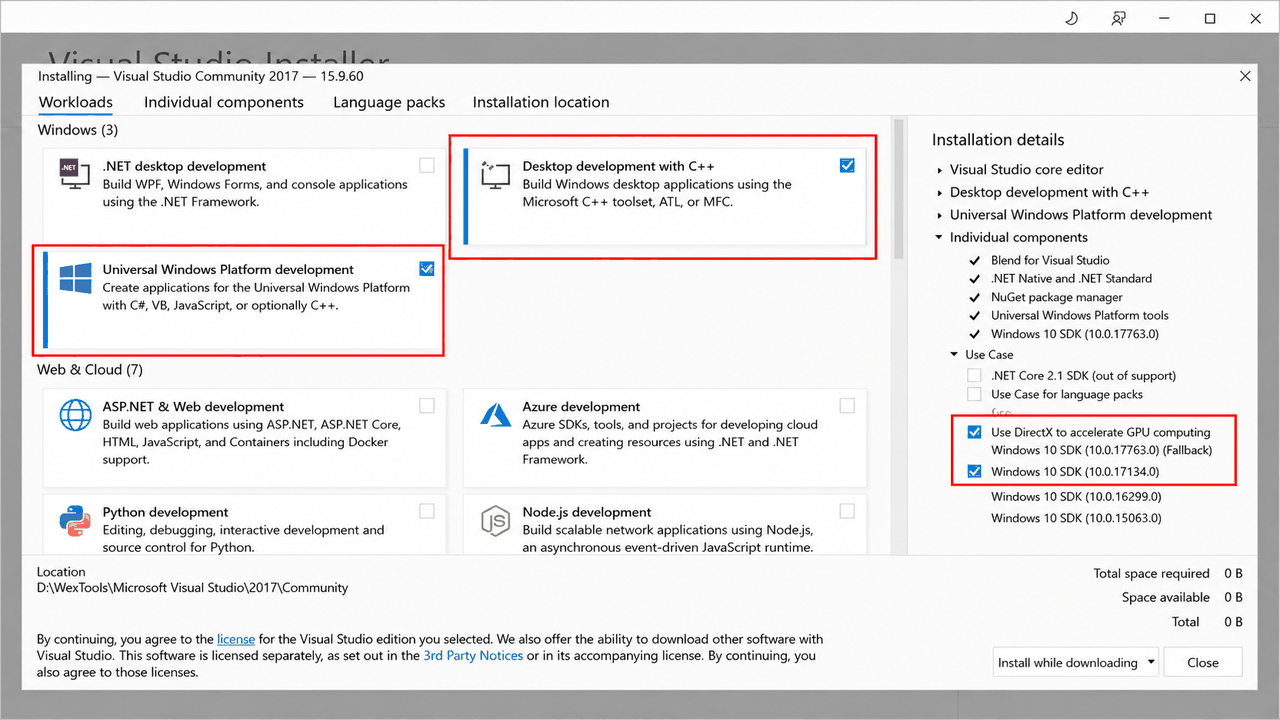
Visual Studio 2017, CMake
Note
Visual Studio 2017 Installation Resource 👉 vs_Community.exe;
The following packages are sufficient 👇
2.2 Generating Algorithm Sample Programs
2.2.1 Method 1: Run Scripts
Automatically generate the project and launch the Algorithm by running .bat / .sh scripts. Suitable for quick verification.
Note
Run scripts to generate the project and launch the Algorithm
2.2.1.1 Generate the Project Directory
(1) Navigate to the Algorithm project directory: [SimOne-Installation Path]/SimOne/SimOneAPI/ADAS/Build
Note
[SimOne-Installation Path]/SimOne/SimOneAPI/Tutorial is also applicable for this tutorial.
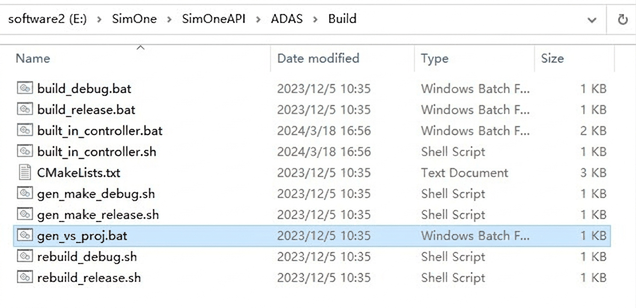
(2) Double-click to run the gen_vs_proj.bat script to generate the build directory.
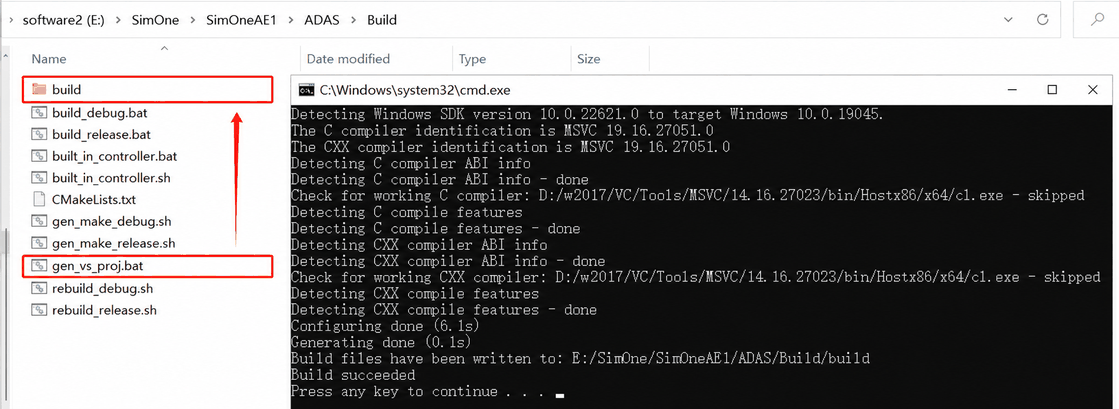
2.2.1.2 Generate the Algorithm Executable
(1) Pre-built generation examples are available in [SimOne-Installation Path]/SimOne/SimOneAPI/ADAS/bin/Release for reference.
Note
To generate a new Algorithm program, follow the subsequent steps — this will generate a new exe to replace the existing exe.
Alternatively, rename the Release folder, which will regenerate all contents.
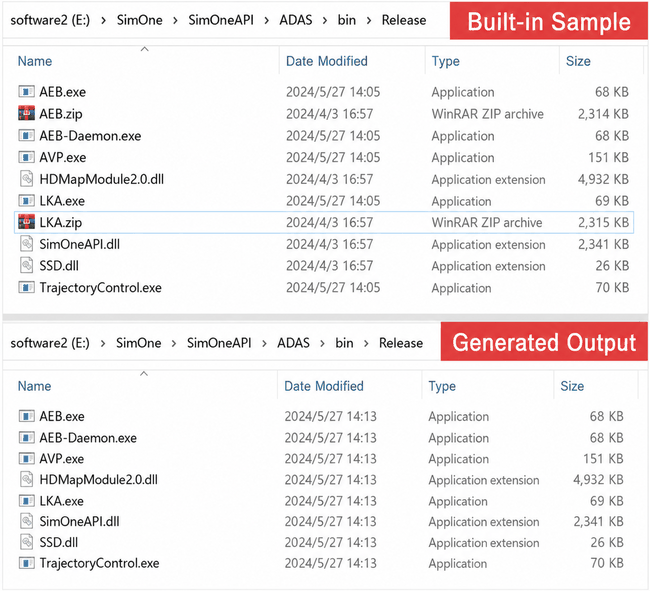
(2) Double-click to run the build_release.bat script to generate the Algorithm Executable.
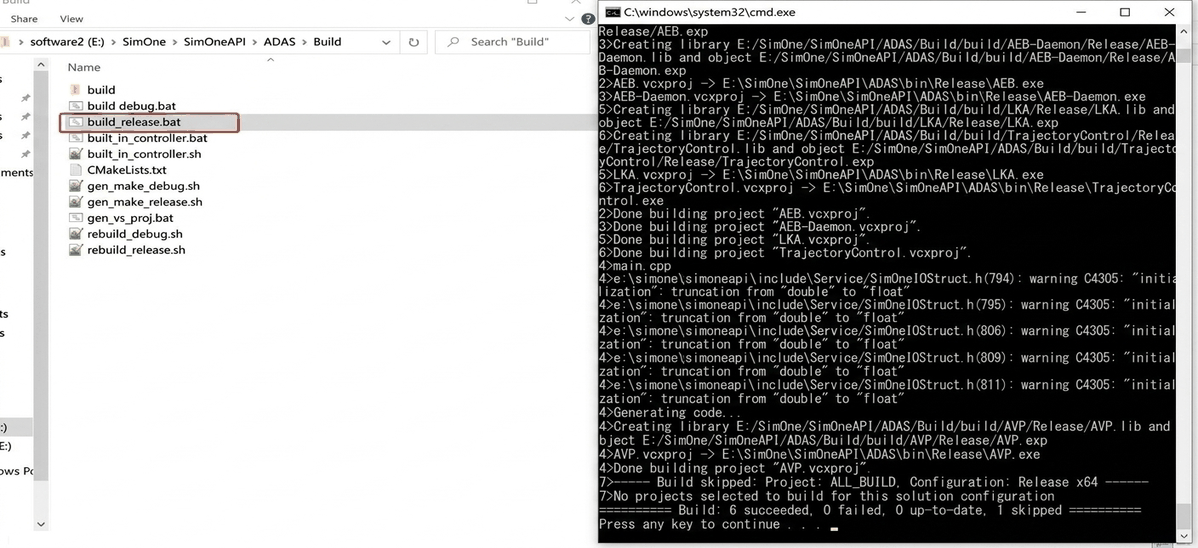
(3) View the generated Algorithm Executable located in the [SimOne-Installation Path]/SimOne/SimOneAPI/lib/Release directory.
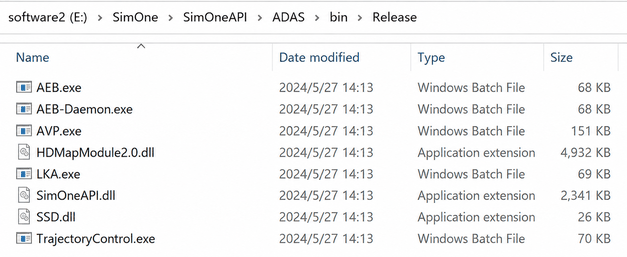
2.2.1.3 Add Dependency Libraries to the Algorithm Executable
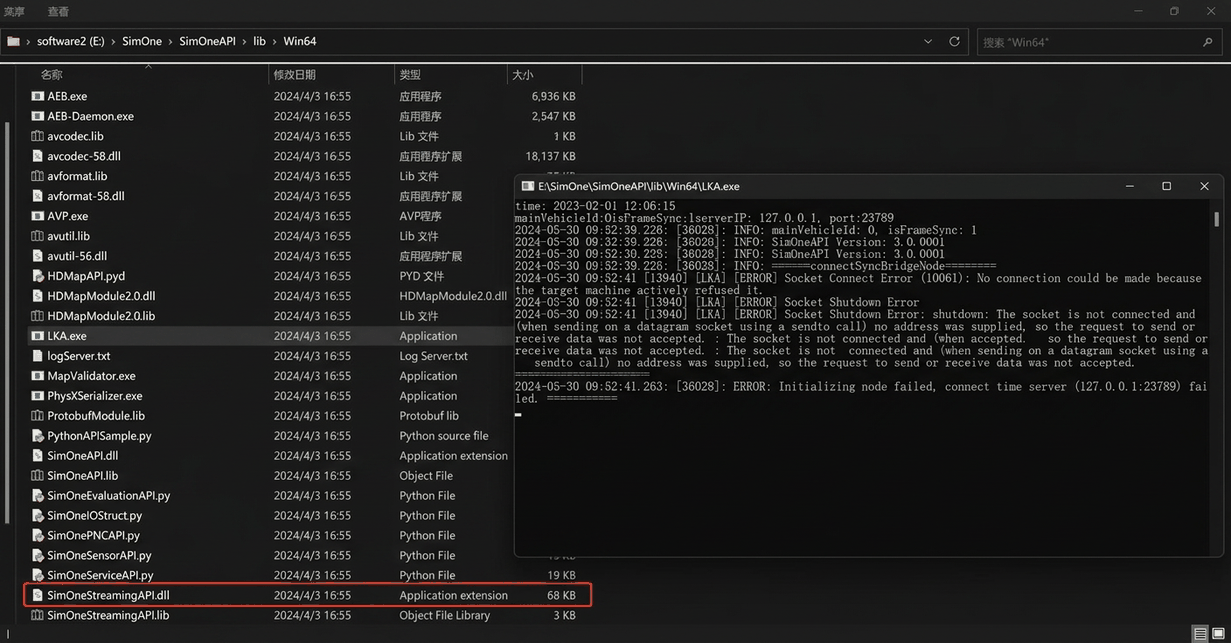
Copy the generated Algorithm Executable into the Dependency Library directory: [SimOne-Installation Path]/SimOne/SimOneAPI/lib/Win64.
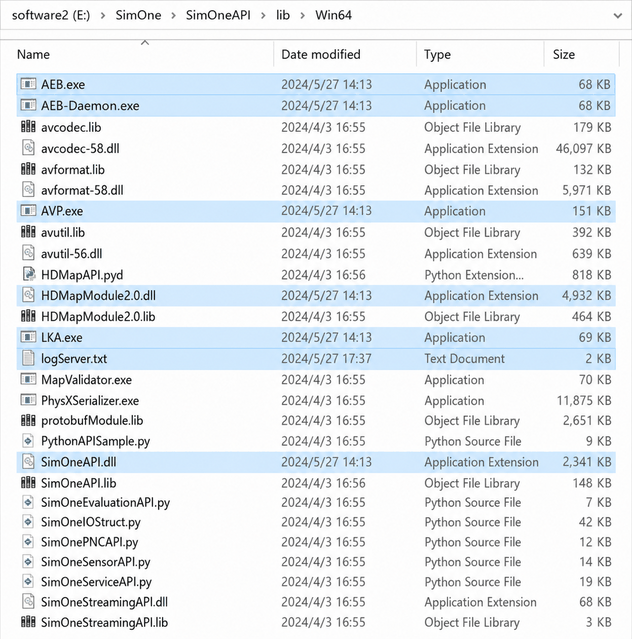
2.2.1.4 Run the Algorithm
Click on any Algorithm sample to run it.
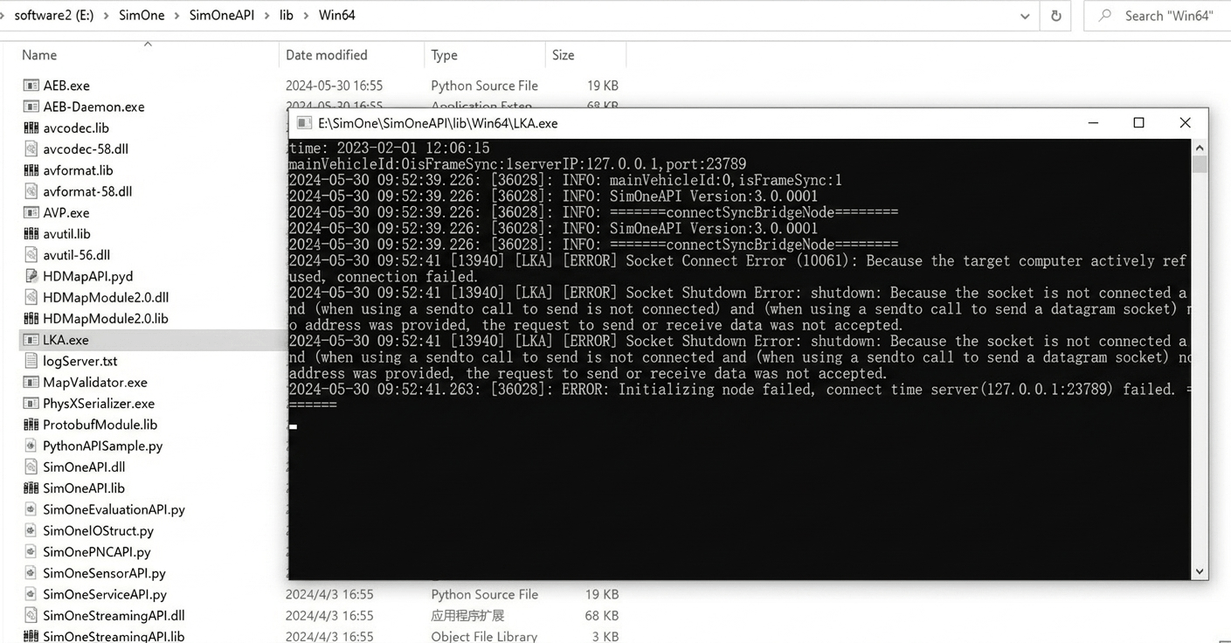
2.2.2 Method 2: Visual Studio
Manually open and compile the project using Visual Studio 2017. Suitable for scenarios that require debugging or custom algorithms.
Note
Open Visual Studio to perform project generation operations
2.2.2.1 Generate the Algorithm Project
(1) Navigate to the Algorithm project directory: [SimOne-Installation Path]/SimOne/SimOneAPI/ADAS/Build
Note
[SimOne-Installation Path]/SimOne/SimOneAPI/Tutorial is also applicable for this tutorial.
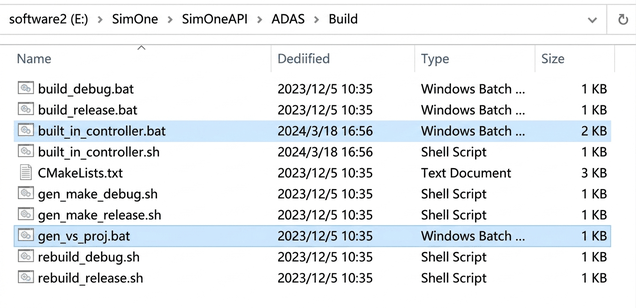
(2) Double-click to run the gen_vs_proj.bat script to generate the build directory.
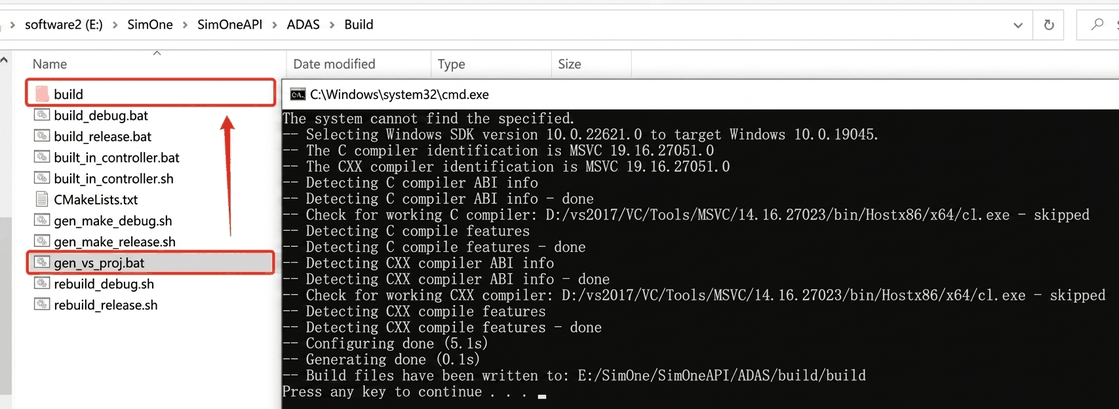
(3) The generated Algorithm Visual Studio project is located at: [SimOne-Installation Path]/SimOne/SimOneAPI/ADAS/Build/build/ADASSample.sln
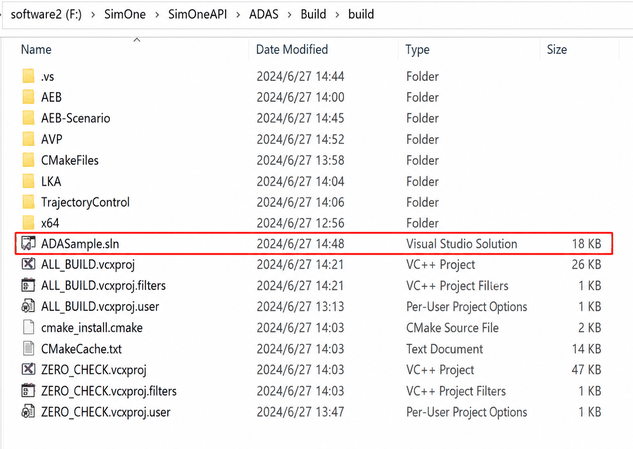
2.2.2.2 Compile
(1) Open the ADASSample project with Visual Studio 2017 and switch the build mode to Release or Debug.
Note
Debug mode outputs to the Debug directory; Release mode outputs to the Release directory.
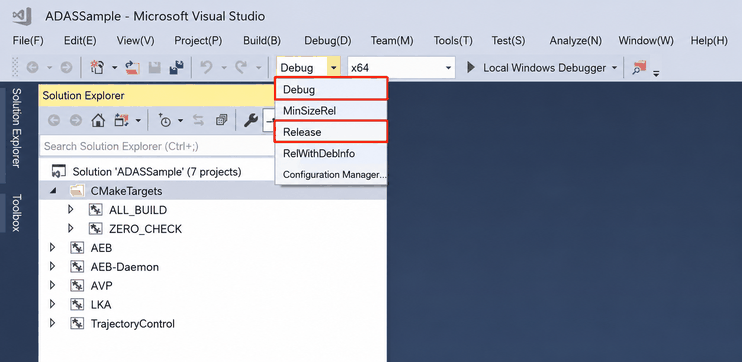
(2) Select ALL_BUILD and Set as Startup Project.
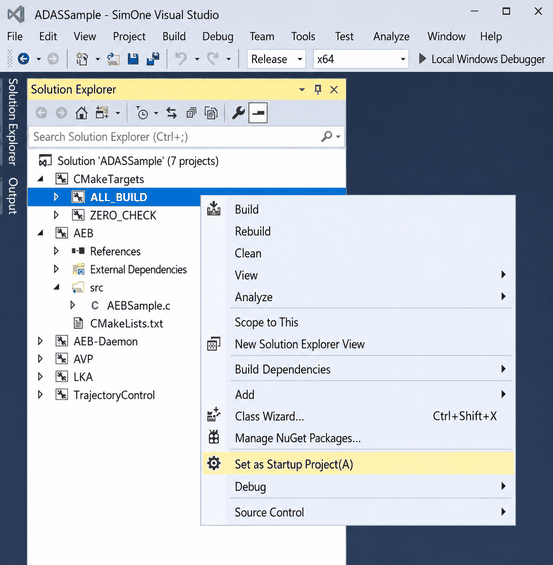
(3) You can view and modify the samples for the relevant algorithms as shown below.
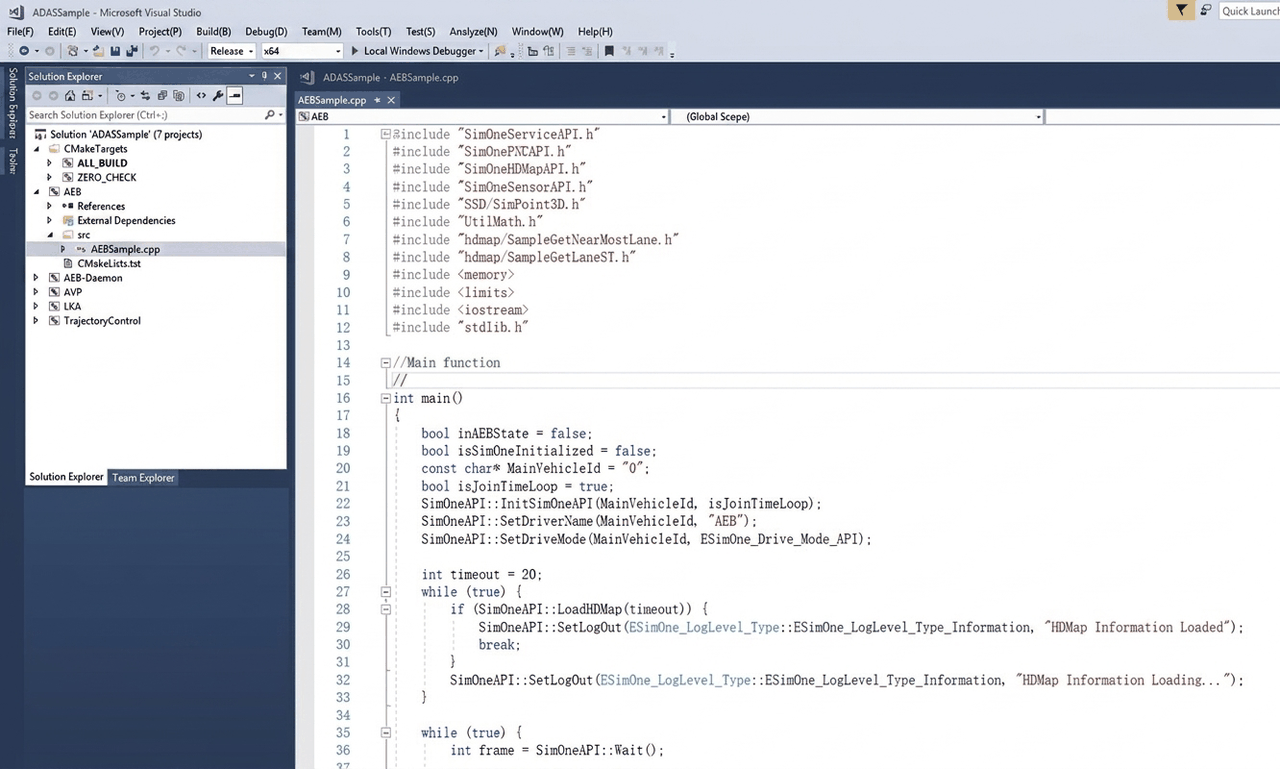
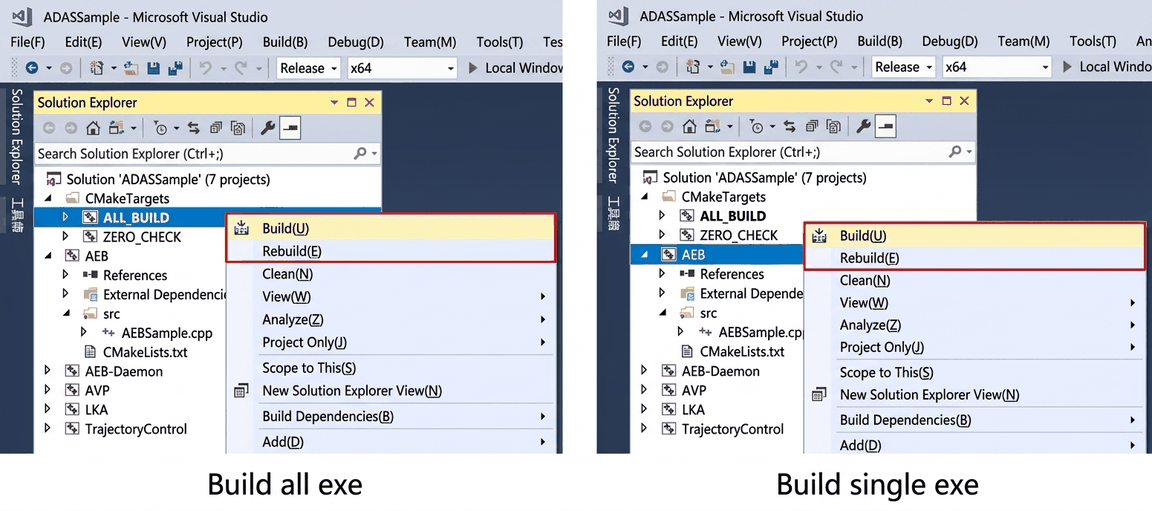
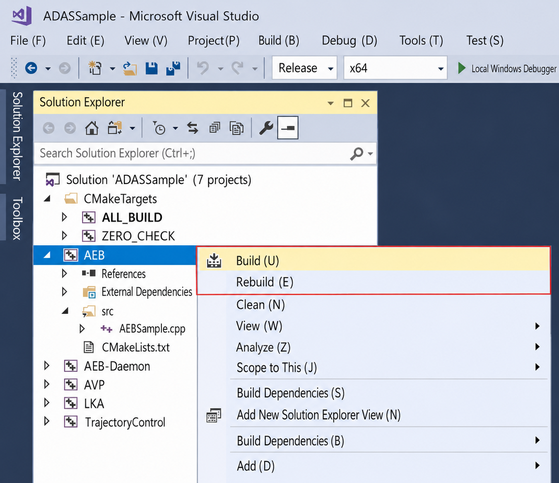
(4) You can select ALL_BUILD and click Build, or select an individual Algorithm (e.g., AEB) and click Build.
Note
If a previous build exists, you can click Rebuild.
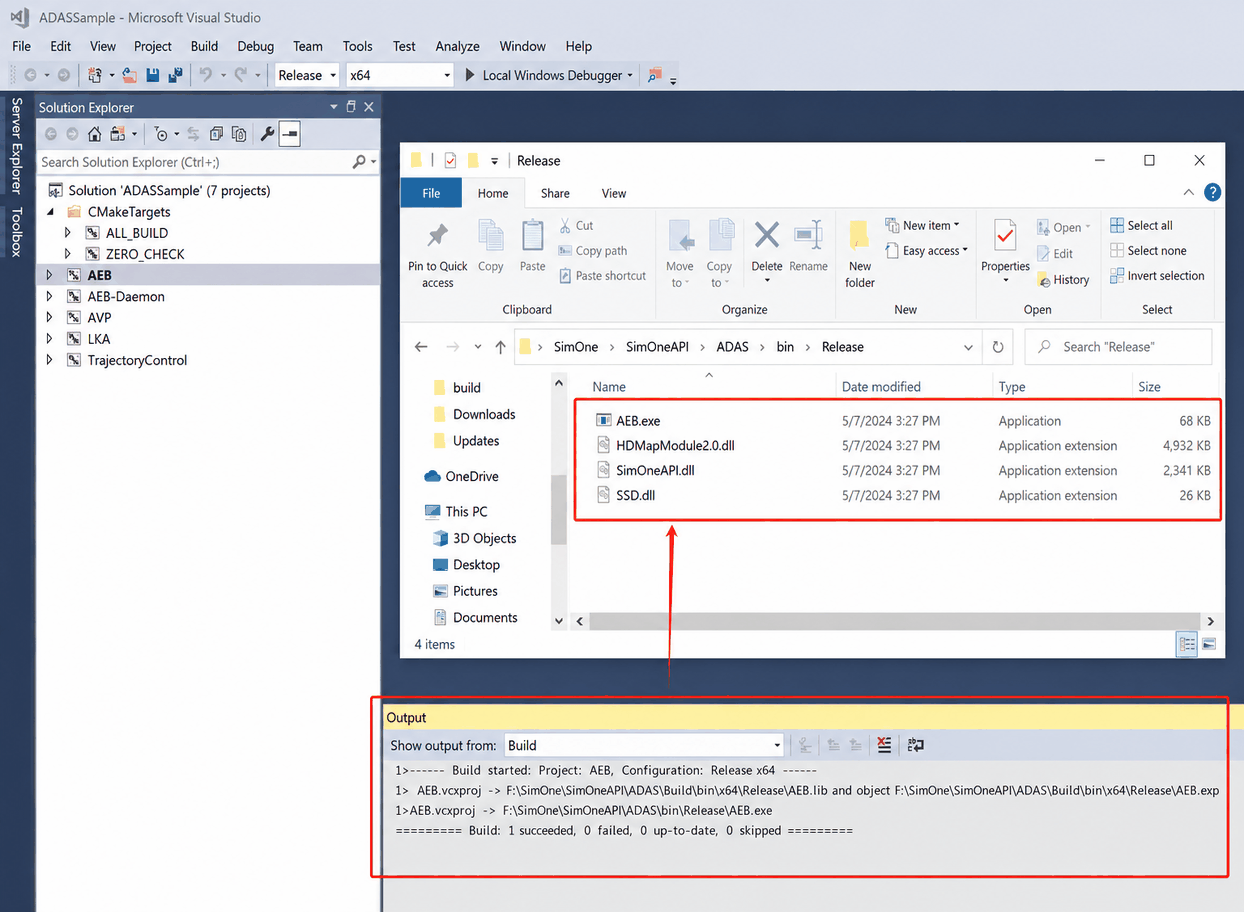
(5) The Algorithm Executable Release is generated under the [SimOne-Installation Path]/SimOne/SimOneAPI/ADAS/bin folder.
2.2.2.3 Add Dependency Libraries to the Algorithm Executable (Reference Method 1)
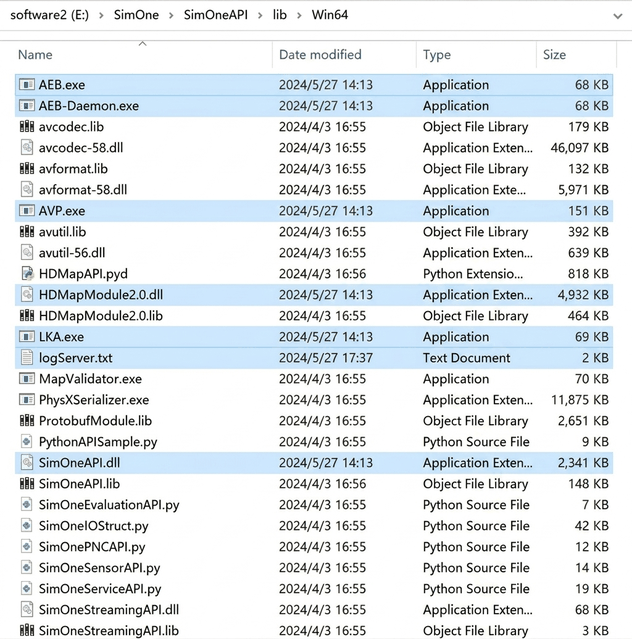
Copy the generated Algorithm Executable into the Dependency Library directory: [SimOne-Installation Path]/SimOne/SimOneAPI/lib/Win64.
2.2.2.4 Run the Algorithm (Reference Method 1)
Click on any Algorithm sample to run it.
2.3 Use Case Editing and Running
2.3.1 Create a Use Case
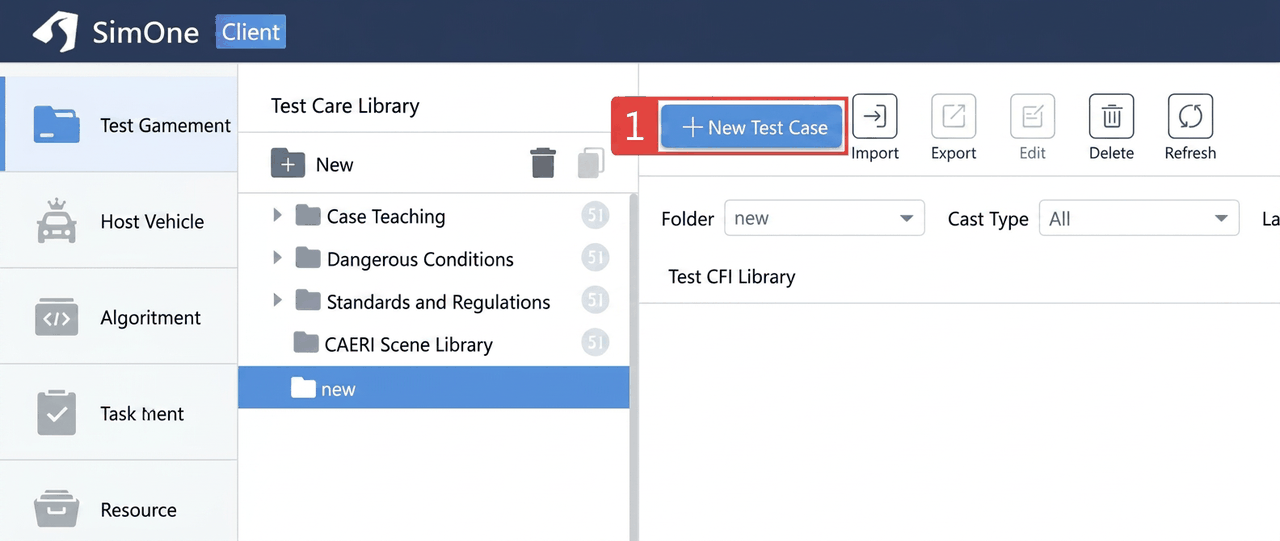
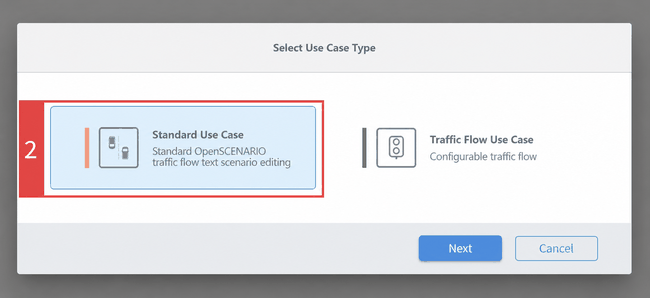
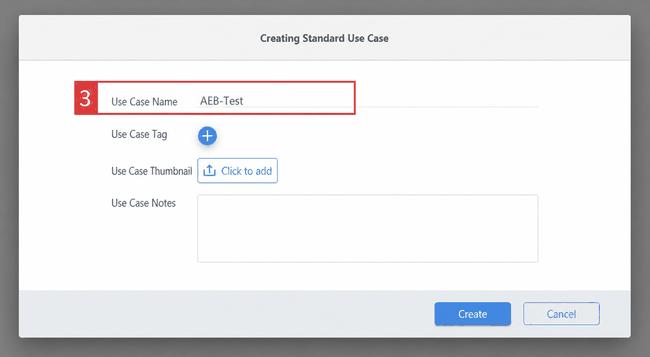
(1) Create New Use Case, select Standard Use Case, and enter the Use Case Name.
2.3.2 Edit the Use Case and Load the Algorithm Ego Vehicle
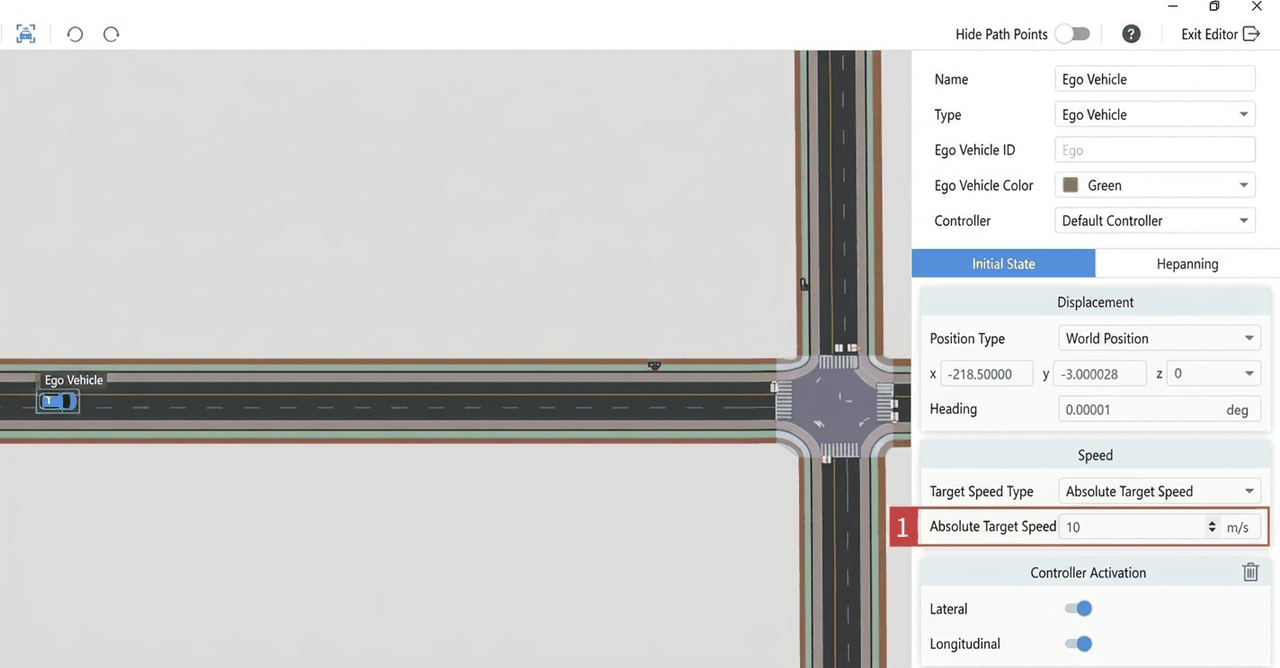
(1) Select the Map and Ego Vehicle Preset, and optionally set the Ego Vehicle Speed to 10 m/s.
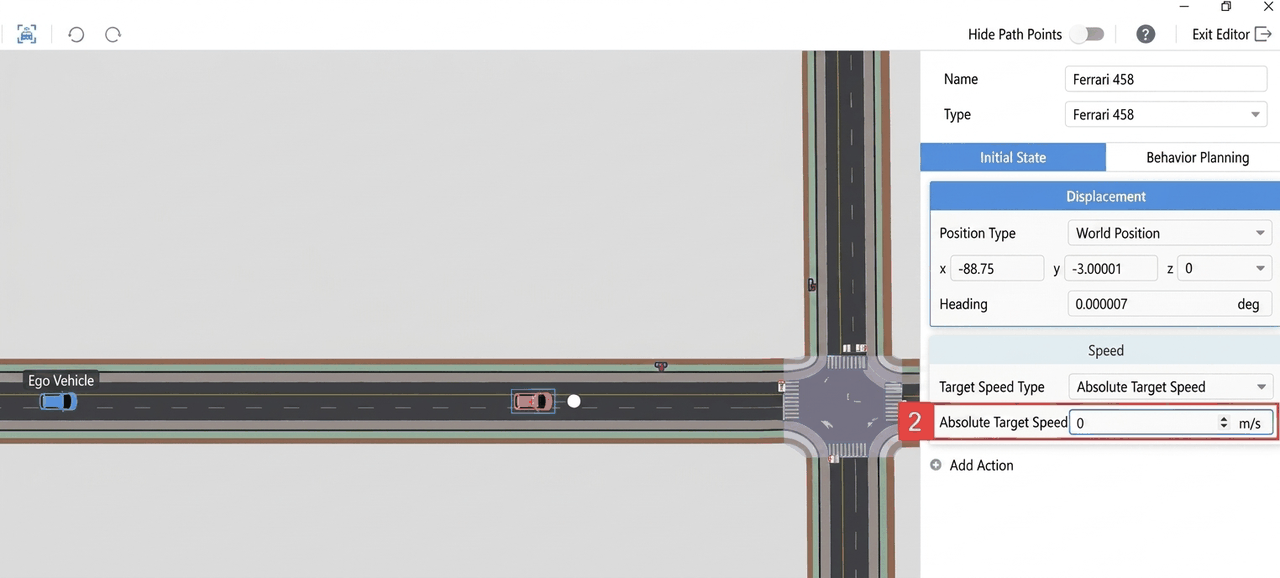
(2) Drag in an Opponent Element, keeping a certain distance from the Ego Vehicle. Optionally set its Speed to 0 m/s, then click Save to save the Use Case.
2.3.3 Run Use Case and Verify the Control Algorithm
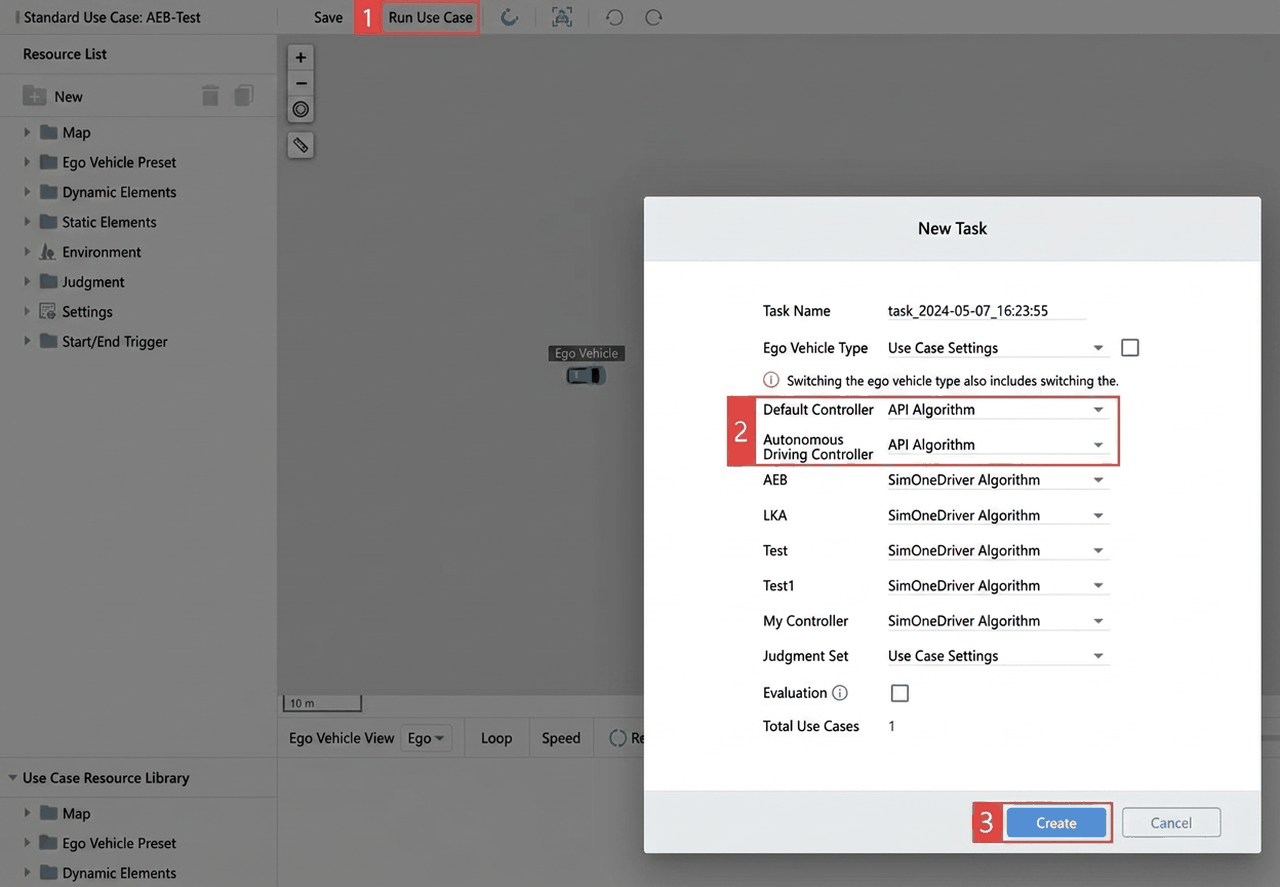
(1) Click Run Use Case, set both the Default Controller and Autonomous Driving Controller to API Algorithm, then click Create to run the Use Case.
(2) After entering the Use Case, the simulation run time will not change and the Lateral/Longitudinal Algorithm will display as loading.... The Use Case is in a waiting for Algorithm connection state.
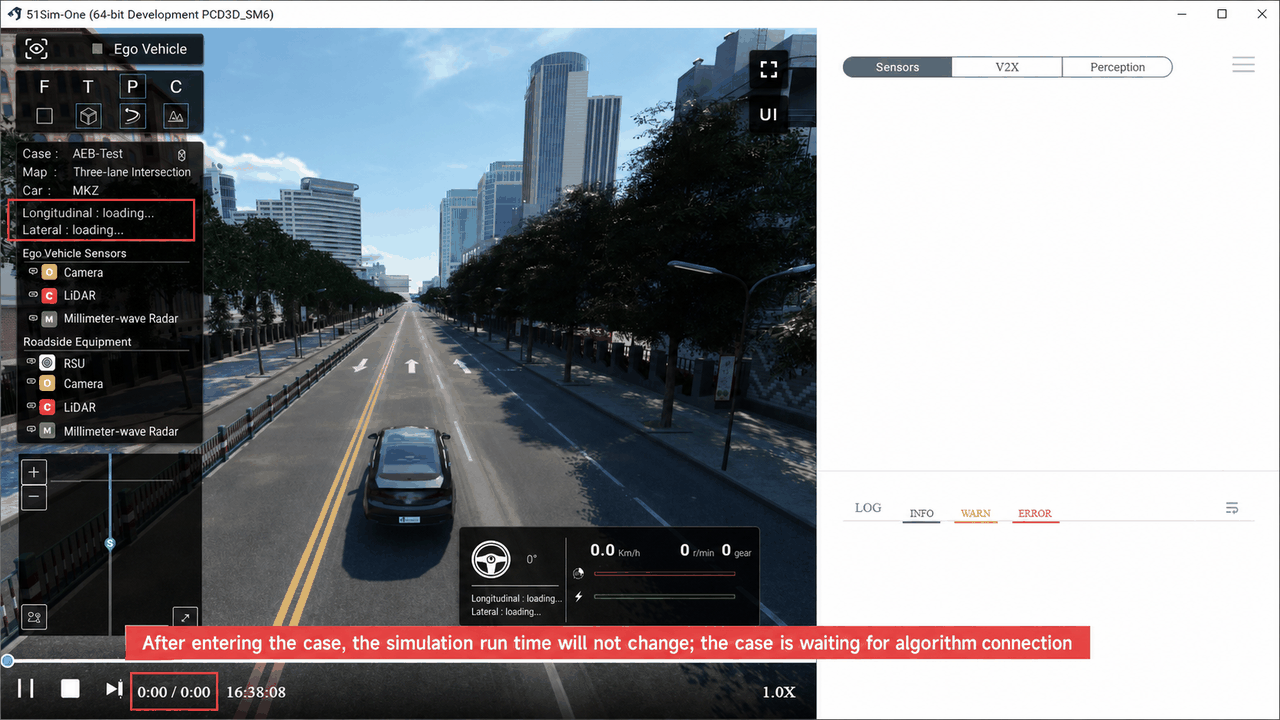
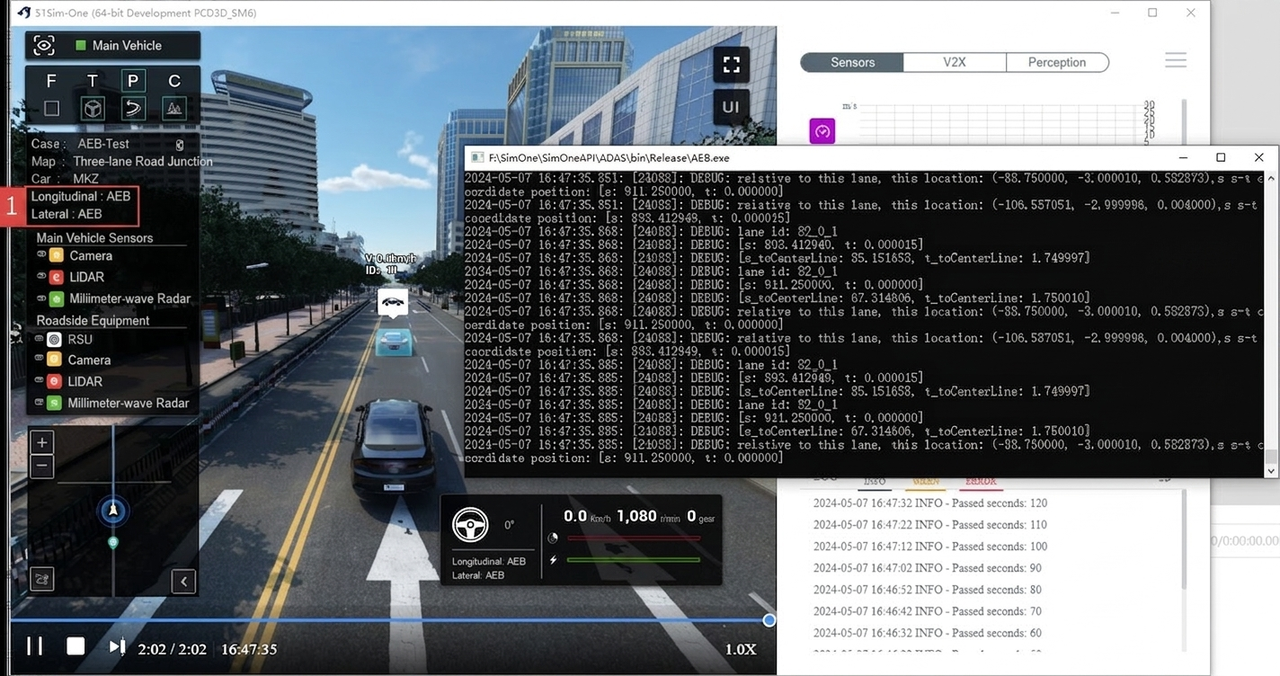
(3) Ensure AEB.exe is opened before the Use Case starts running. If successfully connected, the Algorithm effect will be shown in the render viewport (e.g., after connecting the AEB Algorithm, the Ego Vehicle will decelerate to 0 m/s at a certain distance behind the Opponent Element), and the Lateral/Longitudinal Algorithm display will change accordingly.
2.4 Frontend Algorithm Management (Optional)
Different algorithms can be managed on the frontend for convenient invocation. Refer to the SIL Software-in-the-Loop Testing chapter.
3. Getting Started — Ubuntu
Note
Building from source code
The Linux installation package includes API usage examples: SimOneAPI.tar.gz
3.1 Environment Preparation
(1) Prepare the C++ libraries. Users need to have cmake and the clang compiler installed.
sudo apt-get install uuid-dev libx11-dev libxrandr-dev libsdl2-dev libx11-dev clang libc++-dev abi++-dev libc++1
(2) Add the Environment Variable.
export LD_LIBRARY_PATH=$LD_LIBRARY_PATH:/SimOneApi库目录 (比如/SimOne/SimOneAPI/lib/Linux64)
3.2 Generate the Algorithm Project
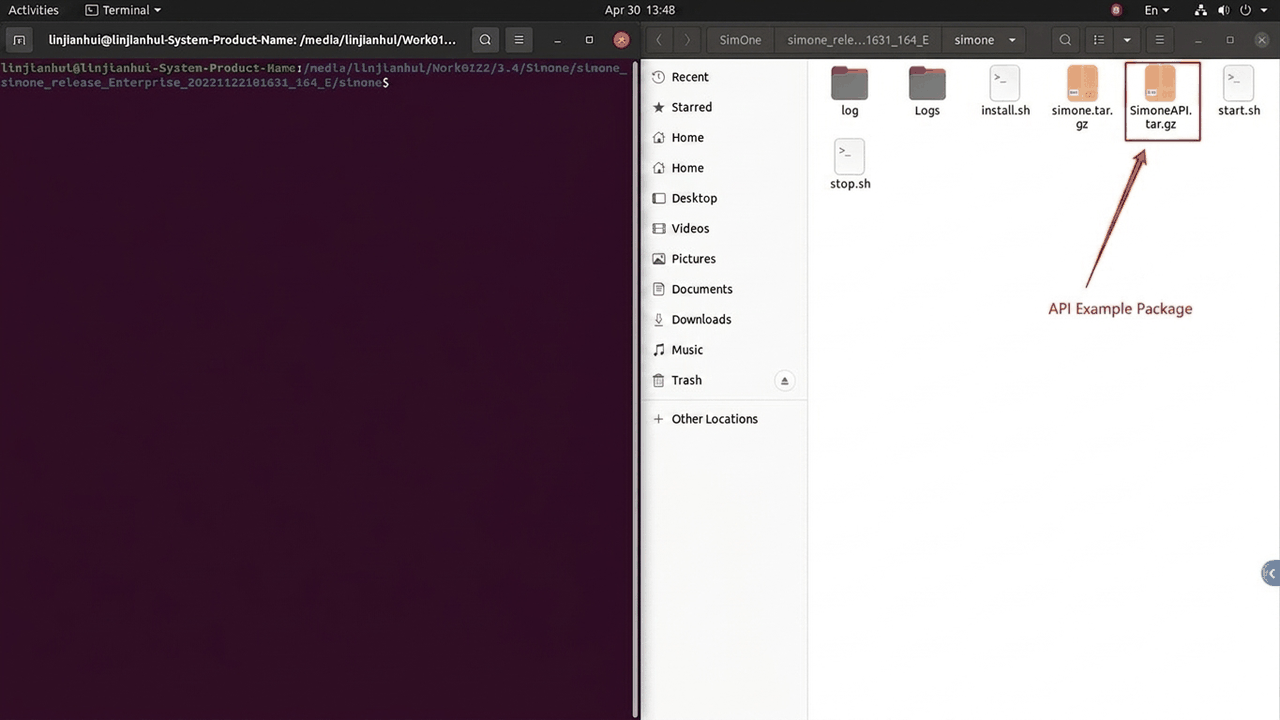
(1) Locate the Algorithm sample package SimOneAPI.tar.gz in the SimOne installation package.
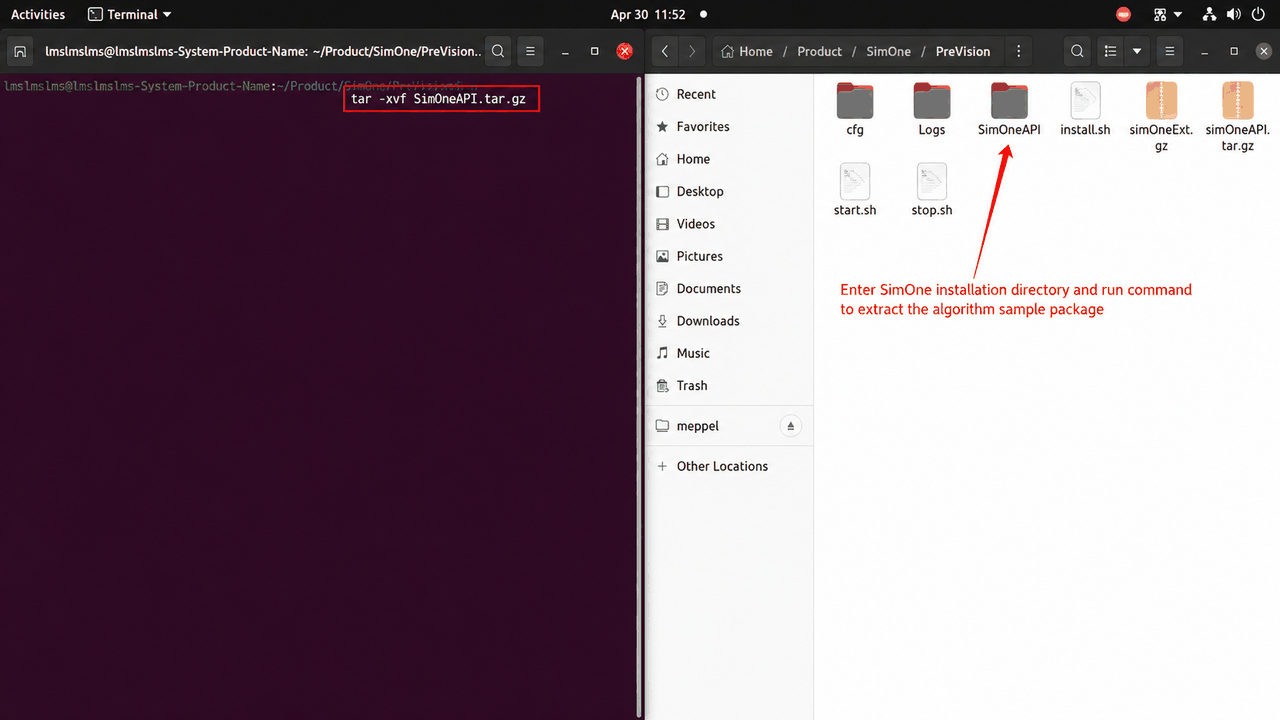
(2) Navigate to the SimOne installation directory /SimOne/ and run tar -xvf SimOneAPI.tar.gz to extract the Algorithm sample package.
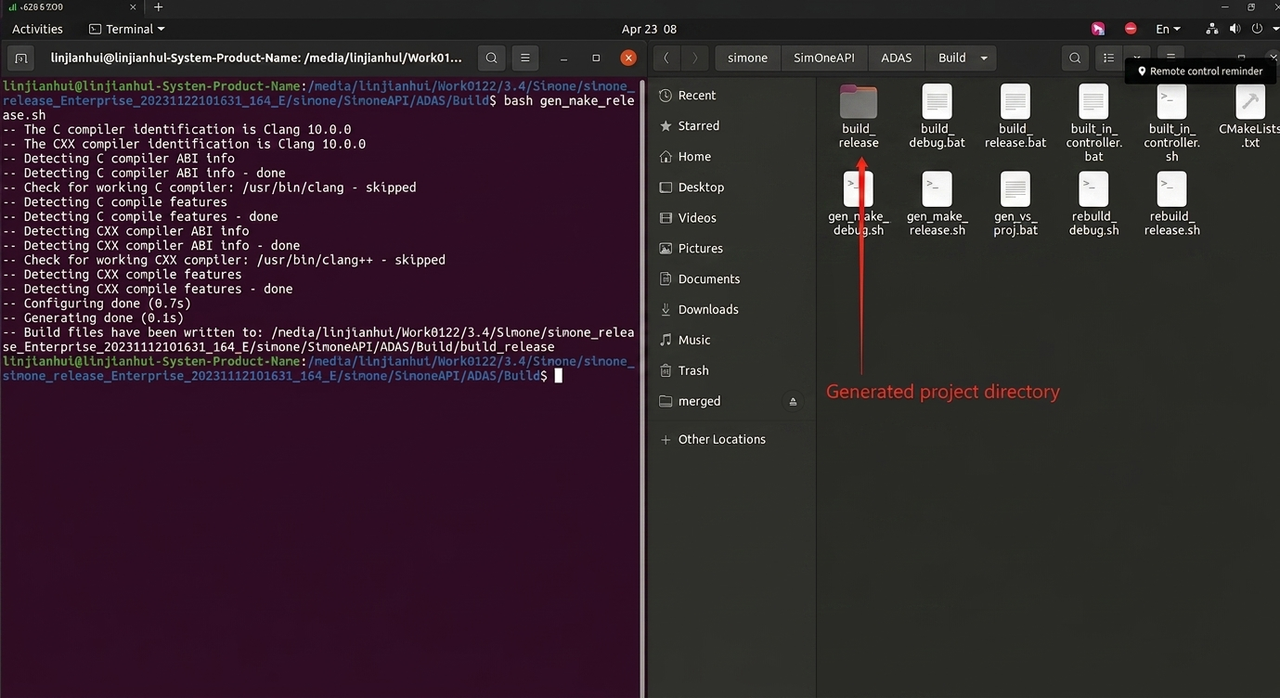
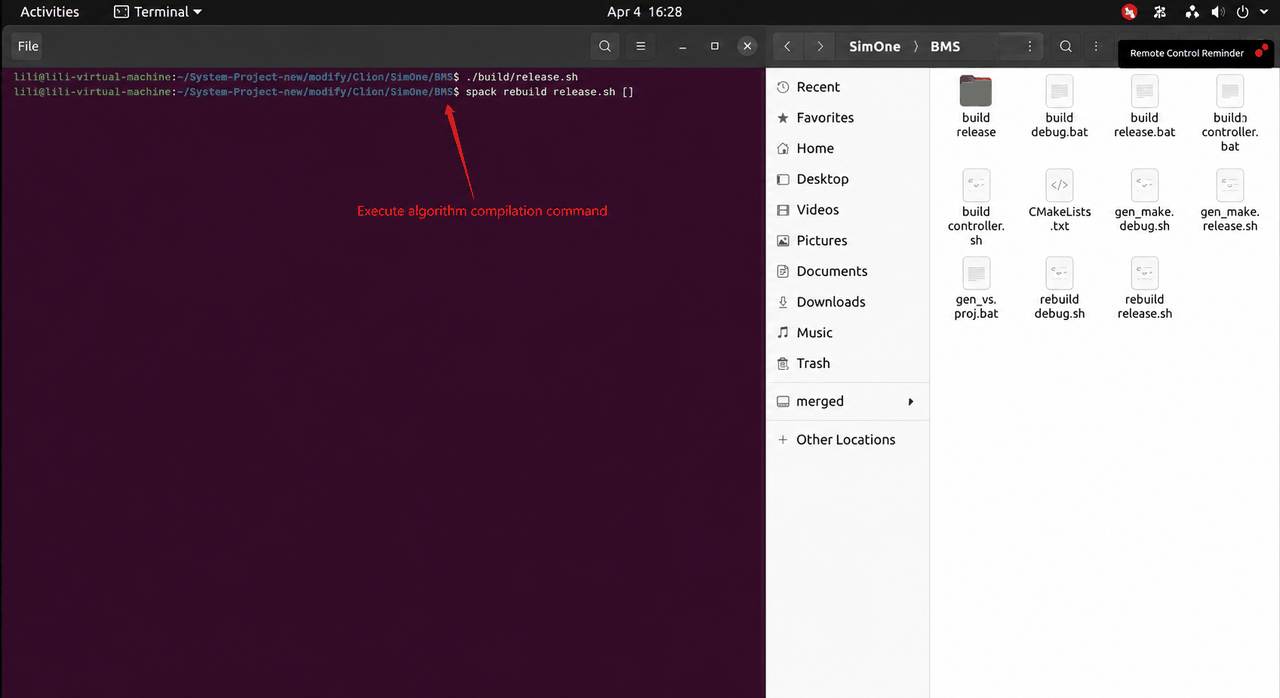
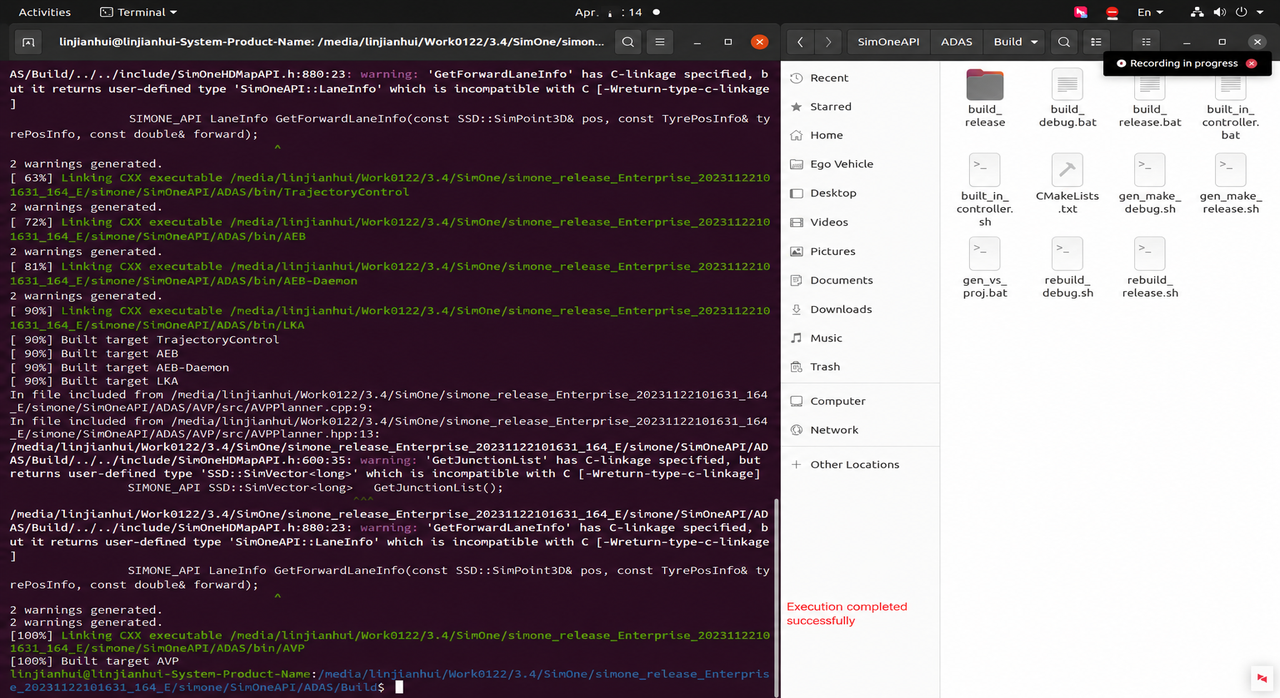
(3) Navigate to /SimOne/SimOneAPI/ADAS/Build within the SimOne installation directory and run the command bash gen_make_release.sh to generate the project directory.
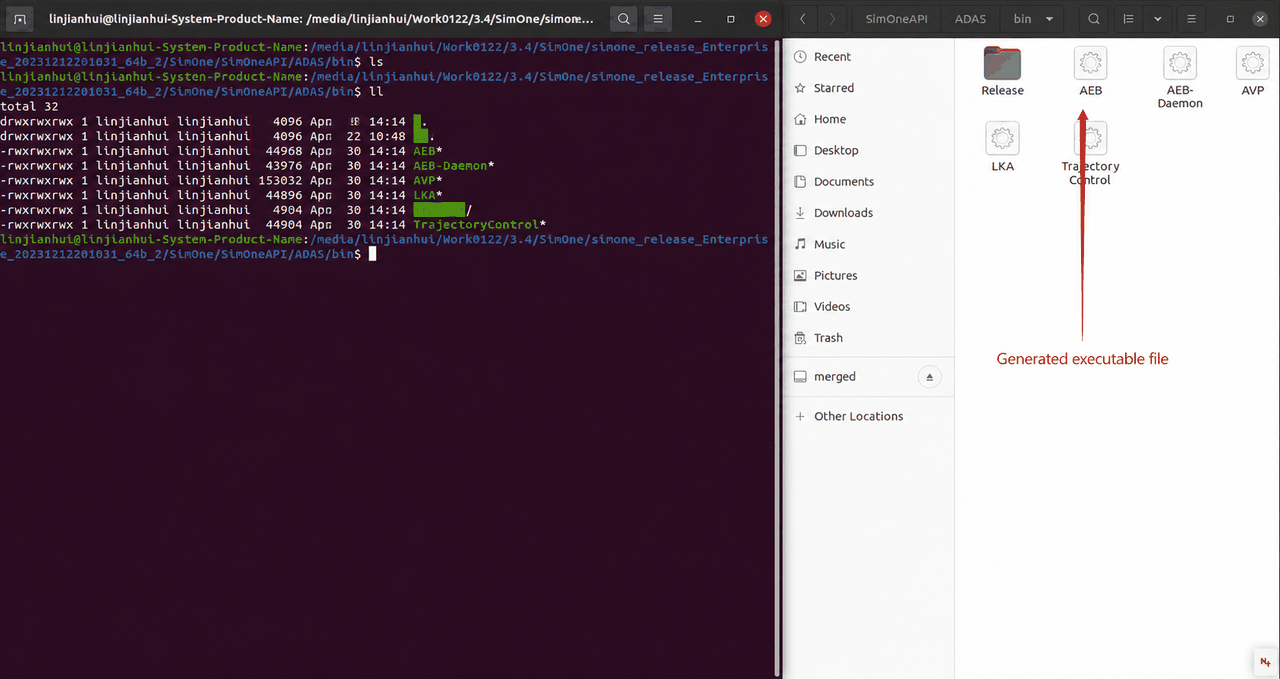
(4) In the same directory, run the command bash rebuild_release.sh to generate the Executable, then view the Executable AEB in the /SimOne/SimOneAPI/ADAS/bin directory.
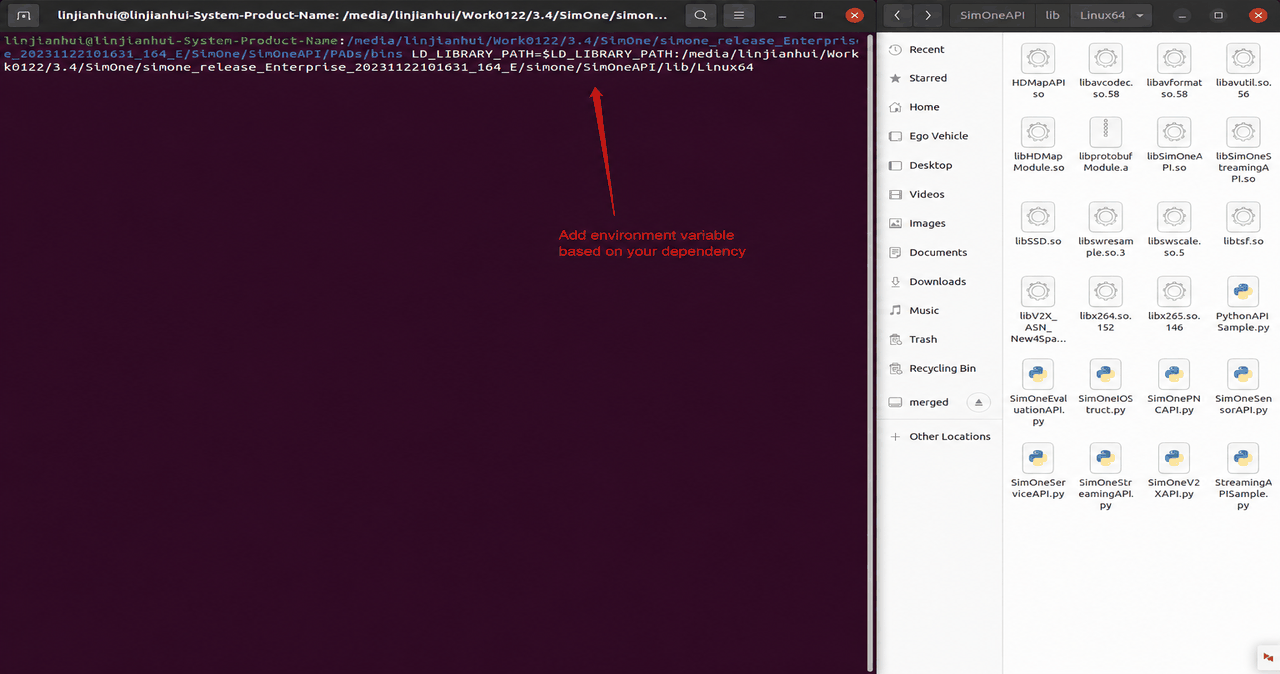
(5) Add the SimOneAPI Environment Variable — update the path according to your installation location.
export LD_LIBRARY_PATH=$LD_LIBRARY_PATH:/SimOneApi库目录 (比如/SimOne/SimOneAPI/lib/Linux64)
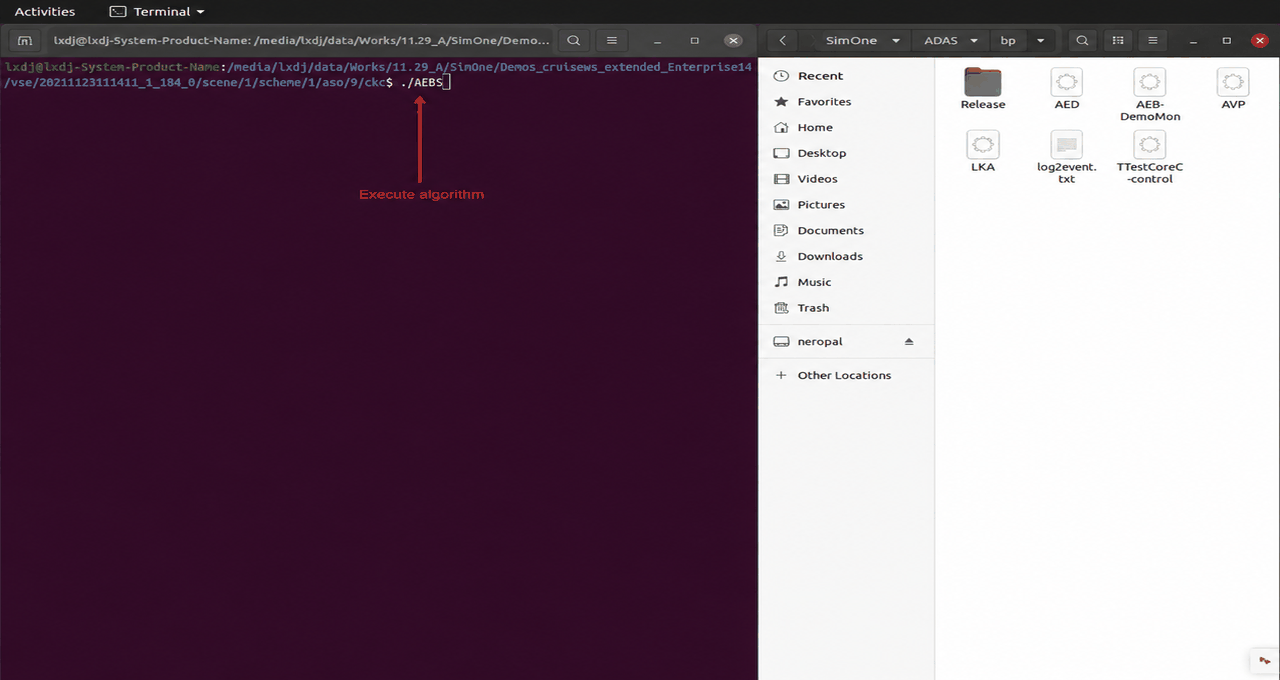
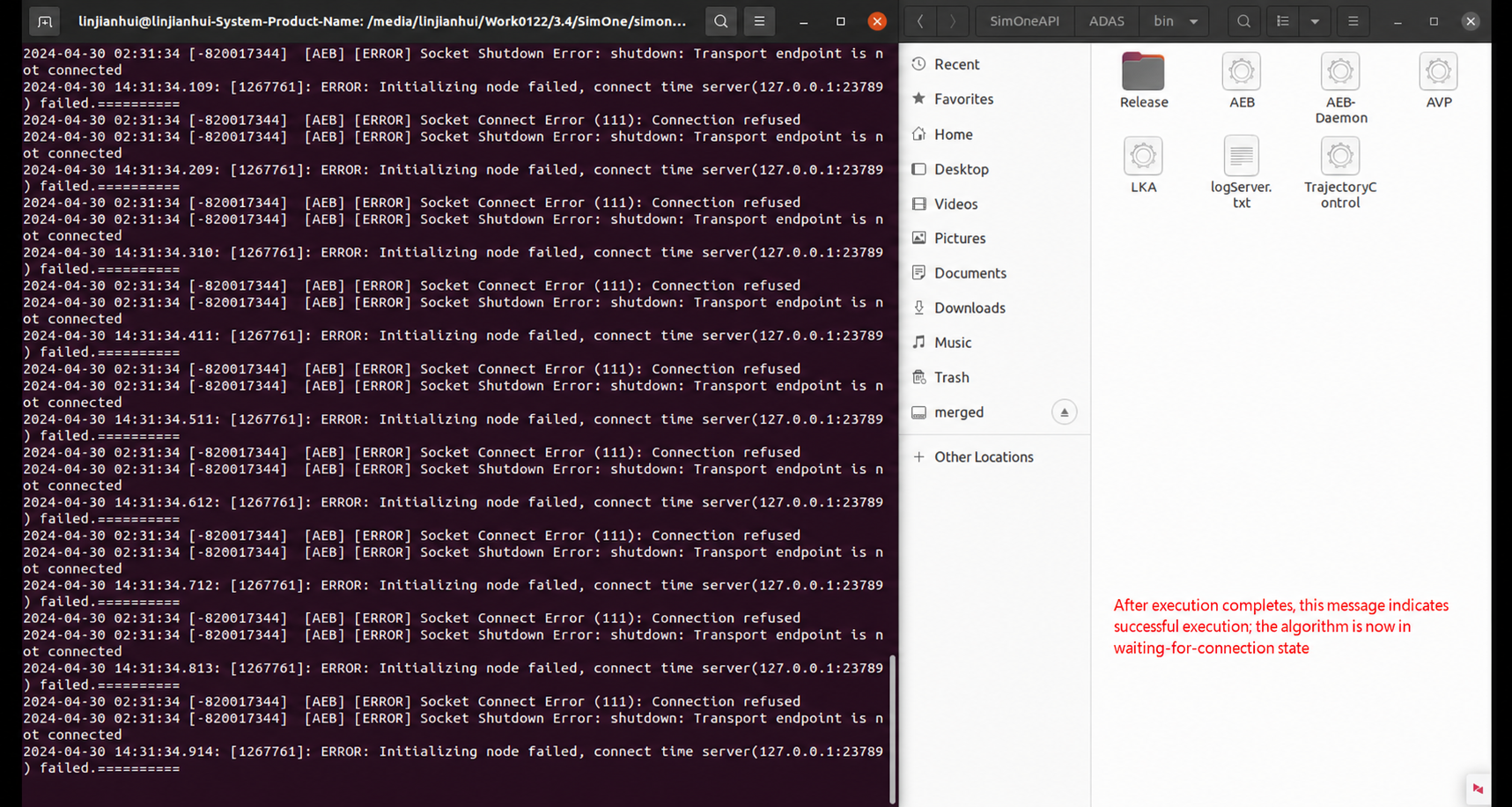
(6) Run the Algorithm, e.g., ./AEB.
3.3 Create a Use Case
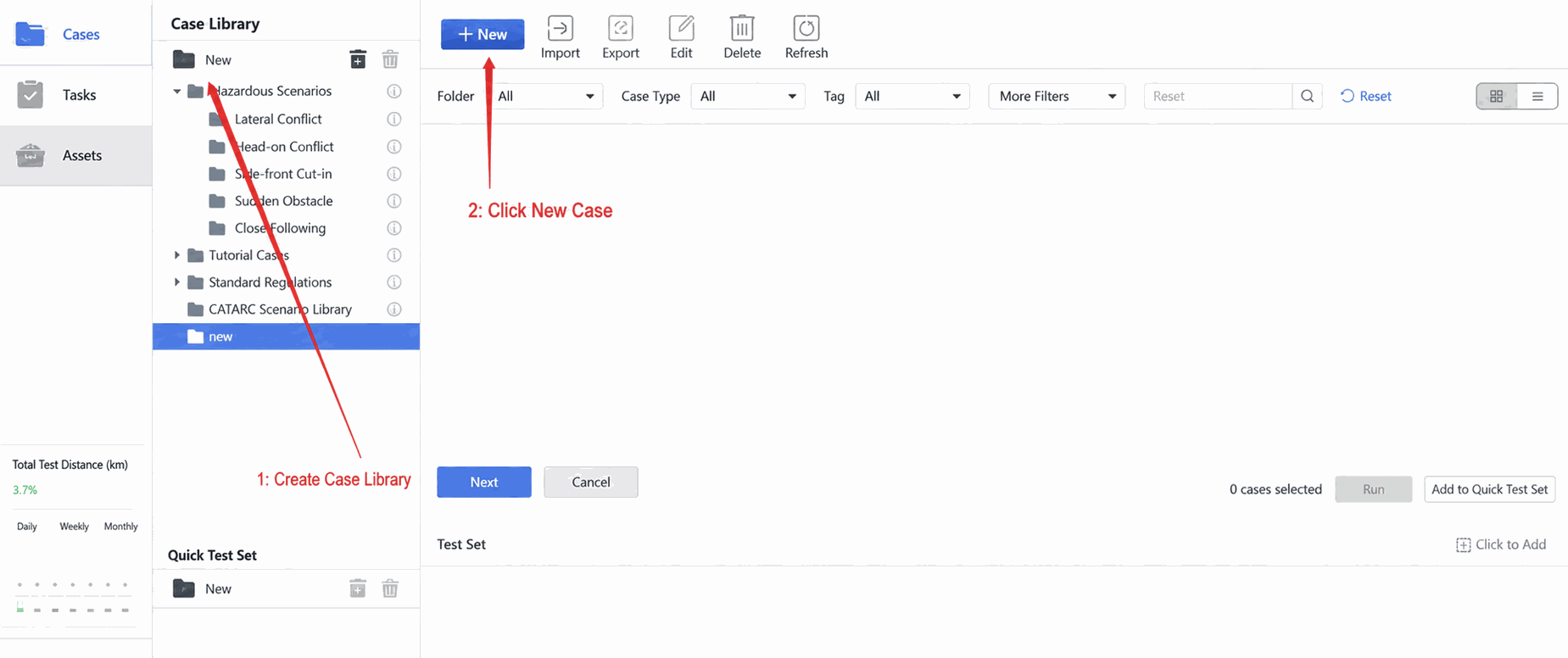
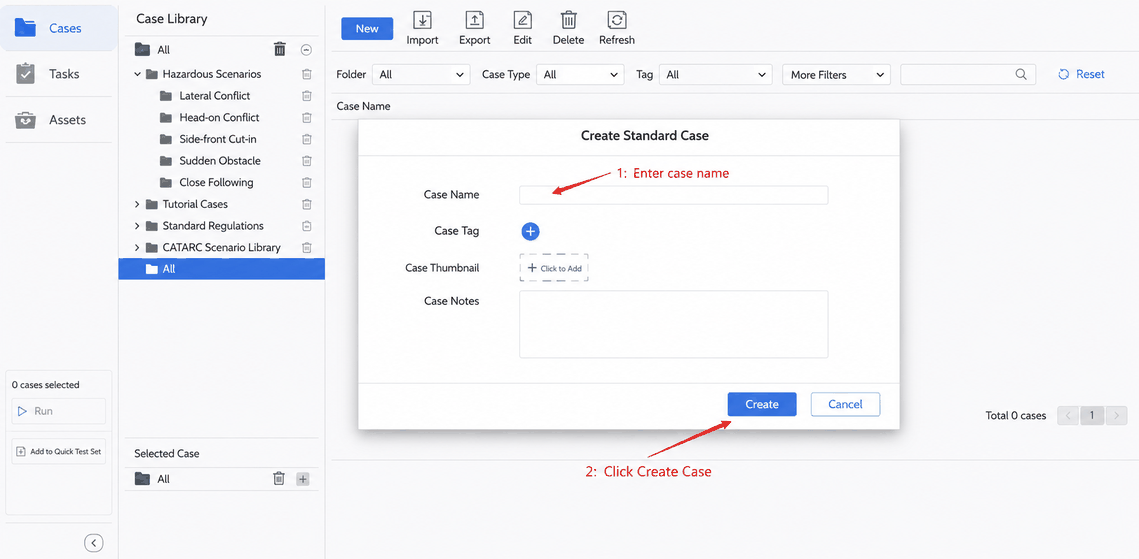
(1) In the Use Case library, click New Folder, then click Create New Use Case.
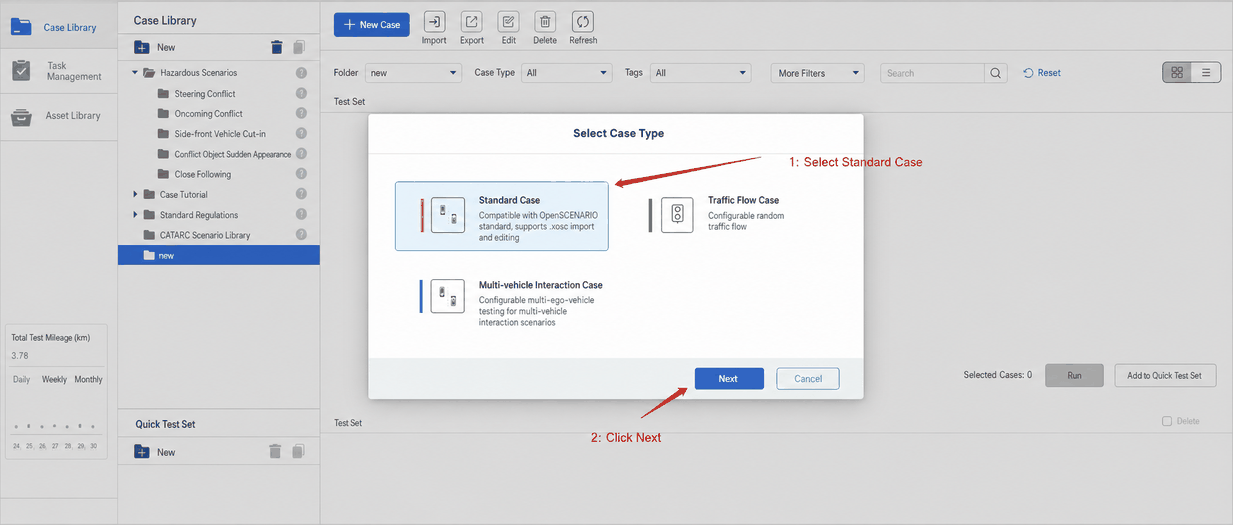
(2) Select Standard Use Case, then click Next.
(3) Enter the Use Case Name and click Create.
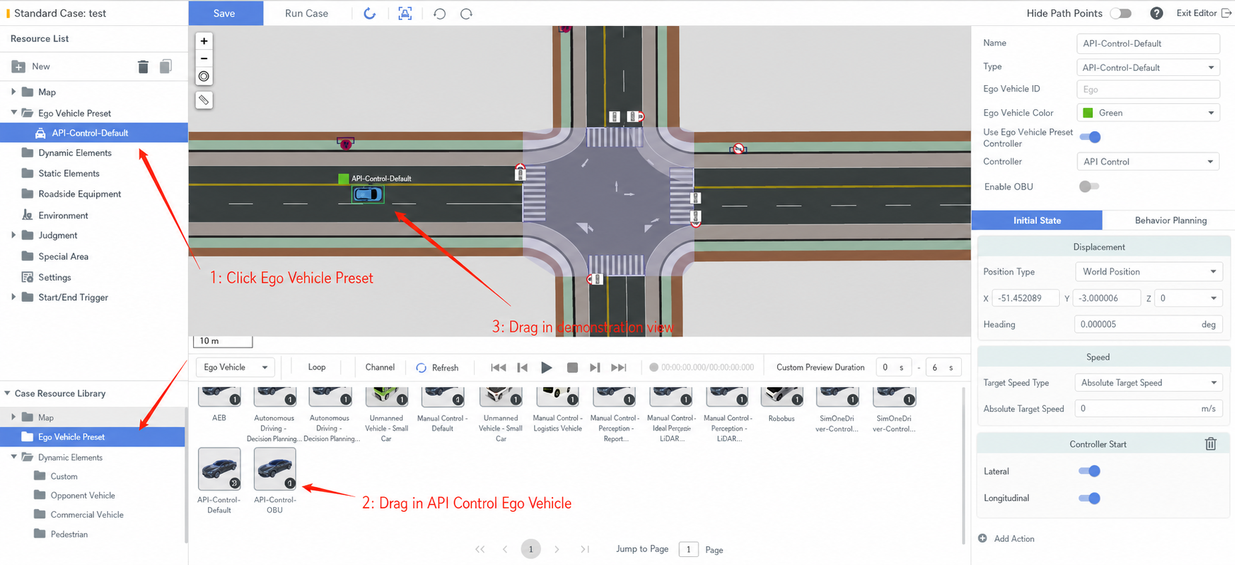
(4) Click Ego Vehicle Preset, drag in the API-Controlled Ego Vehicle, and drag it into the viewport.
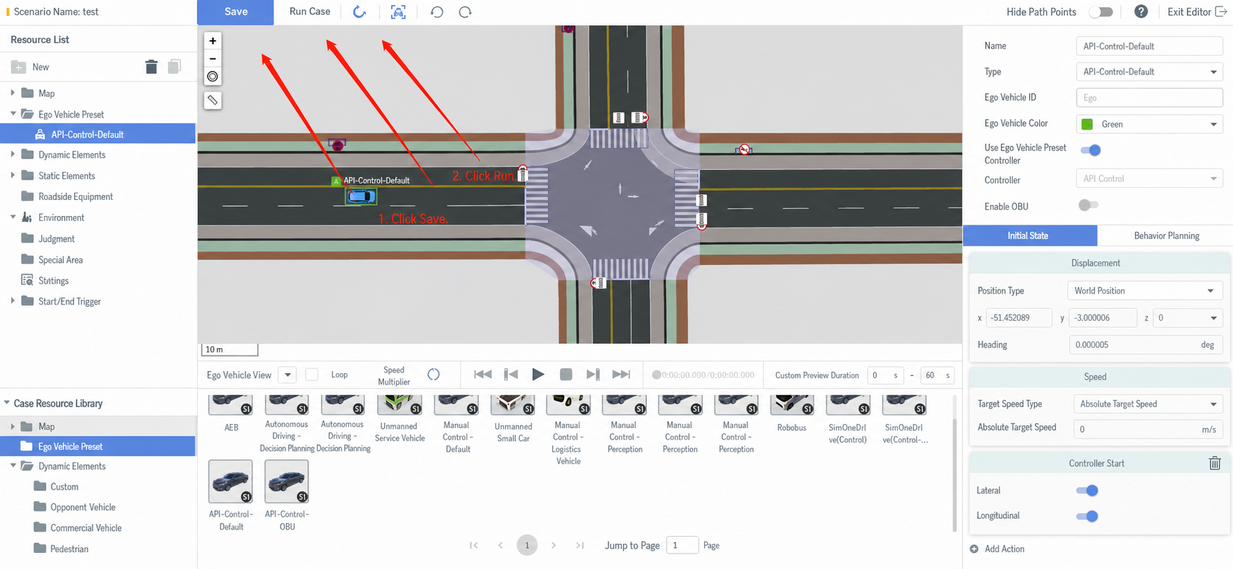
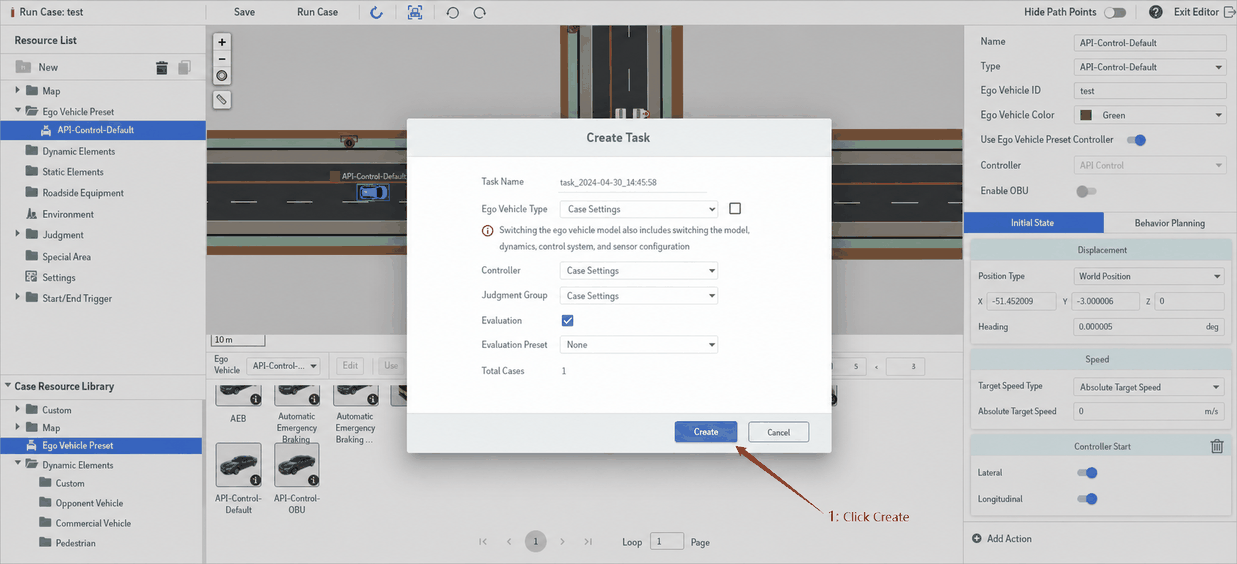
(5) Click Save and Run Use Case, then Create Task.
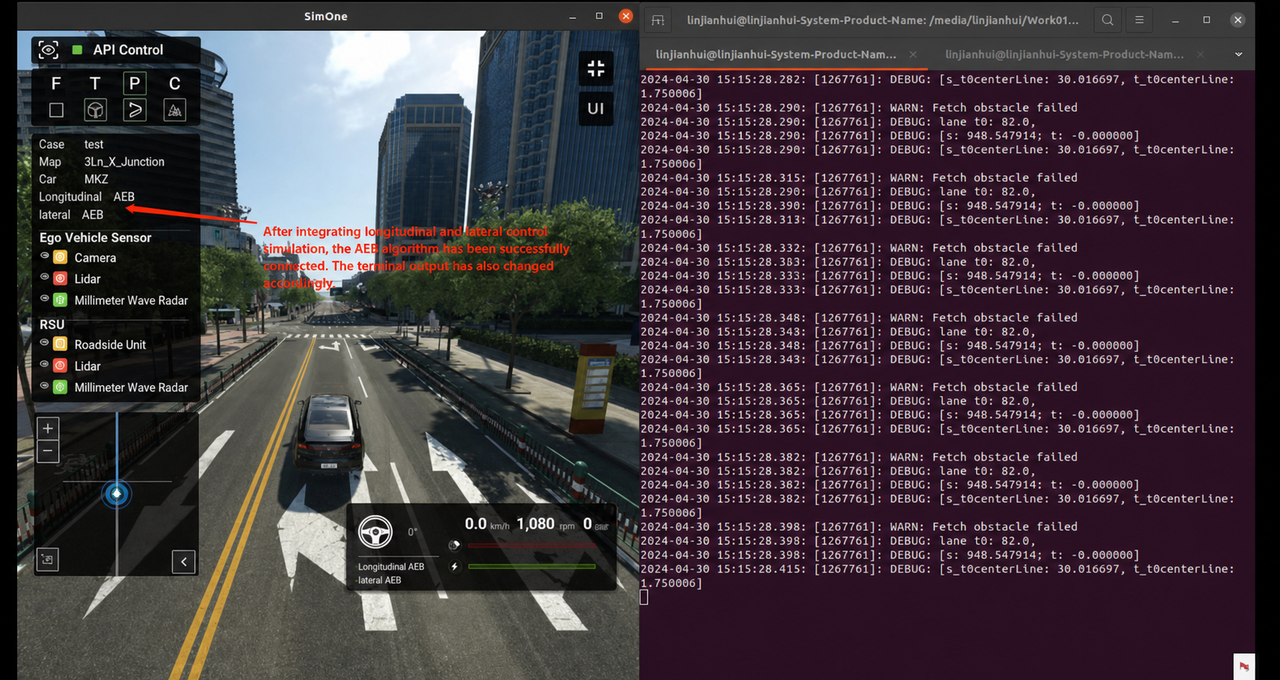
(6) Check the Algorithm connection status. If both the Longitudinal/Lateral Controllers display AEB, the Algorithm has been successfully connected. The console output will also change accordingly.