Legacy Versions (v1.x – v2.x)
v2.2
Release date: 2021-07-02
New Features
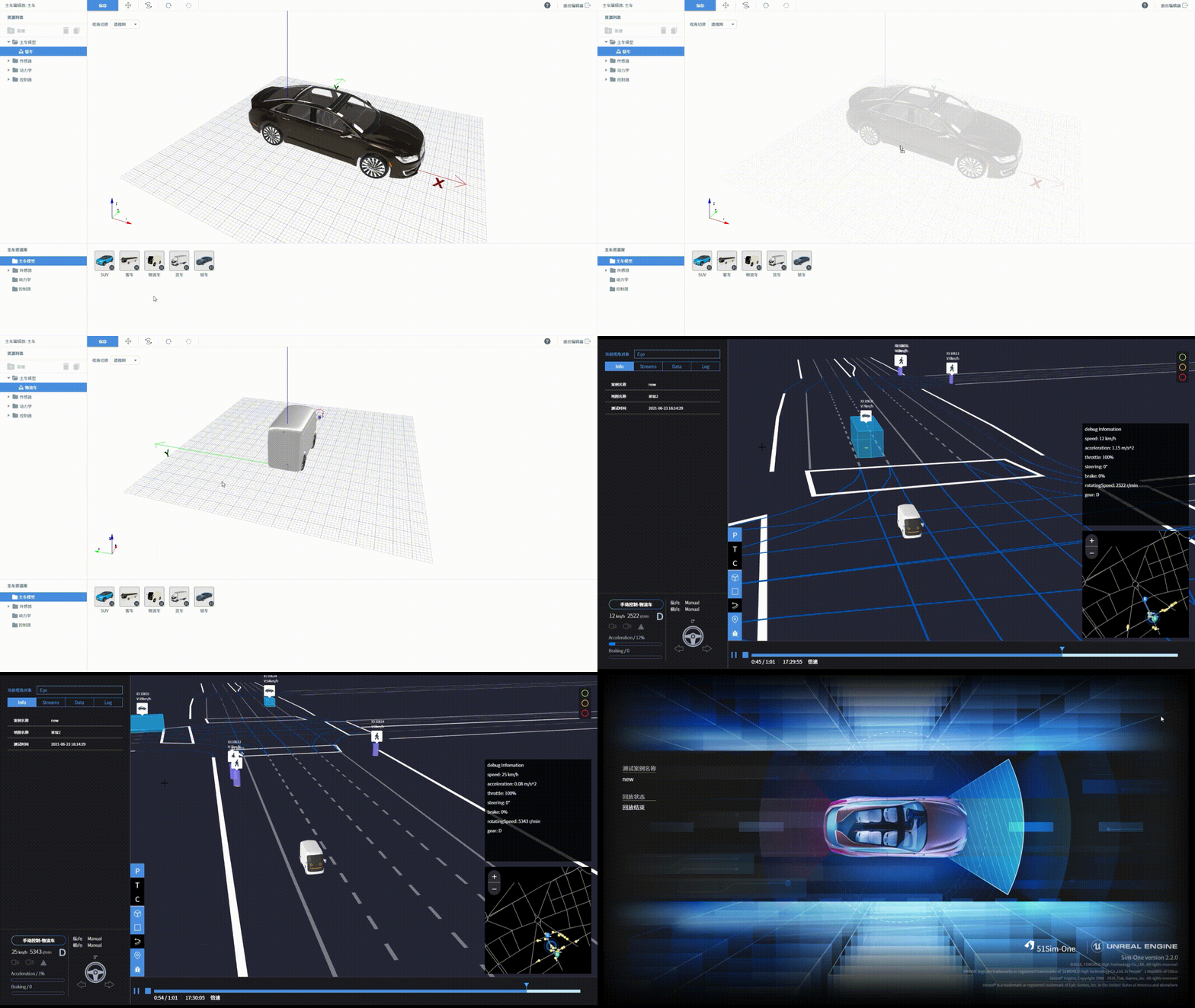
Added logistics vehicle model
- A logistics vehicle model has been added to the ego vehicle model library.
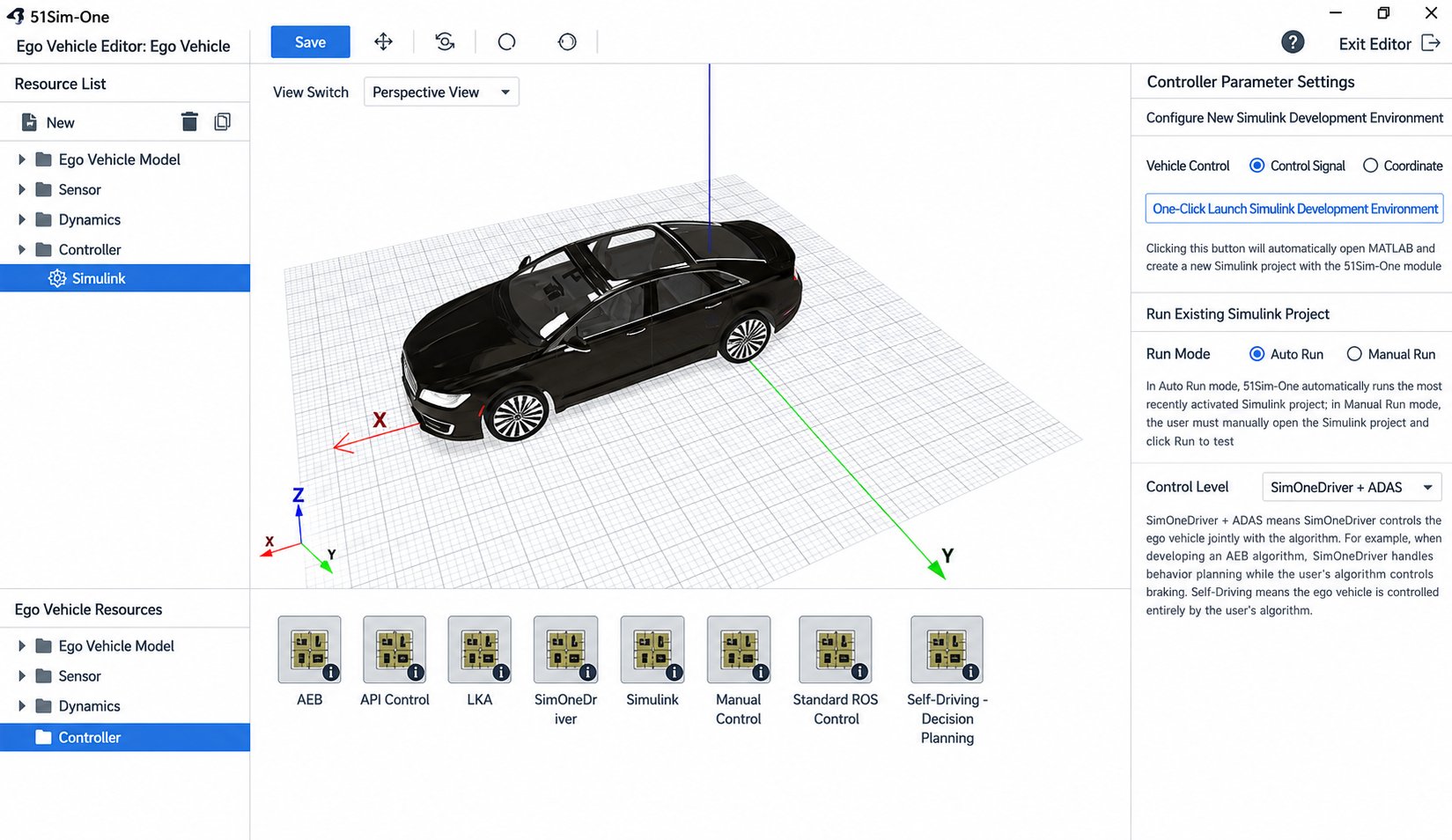
Simulink automatic continuous co-simulation testing
- When running Simulink co-simulation, users can select automatic run mode. SimOne will automatically and continuously call the most recently activated Simulink project to run tests.
Scenario library upgrade
- Added C-NCAP 2018 to the scenario library.
Improvements & Bug Fixes
- Optimized the folder directory structure of the asset library.
- Updated the icons for built-in assets.
- Fixed an incorrect OBU switch state for the ego vehicle.
- Fixed an issue with scenario import.
- Fixed an issue with the scenario library filter function.
- Fixed an issue where ego vehicle presets could not be created.
- Fixed an inconsistency between the built-in map and World Editor.
- Fixed an issue where V2X information was displayed inaccurately when automatic traffic light timing generation was disabled in the scenario editor.
v2.0
Release date: 2021-03-11
New Features
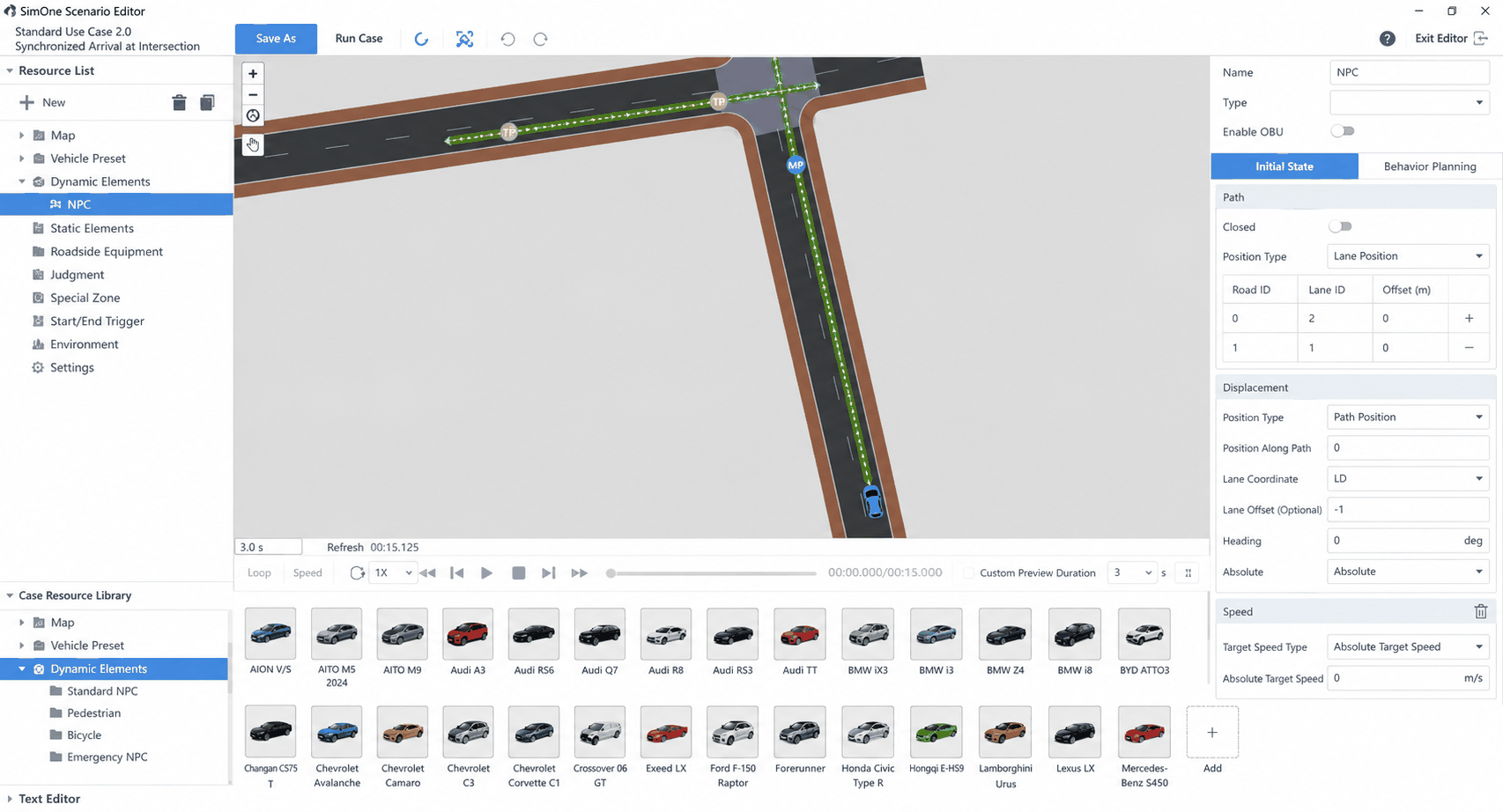
Scenario Editor 2.0
- Scenario Editor 2.0 fully supports the OpenSCENARIO 1.0 standard.
- Supports placement and configuration of static and dynamic objects.
- Supports interactive editing of scene elements such as Events, Actions, and Conditions.
- Built-in OpenSCENARIO text editor with syntax highlighting.
- Supports previewing and debugging scenario edits within the scenario editor.
- Supports road network services with multiple switchable position types.
- Supports connecting user algorithms and hybrid driving test modes.
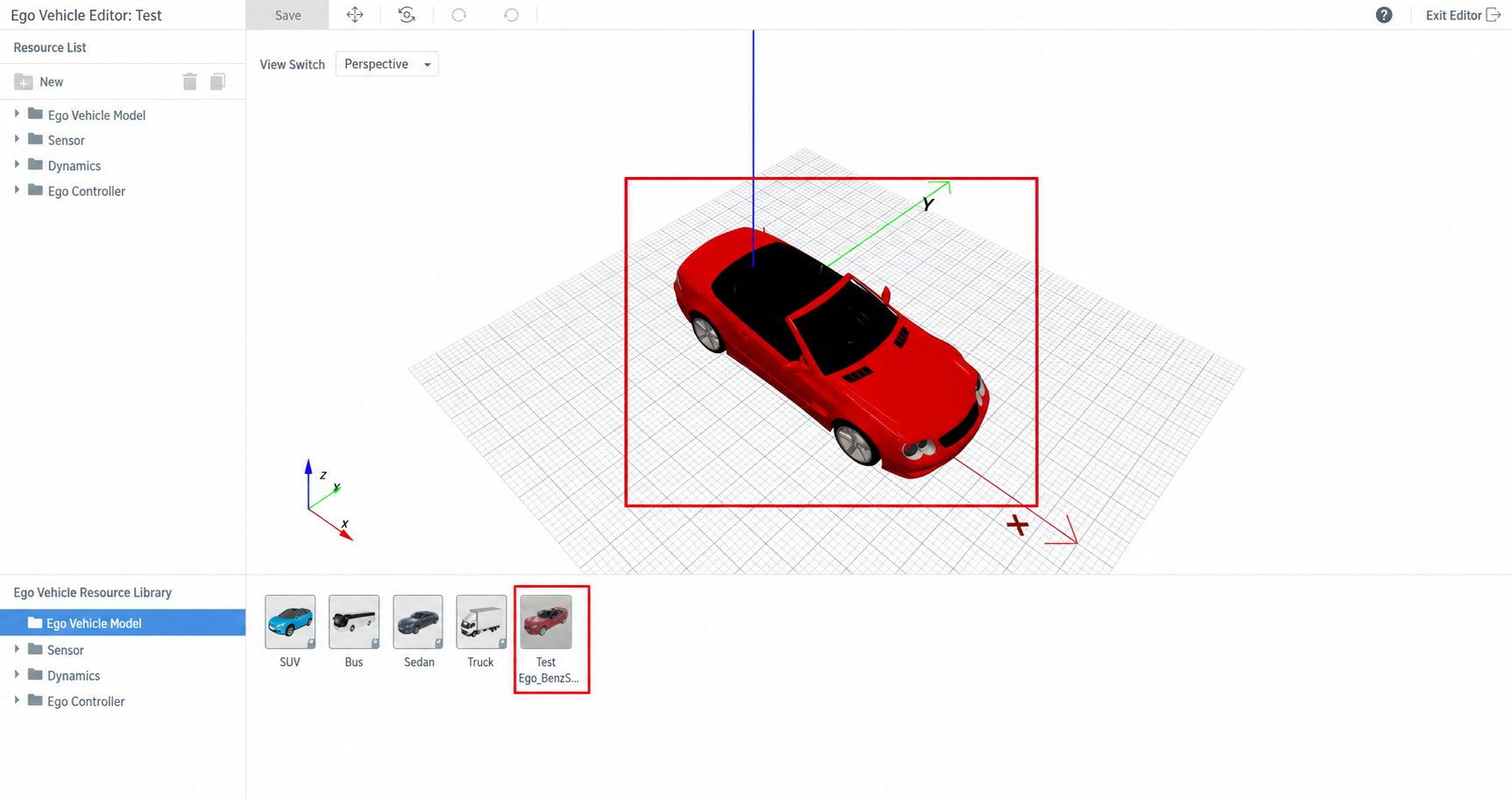
Custom ego vehicle model import
Supports importing user-defined ego vehicle models for simulation testing.
Custom scene import
Supports importing user-defined UE scenes for simulation testing.
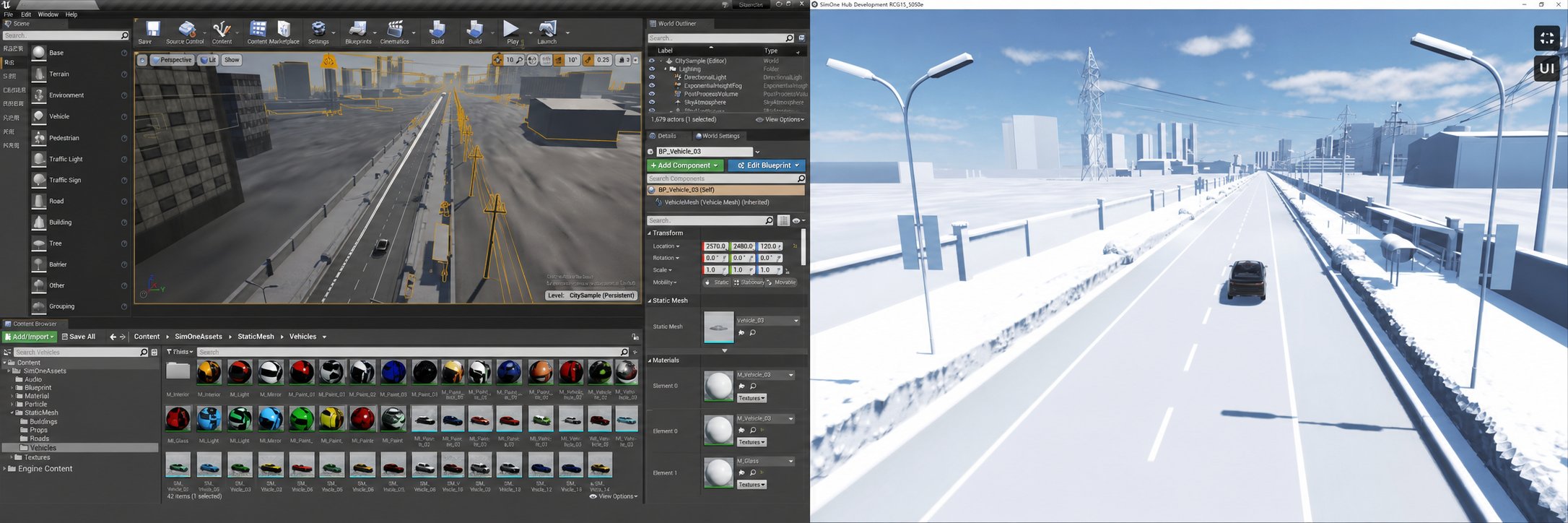
New atomic maps
Added 2 parking lot atomic maps: underground parking lot and surface parking lot.
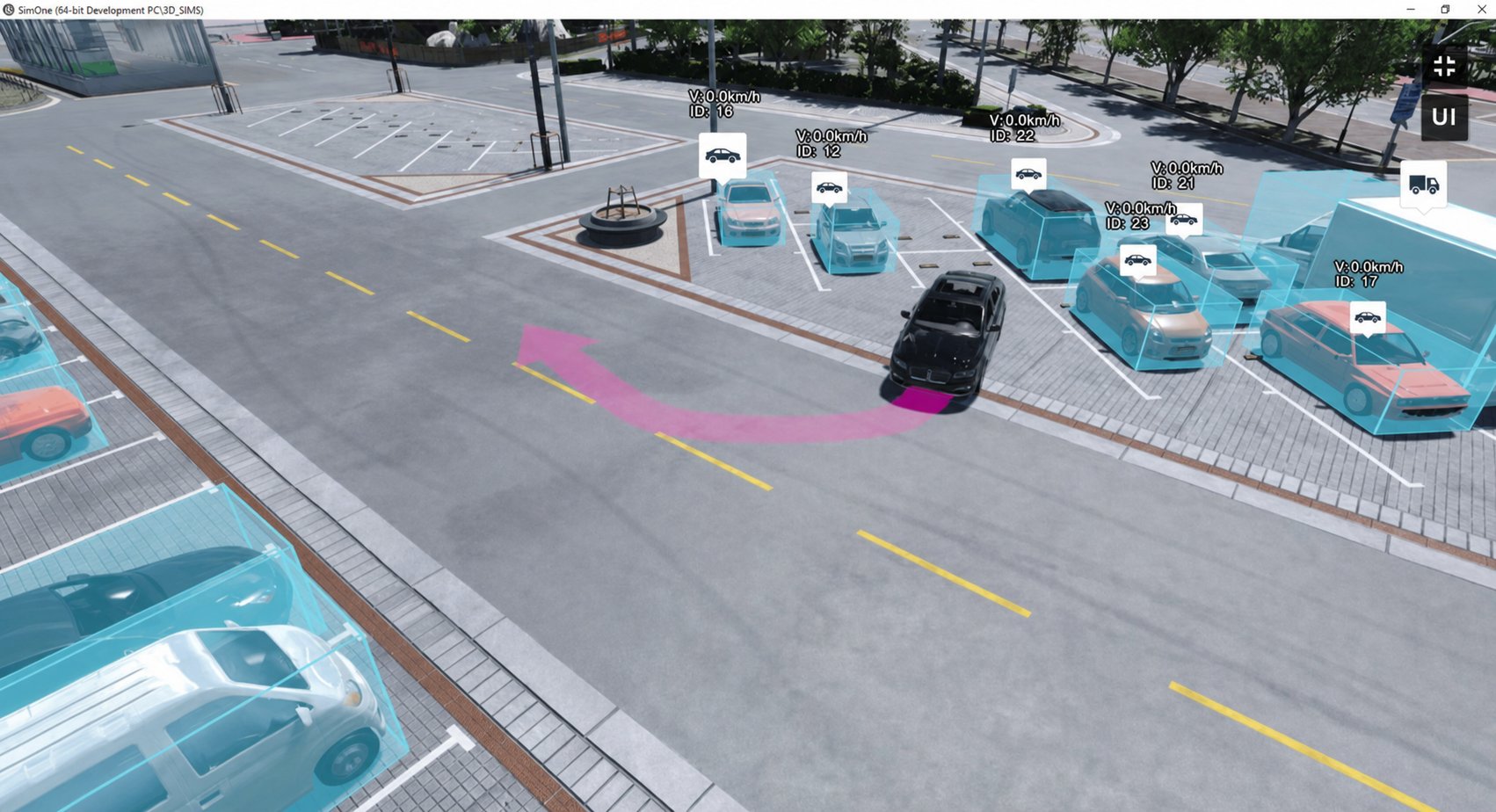
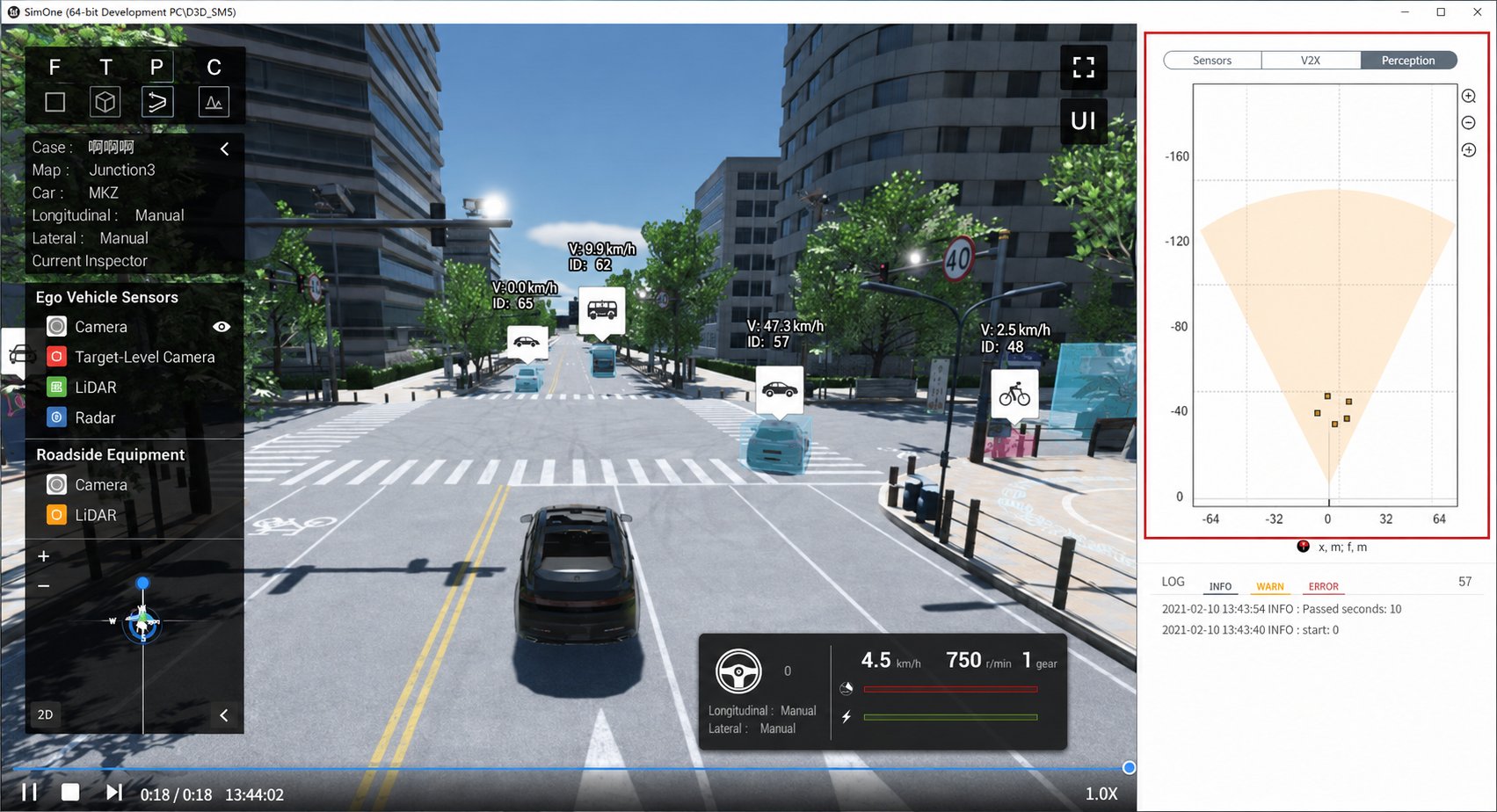
New object visualization tool
Integrated an object visualization module into the HD visualization tool and simplified visualization tool for displaying target objects.
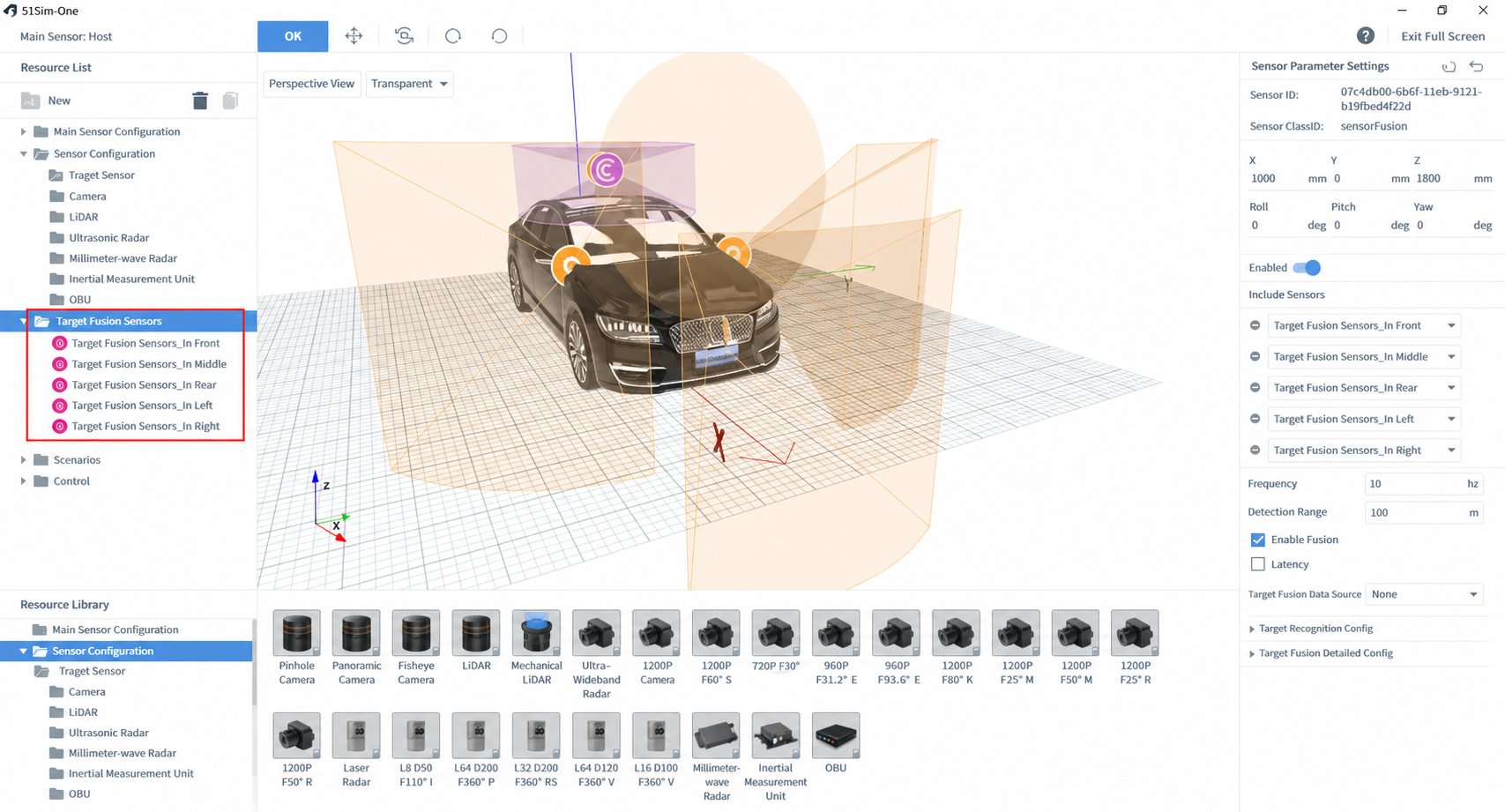
New object-level sensor fusion simulation
Fuses the results from multiple object-level sensors into a single combined object signal output.
Enhanced judgment
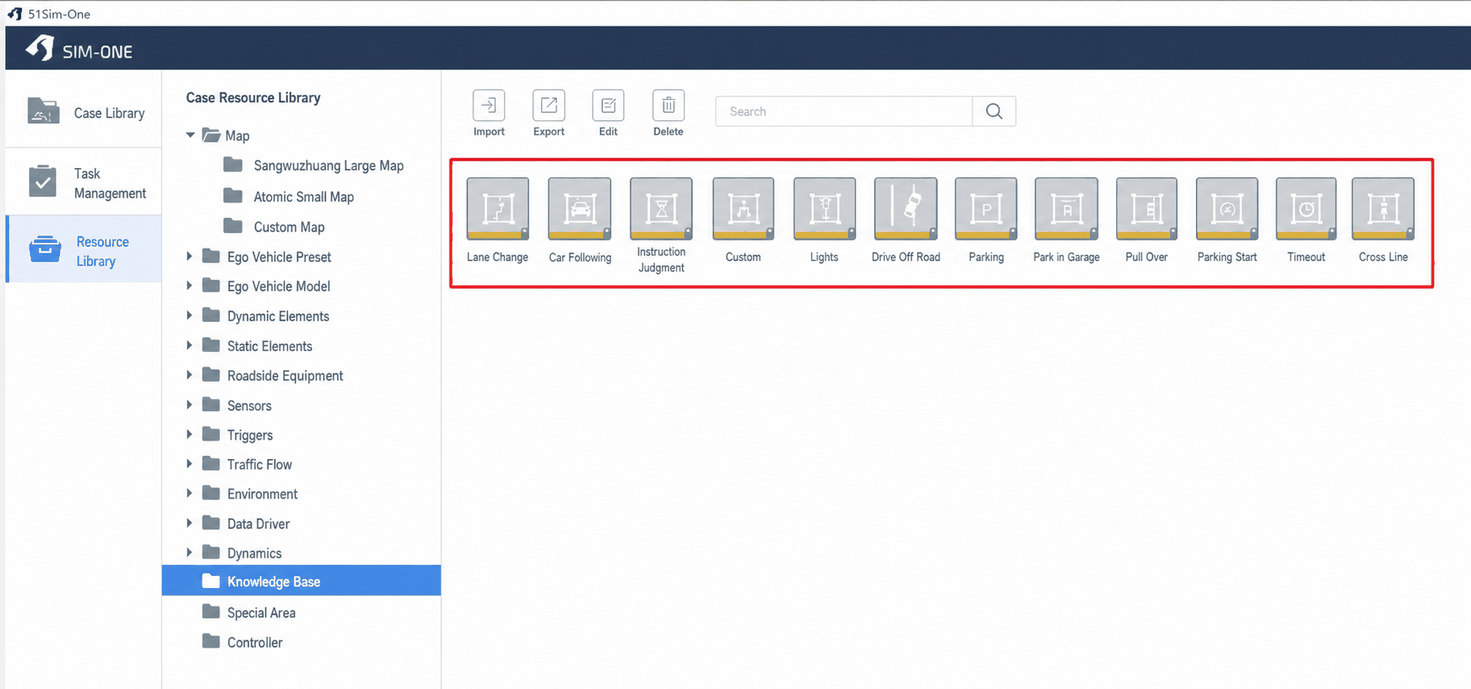
Added 4 judgment conditions: command response, lighting, driving off-road, and parking in a space.
New electric vehicle dynamics model
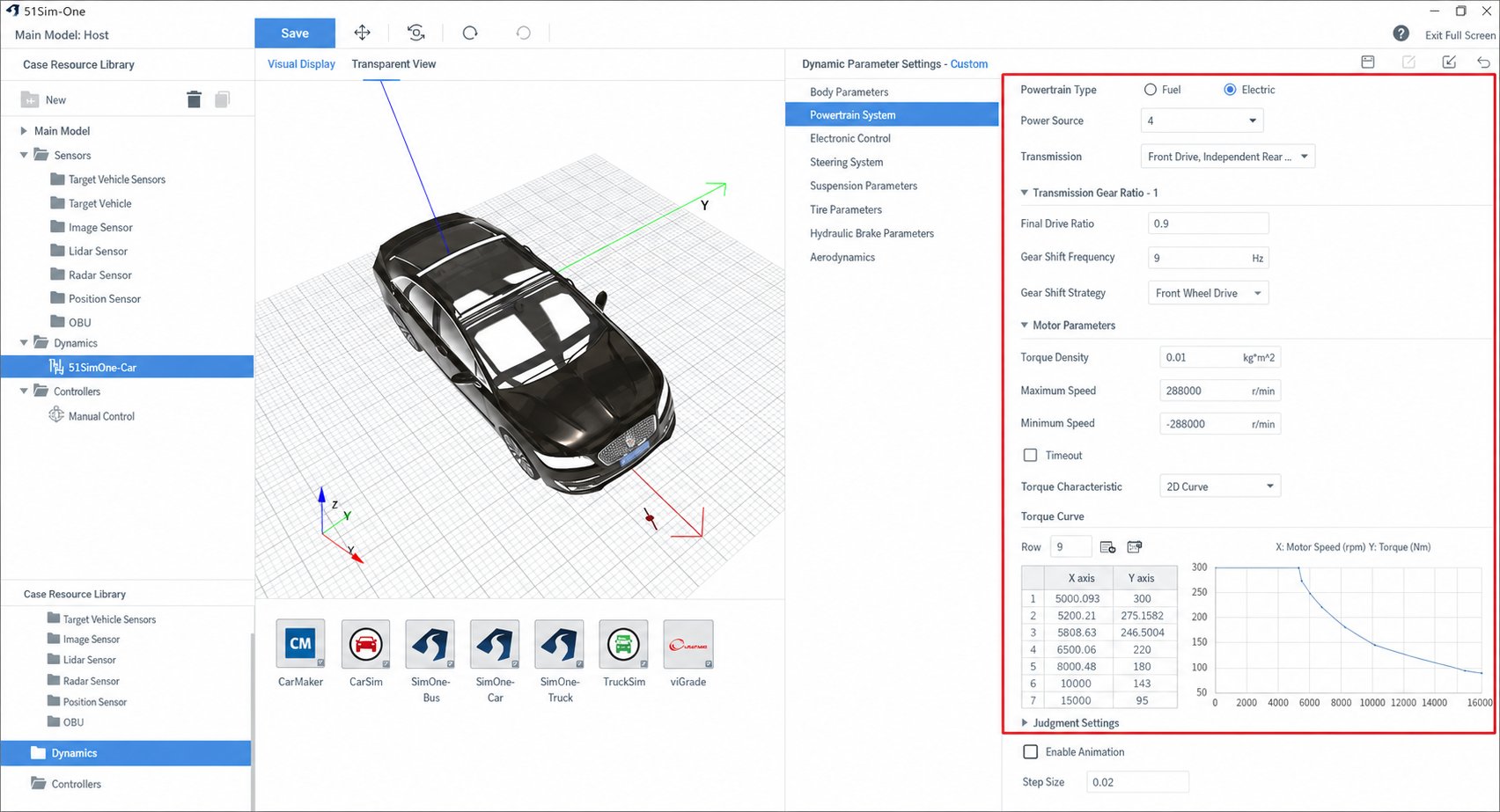
Added an electric vehicle dynamics model, while also supporting CarSim and CarMaker dynamics model imports for testing.
Bug Fixes
- Fixed an issue where data-driven scenario resampling failed.
- Fixed a mismatch between atomic scenes and HD maps.
- Fixed excessively low brightness in certain atomic scenes.
- Fixed an issue where roadside devices could not be added during scenario playback.
- Fixed an issue where parking spaces were not displayed in the scenario editor.
- Fixed pedestrian bounding box flickering in the HD visualization tool.
- Fixed an issue where one-click Simulink launch might fail.
- Fixed an issue where test report fields were truncated.
- Fixed a map offset issue in the scenario editor.
- Fixed an issue where certain static elements were displayed as NPC vehicles in the visualization tool.
FAQ
Before installation
Before installing SimOne, you need to prepare a hardware dongle, the SimOne software package, and VS2017 (which must be installed on the computer in advance).
Installation process
- First, insert the hardware dongle into the computer, then install the driver. Inserting the dongle will automatically launch the driver installer — simply click Next to complete the installation.
- Open the
release-devEfolder and runsetup(only needed for the first installation). If a message appears indicating that your configuration is insufficient, you can ignore it temporarily — enter Y to complete the installation. - Launch
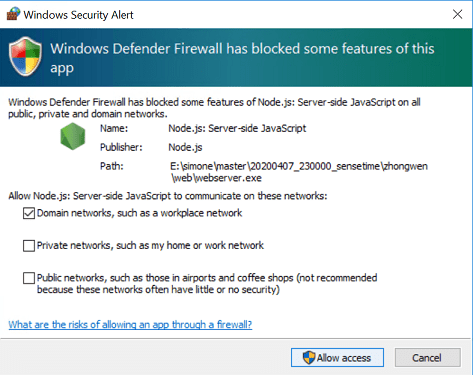
51Sim-OneLauncher.exe. Multiple firewall permission dialogs will appear — click Allow for all of them. There is no need to change the IP address; the default127.0.0.1should work fine.
PAK error during software package extraction
Solution: This error is caused by poor system performance and occurs intermittently. Check whether the hardware configuration meets the minimum requirements for SimOne, and whether there are any operations currently performing heavy disk reads/writes (e.g., copying large files).
CodeMeter license error when launching SimOne Launcher
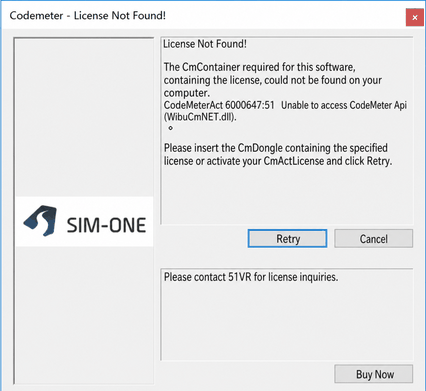
Solution: This error occurs because the CodeMeter runtime is not installed. CodeMeter is the copy protection solution used by SimOne.
Please follow the user manual on the installation USB drive (Dongle User Guide.pdf) to install the correct CodeMeter runtime (CodeMeterRuntime64.msi).
The manual also lists other issues that may occur when using the hardware dongle for your reference.
Illegal character error when double-clicking SimOne Launcher
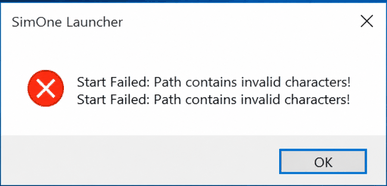
Solution: This error occurs because the directory containing SimOne includes spaces or Chinese characters. Please ensure the installation path does not contain such characters.
After extracting the software and launching the Launcher, the management interface appears, but running the default scenario keeps it in a pending state
Solution: The built-in scenarios are configured by default to use Apollo as the ego vehicle control system. Apollo must be installed, correctly configured, and running before executing built-in scenarios. If Apollo is not installed, select the Manual Driving mode when running the built-in scenarios. The scenario will run normally and the UE Observer window will launch — you can then control the ego vehicle using the keyboard.
Double-clicking "Start SimOne" causes the page to restart repeatedly or spin indefinitely
Solution:
- Check whether the path is too long.
- Check whether Node.js is installed. The installer is located in release-dev/Extras. A restart is required after installation.
- Check whether release-dev/Web/WebServer.exe exists. It has been observed that non-7z extraction may miss files when the path is long.
Double-clicking "Start SimOne" does not bring up a PowerShell window, and the software fails to start
Solution: This error occurs because antivirus software on the user's machine is incorrectly flagging the SimOne daemon process as a virus. Exit all antivirus software, and click Allow for all Windows Firewall dialogs that appear.
Apollo fails to start
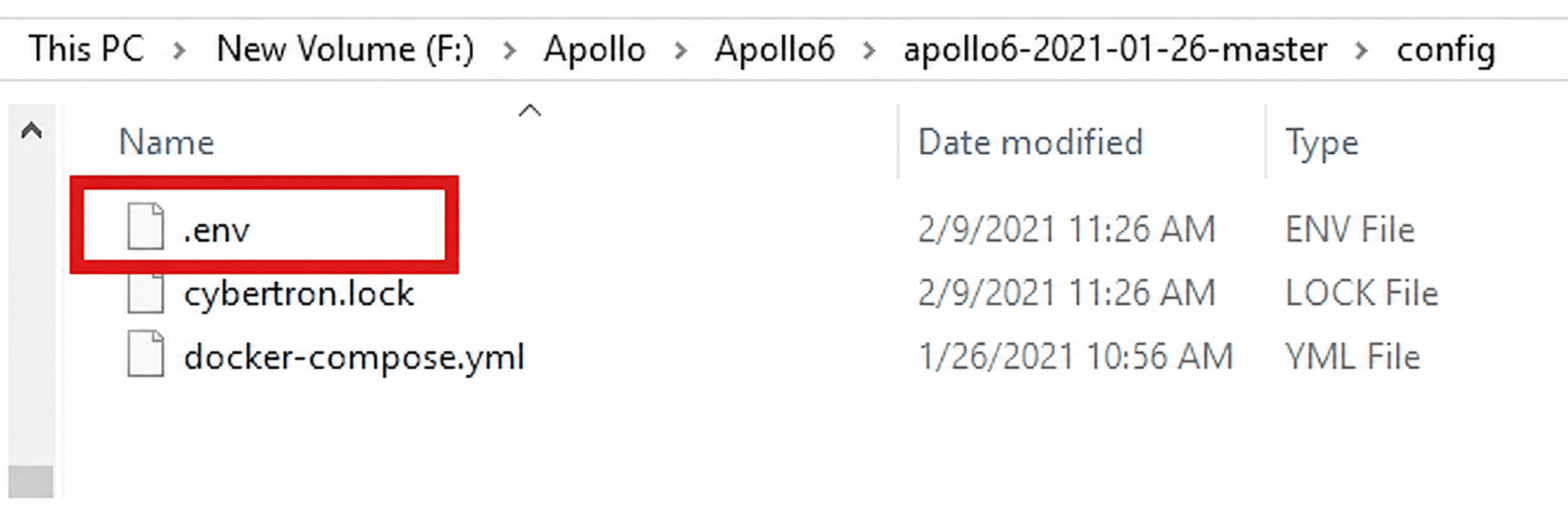
Solution: The cause may be complex, but the most common reason is an incorrect ENV configuration. Modify the IP address, port, and other settings for the SimOne host machine in the .env file, then click start.bat.
UE Observer window launches normally, but the screen is completely blank

Solution: Extra spaces in the Config file have caused a configuration error. Modify the configuration file to resolve this. If this issue occurs, please contact technical support.
UE Observer fails to launch after running a scenario
Solution:
- If you are running in manual mode, check whether the UE prerequisite libraries are installed. The installer UE4PrereqSetup_x64.exe can be found in the
extradirectory. - If you are running with Apollo, check whether the Apollo package is properly installed and configured, and whether the IP address has been correctly set in the config file as required by the user manual.
Scenarios cannot run on Ubuntu
Solution: Check the computer hardware configuration, in particular whether the GPU meets the requirements.
How to connect a user-defined algorithm
Solution: For example, if you use ROS topics, sample code is available that extracts sensor data and publishes it to a ROS topic. Use the SimOne API to extract sensor data such as point clouds, obstacles, camera images, and ultrasonic data, then publish to a ROS topic. Your algorithm receives the sensor data from the ROS topic, processes and fuses it, computes throttle, steering, and brake commands, and calls the SimOne API Driver API to control the ego vehicle. An sdk directory is available in the product root directory. After the web server starts, a documentation server is accessible where you can browse various APIs and sample code.
Platform documentation cannot be opened
Solution: Node.js is not installed, preventing StartWebServer.bat commands from executing. Install Node.js.
Running sample fails to open UE and keeps waiting
Solution: Open config, check cpu_node2, then restart SimOne.
Setup.bat crashes immediately on launch
Solution:
- Check whether JDK is installed and environment variables are properly configured.
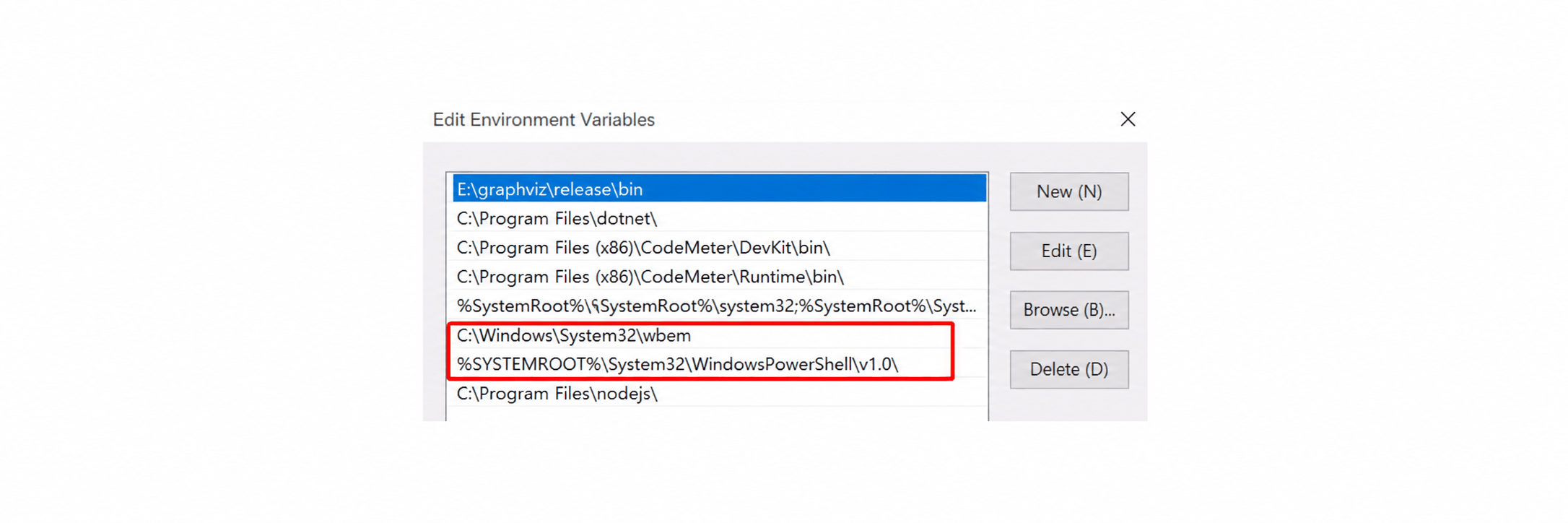
- If no .bat files can run on the machine, check whether C:/WINDOWS/system32/wbem exists and whether this path is in the system
PATHenvironment variable.
 3. Some .bat files require administrator privileges.
Launcher starts, but WebServer fails to start
The web component displays: "PowerShell is not recognized as an internal or external command, operable program, or batch file."
Solution: Add the PowerShell environment variable: %SYSTEMROOT%/System32/WindowsPowerShell/v1.0/

Built-in scenarios run, but the algorithm ego vehicle swerves left and right in an S-pattern
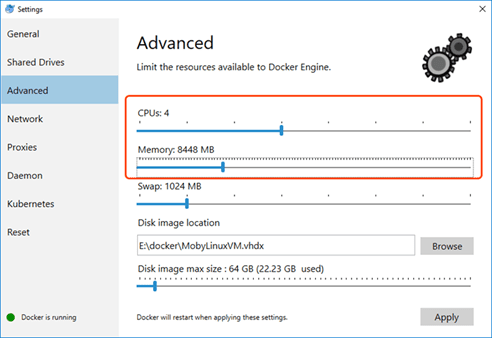
Solution: This issue is caused by the algorithm Docker container's CPU and memory requirements not being met by the host system. If the hardware is insufficient, the algorithm may experience delays and other unpredictable behavior. Solution: Allocate at least 4 CPU cores and 8 GB of RAM to Apollo. For standalone installations, it is not recommended to add more than one sensor to the ego vehicle.
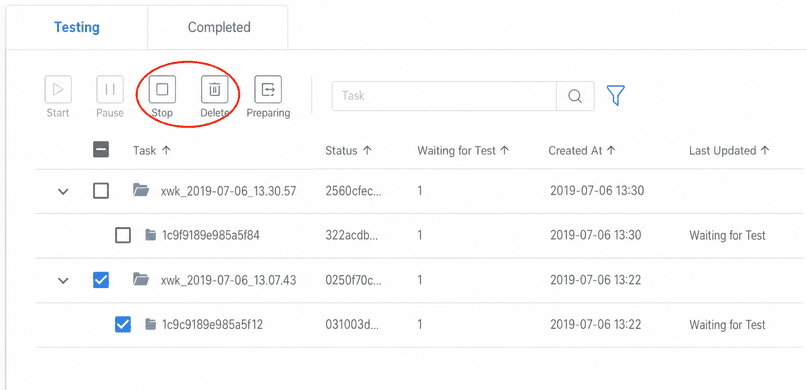
When Task A fails to run successfully (Task A remains in the testing list), the user creates Task B. Multiple tasks pile up in the task list but no further testing proceeds.
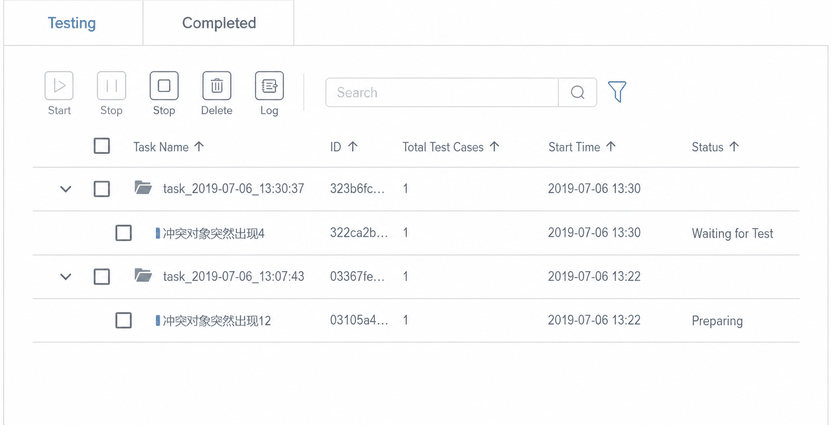
This error occurs because, during batch task execution, if a previous task was set up incorrectly it may enter a waiting state.
Solution: Manually stop or delete the problematic task. Subsequent tasks will then continue to run.
One-click Simulink development environment launch
- If multiple versions of MATLAB are installed on the computer, versions 2019a and above have higher priority. If multiple versions are all below 2019a or all 2019a and above, the version that appears first in the PATH environment variable has higher priority.
-
If the error "One-click Simulink launch failed, error type: app.api.error.code.30000X" appears, try the following actions based on the error code:
-
300001, 300002: Check whether the MATLAB path in the registry exists and is correct.
- 300003: Check whether libeng.dll exists under
[desired MATLAB version install path]/bin/win64. - 300004: Choose one of the following: a) Open the desired MATLAB version as administrator, enter
!matlab -regserver, and wait for the command to complete. b) Open a command prompt as administrator, navigate to[desired MATLAB version install path]/bin/win64, and runmatlab /regserver. - 300005: Check the network environment.
v1.3
Release date: 2020-11-03
New Features
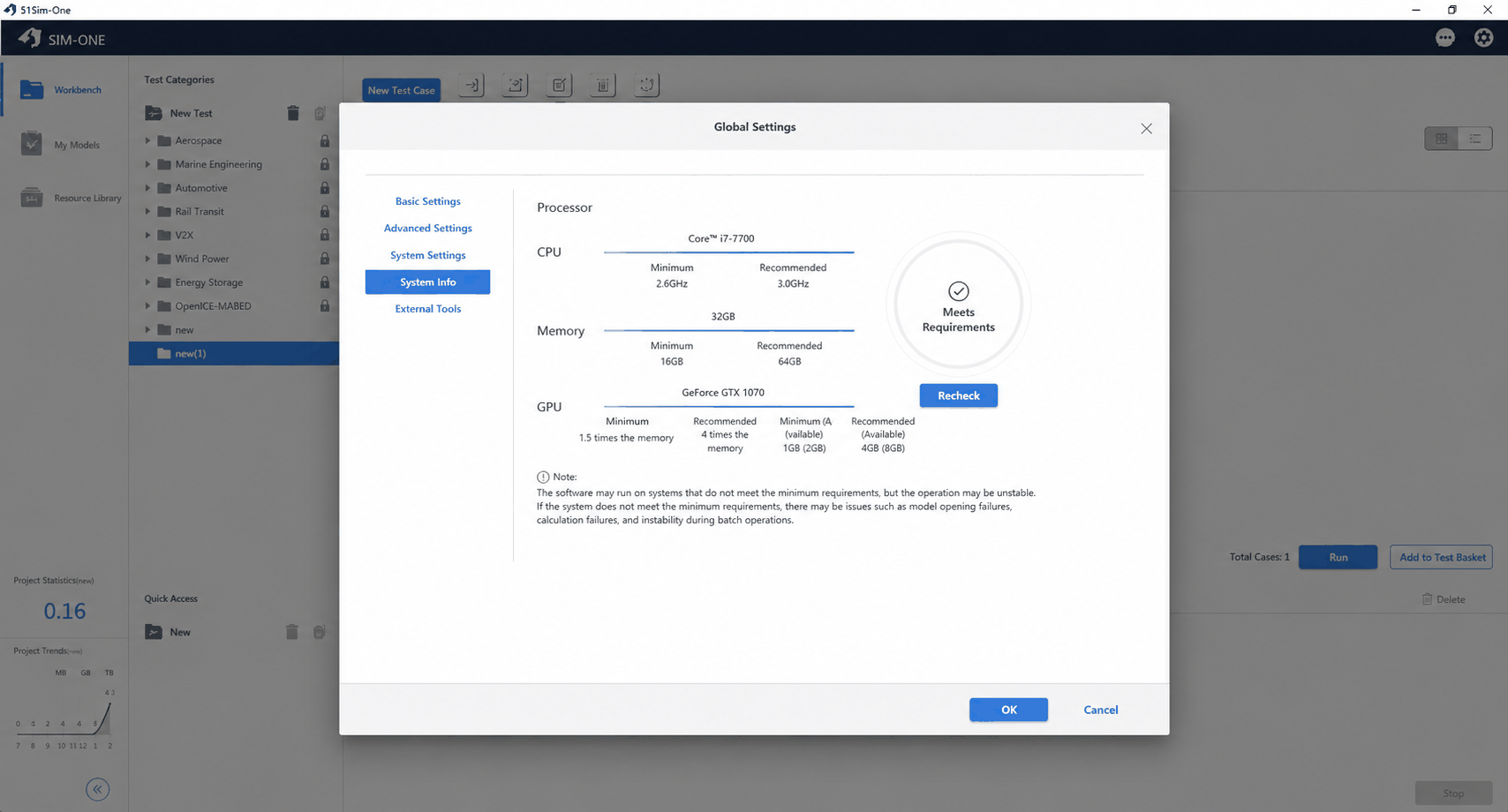
System configuration
Added a system detection module and a system configuration module to the frontend.
When SimOne is launched for the first time, the frontend automatically detects hardware capabilities and recommends rendering platform settings based on the results.
The system configuration module allows users to set language, environment variables, visualization tools, scheduling nodes, and more.
New judgment items
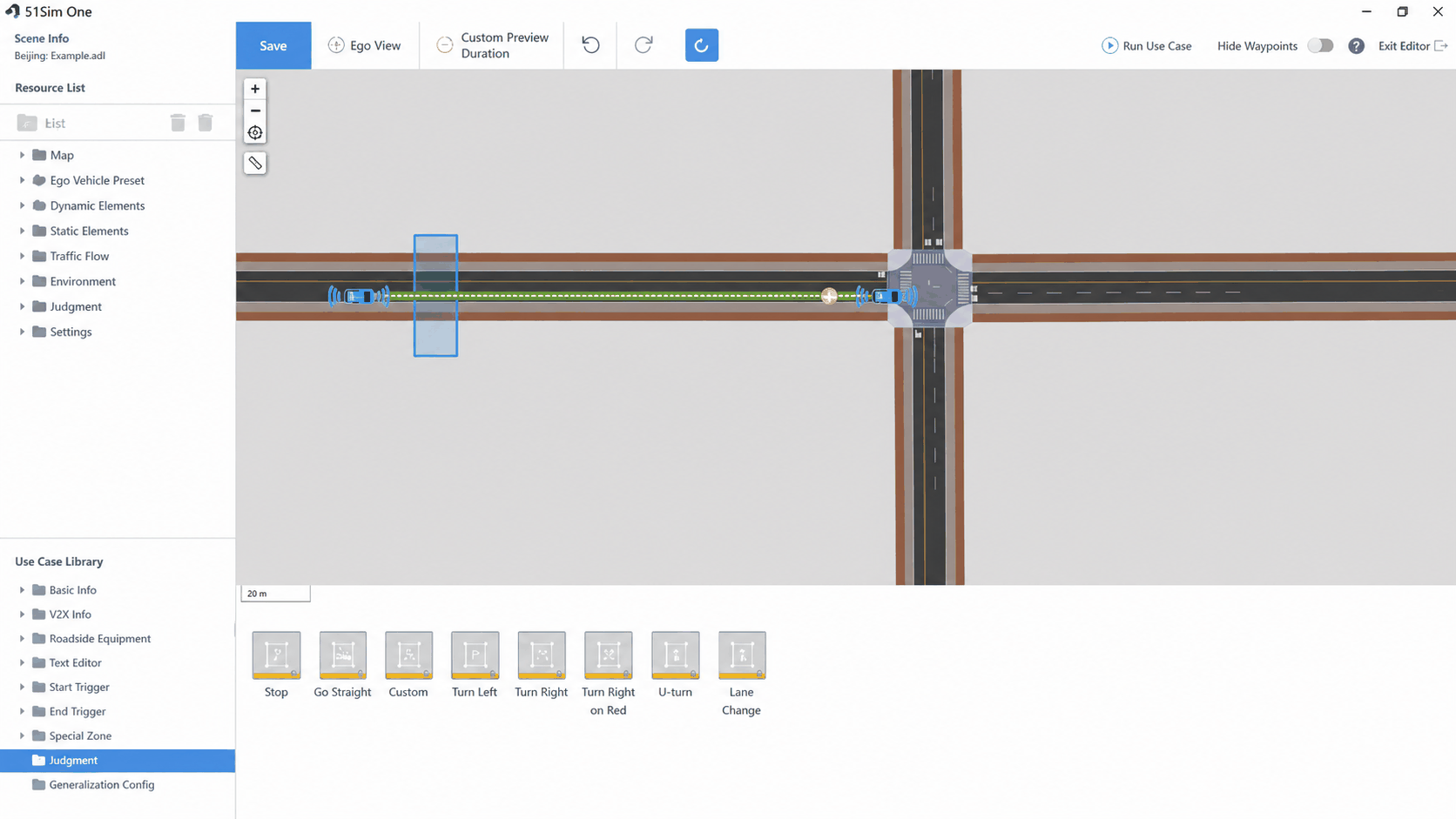
Added lane change, pull over, start from stop, distance to lane line, and deviation from lane centerline as judgment items.
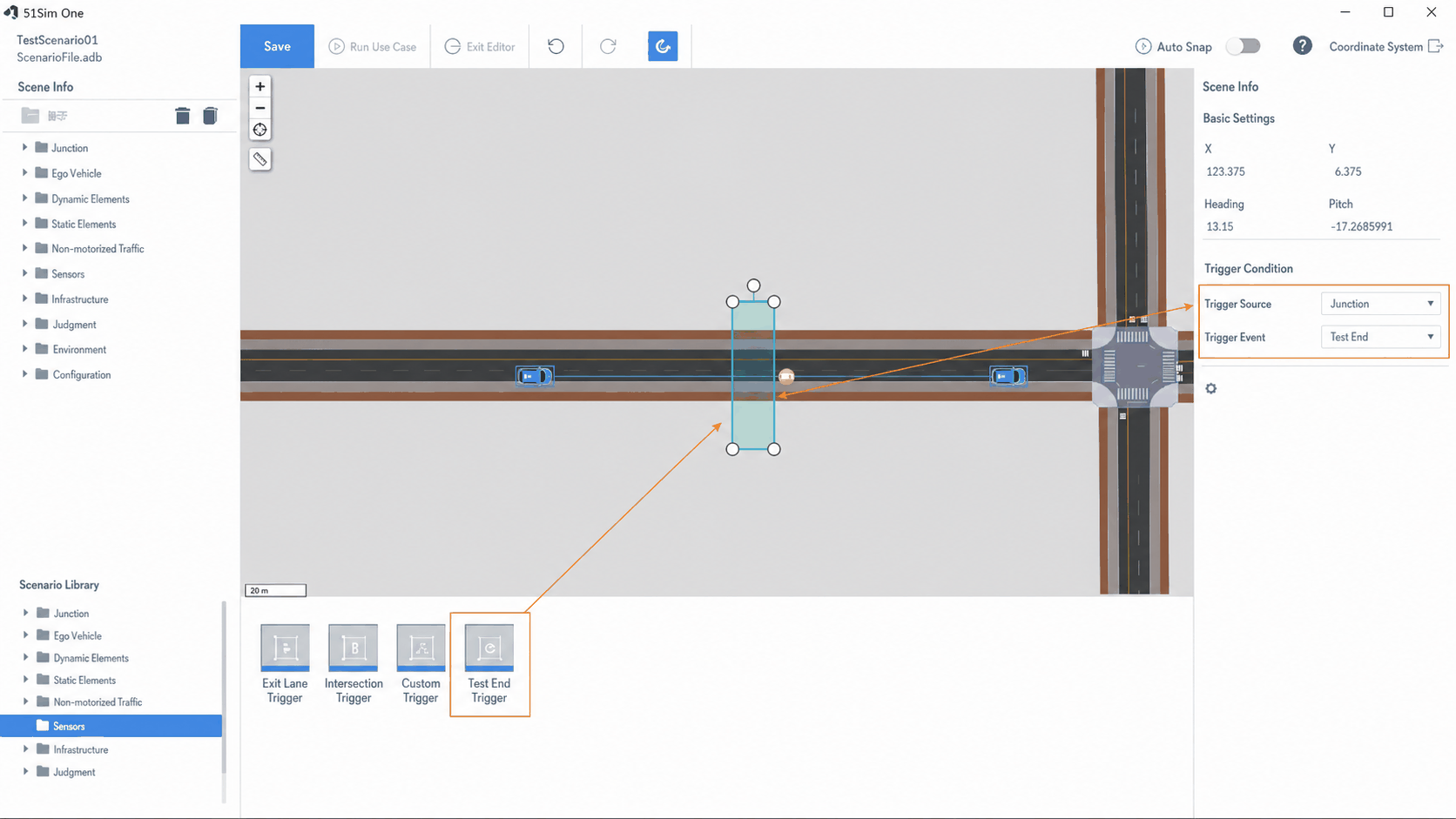
New end-of-test trigger
Users can add an end-of-test trigger in the scenario editor. When the ego vehicle or another object meets the trigger condition, the system ends the test. If no trigger is added, the system defaults to ending the test when the ego vehicle reaches point E.
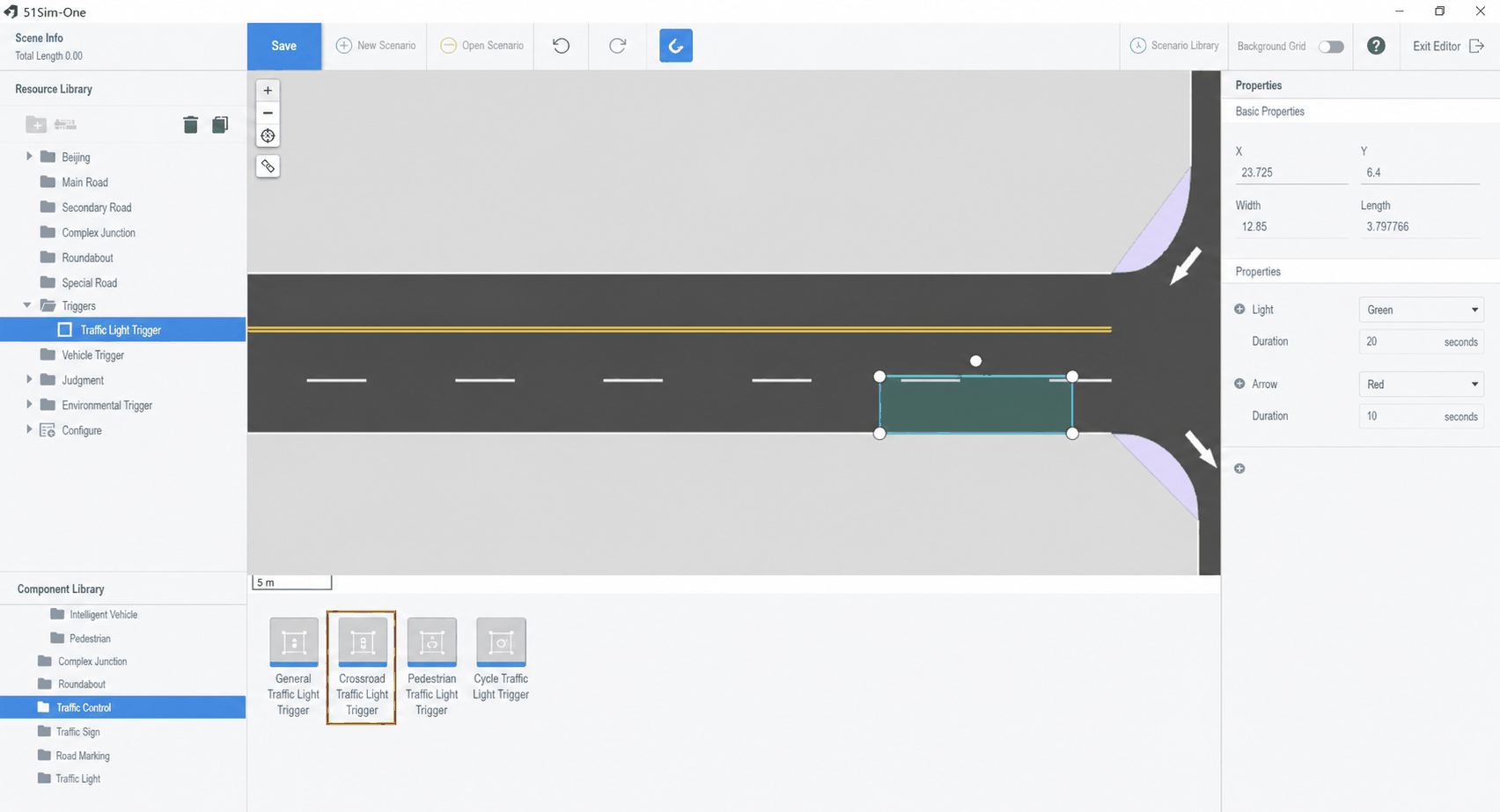
New traffic light trigger
Users can add a traffic light trigger in the scenario editor. The traffic light trigger controls the behavior of traffic lights at an intersection: it immediately intervenes and changes the timing of specified road signal lights, then resumes normal operation according to the original rules after the trigger ends.
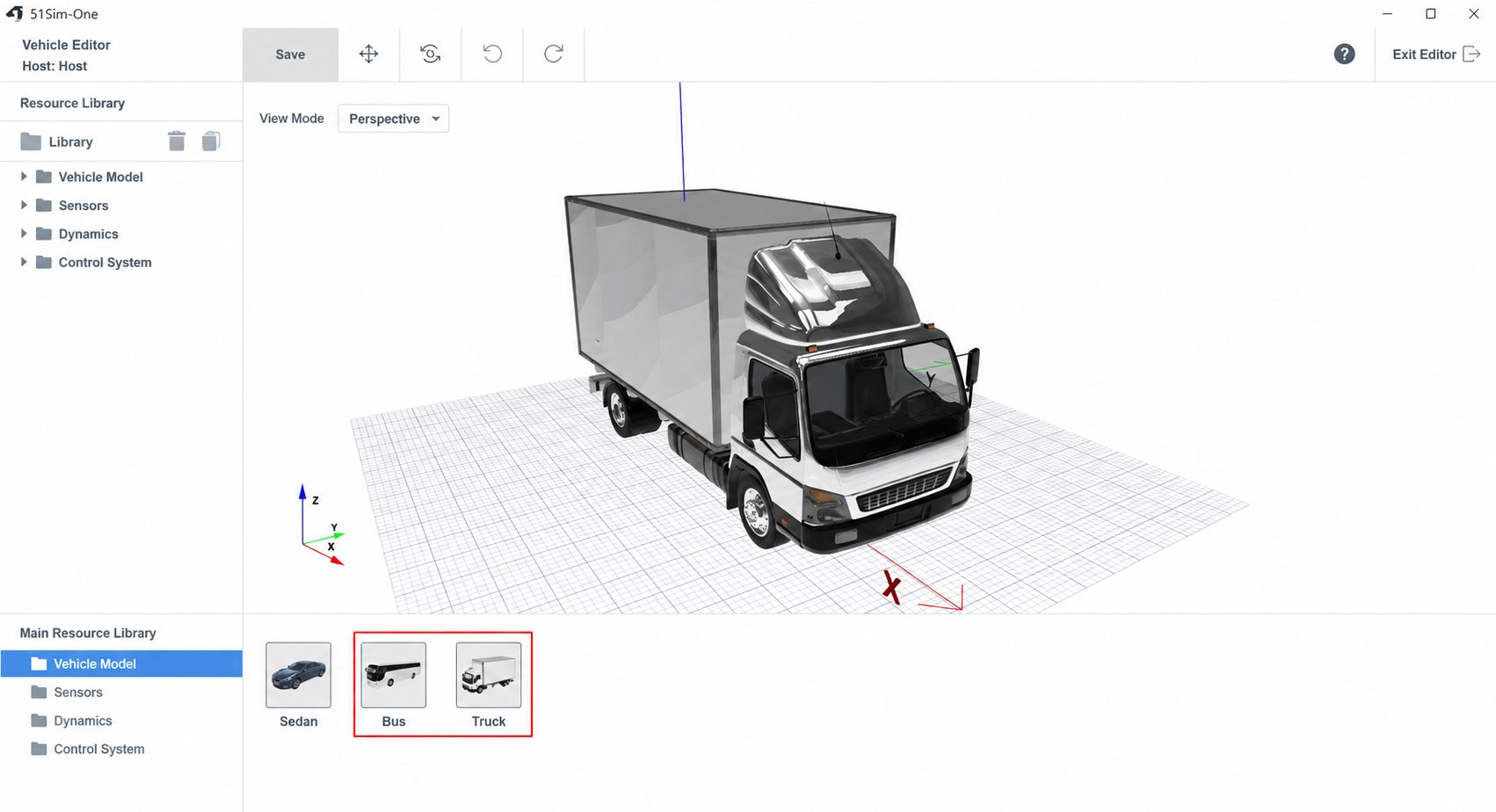
New ego vehicle models
Added 2 new ego vehicle model types: truck and bus.
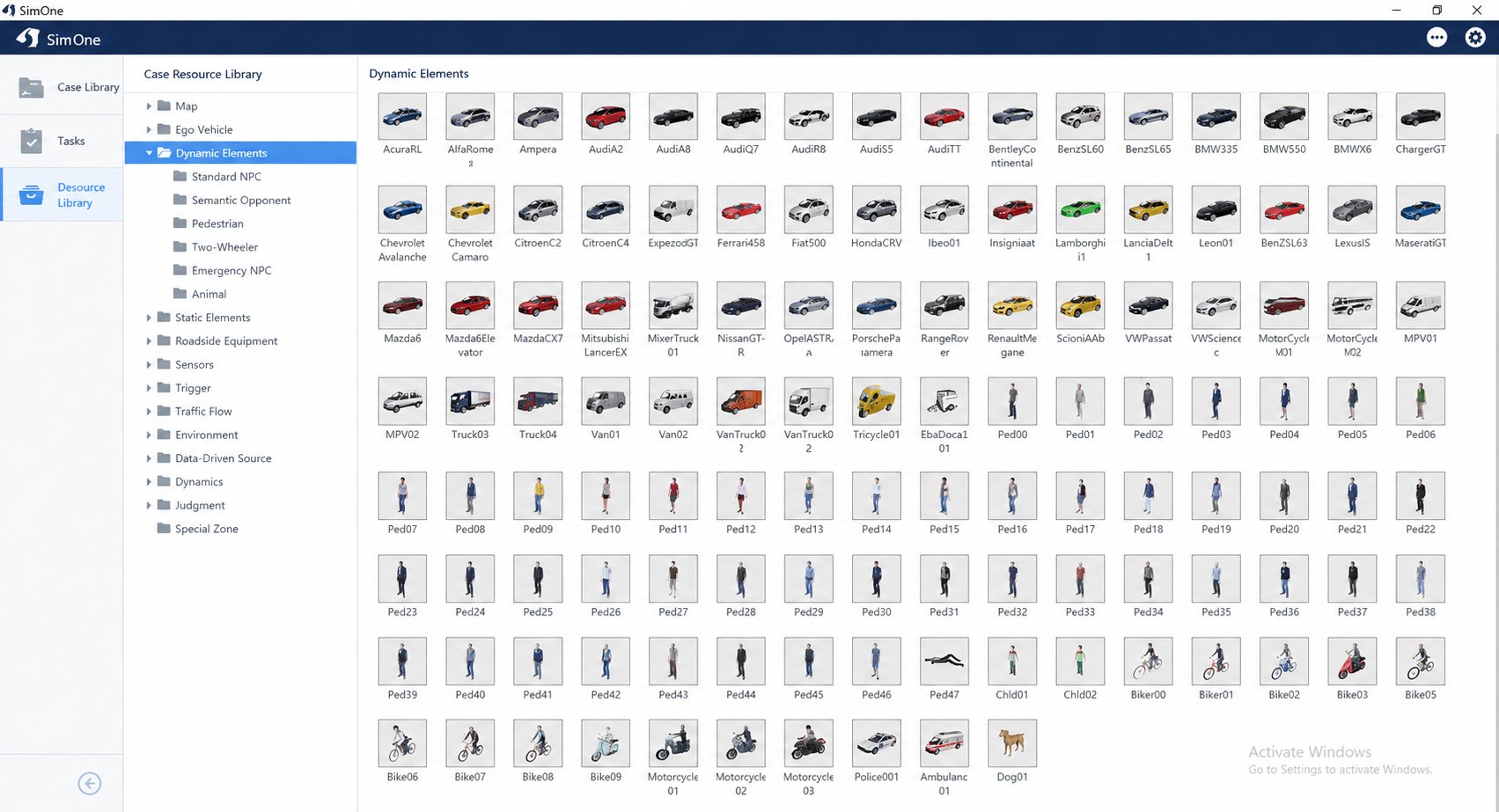
New built-in assets
- New dynamic elements — Pedestrians: child, person lying down; Animals: dog; Emergency NPC vehicles: police car, ambulance; Standard NPC vehicle: balloon car; Two-wheelers: motorcycle.
- New static elements — steps, dirt mound, gravel, rock.
Object-level sensors
Added multiple object-level sensors to help users better debug decision-making algorithms.
- New object-level LiDAR
- New object-level camera
- New ideal sensor
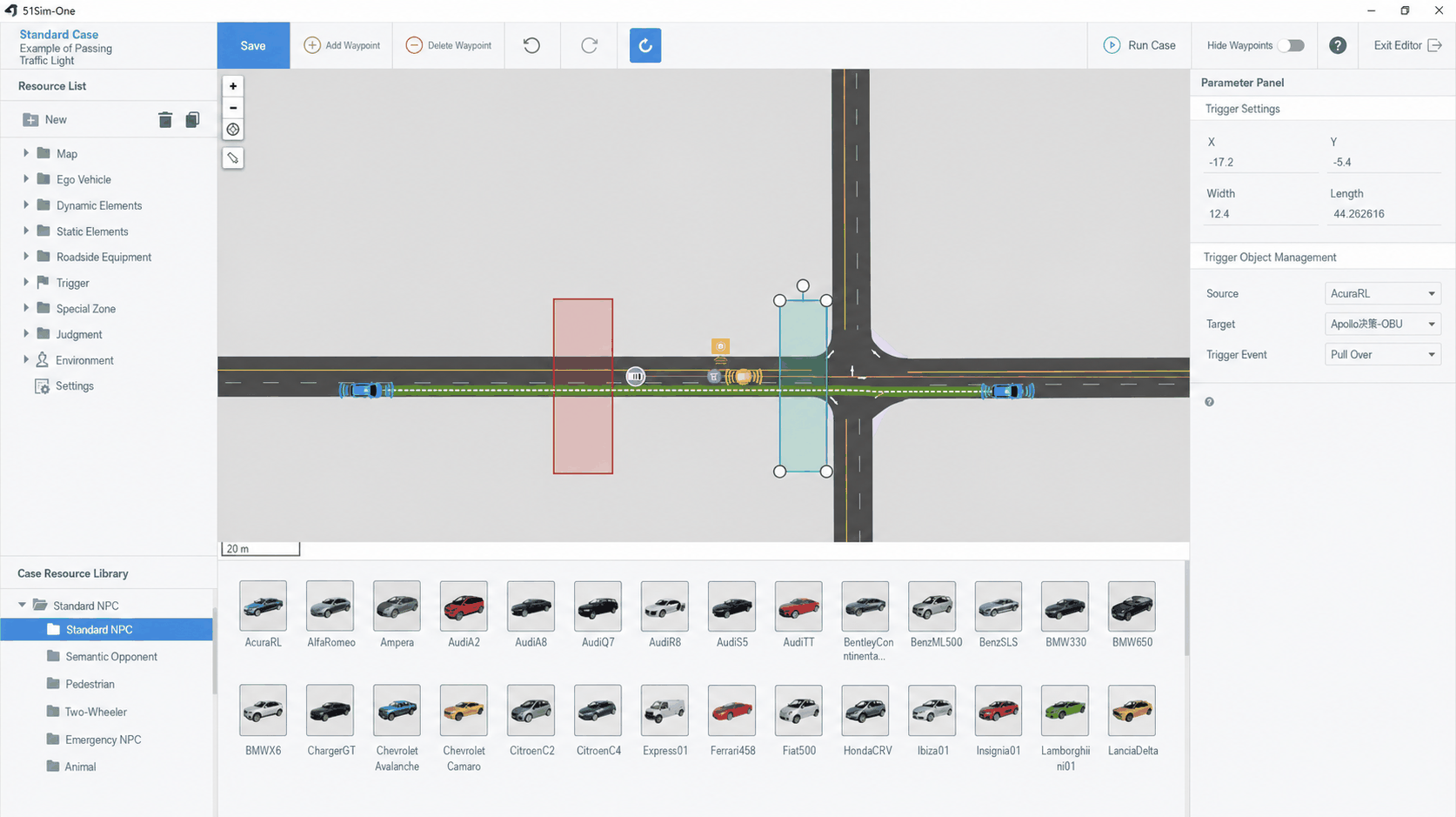
V2X sensor and scenario configuration
- Added an OBU (On-Board Unit) device to ego vehicle sensors to support V2X-related scenarios. Added an RSU device to roadside devices to support V2X test scenarios. NPC vehicles can also be configured with OBUs, and pedestrians and non-motor vehicles can be configured to support V2X.
- Added custom triggers and trigger initiators to make it easier for users to build V2X test scenarios.
- Added emergency NPC vehicles to support V2X test scenarios.
- Added special zones, including hazard zones and congestion zones, for building V2X test scenarios.
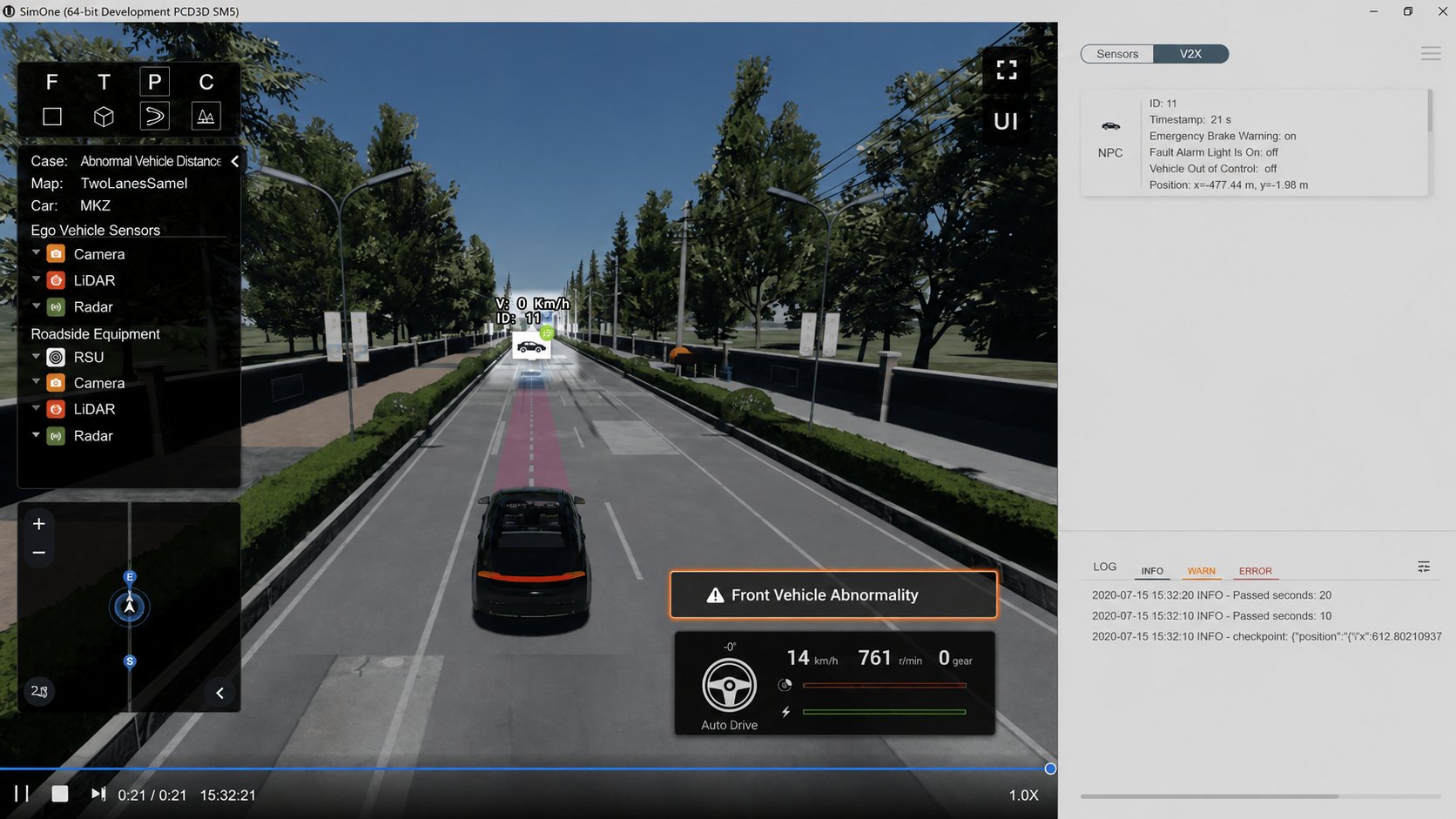
V2X message and communication status visualization in Observer
- Both the Web and UE Observers now support V2X message visualization, including pedestrians, NPC vehicles, bicycles, road signs, congestion, emergency vehicles, and traffic lights.
- OBU and RSU communication status is displayed visually.
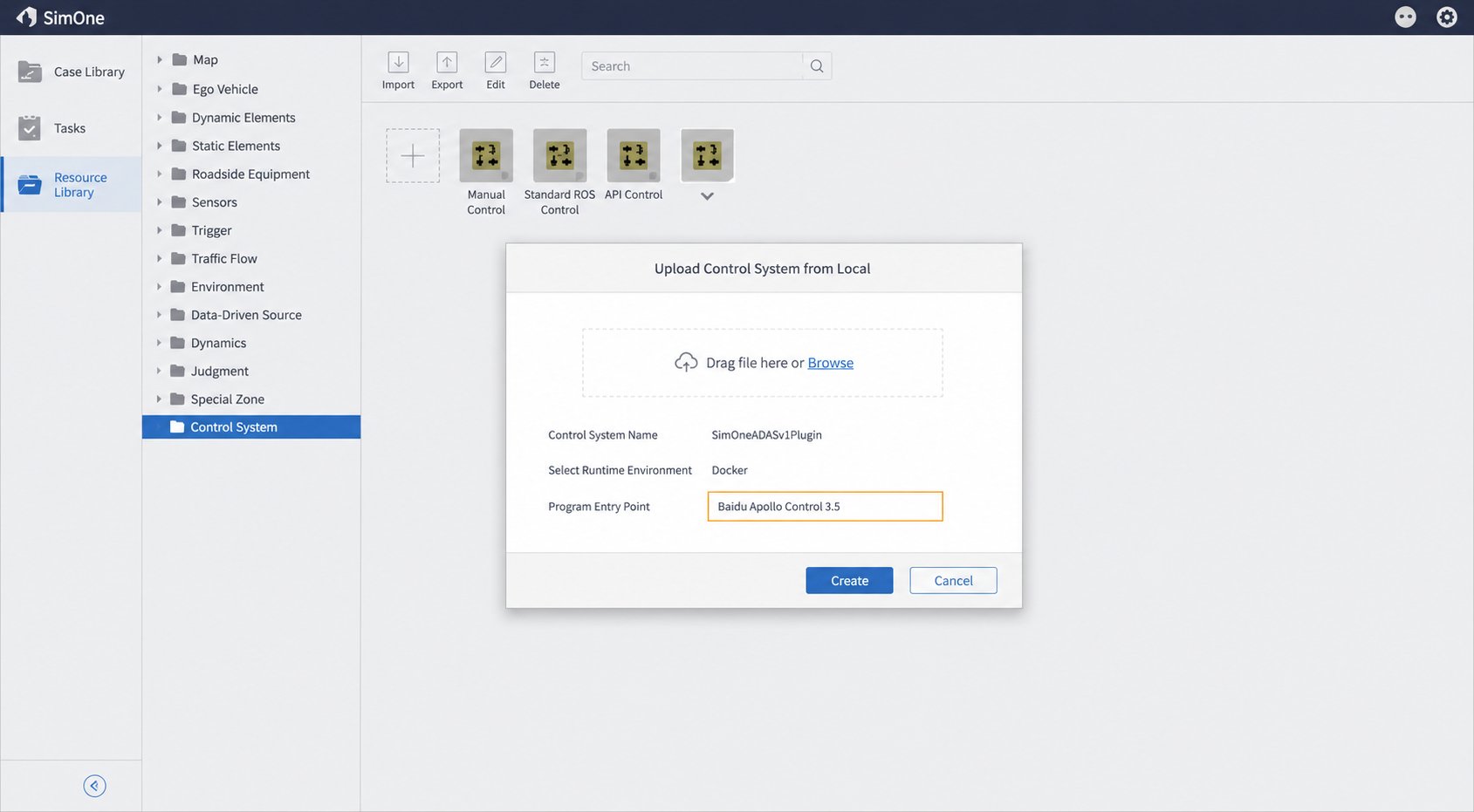
Local algorithm upload
Users can upload algorithm files packaged as executable programs in the Asset Library under the Control System folder.
One-click Simulink development environment launch
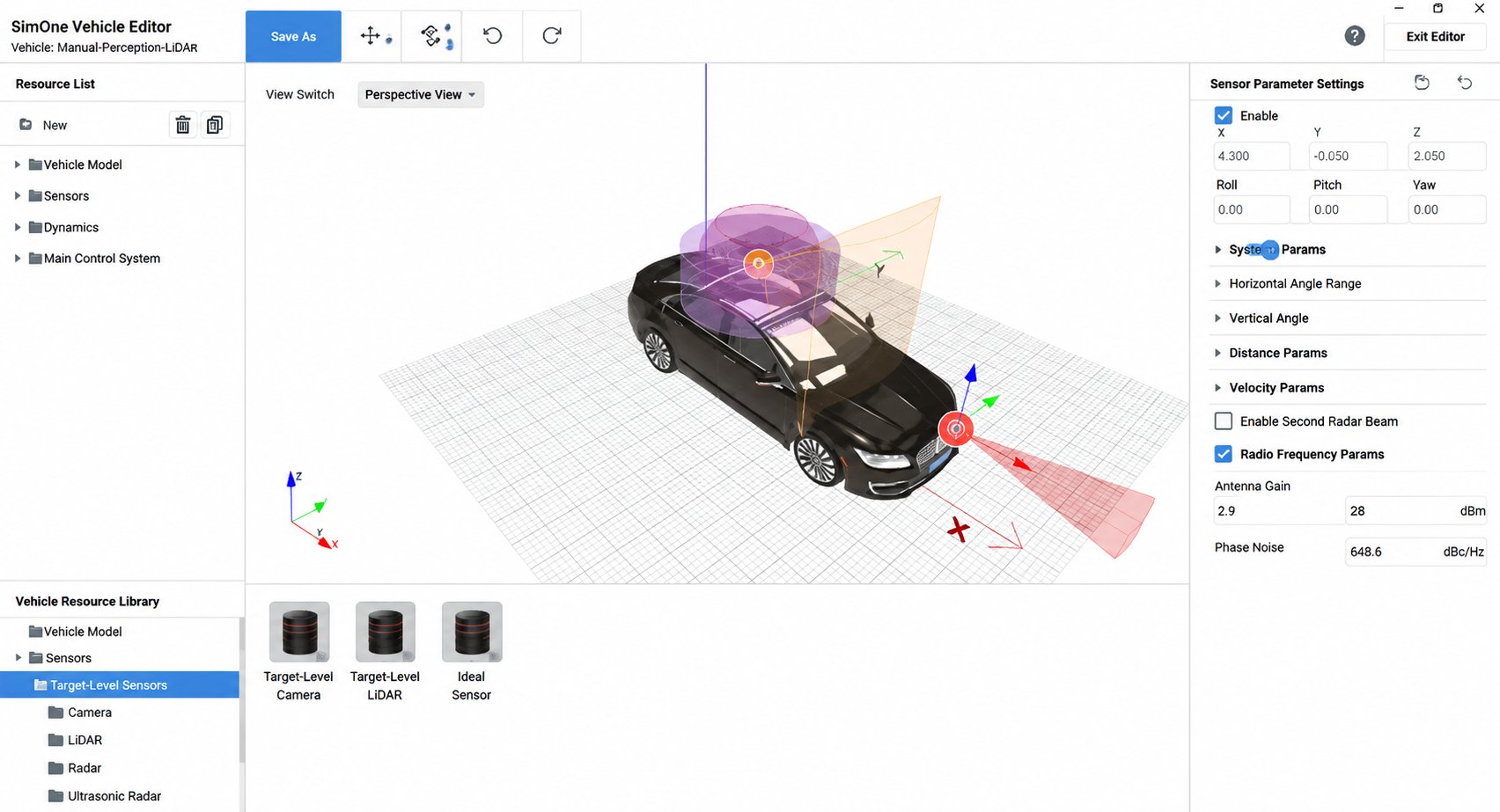
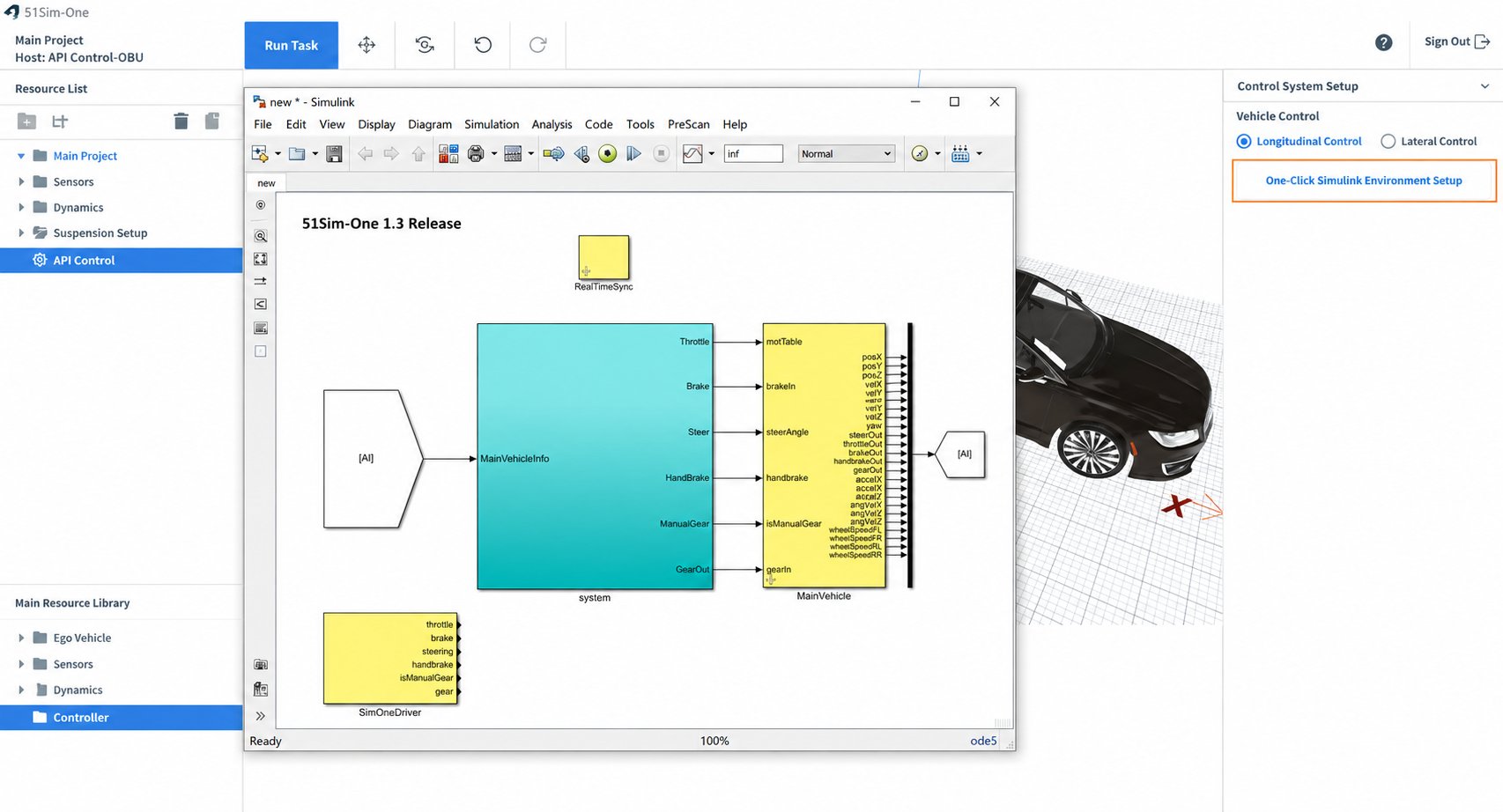
In the ego vehicle editor, after installing API control from the ego vehicle's control system, users can click the "One-Click Launch Simulink Development Environment" button in the right-side properties panel. SimOne will launch MATLAB and configure the development environment. Users can then write and debug algorithms in this environment.
v1.2
Release date: 2020-07-01
New Features
OpenSCENARIO player
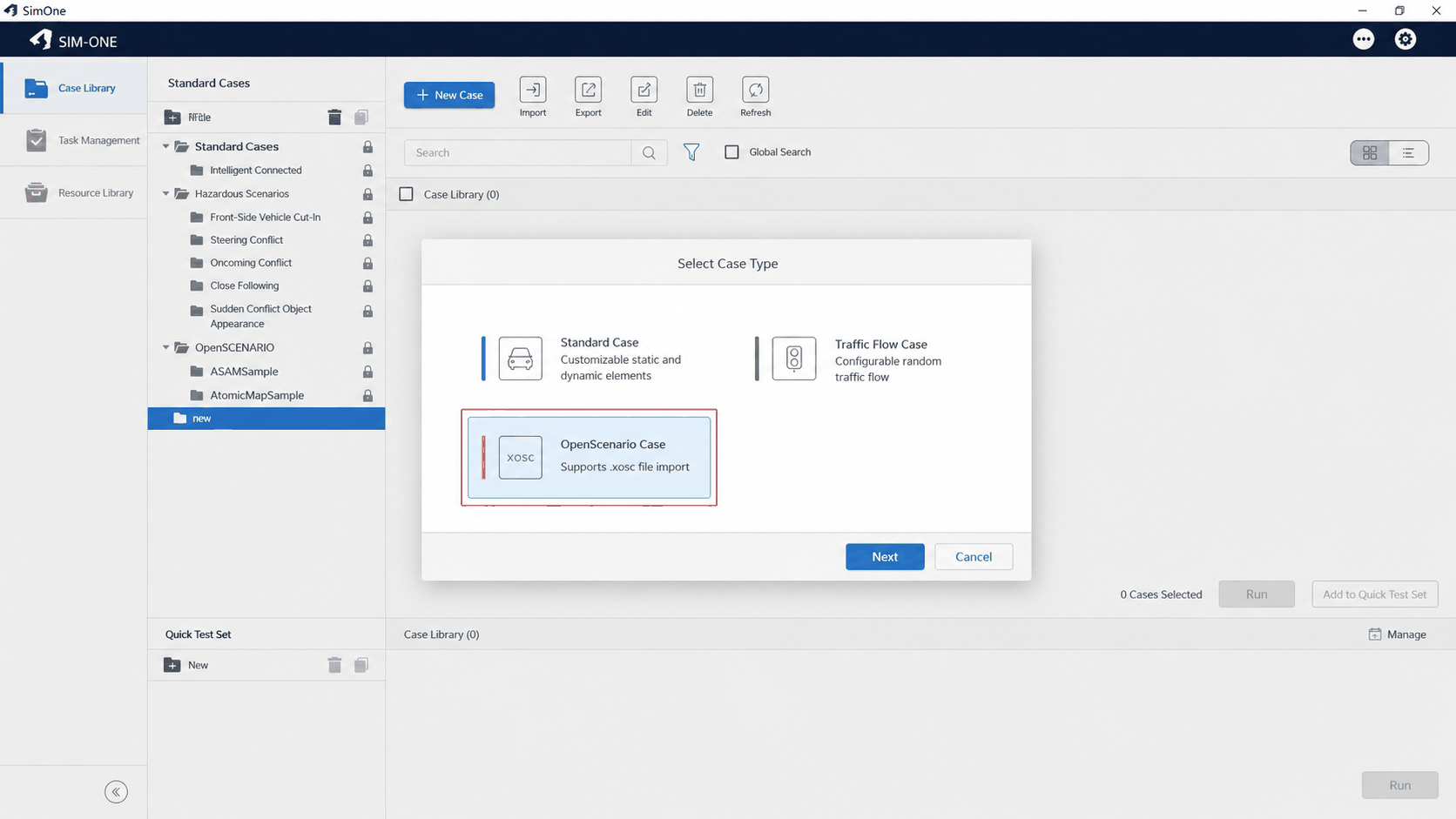
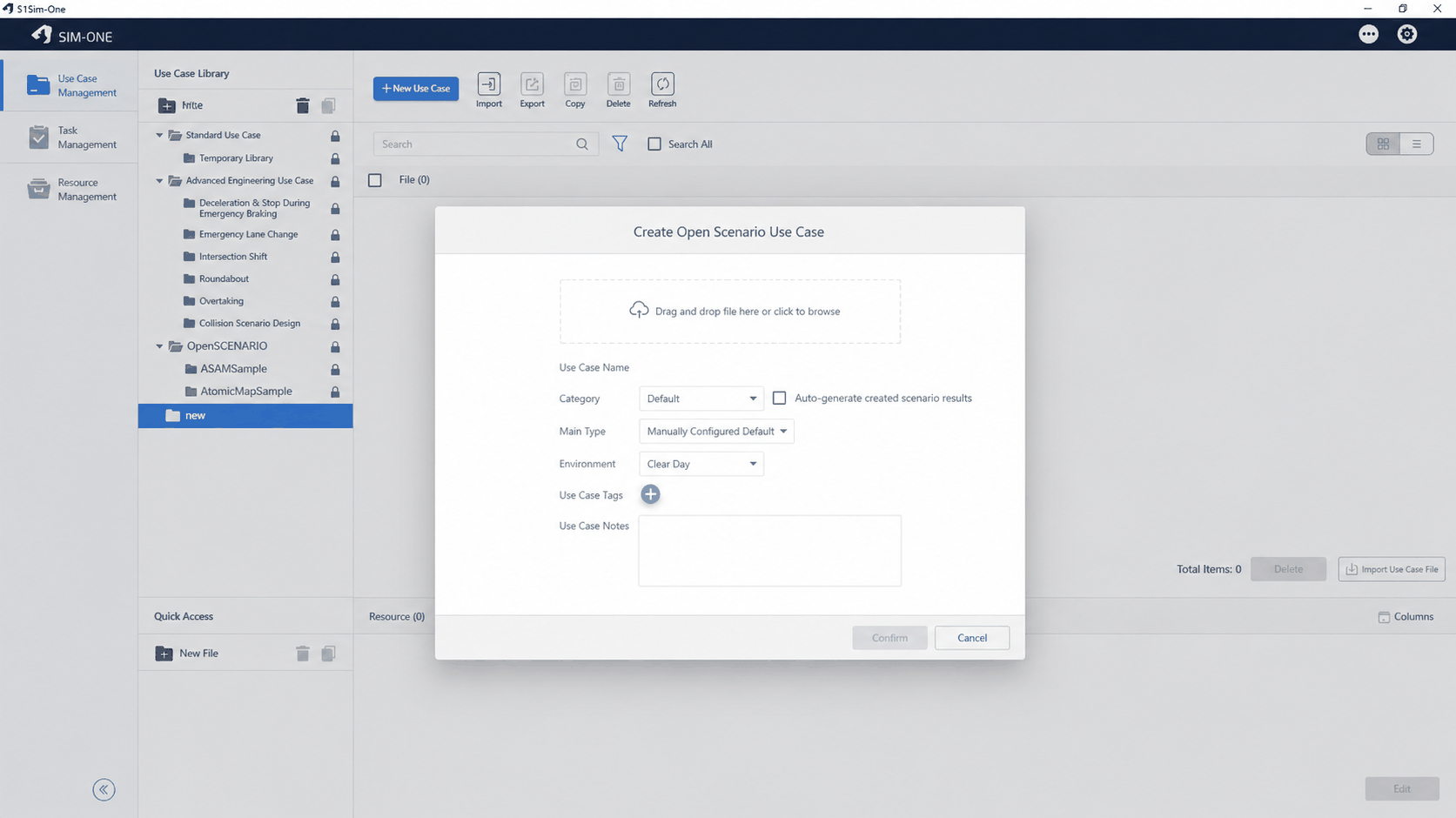
SimOne v1.2 adds OpenSCENARIO scenario support, allowing users to play back OpenSCENARIO scenarios. OpenSCENARIO describes the dynamic content in driving simulation applications, enabling standardized description of intelligent driving dynamic scenarios. Users can import an OpenSCENARIO file to create a scenario, and can modify the map, ego vehicle type, environment, tags, and notes.
Static obstacles
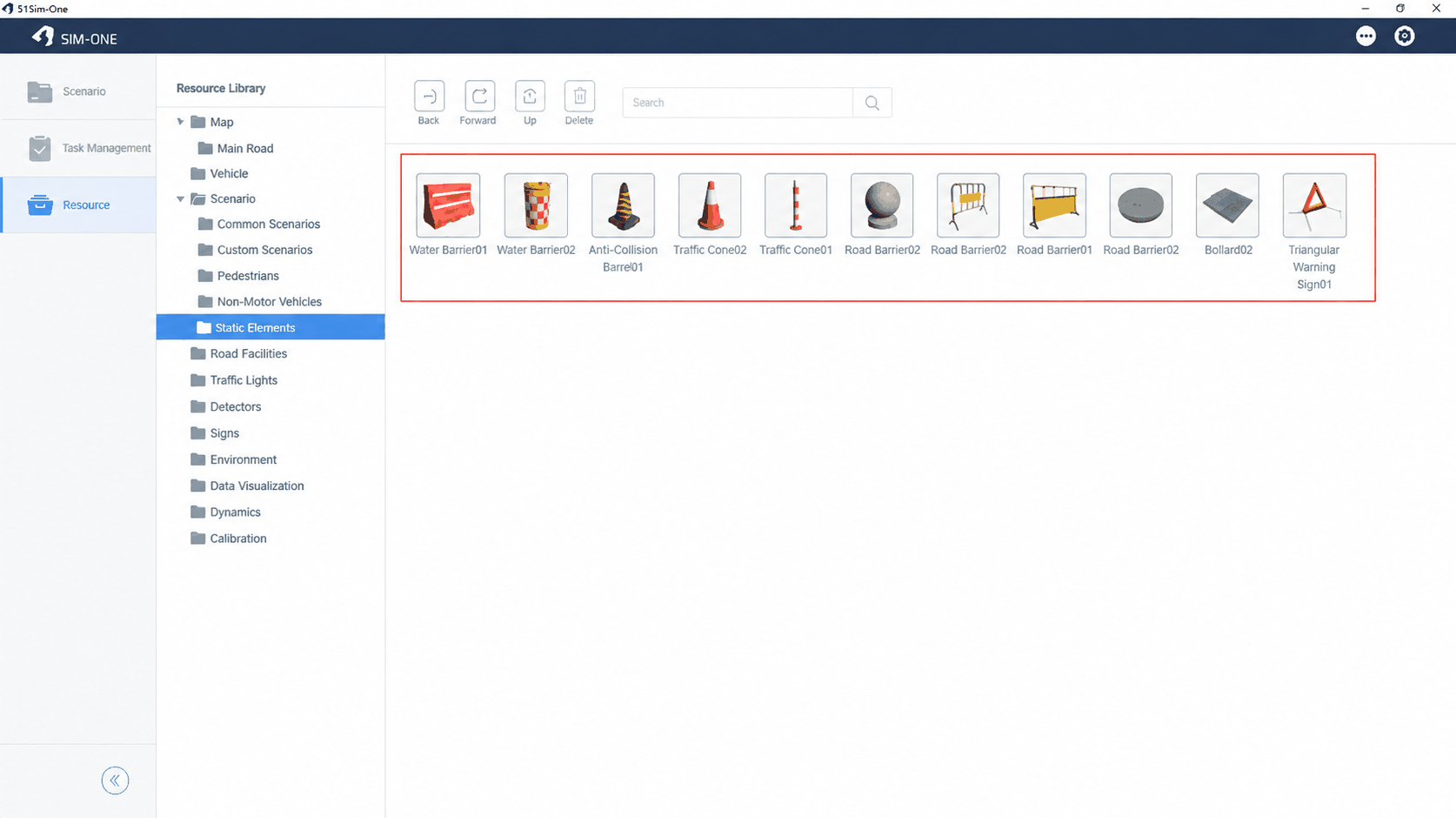
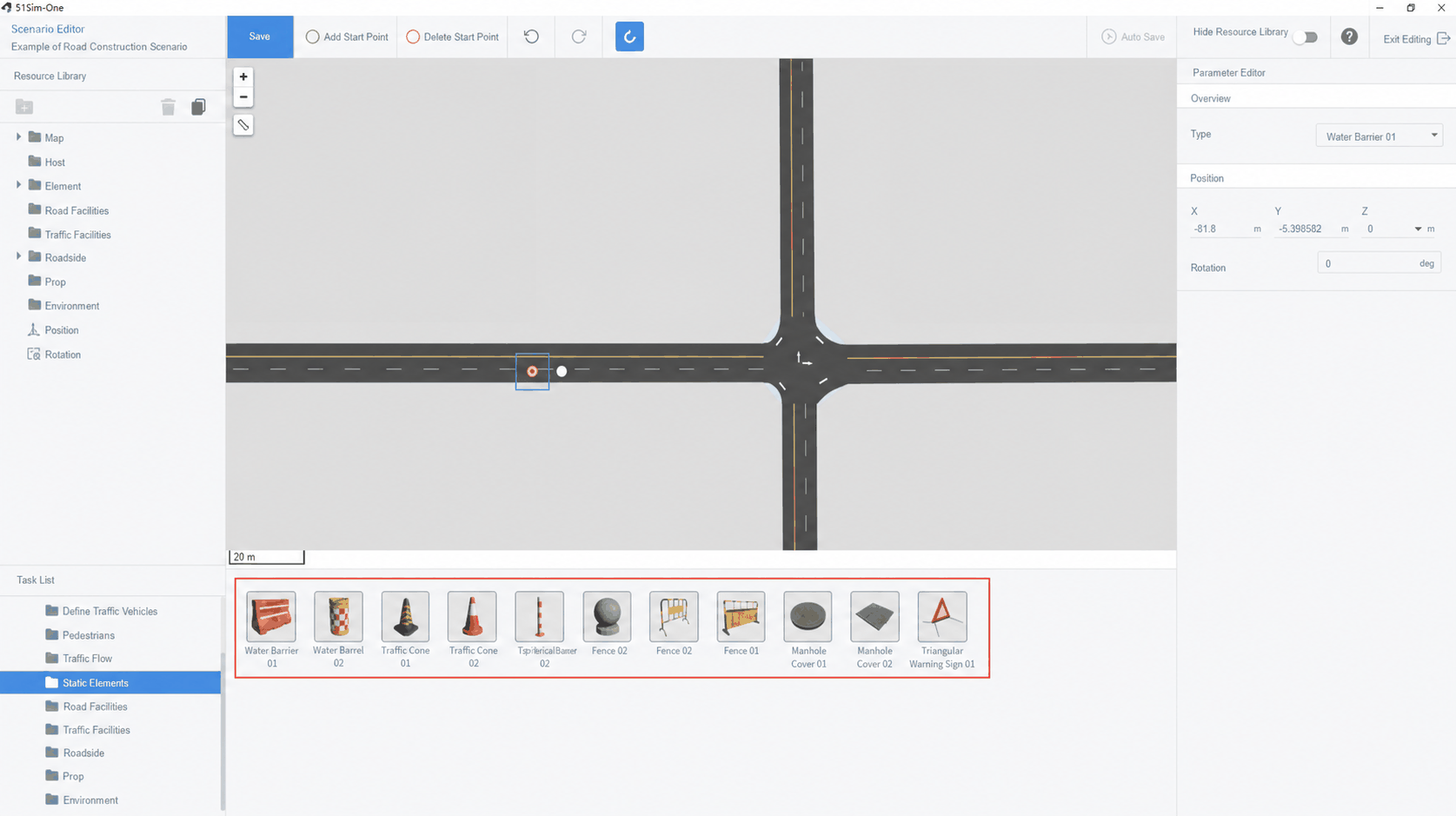
SimOne v1.2 adds static obstacle elements to the asset library, including water barriers, traffic cones, road delineators, guardrails, manhole covers, and warning triangles. Users can freely place obstacles in the scenario editor for simulation testing.
SimOneDriver
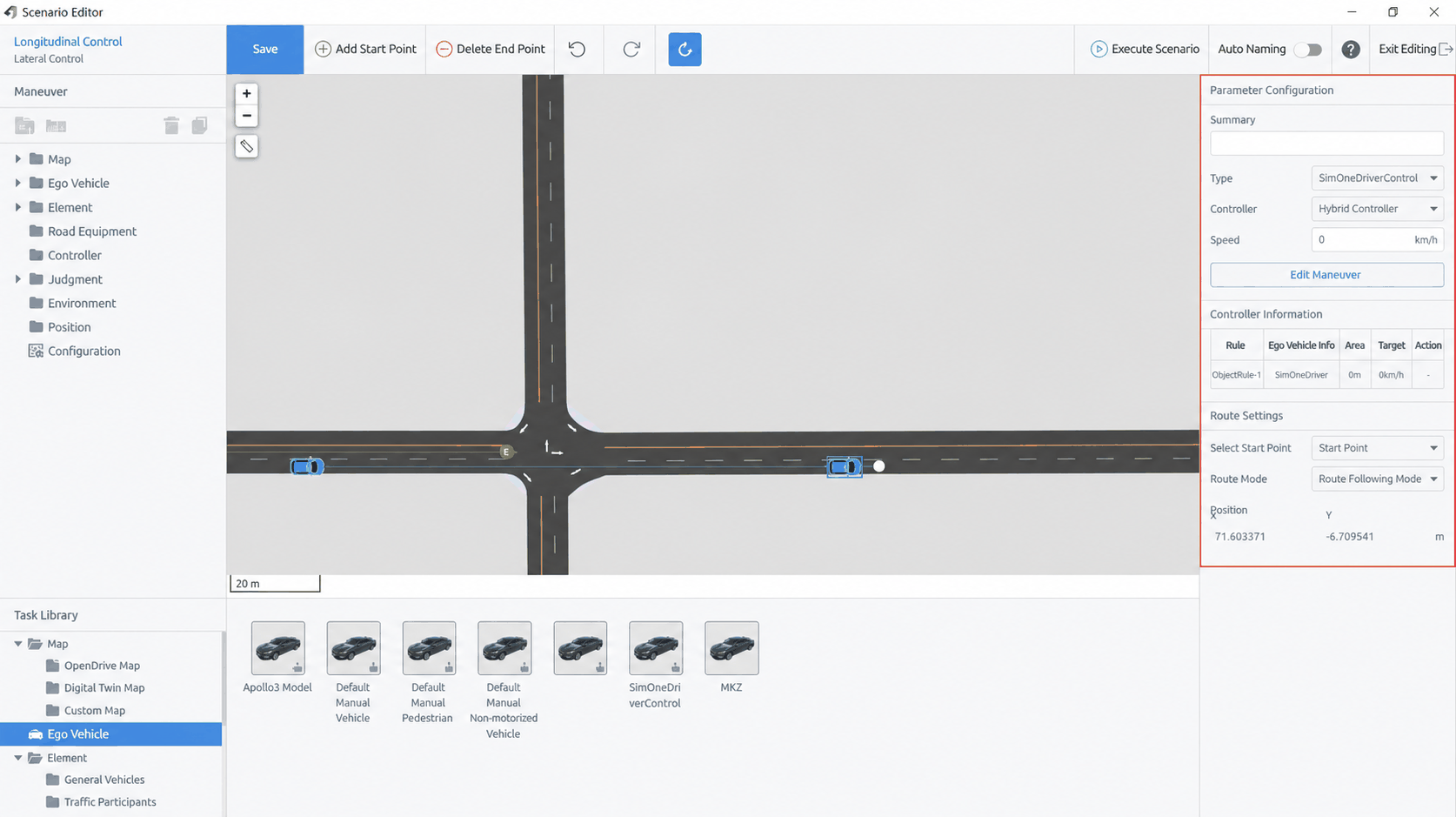
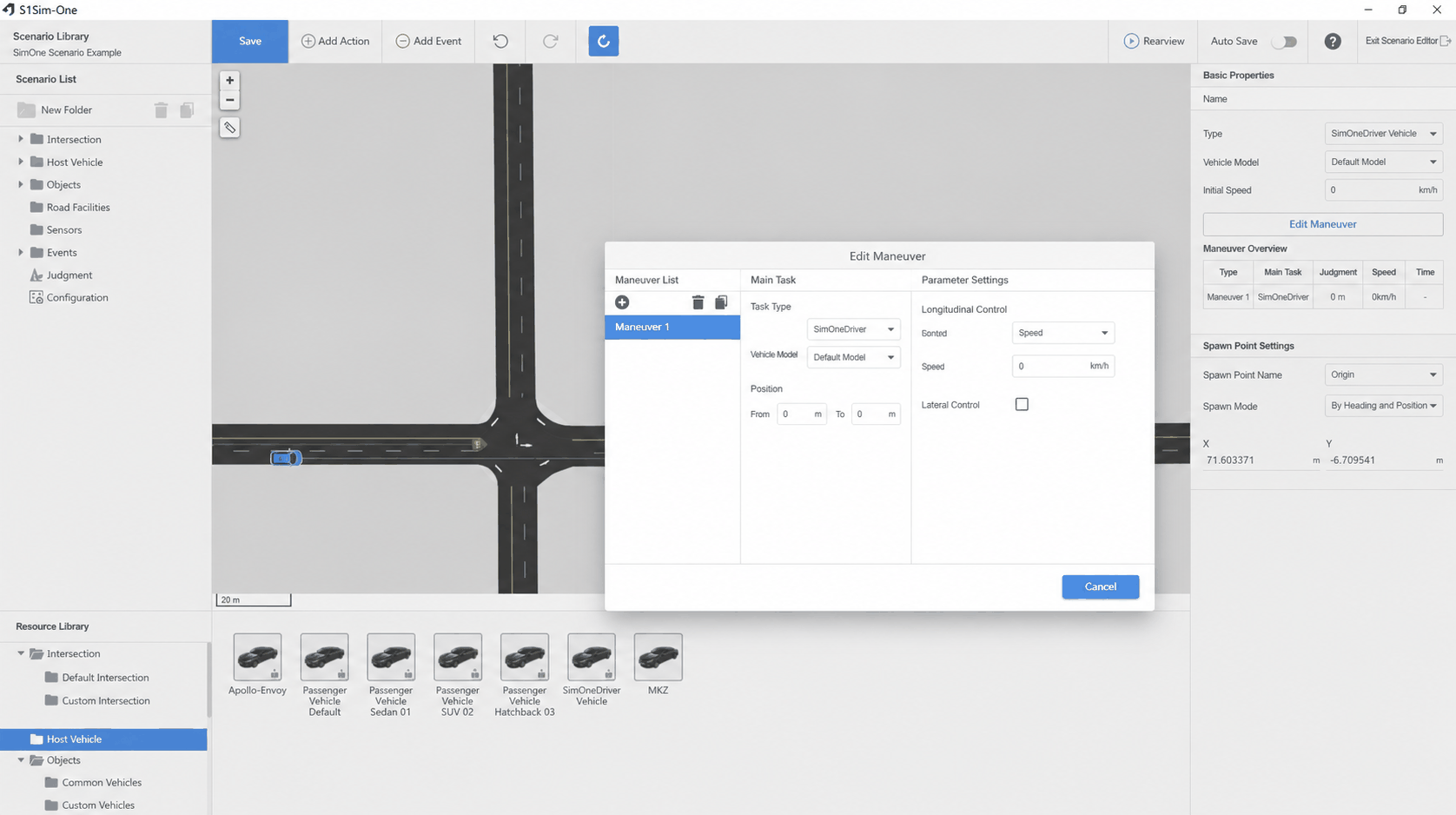
SimOneDriver is a module that drives the ego vehicle according to a user-defined driving plan. It can be used with Simulink to test ADAS algorithms, or to drive the ego vehicle to a desired condition before handing control to the autonomous driving system.
Standalone dynamics module
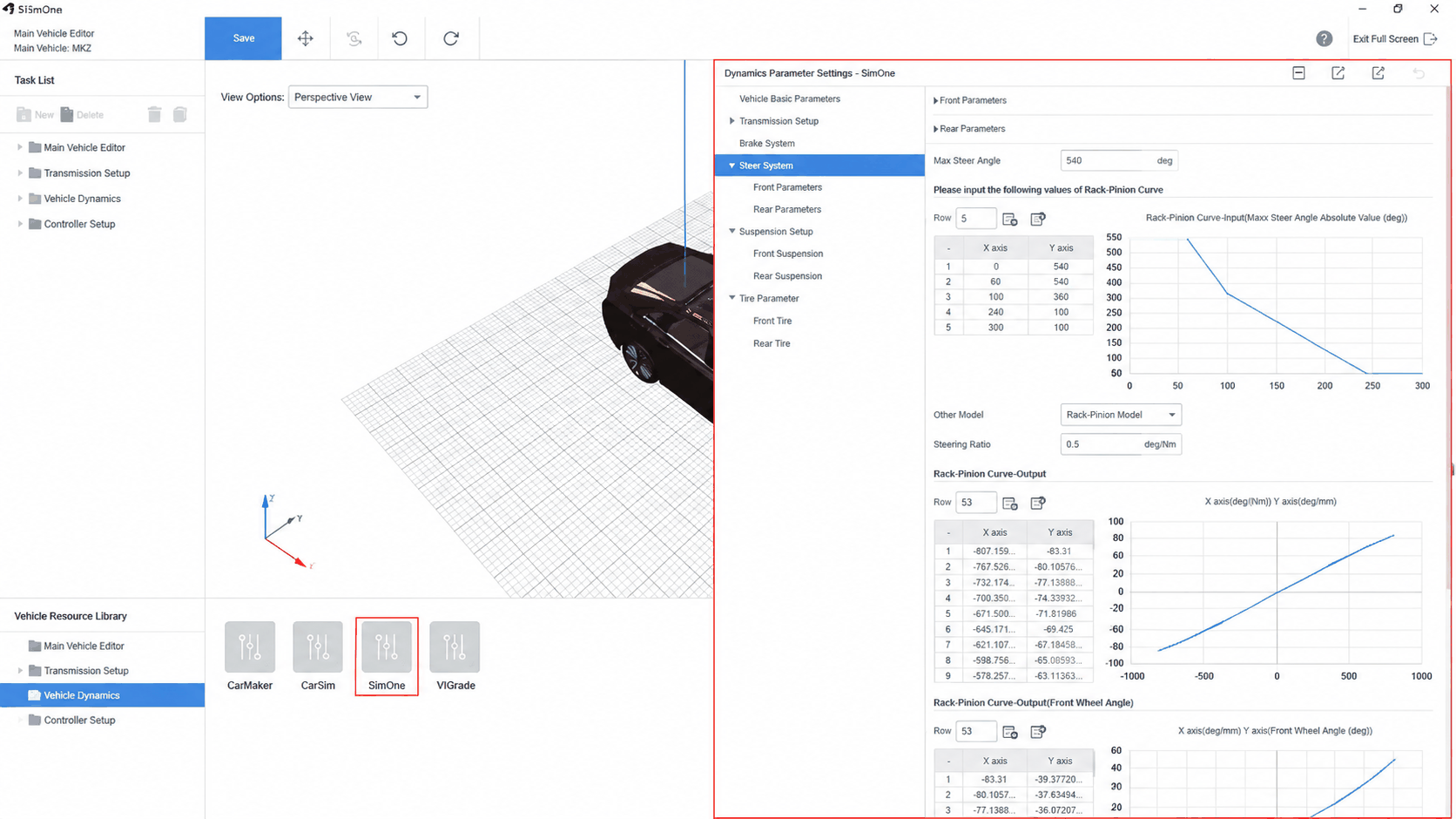
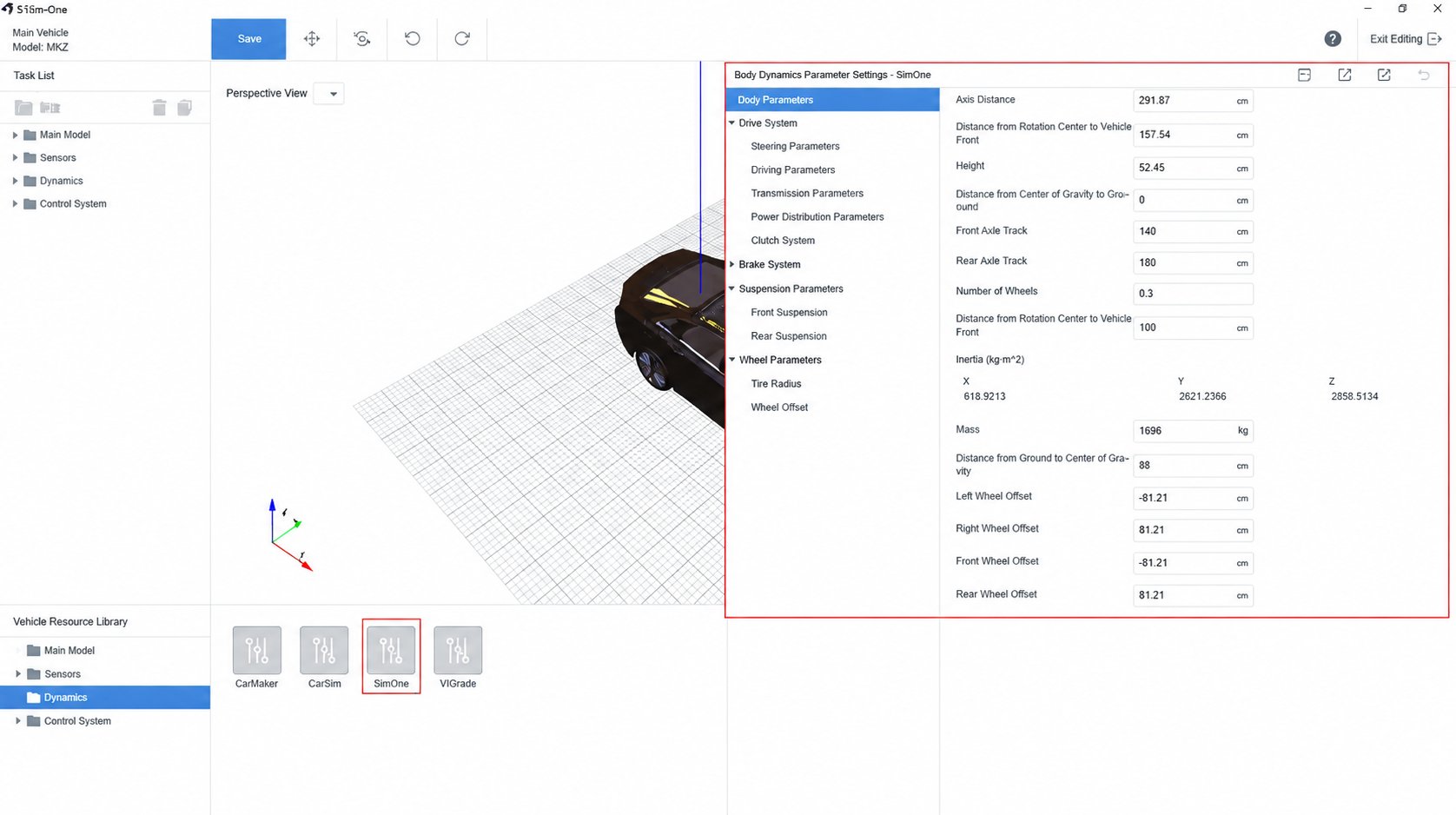
SimOne v1.2 improves the standalone dynamics module SimOne (formerly SrVehicles), with a more user-friendly interface and operation mode. Users can quickly and lightly configure dynamics parameters. It also supports import/export of dynamics parameters and preset storage, making it better suited for iterative algorithm testing and sensor simulation testing.
Enhanced scenario judgment
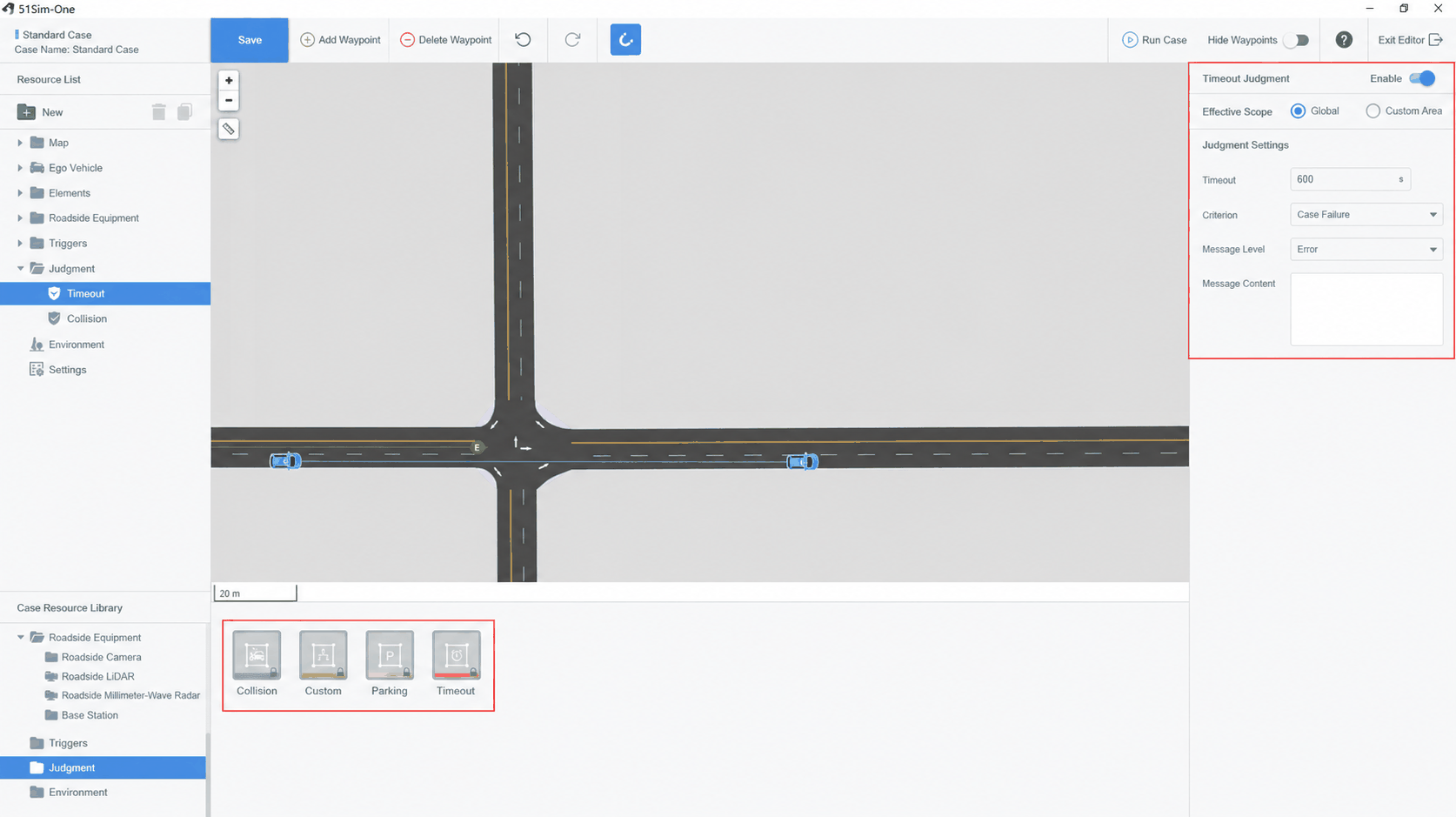
Added a scenario judgment section. Users can evaluate the tested algorithm system from multiple dimensions, including parking, collision, timeout, and custom conditions.
Web Observer
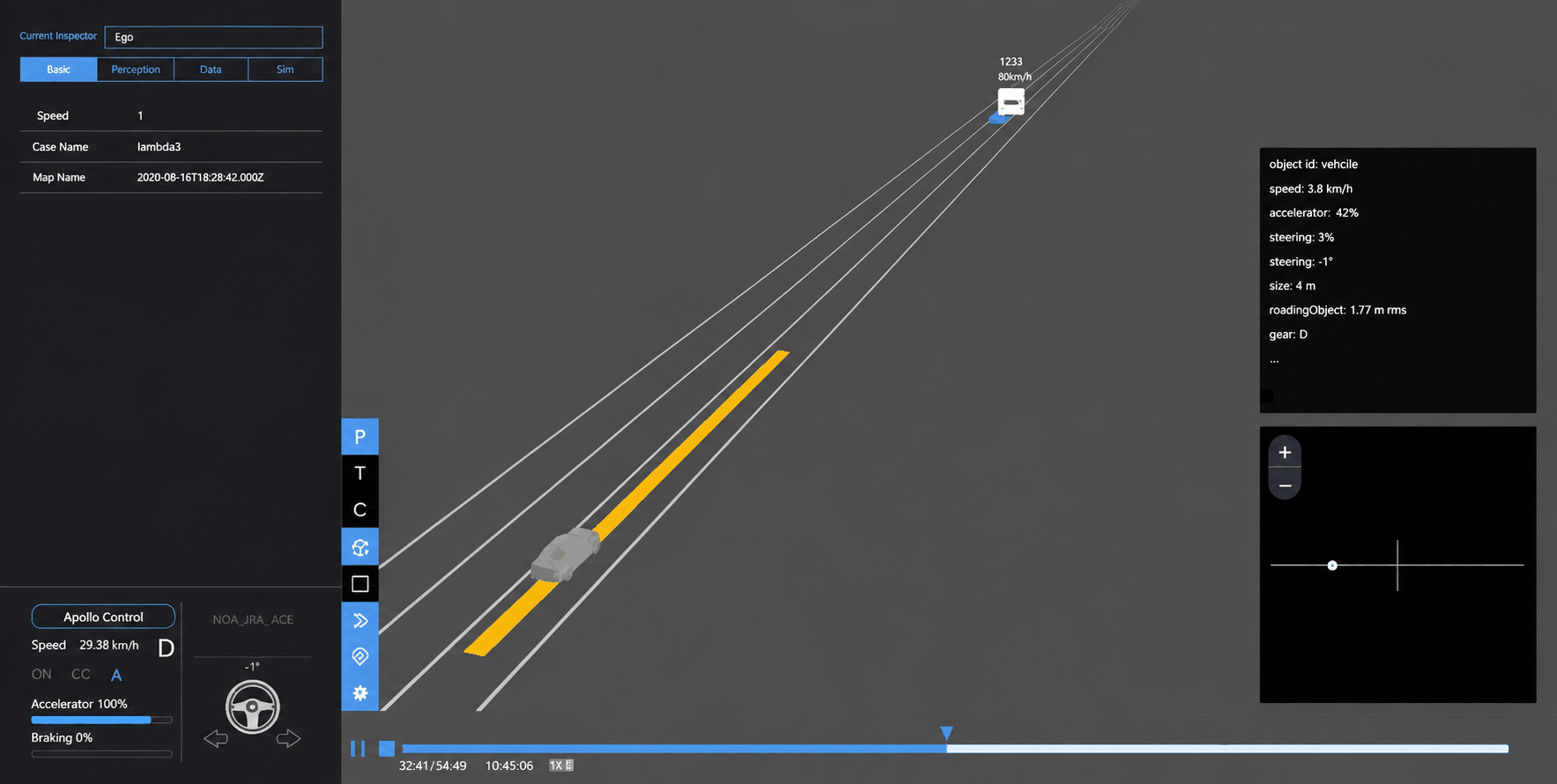
A browser-based scenario test visualization tool, lighter than UE Observer and suitable for cloud users. Local users can also switch between UE Observer and Web Observer in the config settings.
v1.1
Release date: 2020-01-22
New Features
Data-driven scenarios
SimOne v1.0 supported standard scenarios and traffic flow scenarios. SimOne v1.1 adds data-driven scenarios. Users can play back raw collected data through the SimOne platform with full data accuracy, and can convert and reconstruct the raw data into data-driven scenarios for algorithm testing. This includes raw data playback simulation, data conversion, resampling, and data-driven scenario editing.
Road network runtime
In SimOne v1.0, there were no restrictions on where users could place ego vehicles or elements. SimOne v1.1 adds a map-service-based road network runtime. When editing ego vehicles, NPC vehicles, and other elements, the system restricts placement to appropriate positions within the road network to generate runnable paths, improving the success rate of scenario execution.
25 new environment model presets
By storing commonly used environment parameter model presets, users can quickly and conveniently apply preset environment resources to simplify scenario editing and testing.
Enhanced sensors
Sensor parameters can be saved as presets. Cameras, LiDARs, millimeter-wave radars, ultrasonic radars, GPS&IMU, and perfect sensors have all received additional parameters. The perfect positioning sensor is no longer required.
Control systems
Added shared memory and standard ROS control (API supplement).
Scenario library
Added global scenario search to the scenario library.
Optimized scenario editing operations
Scenario participant selection supports image preview and search. Users can easily define custom paths for the ego vehicle and other elements.
Observer improvements
Redesigned the Observer window layout, added a minimap, optimized display controls, and added more development-relevant elements to help developers monitor the test process.
v1.1 SP1
Release date: 2020-03-24
New Features
Automatic generation of complex scenes from OpenDRIVE
For OpenDRIVE maps imported into the system, users can now flexibly configure road-adjacent elements in the scene by adjusting parameters in the scenario editor. Complex simulation scenes can be generated automatically from OpenDRIVE with minimal effort.
New roadside devices
Added the ability to place cameras and LiDARs in the scenario editor. This feature allows users to better position roadside sensors from multiple observation angles and output perception results from roadside devices, supporting roadside recognition algorithm training and deployment evaluation. Roadside device assets have been added; users can leverage V2X antenna and roadside sensor fusion to provide auxiliary computing and data storage for vehicle-road cooperative application scenarios.
v1.0
Release date: 2019-08-29
New Features
High-fidelity built-in test scenes
- 6 atomic map scenes
- 2 large-scale map scenes
- Dozens of NPC vehicle models of various types and categories
- Basic pedestrian models, bicycle models, and static elements
Scenario library
- Over 100 real-world hazardous driving scenario cases collected in the field.
- Scenario database with management, creation, deletion, and editing. Filtering by map, name, and type makes it easy to find the required scenario.
- Quick test sets: manage and group test scenarios using test sets.
- Single scenario testing and batch scenario testing workflows.
Automatic scene generation
- Pipeline for automatically generating simulation scenes from OpenDRIVE HD maps. Generated scenes include visible road surfaces, lane markings, signs, traffic signals, streetlights, random vegetation, and buildings.
Scenario editing
- Web-based scenario editor supporting ego vehicle path planning on any OpenDRIVE map, creation of NPC motor vehicles, non-motor vehicles, and pedestrians, and editing of their trajectories and trigger conditions.
- Traffic flow testing: supports configuring mixed traffic flows of motor vehicles, non-motor vehicles, and pedestrians at various densities and behaviors.
Asset library / Ego vehicle editor
- Web-based test asset manager for managing test maps, ego vehicle configurations, NPC vehicles, and test evaluation criteria.
- Web-based ego vehicle editor for conveniently configuring sensors, dynamics, and control systems.
Test execution, evaluation, reporting, recording, and playback
- Supports batch execution of multiple scenario tests with start, stop, and on-demand visualization access.
- Supports customizable test evaluation criteria, including lane line violations (solid, double yellow, stop line), collisions, speed limit violations, destination reached, and timeout.
- Generates and downloads test evaluation reports that assess completion based on user-defined criteria.
- Supports recording test data during simulation for later playback.
Sensor simulation
- Perfect sensor
- Camera simulation
- LiDAR simulation
- Millimeter-wave radar simulation
- Ultrasonic radar simulation
- GPS & IMU simulation
Dynamics simulation
- In-house dynamics simulation engine.
- CarSim integration.
Physics simulation engine
- A render-free physics simulation node that simulates at a defined frequency, updating ego vehicle and NPC vehicle pose data and resolving physical collisions and triggers.
Visualization client
- During scenario execution, users can connect to the visualization client to observe the run in real time. During playback, users can also connect to review the execution of completed scenarios.
- Supports visualization of semantic maps, obstacles, trajectory plans, and point clouds. Supports third-person photorealistic rendering with camera views switchable between RGB, depth, and segmentation. Supports time-series curves of various ego vehicle parameters.
Data interfaces
- Support for multiple common data interfaces such as ROS, LCM, and MATLAB.
- Interfaces can be adapted and configured to user requirements.
- Supports connecting to the autonomous driving system from the perception layer, or bypassing perception and connecting from the decision layer.
- Supports extracting trajectories from the decision layer for perfect-control simulation, or connecting to the control layer and receiving throttle, brake, and steering data for simulation control.
Multi-ego-vehicle interaction
- Supports connecting multiple ego vehicles simultaneously in a single simulation scene; ego vehicles can be autonomous or manually controlled.
- Supports connecting steering wheels, pedals, or a driving simulator to control ego vehicles.
Virtual dataset generation
- During simulation, RGB images, depth maps, segmentation maps, instance maps, and object detection ground truth can be saved synchronously to files for training visual recognition and image segmentation algorithms.
- During simulation, point clouds and object detection ground truth can be saved synchronously to files for training point cloud recognition and segmentation algorithms.