Import Maps and UE External Scenes
1. Import a Map
For training and testing algorithms, having a suitable HD map is particularly important. Before creating a test case, users can view or upload the maps they need.
(1) First, prepare the .xodr map file to be imported.
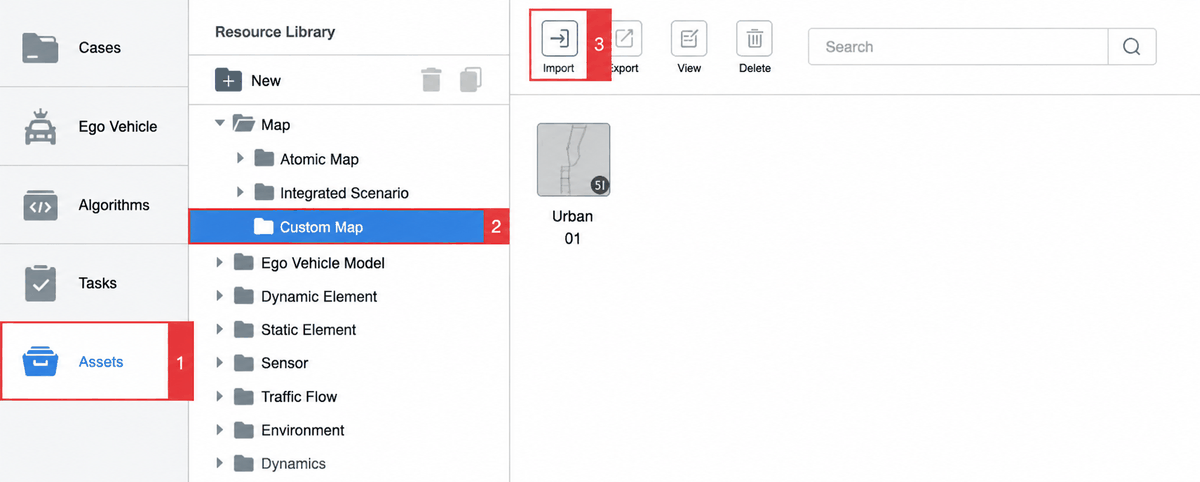
(2) As shown below, open Assets, open the Maps folder, select Custom Maps, and click Import.
(3) In the import dialog, click Browse to select the map file (.xodr). We have prepared the following map: Tutorial_ThreeLanes.xodr. Click OK to begin importing.
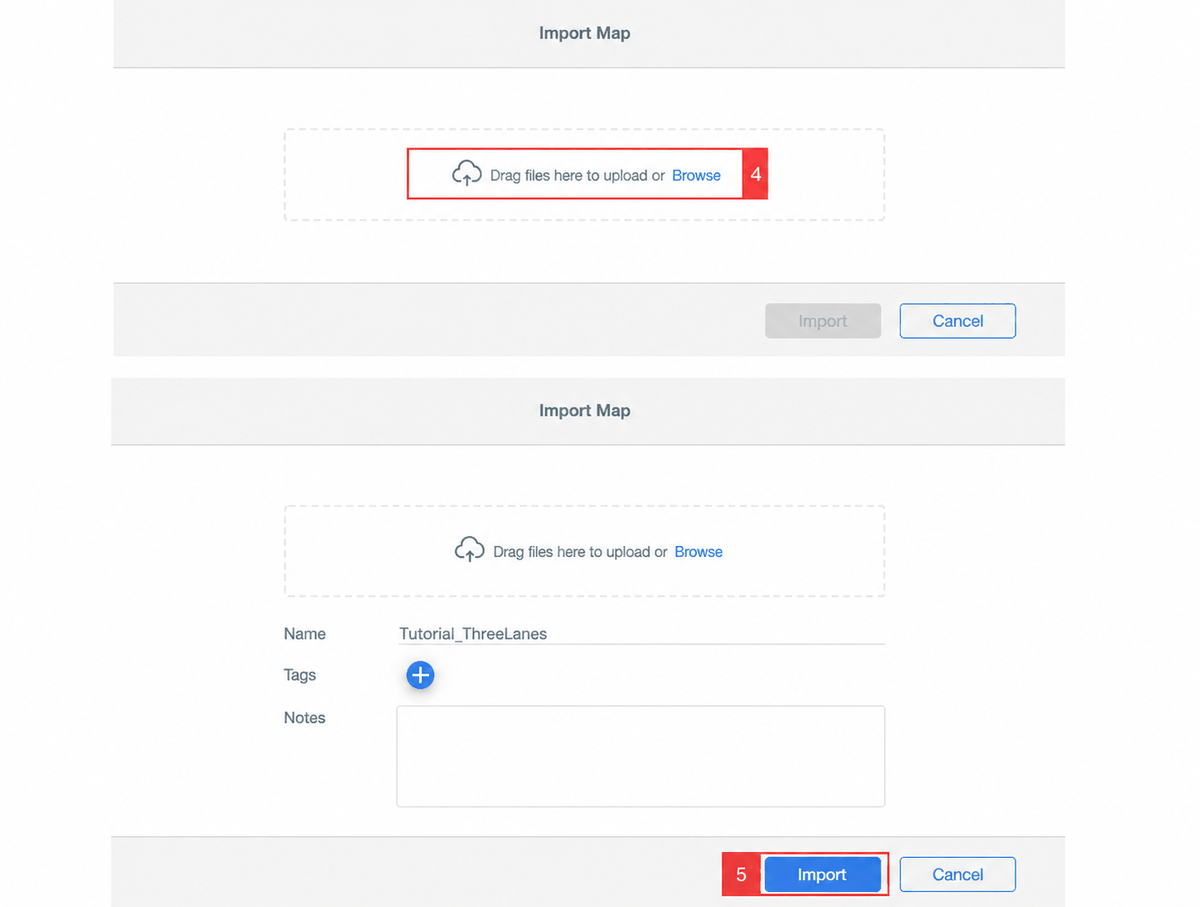
Import time depends on the size of the map.
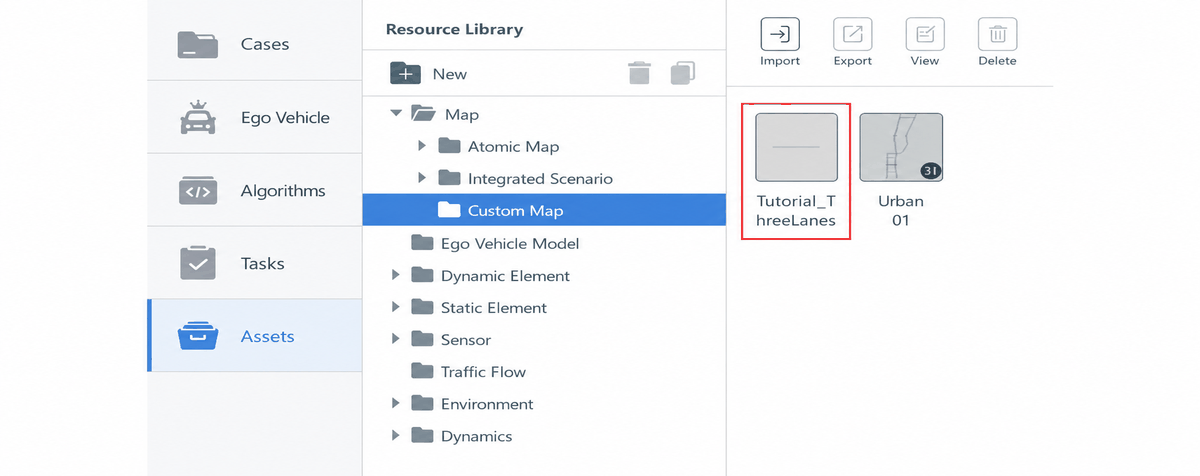
(4) After the map is imported successfully, it appears in the folder.
(5) The map is now available for use in the test case editor as needed.
2. Import a UE External Scene (Enterprise Edition Only)
This feature is only available in SimOne Enterprise Edition.
SimOne supports packaging a UE custom rendering scene together with an OpenDRIVE map for import. When the simulation runs, the high-fidelity rendering scene loads automatically.
(1) Create the OpenDRIVE file.
(2) Build the scene level in UE, ensuring that the main level name matches the OpenDRIVE file name.
(3) Use SimOneEditor to package the scene into a Pak file.
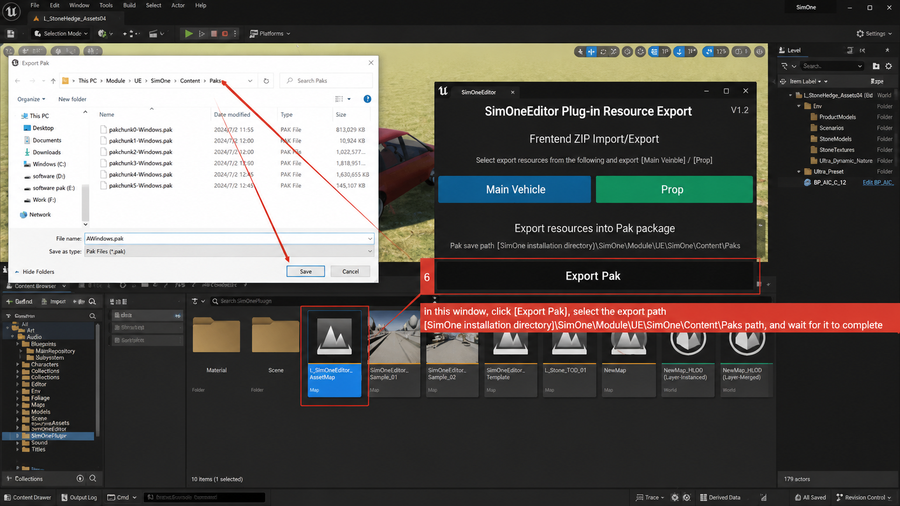
(4) Copy the Pak file to the corresponding path, then import the OpenDRIVE file from the frontend.
(5) Create a test case based on the imported OpenDRIVE map and run it — the high-fidelity rendering scene loads automatically.