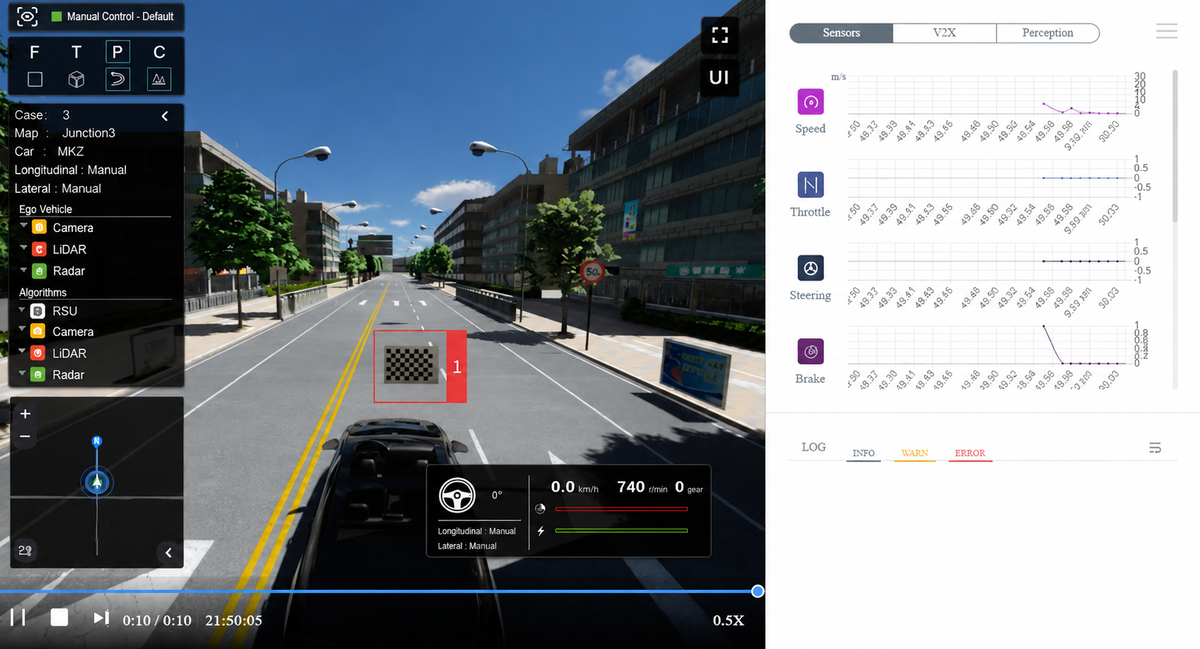
Board Model Import
This tutorial currently applies only to [SimOne — Enterprise Edition].
Importing images as dynamic or static elements is supported. Calibration board images can be imported for developing and validating calibration algorithms.
Tip
In the static element library, you can select Import Board to generate a calibration board element from an image that can be placed in the simulation scene. This feature serves scenarios requiring virtual calibration — it allows you to place real-world camera calibration targets into a virtual scene for use.
1. Import Texture
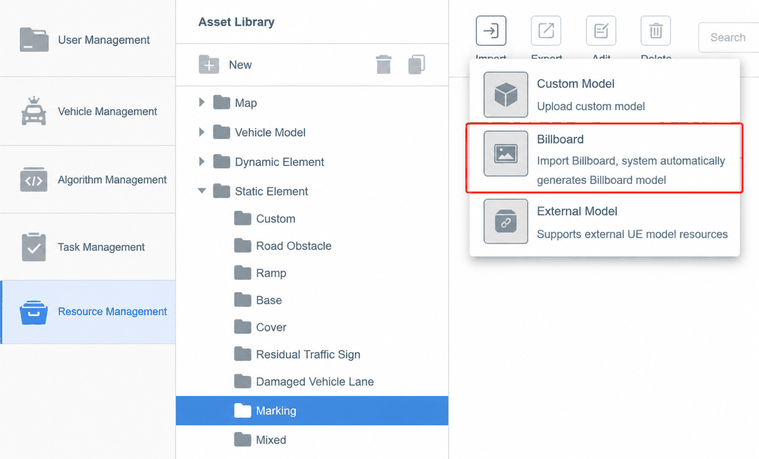
(1) Open the Resource Library, navigate to Dynamic Elements or Static Elements, select the corresponding subcategory, click Import, and select Board Model.
(2) The import settings dialog appears. Fill in the information and click Create.
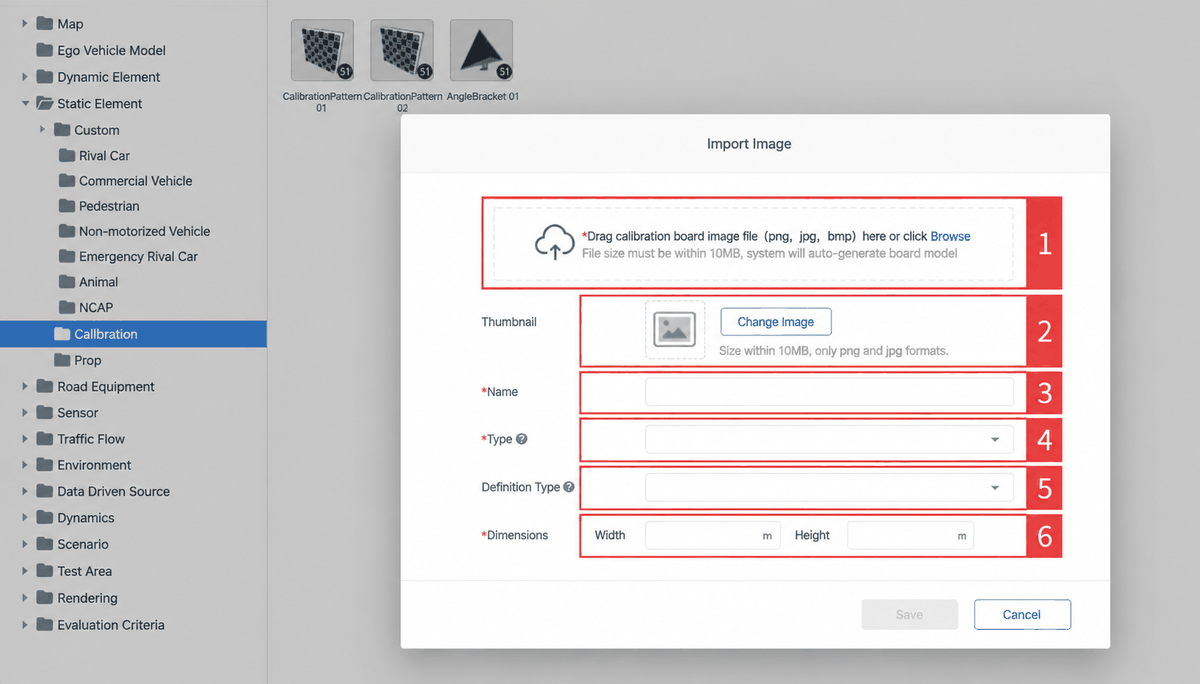
| ID | Item | Description |
|---|---|---|
| 1 | Upload Texture File | Supported image formats: png, jpg, bmp. Maximum image size: 10 MB. |
| 2 | Upload Thumbnail | Supported image formats: png, jpg. Maximum image size: 10 MB. |
| 3 | Enter Element Name | The text entered here will be used as the element's name. |
| 4 | Select Element Type | Supports the element types defined in the ASAM OpenSCENARIO standard. |
| 5 | Select Semantic Type | A semantic class categorized by language expression; used for perception simulation. |
| 6 | Enter Element Dimensions | Supports entering width and height. |
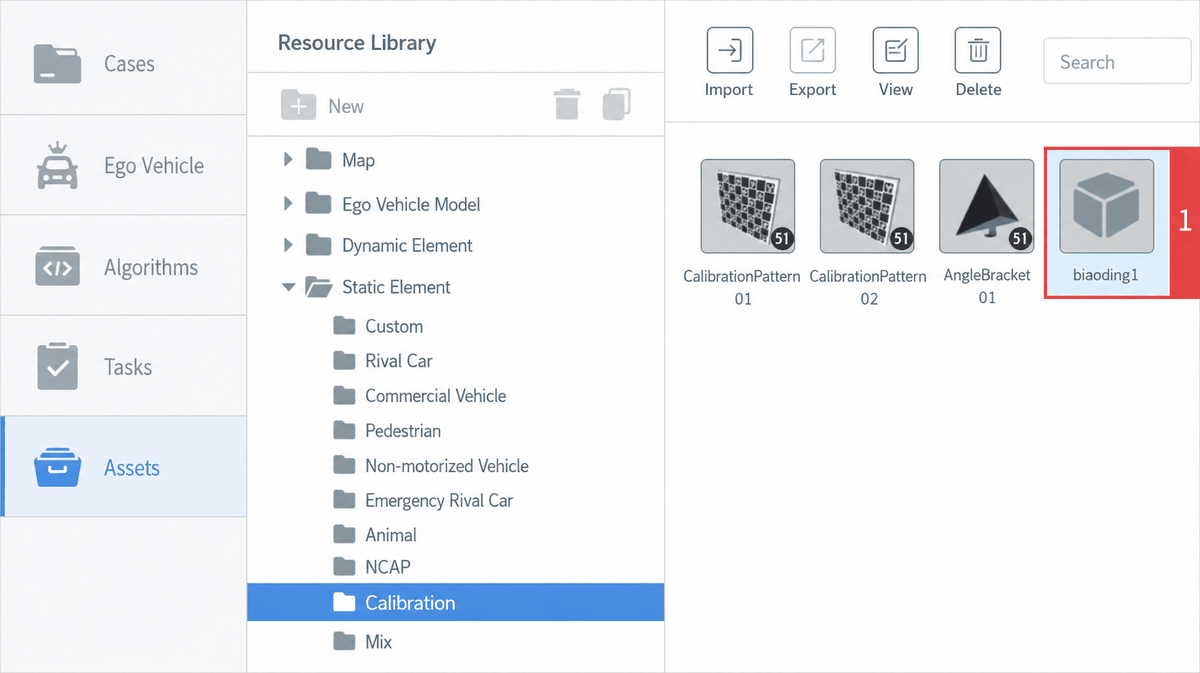
(3) After a successful import, a new element appears in the corresponding directory.
2. Add Element to Test Case
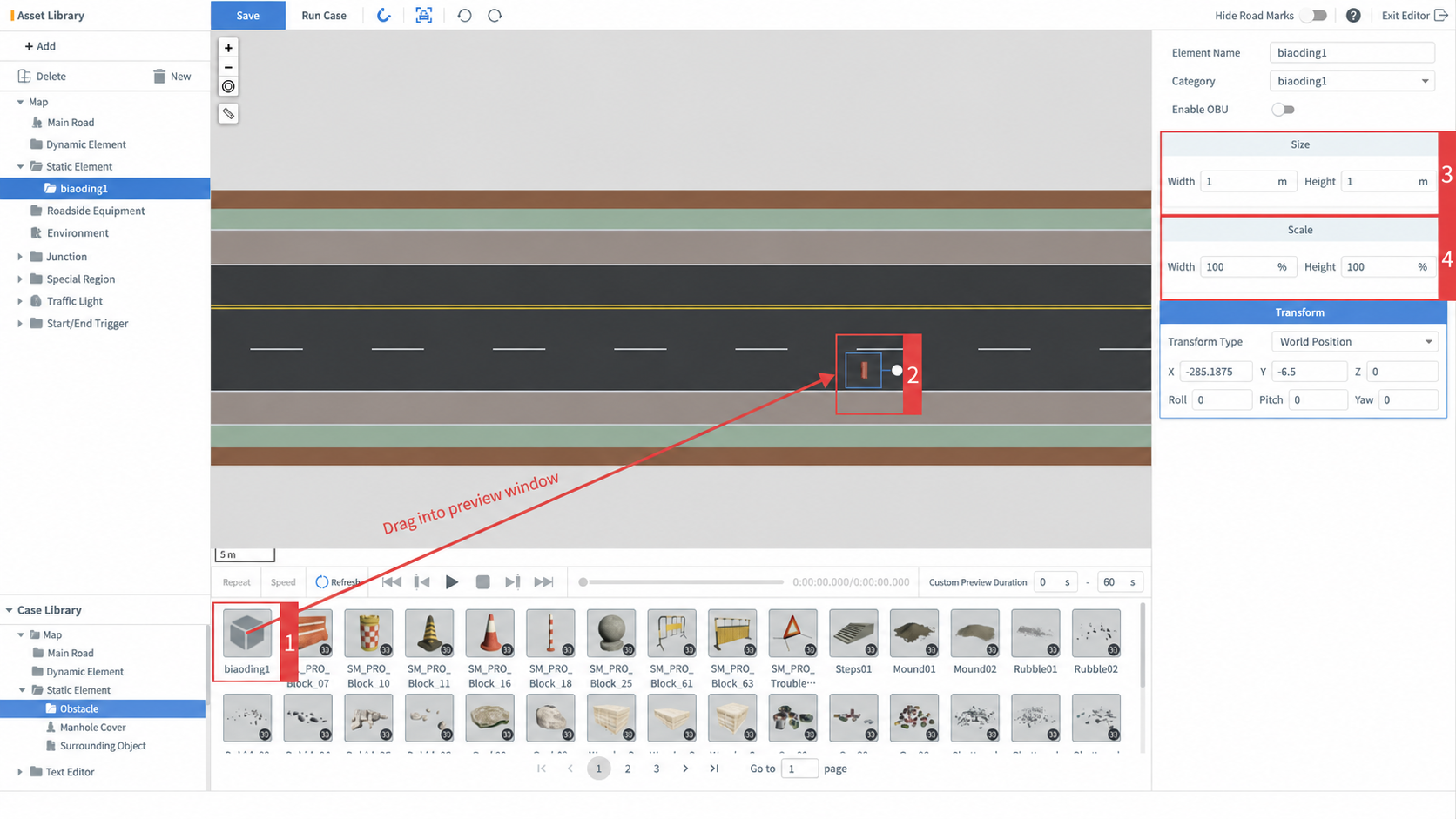
Open the test case editor, drag the imported model into the preview viewport, and customize the dimensions and scale as needed.
3. Viewing the Result
Save and run the test case to see the imported model in the test case monitoring window.