Test Task Management
Test task management is the core module that ensures orderly test execution and traceable results. It supports two methods for creating tasks:
- Create from Use Case Run: Select one or more test use cases and click Run to configure the test content, then generate a trackable task set with one click.
- Create from Test Plan Execution: For an existing test plan, trigger execution manually or automatically, and batch-decompose the test targets in the plan into concrete, executable task sets.
After tasks are created, the system automatically generates a structured task list with associated test use cases, owning plans, and other key information, helping testers clarify task boundaries, track execution progress, and manage results.
1. Running Tasks
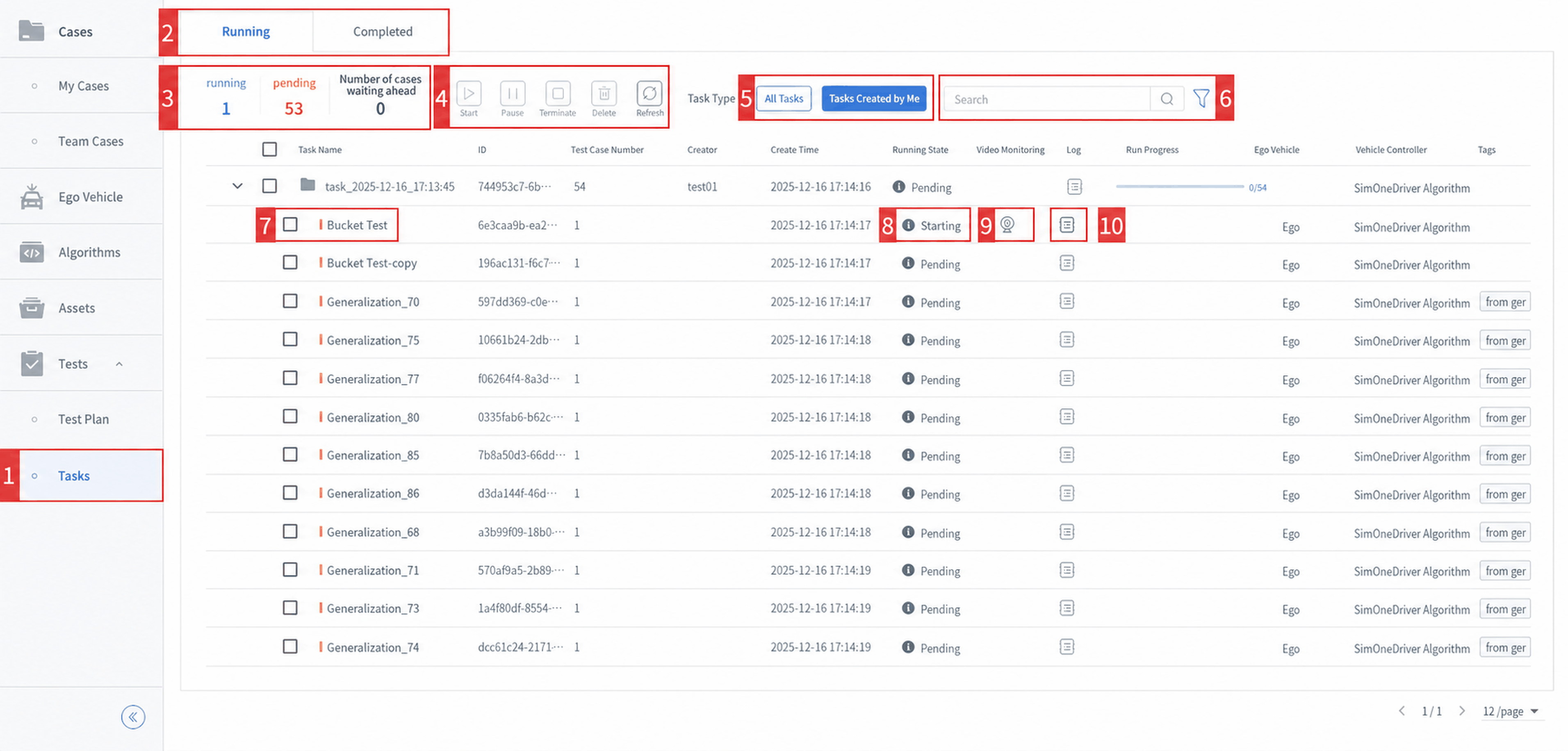
| ID | Item | Description |
|---|---|---|
| 1 | Task Management | Click to view the Task Management module. |
| 2 | Running / Completed | Click this toggle to view the Running or Completed task set list. |
| 3 | Statistics | Running: Number of cloud tasks currently running in the queue for the current account's view. Queued: Number of cloud tasks waiting in the entire cloud queue. Tasks Ahead: How many tasks in the queue are ahead of the first task the current account is waiting for. |
| 4 | Task Action Buttons | Includes Start, Pause, Stop, Delete, and Refresh buttons to control task execution. |
| 5 | Task Type | Quickly filter: All Tasks, Tasks Created by Me. |
| 6 | Search | 1. Fuzzy search by task ID/name. 2. Click the icon to filter tasks by creation time and task status. |
| 7 | Checkbox | Click to select one or more tasks. |
| 8 | Task Status | View the current execution status of a task. |
| 9 | Monitor Button | Click to open a visualization popup window. Based on global settings, one of two rendering types is displayed: simplified rendering or high-fidelity rendering. |
| 10 | Test Log | Click to view the task execution log. |
2. Completed Tasks
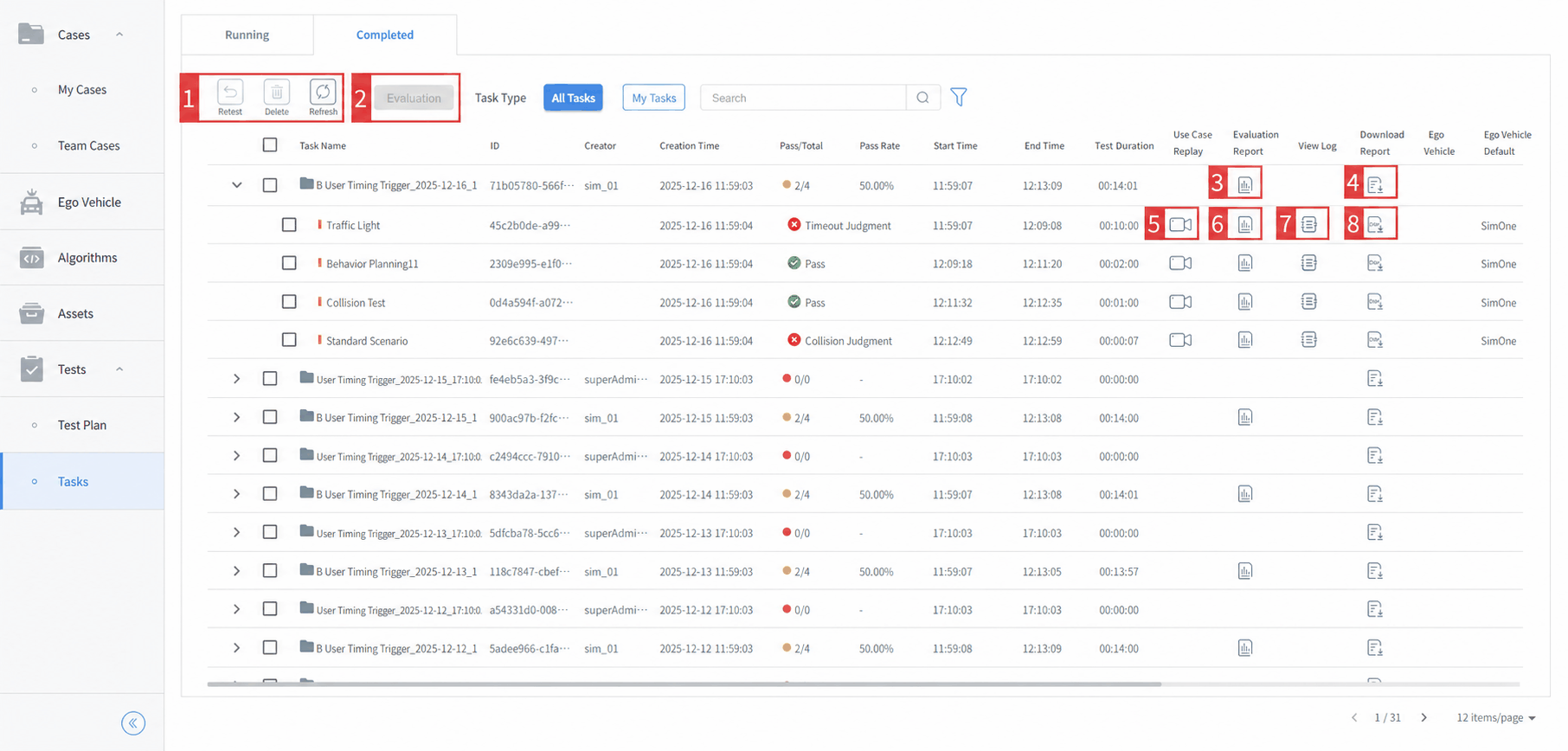
| ID | Item | Description |
|---|---|---|
| 1 | Action Buttons | Actions for completed tasks include Retest, Delete, and Refresh. |
| 2 | Evaluation | For already-evaluated tasks, click to switch the evaluation template and re-evaluate. |
| 3 | Evaluation Report | For a task set, click to view the aggregate evaluation report for all tasks in the set. |
| 4 | Test Report | For a task set, click to view the aggregate result report for all tasks in the set. |
| 5 | Replay | Click to replay the execution of the use case in a visualization popup window. |
| 6 | Task Evaluation Report | Click to view the evaluation metric data report for an individual task. |
| 7 | View Log | View the execution log for a task. |
| 8 | Download CSV | Click to download the trajectory data recorded during task execution. |