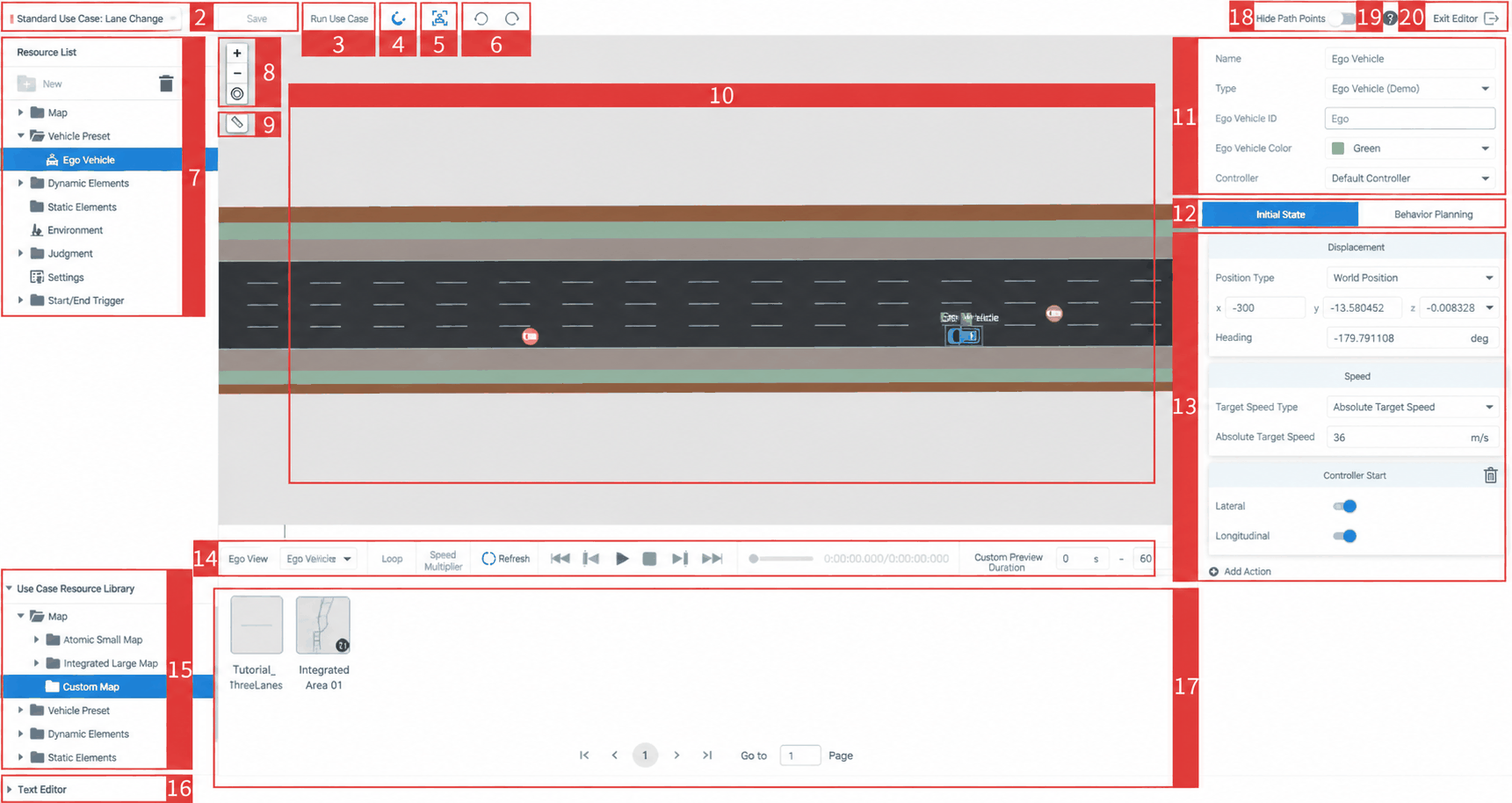
| 1 |
Case Name |
Displays the name of the current case |
| 2 |
Save Button |
Click to save the case after making edits |
| 3 |
Run Case Button |
When edits have been made in the Case Editor, click to open the New Task dialog. Select the Ego Vehicle type to run the case directly. |
| 4 |
Snap to Lane Center |
When active, waypoints added for the ego vehicle or dynamic elements will snap to the center of the lane the cursor is over |
| 5 |
Follow Ego Vehicle |
During trajectory preview, the viewport follows the ego vehicle |
| 6 |
Undo / Redo |
Revert to the previous / next operation |
| 7 |
Resource List |
Lists the assets displayed in the right-side Case Editor |
| 8 |
Viewport Controls |
Includes zoom in, zoom out, and center on ego vehicle |
| 9 |
Distance Tool |
Click the ruler button — the cursor changes to a crosshair. Click and drag in the map area to measure distance. Supports multi-segment measurement: click again to record the distance from the previous point. Right-click or press ESC to exit. |
| 10 |
Case Edit Viewport |
Edit the case in this viewport: drag in the ego vehicle, dynamic elements, and static elements, then set their trajectories and parameters |
| 11 |
Ego Vehicle Properties Panel |
Adjust ego vehicle parameters, including vehicle type and controller selection |
| 12 |
Tab Toggle |
Switches between Initial State and Behavior Planning tabs |
| 13 |
Ego Vehicle / NPC Properties |
Add actions and set initial states for the ego vehicle or NPC vehicles |
| 14 |
Playback Control Bar |
Left to right: Loop Playback, Playback Speed, Refresh, Jump to Start, Previous Frame, Play/Pause, Jump to End, Progress Bar, Elapsed/Total Time, Custom Preview Duration |
| 15 |
Case Resource Library |
Assets available for data-driven case editing |
| 16 |
Text Editor |
Opens a text editing mode for convenient manual editing |
| 17 |
Case Resource Preview |
Click a resource in the Case Resource Library on the left to display it on the right |
| 18 |
Hide Waypoints |
Toggle to hide all waypoints of the ego vehicle and dynamic elements — only trajectories are shown |
| 19 |
Help Center |
Click to open Help Center documentation |
| 20 |
Exit Editor |
Click to exit the Case Editor dialog |