Test Case Management (Import / Export / Classification)
The test case management module supports importing, exporting, and classifying simulation test cases, making it easy to organize and reuse test scenarios.
Main Features
- Test Case Library Management: Organize test cases by folders and tags
- External Test Case Import: Supports importing external test cases in OpenSCENARIO format
- Built-in Cases: SimOne includes a built-in L2 functional compliance test case library; see Admission Testing → L2 Test Cases
- Quick Test Sets: Add frequently used test cases to a quick test set for direct execution without browsing the library
Interface Description
Users can import external test cases into the library, view, create, and run test cases from the library interface.
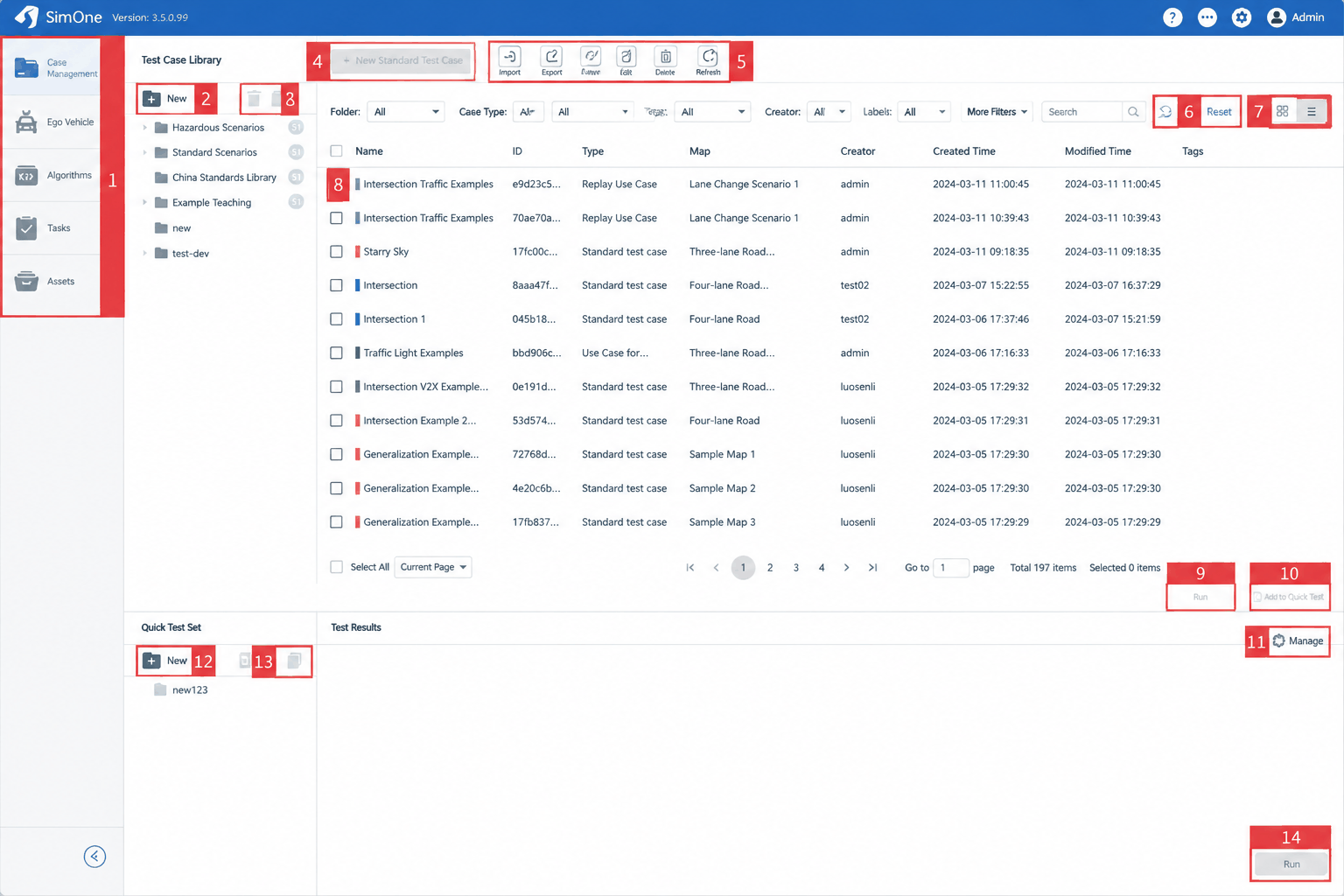
| ID | Item | Description |
|---|---|---|
| 1 | Navigation Menu Switch | Click this menu to navigate between modules: Cases, Ego Vehicle, Algorithms, Tasks, and Assets |
| 2 | Create Test Case Folder | Click to create a new folder in the test case library list. After creating a folder, the Create Test Case button becomes active, allowing users to create test cases under the new folder |
| 3 | Delete / Copy Button | Users can delete and copy non-built-in test case library folders |
| 4 | Create Test Case Button | When active, users can create a new test case in the selected folder on the left |
| 5 | Library Action Buttons | Includes Import, Export, Edit, Delete, and Refresh. Import: import test cases into the system; Export: export test cases from the library; Edit: open the selected test case in the case editor; Delete: delete the selected test case; Refresh: refresh the test case library page |
| 6 | Reset | Click to clear and reset all filter conditions |
| 7 | Display Mode Toggle | Switch between grid view and list view |
| 8 | Select Test Case | Click the checkbox on the left to select a test case; the Export, View, and Delete action buttons will then become active |
| 9 | Run Button | Select a test case and click Run to execute it |
| 10 | Add to Quick Test Set | After selecting a test case from the library and selecting a quick test set folder, click this button to add the test case to the quick test set |
| 11 | Manage Button | Click to remove selected test cases from the quick test set |
| 12 | Create Quick Test Set Button | Click to create a new quick test set folder under the quick test sets section |
| 13 | Delete / Copy Button | Select a quick test set folder, then click Delete or Copy to perform the corresponding action |
| 14 | Run Button | Click to run all test cases in the selected quick test set together |
Use Case Type Descriptions
| Term | Description |
|---|---|
| Built-in Use Case | Standard scenario library provided by the SimOne platform, available for viewing and editing, but only "Save As" is permitted (original cannot be overwritten). Includes: Tutorial Cases (introductory/ASAM), Hazardous Scenarios (ghost probing, emergency braking, etc.), Regulatory Standards (C-NCAP), and CATARC Scenario Library. |
| Standard Use Case | Based on the OpenSCENARIO standard (supports .xosc import and editing). Used to describe test scenarios with fixed scripts (e.g., regulations, hazardous conditions), where vehicle and pedestrian behaviors are all pre-defined. |
| Traffic Flow Use Case | Used to simulate real-world complex road environments. Supports configuring random traffic flow (adjusting density and vehicle types) or importing external traffic flow. In long-distance mixed-traffic scenarios, monitors violations, collisions, and abnormal behavior when the ego vehicle interacts with multiple vehicles. |
| ASAM | Association for Standardization of Automation and Measuring Systems. SimOne fully supports ASAM standards including OpenSCENARIO and OpenDRIVE. |
| OpenSCENARIO | An open scenario description standard developed by ASAM. It precisely defines dynamic elements such as vehicle behavior, traffic signals, and weather. As a universal dynamic simulation format, it ensures high compatibility and data interoperability across different simulation software and interfaces. |