CI/CD Automated Testing
CI/CD automated integration testing is only supported for use with SimOne Team Edition — Cloud.
CI/CD Automated Testing Integration Workflow
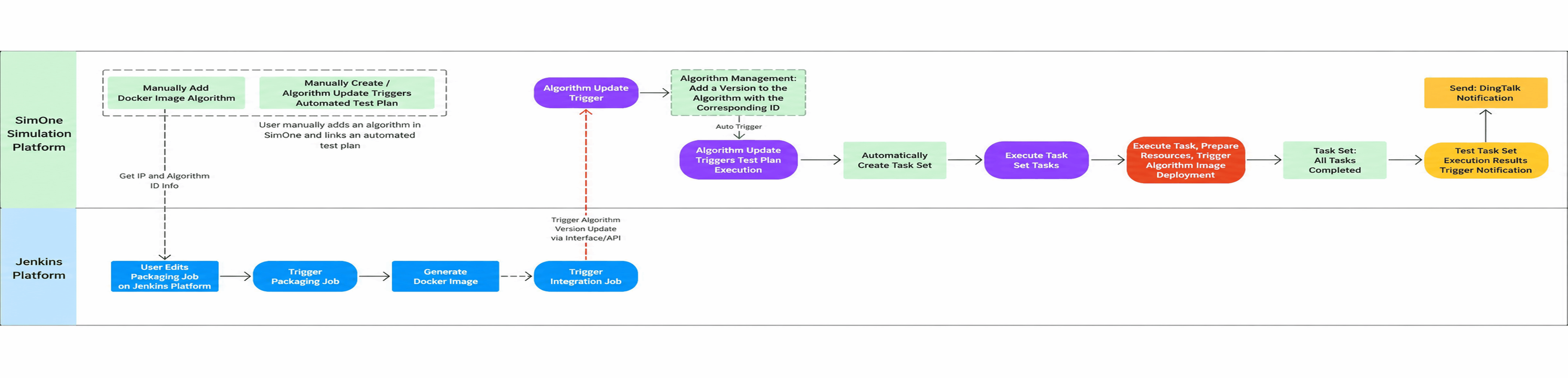
CI/CD Automated Integration Testing is designed for large-scale concurrent simulation on the SimOne Cloud Platform, aiming to achieve continuous integration and efficient validation of algorithms, significantly improving validation efficiency and delivery quality during algorithm iteration.
The core workflow is as follows:
- Integration Method: Through standardized RESTful API interfaces, the platform seamlessly integrates with the customer's internal Jenkins continuous integration system.
- Trigger Logic: When a user triggers the algorithm packaging process in Jenkins, the SimOne platform automatically synchronizes and updates the corresponding algorithm version.
- Test Execution: After the platform synchronizes the algorithm version, it automatically triggers test plans configured with "Algorithm Update Trigger" to create task sets for large-scale concurrent simulation testing, enabling continuous algorithm updates, rapid deployment, and efficient validation.
1. Create an Algorithm and Obtain the Algorithm ID
On the SimOne Cloud Platform, users can follow the steps below to quickly create an algorithm and obtain its Algorithm ID for subsequent Jenkins integration configuration and API calls.
1.1 Create a New Algorithm
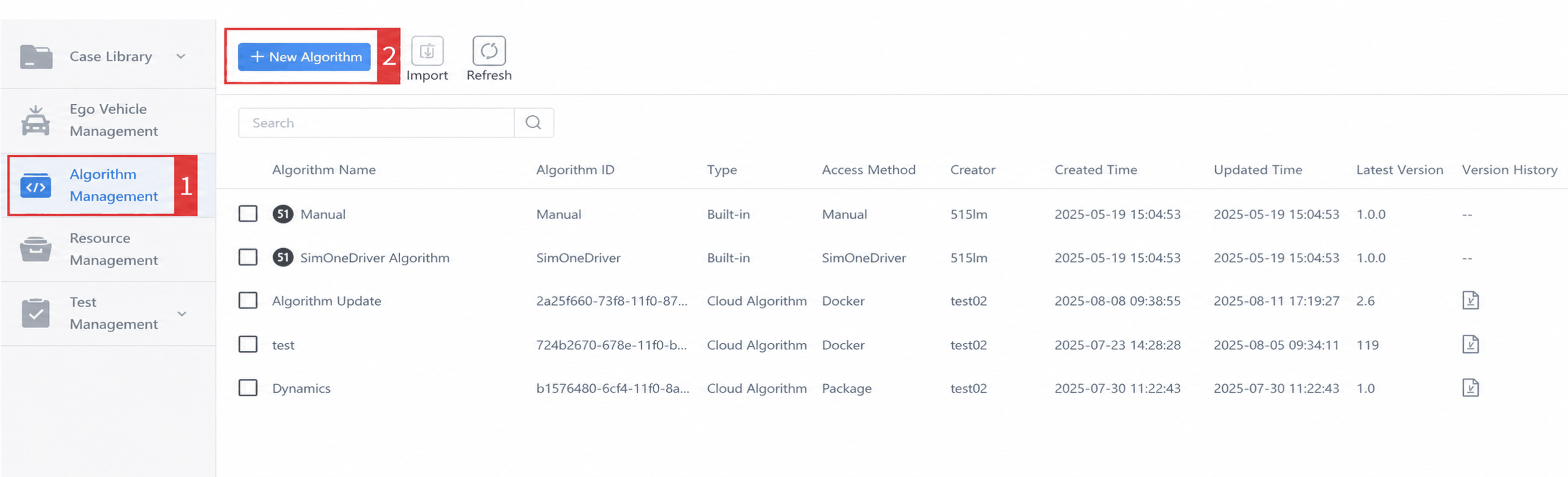
Open the SimOne Cloud Platform in a browser, navigate to the Algorithm Management module, and click the New Algorithm button to open the new algorithm dialog.
1.2 Fill In Algorithm Information
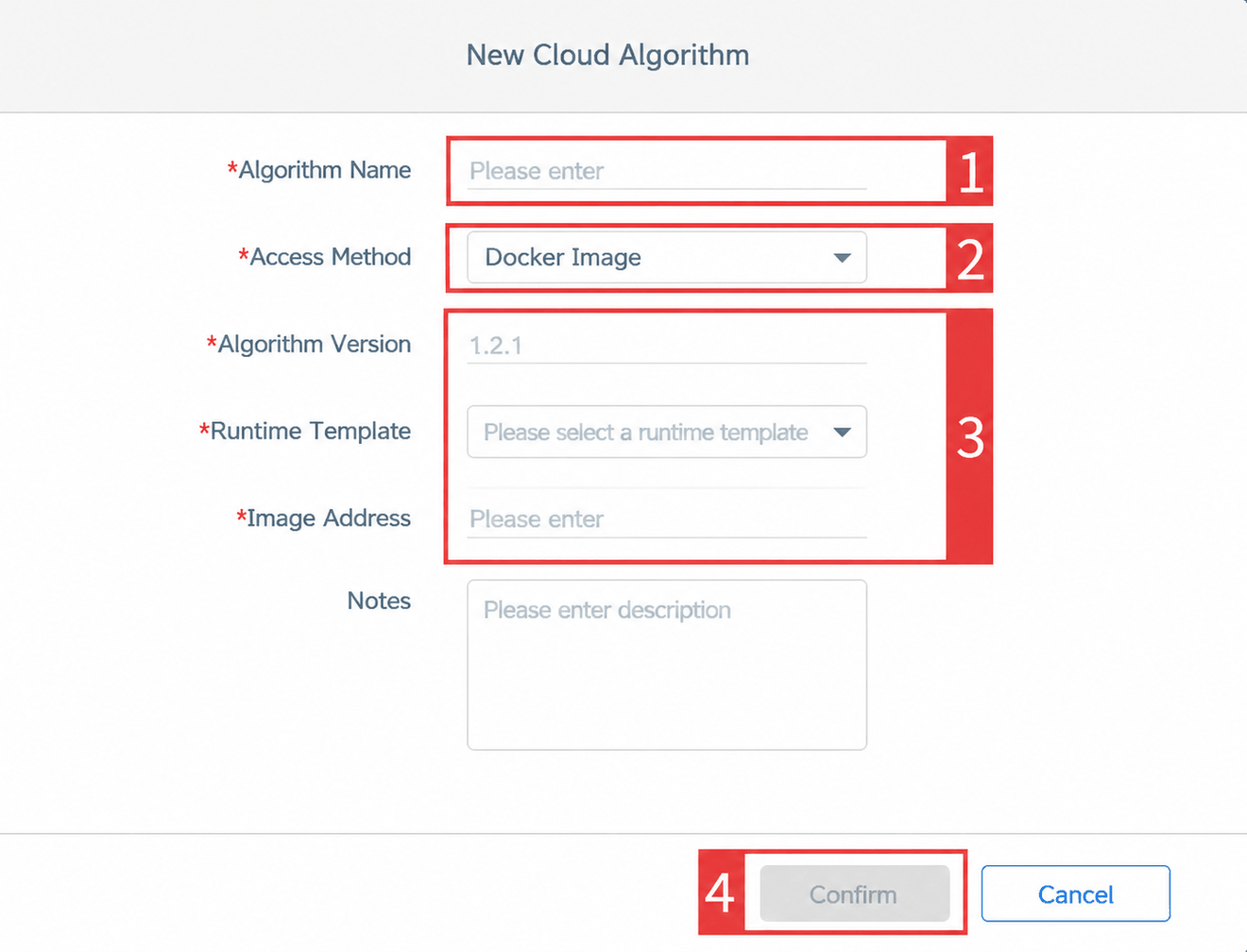
In the algorithm editing dialog, select the integration method: Docker Image. Then fill in the algorithm name, algorithm version, and Docker image address as required. The new algorithm is created upon completion.
1.3 Obtain the Algorithm ID
Locate the newly created Docker algorithm in the algorithm list and copy its corresponding ID.
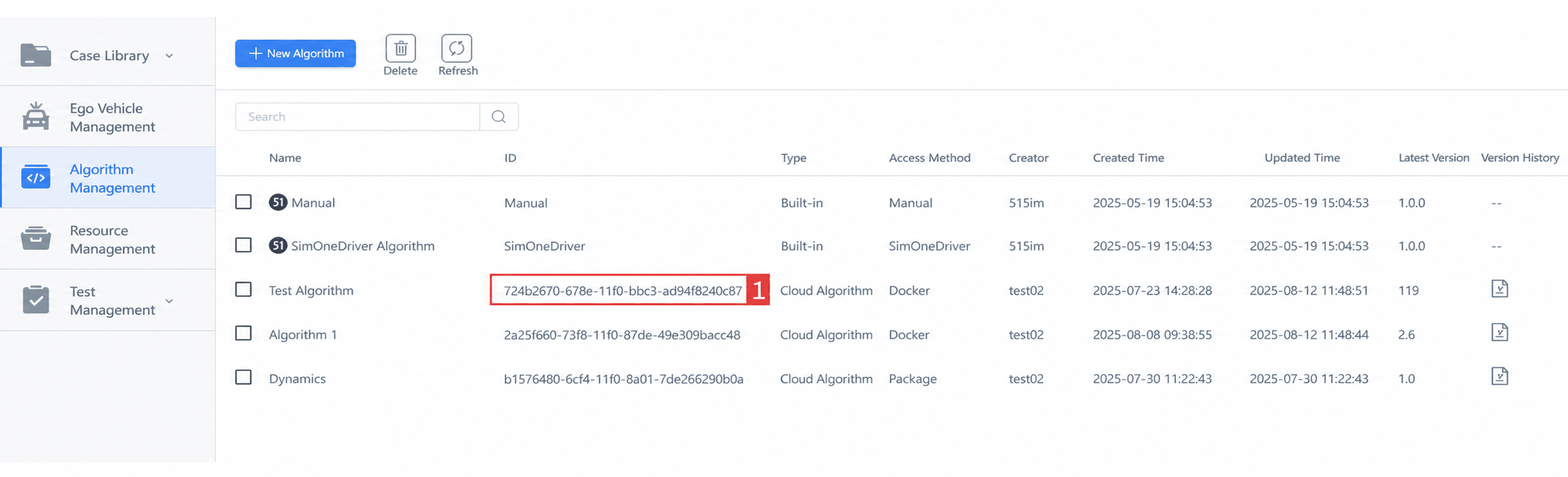
2. Create an "Algorithm Update Trigger" Test Plan
On the SimOne Cloud Platform, users can follow the steps below to quickly create a test plan with the "Algorithm Update Trigger" method.
2.1 Create a New Test Plan
Navigate to Test Management — Test Plan, click the New button to open the new test plan dialog.
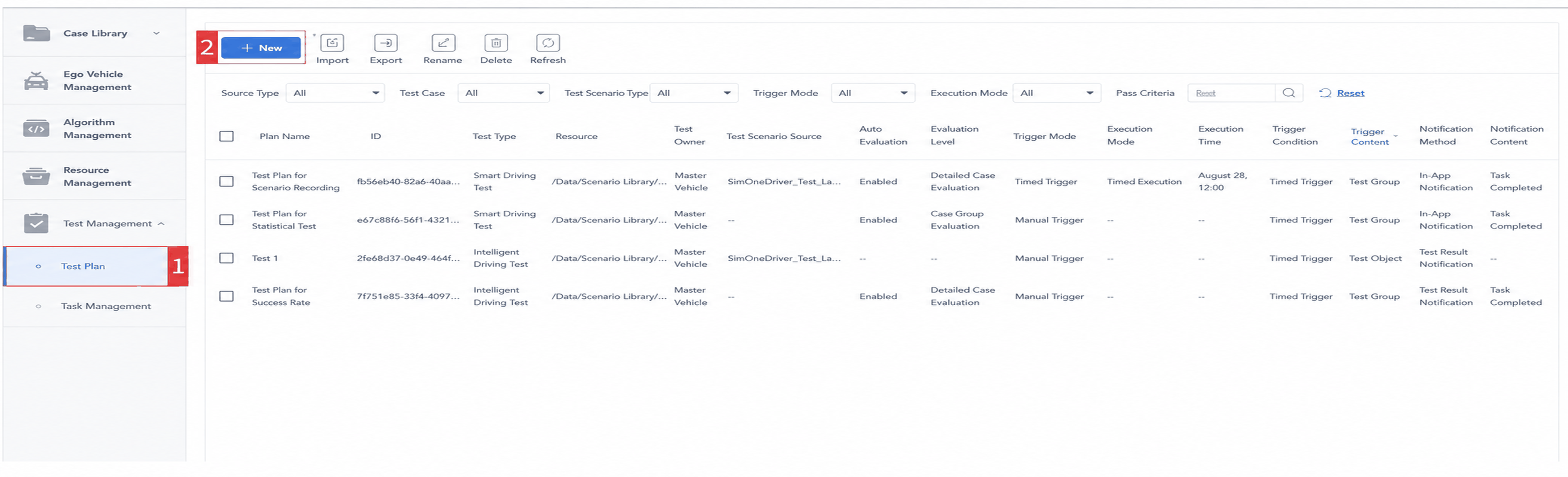
2.2 Configure the Test Plan
In the test plan editing interface, configure the four modules: basic settings, vehicle & algorithm configuration, trigger settings, and execution result notification settings, as follows:
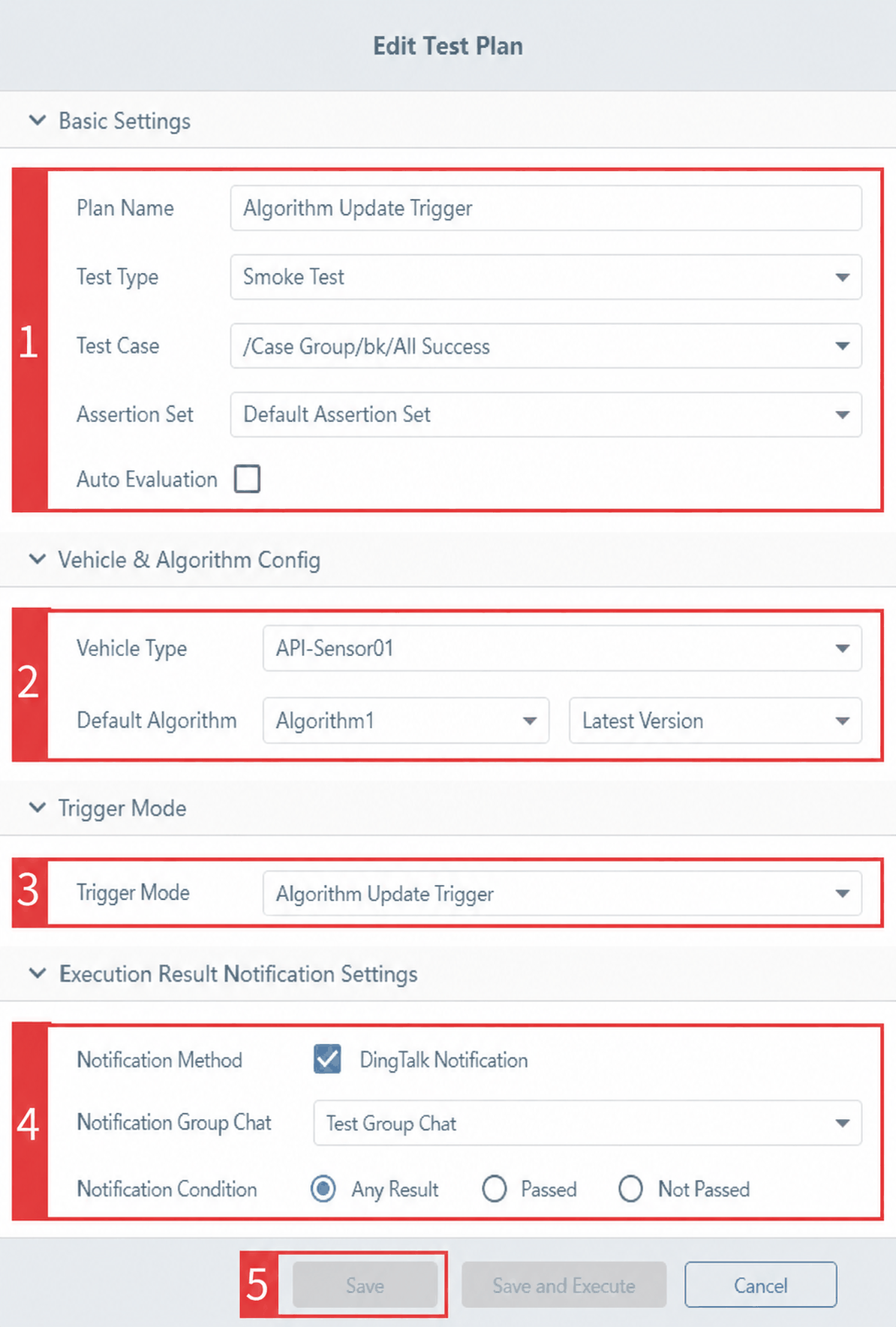
(1) Basic Settings
| Configuration Item | Instructions |
|---|---|
| Plan Name | Enter a custom plan name. |
| Test Type | Defaults to "Smoke Test"; users can select a different type from the dropdown. |
| Test Use Cases | Defaults to empty; select "Use Case Groups" or "Use Case Set Groups" from the team use cases dropdown (multiple selection supported). |
| Auto Evaluation | Disabled by default; when enabled, an "Evaluation Preset" must be configured. After the test tasks complete, results are automatically evaluated based on the preset. |
(2) Vehicle & Algorithm Configuration
a. Ego Vehicle Type: Supports selecting an Ego Vehicle from the Ego Vehicle management list in a popup.
b. Controller Configuration: Supports assigning an algorithm to a controller. Click the dropdown to view the algorithm list and set the algorithm version. The default is "Latest Version" — after an algorithm version update, the test plan automatically runs with the latest version.
(3) Trigger Settings
a. Switch Trigger Method: The default trigger method is "Manual Trigger". Click the dropdown and select Algorithm Update Trigger.
b. Applicable Restrictions: This trigger method is only applicable to algorithms that are already configured in the test plan with the version set to "Latest Version".
c. Auto-trigger Logic: When an algorithm version is added or updated, the system automatically triggers the test plan and creates a task set.
(4) Execution Result Notification Settings
a. Enable Notifications: Disabled by default. Check Enable DingTalk Notification to push test results via a DingTalk webhook bot.
b. Notification Group: Select the DingTalk group to receive the execution results. For how to add group chats, refer to Admin System.
c. Notification Conditions: Select the condition for sending notifications: Any Result, Pass, or Fail.
(5) Save: After configuring the new test plan, click Save Only to save and add the test plan.
3. Update the Algorithm Version
3.1 Select an Algorithm
Navigate to the Algorithm Management module. In the algorithm list, click to select the target algorithm to update, right-click it, and choose Update Version.
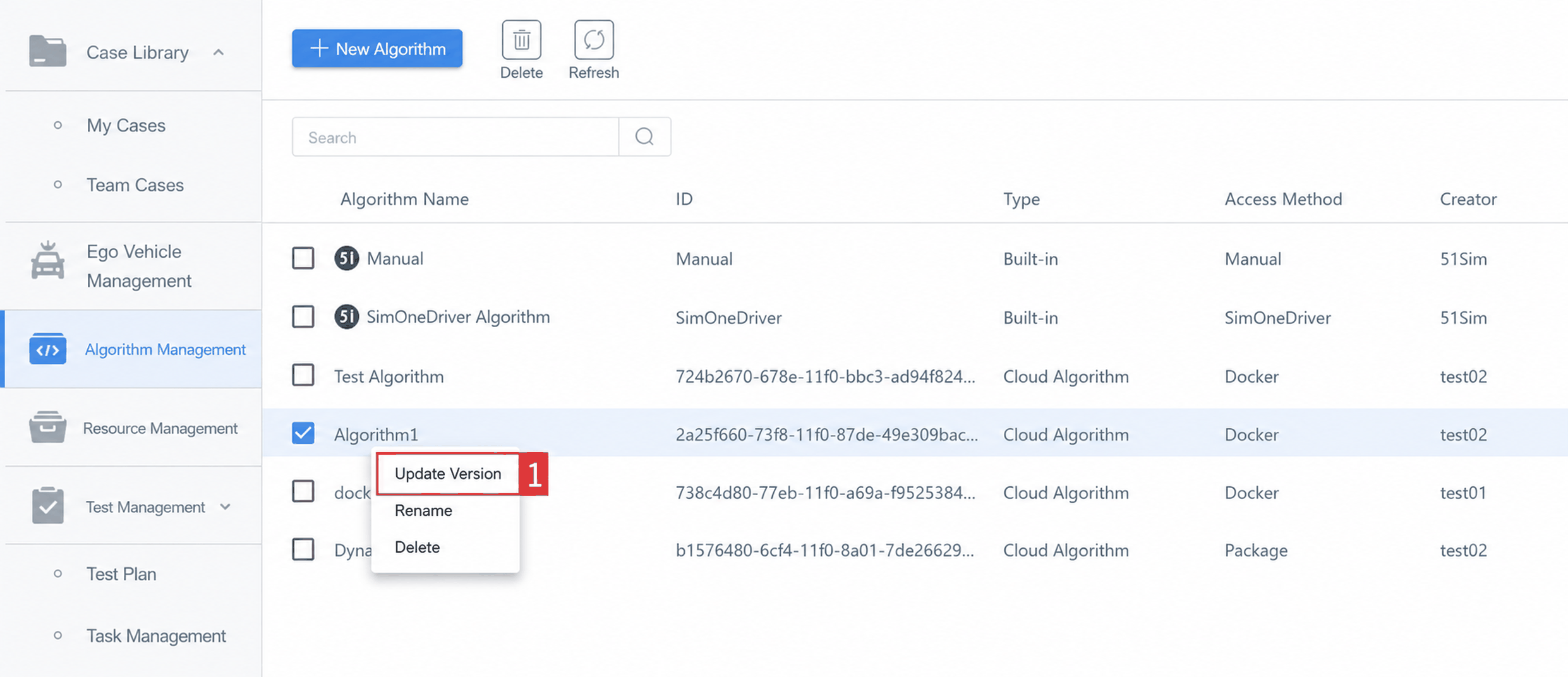
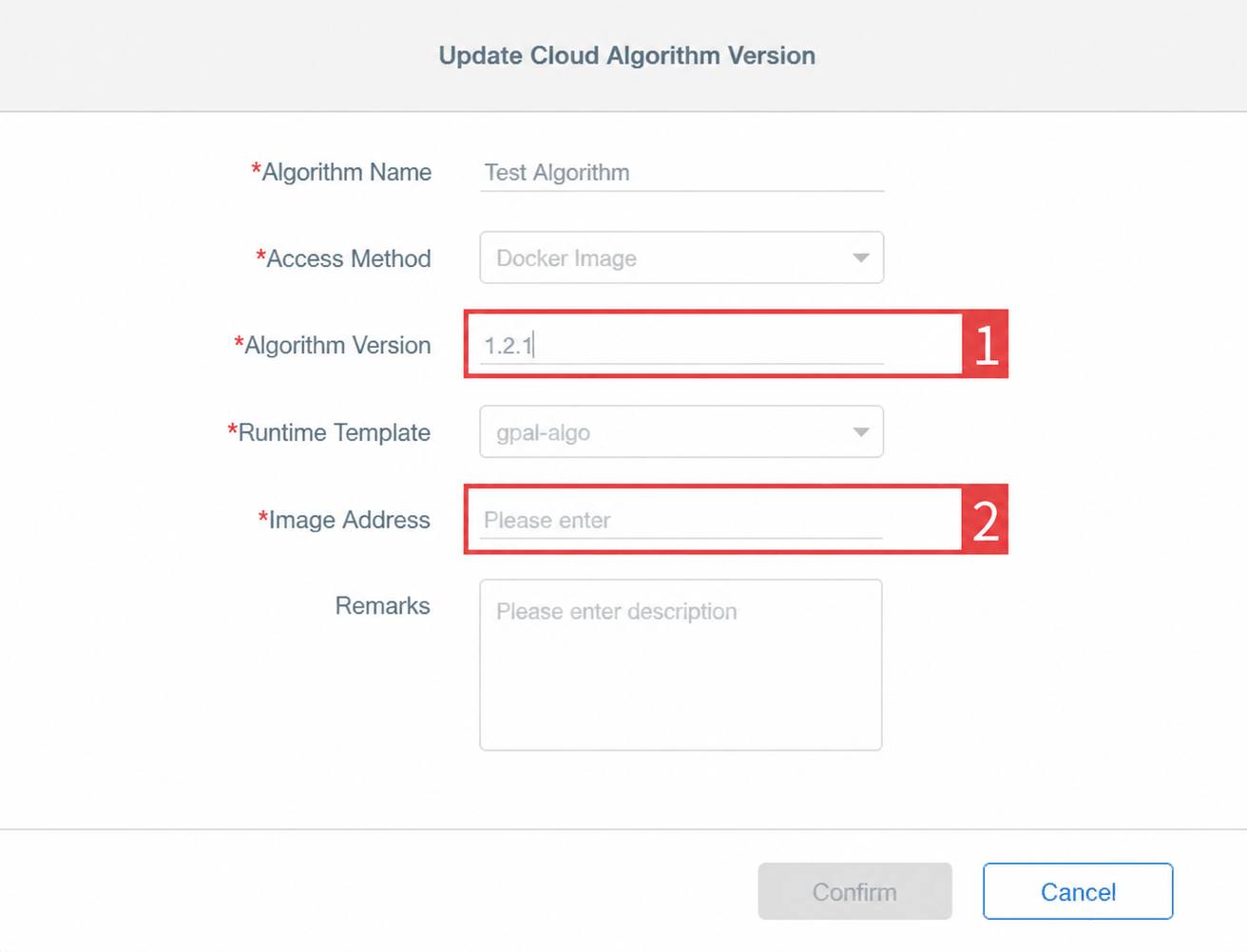
3.2 Update the Algorithm Version
In the algorithm editing interface, add the Algorithm Version and the corresponding Docker image address. After confirming the information, submit to complete the version update.
Tip
There are two ways to update an algorithm version:
- Method 1: Update the algorithm version through the SimOne platform interface.
- Method 2: Call the RESTful API to update the algorithm version based on the algorithm ID.
4. Auto-trigger Test Plan Execution
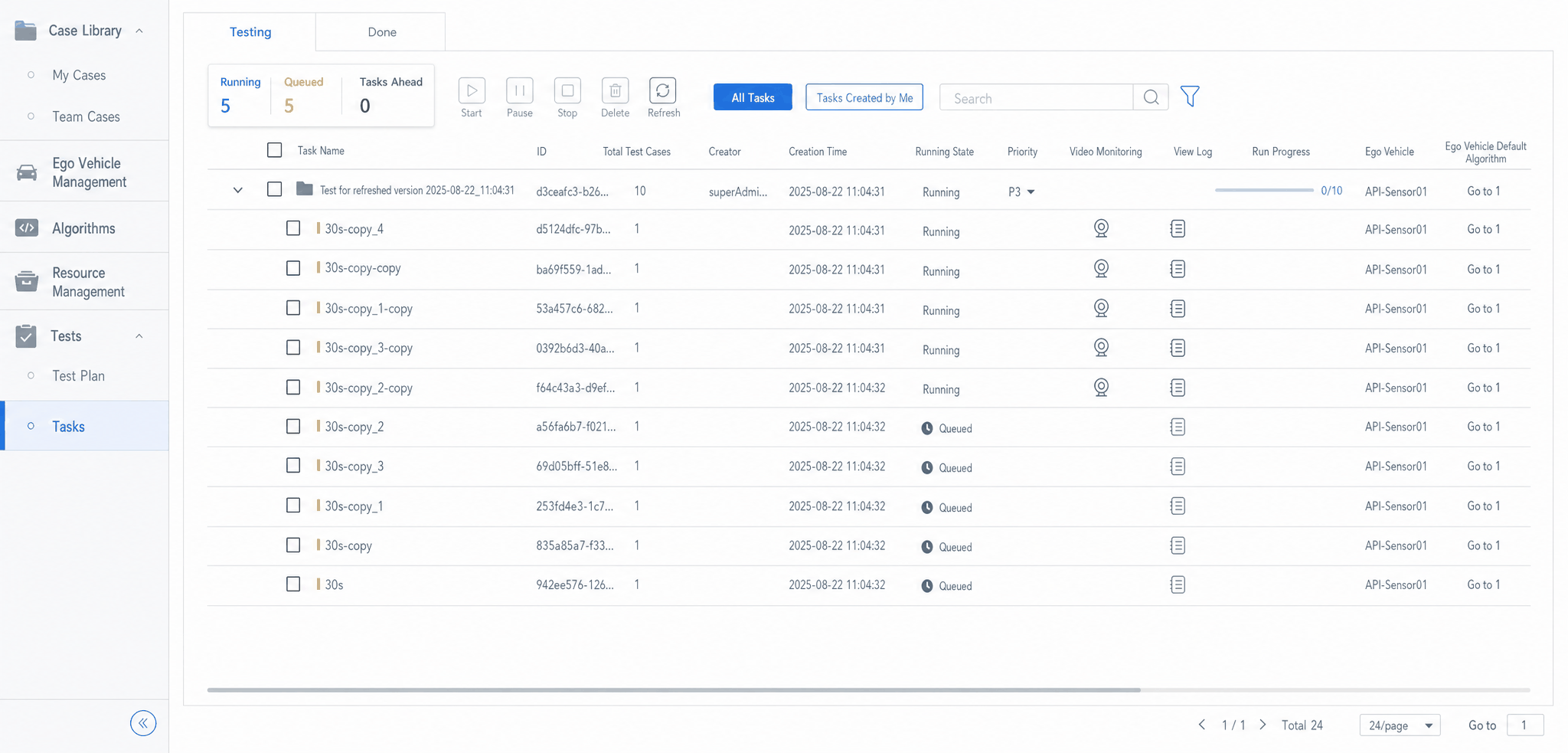
When an algorithm version is updated, the system automatically triggers the test plan execution based on the configured Algorithm Update Trigger, creates a task set, and launches large-scale concurrent testing.
5. View Task Execution Result Notifications
In the DingTalk app chat interface, the corresponding group receives the test plan execution results sent by the webhook bot.
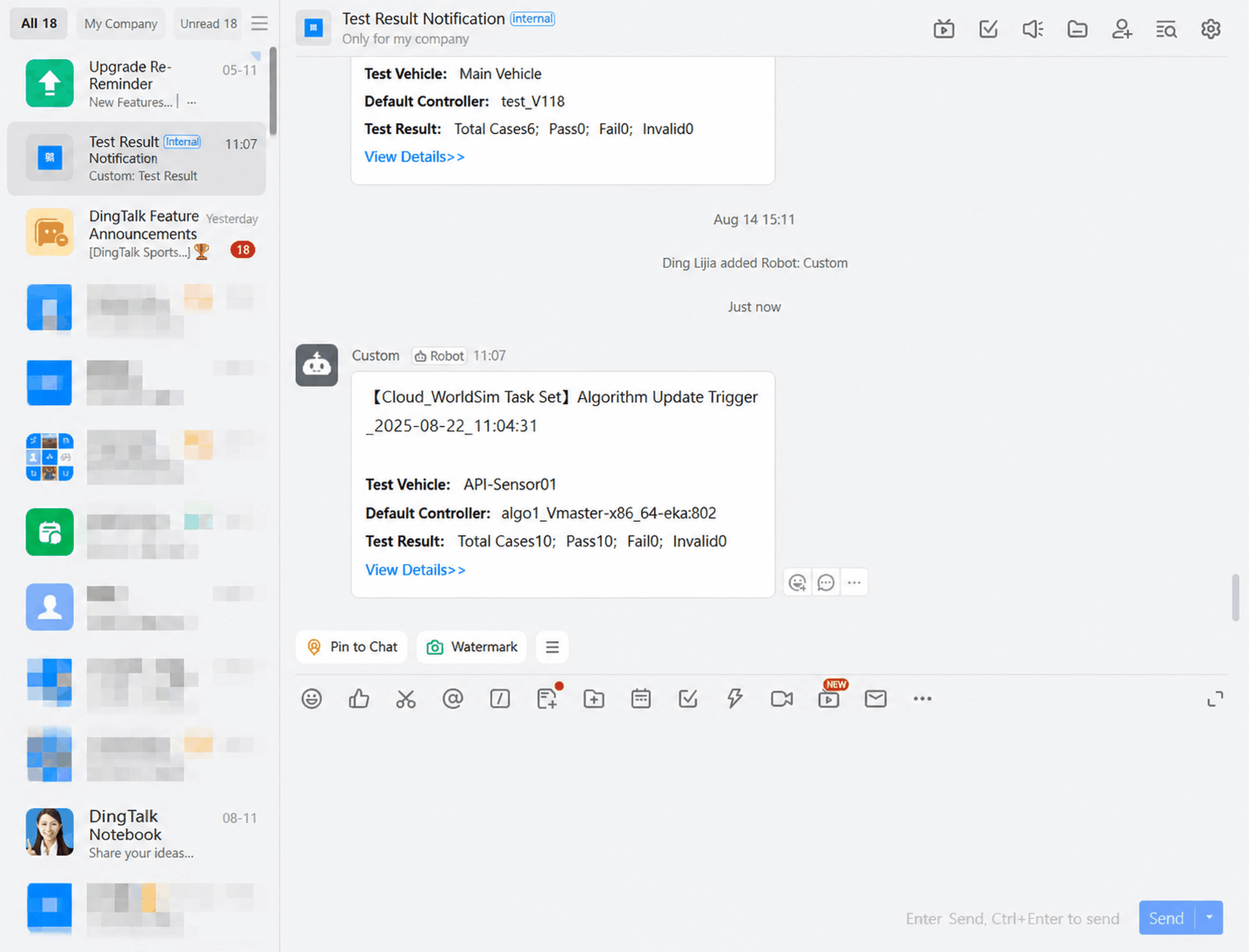
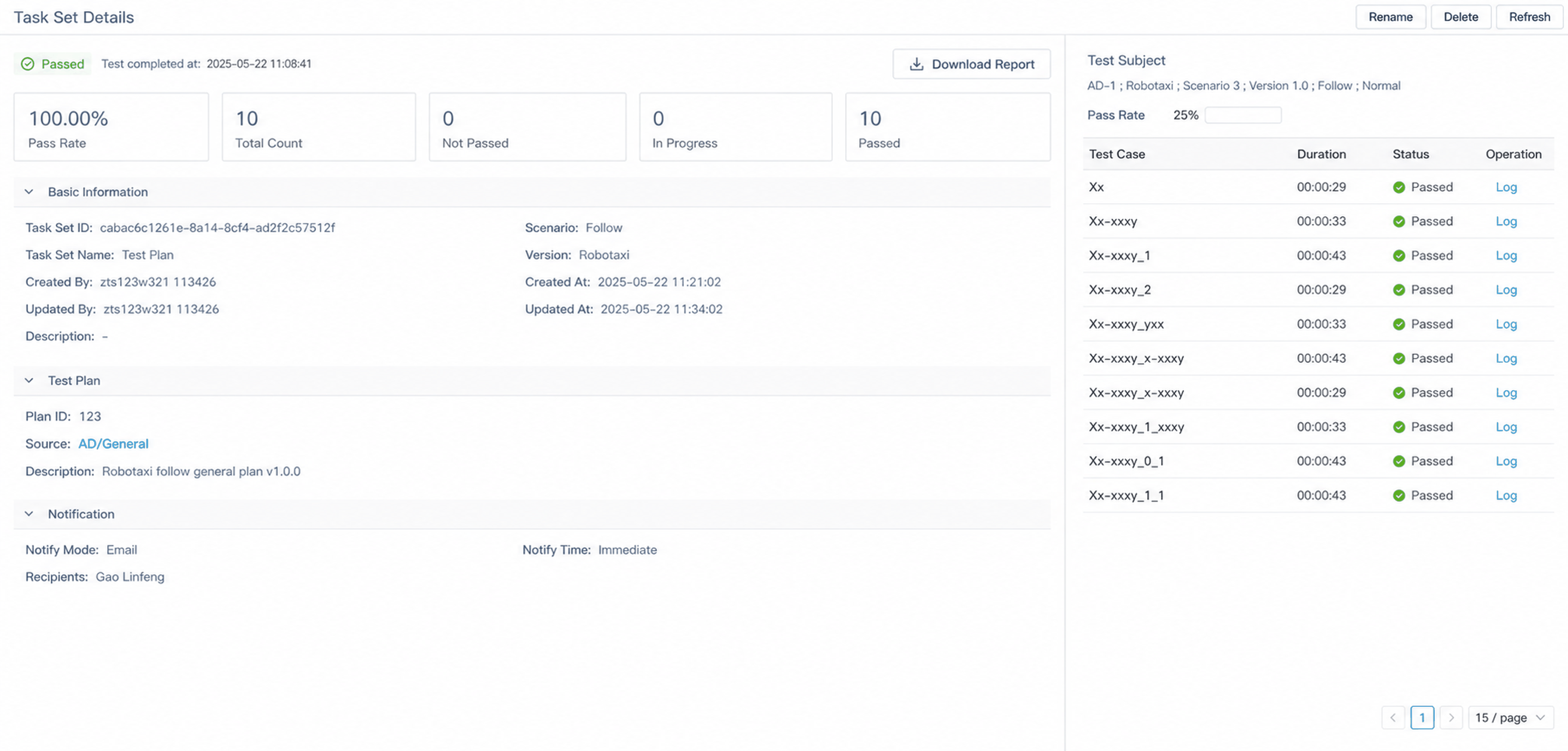
Click the View Details link in the DingTalk message to navigate to the corresponding task set details page in a browser and view the complete test results.