Post-Run Evaluation
1. Overview
Post-run evaluation refers to evaluation performed after a test task is complete. It is primarily used to assess an autonomous driving algorithm's performance, functional compliance, and other aspects. The evaluation framework is the foundation and core of post-run evaluation.
SimOne currently supports three evaluation frameworks:
- Built-in Evaluation Framework: SimOne's built-in evaluation framework calculates scores for each indicator across each dimension according to an "Indicator–Dimension" hierarchy, and then consolidates them into a single overall score. The final evaluation report is generated and displayed by SimOne.
- Built-in Evaluation Framework + Custom Indicator Operator: Uses SimOne's built-in evaluation framework as the base, and supplements it with custom indicator operators via external operator integration. The operator scores are then merged into the overall score calculation. The final evaluation report is also generated and displayed by SimOne.
- Custom Report Operator: The entire evaluation framework is fully customized by the user through external operator integration, and the final evaluation report is also generated by the operator.
The differences between the three evaluation frameworks are summarized in the table below:
| Built-in Evaluation Framework | Built-in Framework + Custom Indicator Operator | Custom Report Operator | |
|---|---|---|---|
| Evaluation Method | Scoring (7 built-in dimensions + 100+ built-in indicators) | Scoring (7 built-in dimensions + 100+ indicators + custom indicators) | Fully customizable |
| Configurable Items |
|
"The 3 configuration items of the built-in evaluation framework" + associated indicator operators (operator basic information) | Operator basic information |
| Report Display Format | Web interface (SimOne built-in) | PDF generated by the operator | |
| Report Display Content | a. Scoring for a single task b. Aggregate scoring statistics for a task set | Controlled by the operator | |
| Applicable Algorithms | Planning & control, end-to-end, and integrated algorithms | Any | |
| Evaluation Trigger | a. Check "Auto Evaluation" when submitting or planning a task b. Click the "Evaluate" button in the Task Management — Completed interface after the task finishes | ||
2. Operation Workflow
2.1 Overview
Regardless of which evaluation framework is used, the post-run evaluation workflow involves three main steps:
- Create the evaluation framework
- Create and execute evaluation tasks
- View the evaluation report
Details are described in the sections below.
2.2 Create an Evaluation Framework
2.2.1 Using the Built-in Evaluation Framework
To use the built-in evaluation framework, configure the "evaluation dimensions and their weights," "evaluation indicators and their weights," and "indicator scoring functions" according to specific evaluation requirements. The main steps are:
(1) Open the Built-in Evaluation Framework: Navigate to Resource Management, then go to Evaluation — Planning & Control Evaluation — Evaluation Preset to open the built-in evaluation framework.
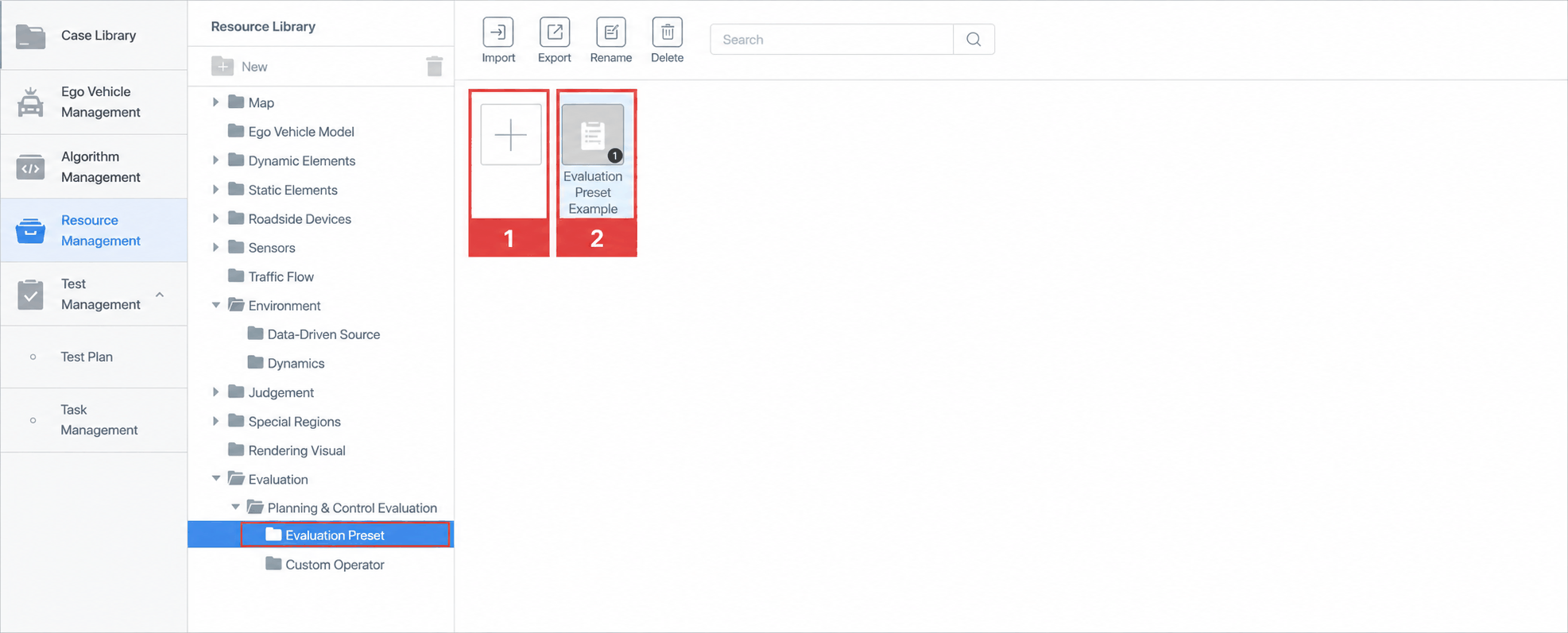
| ID | Item | Description |
|---|---|---|
| 1 | New Button | Click to open a blank evaluation configuration page. Configure the evaluation framework from scratch; after saving, the new framework name appears in this list. |
| 2 | Built-in Evaluation Framework | The platform's built-in evaluation framework, which can be used directly or modified and saved as a new framework. |
(2) Configure the Evaluation Framework: ① Name of the evaluation framework ② Indicators and scoring functions for each evaluation dimension ③ Weights for each evaluation dimension and indicator
When using only the built-in evaluation framework, set the associated operator to "None" and save the configuration after completing it.
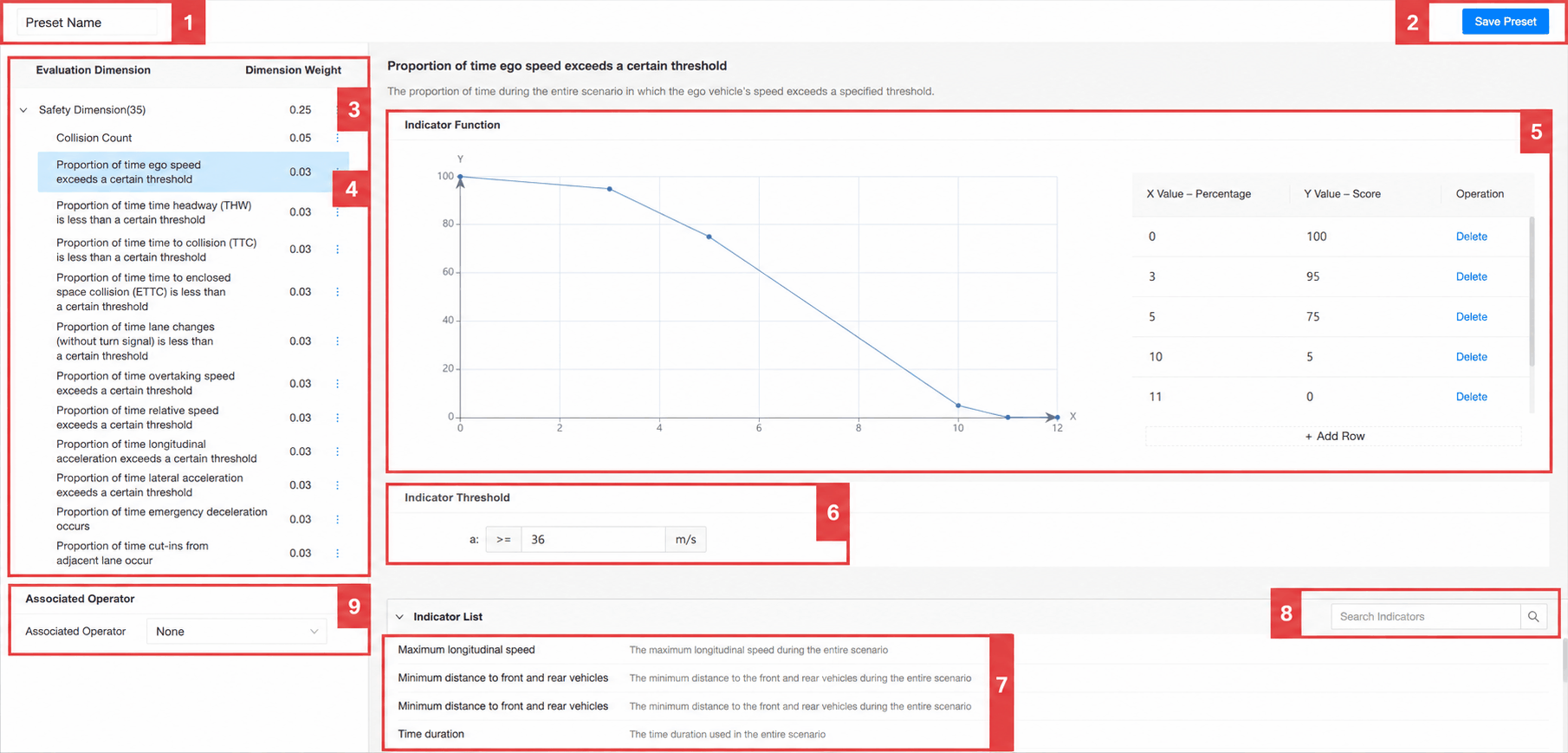
| ID | Item | Description |
|---|---|---|
| 1 | Preset Name | Displays the name of this evaluation preset; renaming is supported. |
| 2 | Save Preset | Click to save any modifications. |
| 3 | Evaluation Dimensions & Dimension Weights | The parent level of evaluation indicators. Seven built-in dimensions are included: Safety, Compliance, Energy Efficiency, Efficiency, Stability, Comfort, and Accuracy. Dimension weight reflects the relative importance of that dimension in the overall evaluation and affects the total score calculation. |
| 4 | Evaluation Indicators & Indicator Weights | Evaluation indicators are quantitative metrics used for assessment. Indicator weight reflects the relative importance of the indicator within its dimension and affects the dimension score calculation. |
| 5 | Indicator Function | The function used to calculate the indicator score; depends on the indicator value. |
| 6 | Indicator Threshold | The critical value used to calculate the indicator value; depends on the indicator definition. Not every indicator has a threshold. |
| 7 | Indicator List | A list of all built-in indicators and their descriptions. Drag a desired indicator onto the relevant dimension to configure it. |
| 8 | Search Indicators | Search the evaluation indicator list. |
| 9 | Associated Operator | Configures the custom indicator operator associated with this evaluation preset. Select "None" for the built-in evaluation framework only; select the corresponding indicator operator when using the built-in framework + custom indicator operator. |
2.2.2 Using the Built-in Framework + Custom Indicator Operator
The main steps for using custom indicator operators on top of the built-in evaluation framework are:
(1) Develop the Indicator Operator: Requirements based on evaluation needs:
- Development Language: Must use Python to ensure compatibility with SimOne's built-in evaluation algorithm.
- Integration Format: The operator must be provided as a script (
.bator.sh) and integrated with SimOne's built-in evaluation algorithm via parameter passing. - Number of Indicators: A single operator may contain one or multiple indicators, at the user's discretion.
(2) Import Indicator Operator Information: Navigate to Resource Management, go to Evaluation — Planning & Control Evaluation — Custom Operator, click the Import button, and fill in the operator information in the dialog.
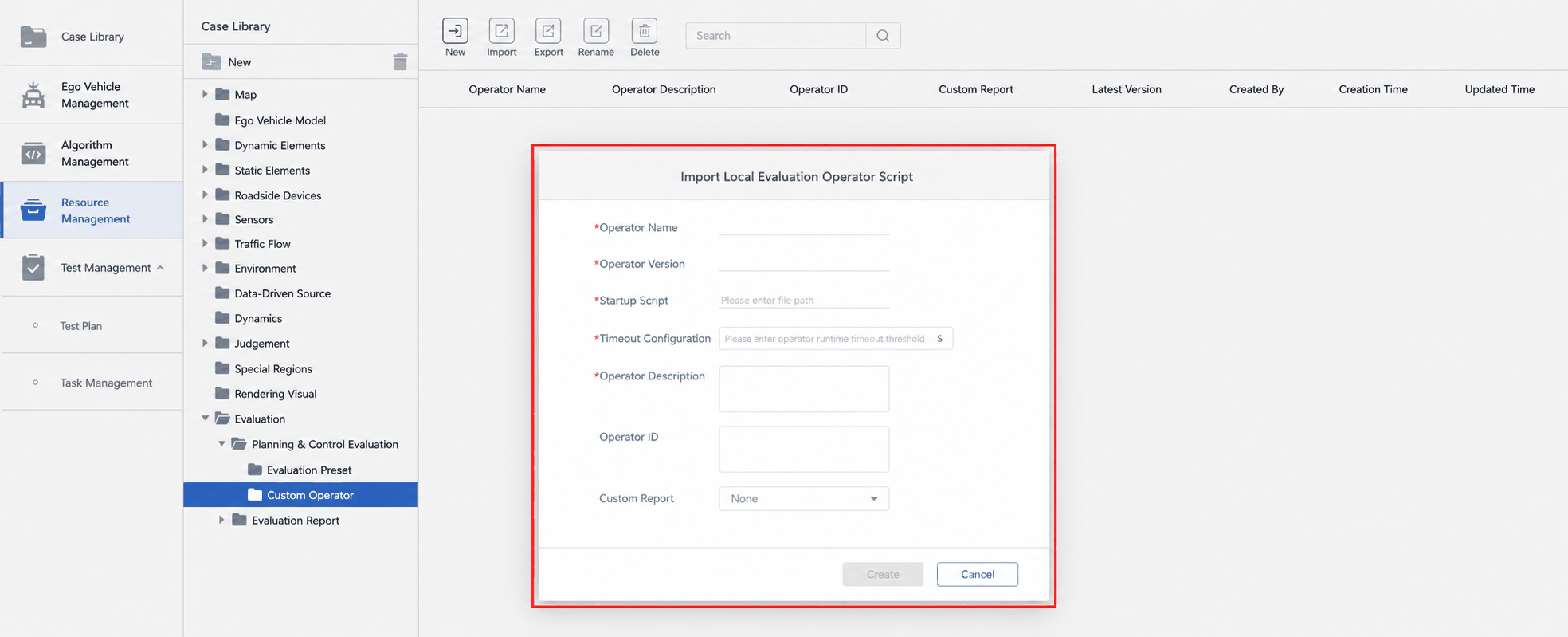
Notes for Importing an Operator
(1) Recommended locations for the operator and its execution environment:
- Windows: Place in a custom directory.
- Ubuntu: Place in a custom directory and map it into the SimOne Docker container; or place it directly inside the SimOne Docker container.
(2) For indicator operators, set the "Custom Report" field in the dialog to "None".
(3) The timeout configuration in the dialog affects the timeout threshold for operator invocations. Set it based on the operator's computation requirements.
(3) Open the Built-in Evaluation Framework
(4) Configure the Evaluation Framework and Associate the Indicator Operator: In the evaluation framework configuration page, select and associate the corresponding indicator operator.
2.2.3 Using the Custom Report Operator
To use a fully custom report operator, the main steps are:
-
Develop the Report Operator: Requirements based on evaluation needs:
- Development Language: Must use Python to ensure compatibility with SimOne's built-in evaluation algorithm.
- Integration Format: The operator must be provided as a script (
.bator.sh). - Operator Types: Report operators must distinguish between aggregate report operators and single-task report operators.
-
Import Report Operator Information: Navigate to Resource Management, go to Evaluation — Planning & Control Evaluation — Custom Operator, click the Import button, and fill in the report operator information in the dialog. The dialog layout is the same as for indicator operators.
1) Aggregate report operators and single-task report operators must each be imported separately. 2) In the dialog, set the "Custom Report" field according to the operator type — select "Single-Task Report" or "Aggregate Report." After selecting "Single-Task Report," you must also select the associated "Aggregate Report."
2.3 Create and Execute Evaluation Tasks
Once the evaluation framework is created and saved, it can be selected when triggering post-run evaluation tasks. There are three trigger methods:
Method 1: Select the evaluation framework when submitting a task (as shown below)
- ⚠️ The Auto Evaluation checkbox must be selected; otherwise, task process data is not saved and subsequent evaluation cannot be performed.
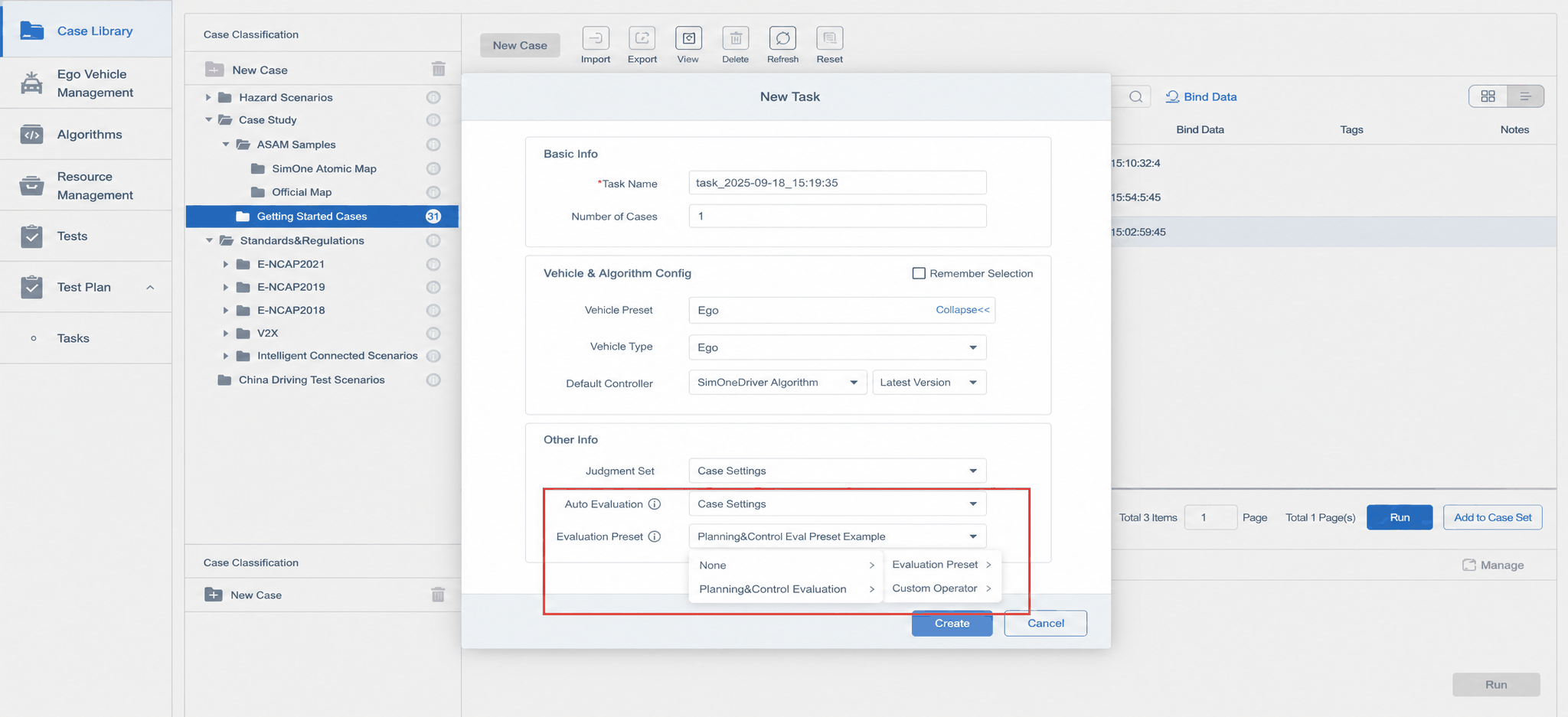
Method 2: Select the evaluation framework when creating a test plan (as shown below)
- ⚠️ Same as Method 1 — the Auto Evaluation checkbox must be selected.
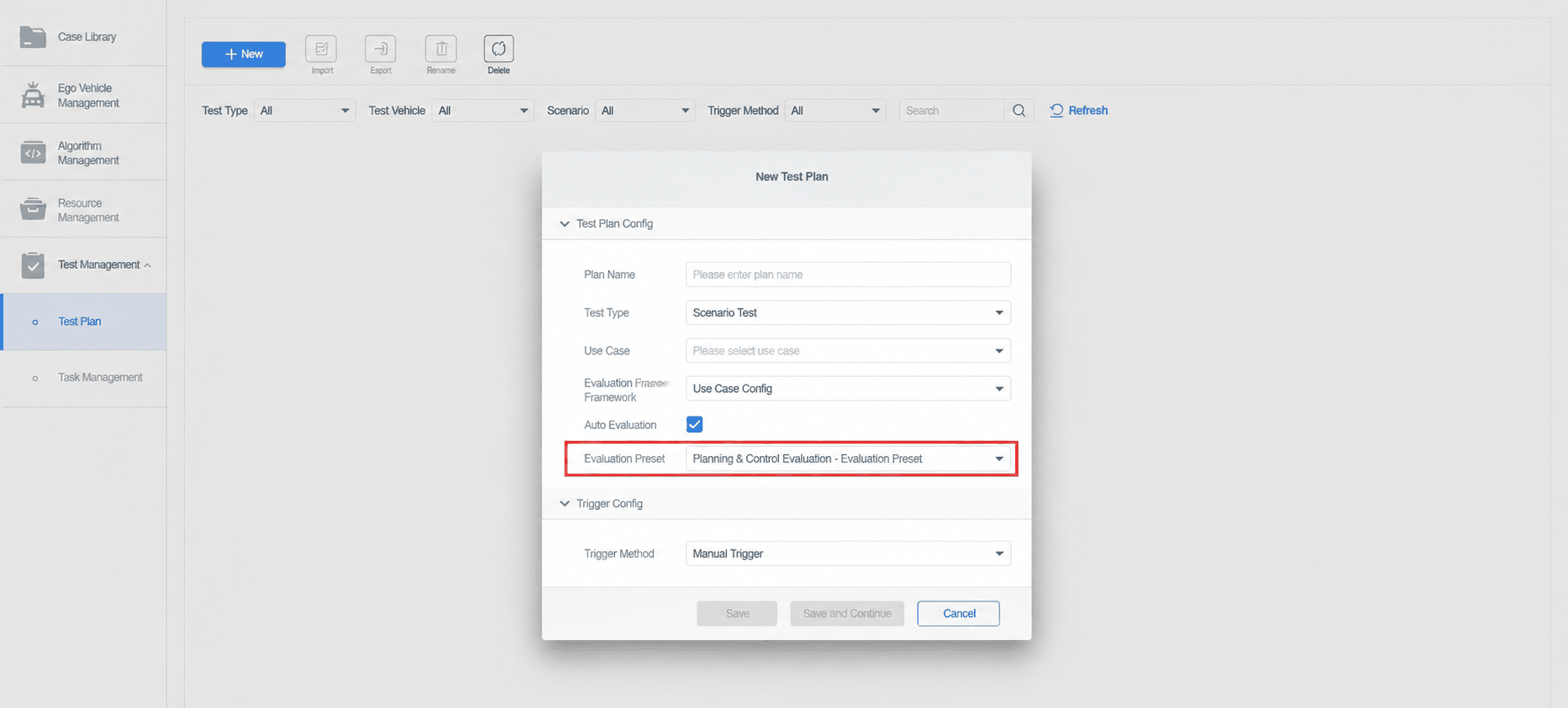
Method 3: After the task completes, click the "Evaluate" button in Task Management — Completed and select the evaluation framework (as shown below)
- ⚠️ If the Auto Evaluation checkbox was not selected in Method 1 or Method 2, this operation will not execute.
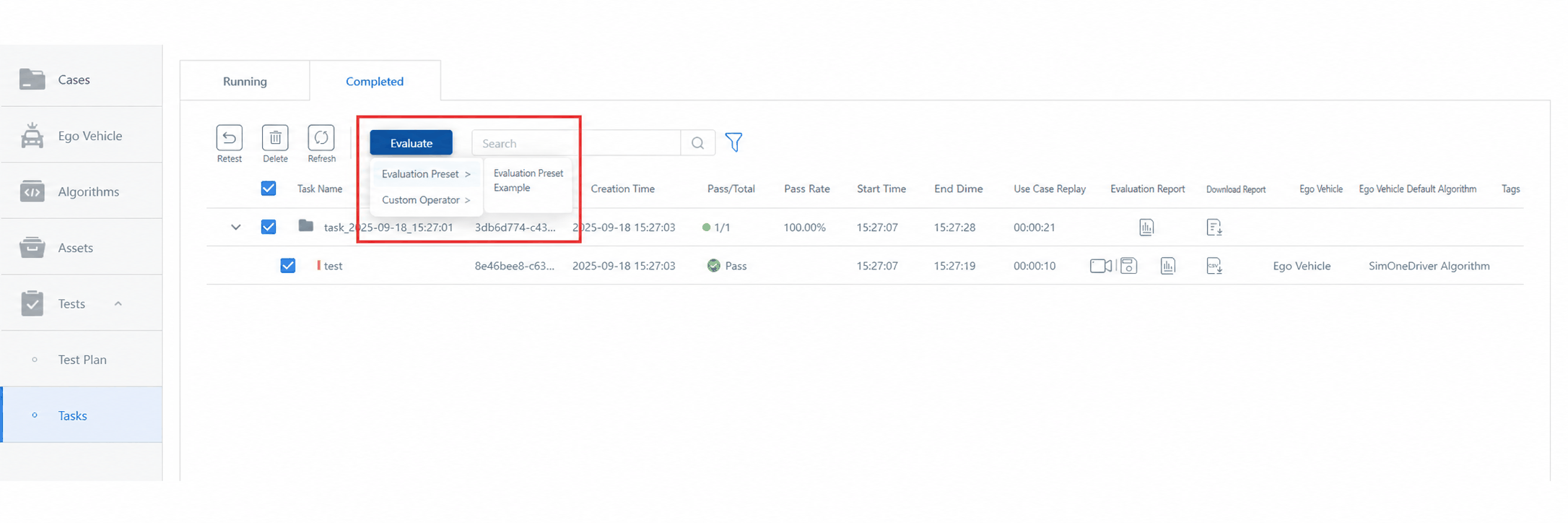
2.4 View the Evaluation Report
After evaluation is complete, click the Report button in Task Management — Completed to view the detailed report (as shown below).
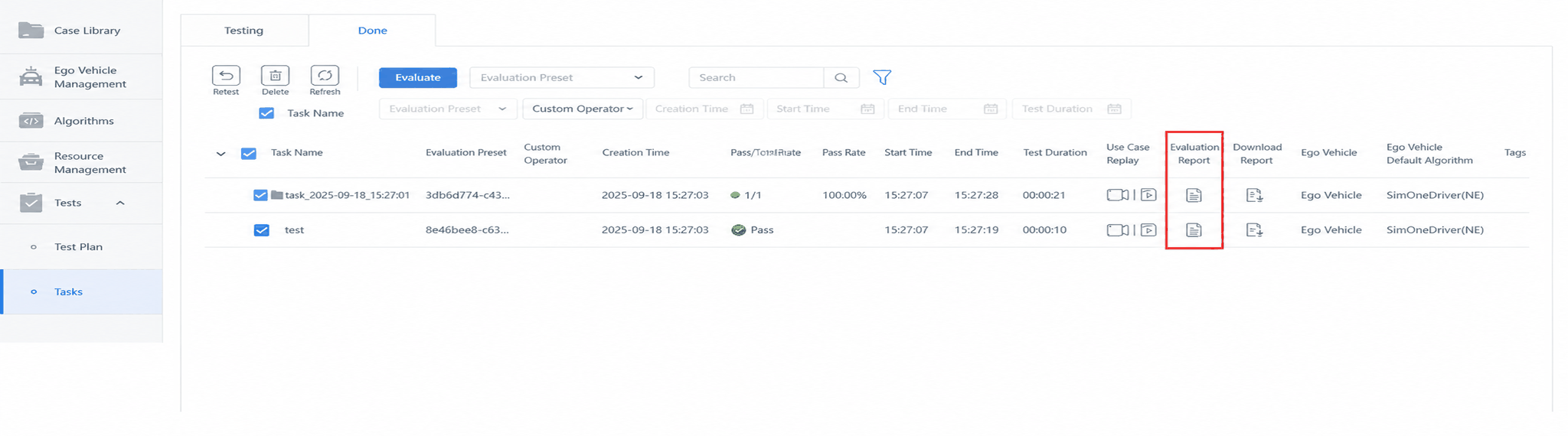
The evaluation report includes an Aggregate Task Set Report and Individual Task Reports. The content of reports generated by SimOne is as follows:
a. Aggregate Task Set Report
SimOne's built-in aggregate task set report shows statistical data for the entire task set in terms of Overall Score, Evaluation Dimension Scores, and Evaluation Indicator Scores, as shown below:
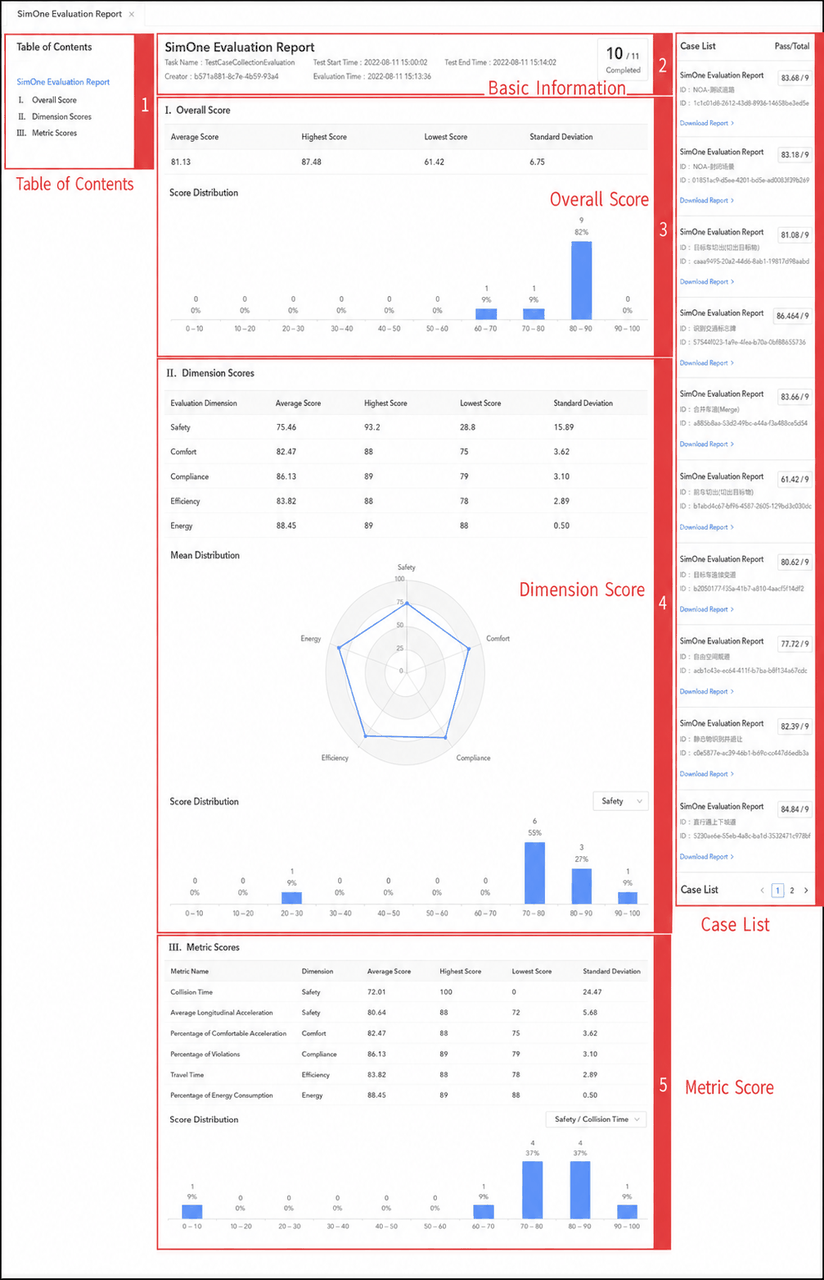
| ID | Item | Description |
|---|---|---|
| 1 | Table of Contents | Report table of contents for quick navigation to a specific section. |
| 2 | Basic Information | Basic information of the evaluation report, including scores and other details. |
| 3 | Overall Score | Includes average score, highest score, lowest score, standard deviation, and more. |
| 4 | Score by Evaluation Dimension | Aggregated scores for each evaluation dimension. |
| 5 | Score by Evaluation Indicator | Aggregated scores for each evaluation indicator. |
| 6 | Use Case List | List of all use cases in this use case collection, with navigation links to the evaluation report for each use case. |
If a Custom Report Operator is used, the aggregate task set report is generated by the operator.
b. Individual Task Report
SimOne's built-in individual task report shows the Overall Score, Evaluation Dimension Scores, Evaluation Indicator Scores, and Evaluation Indicator Trend for a single task, as shown below:
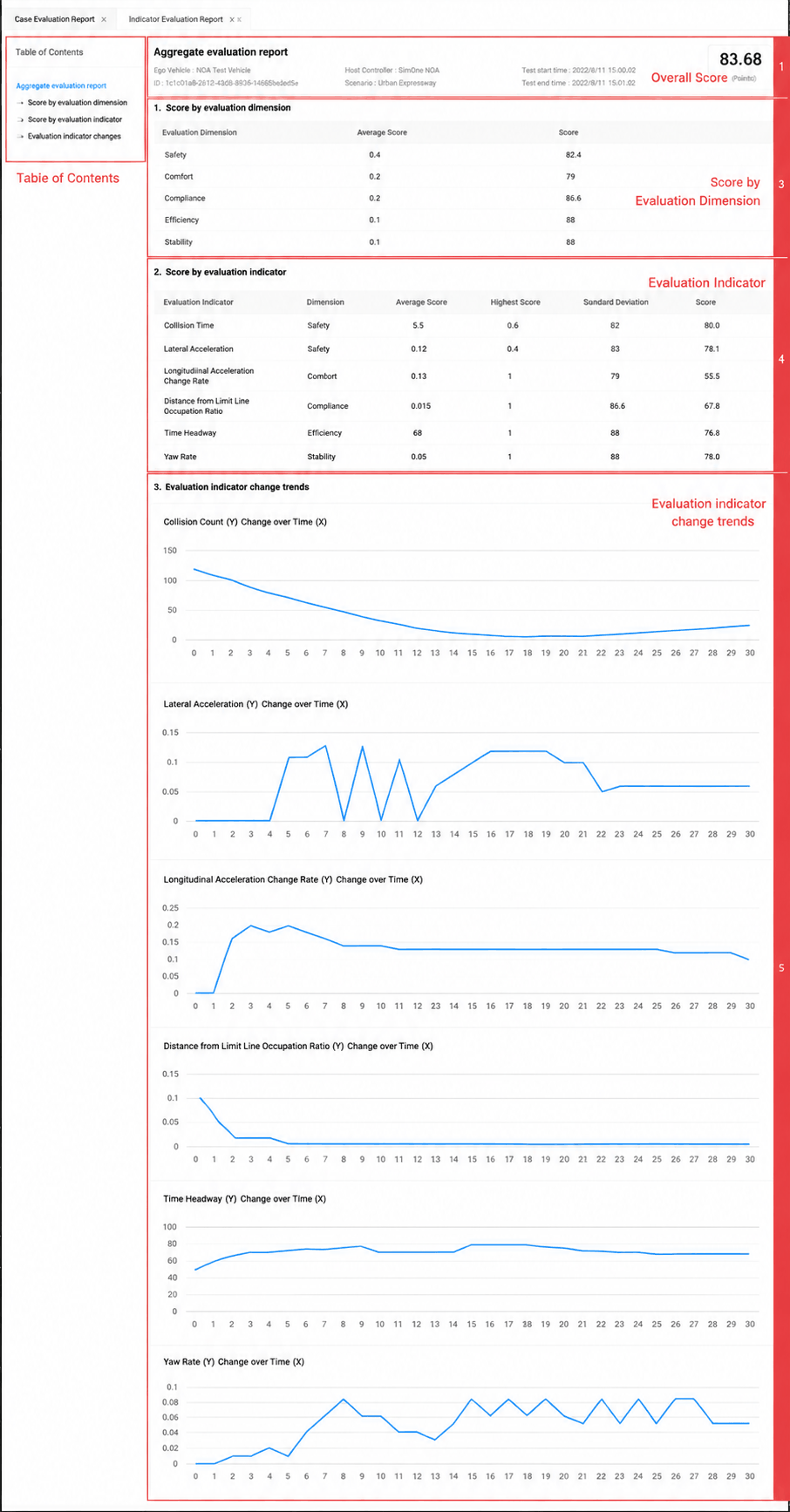
| ID | Item | Description |
|---|---|---|
| 1 | Table of Contents | Report table of contents for quick navigation to a specific section. |
| 2 | Basic Information | Basic information of the evaluation report, including scores and other details. |
| 3 | Score by Evaluation Dimension | Aggregated scores for each evaluation dimension. |
| 4 | Score by Evaluation Indicator | Aggregated scores for each evaluation indicator. |
| 5 | Evaluation Indicator Trend | How each evaluation indicator changes over time. |