Test Plan
The platform's end-to-end test plan management is a one-stop tool for operationalizing the testing process in R&D iteration, enabling efficient scheduling of test resources and automated execution of test actions:
- Flexible Test Plan Configuration: Users can quickly retrieve platform-preset resources such as test use cases, test Ego Vehicles, and test algorithms, freely combine them to match testing requirements, and define execution details to accommodate different test scenarios and objectives.
- Multiple Trigger Types for Full Coverage: Four flexible plan execution trigger methods are provided to cover various test needs: manual trigger (for ad hoc urgent testing), scheduled auto-trigger (for periodic version iteration testing), condition-based trigger (auto-executes when configured conditions are met), and algorithm update trigger (auto-executes based on dynamic updates to preset algorithm versions).
- Seamless R&D Integration: The test plan management mechanism integrates seamlessly with CI/CD pipelines, naturally embedding the testing phase into the continuous iteration workflow without any additional process adaptation, providing a stable automated testing capability for the development process.
1. Test Plan Management
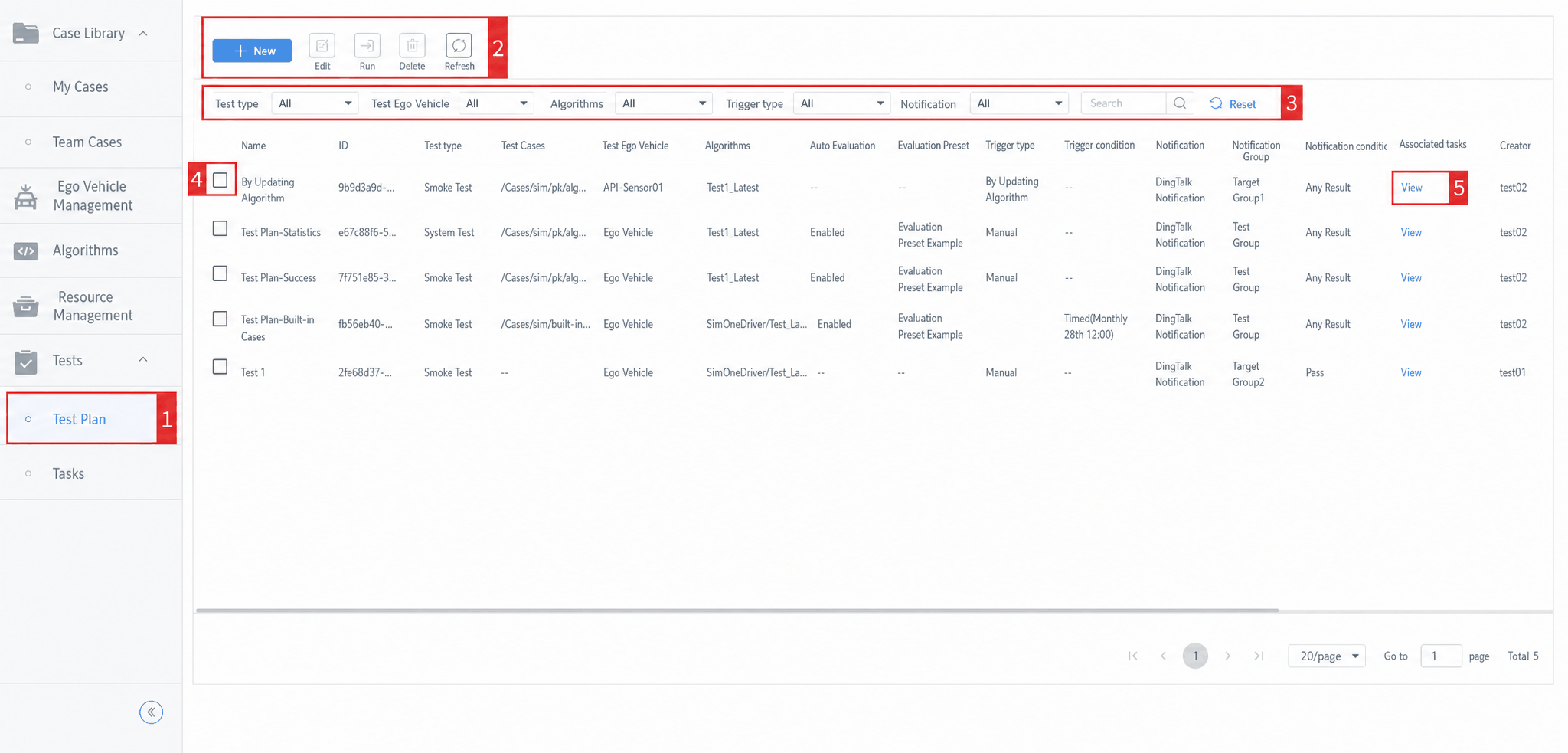
| ID | Module | Feature | Description |
|---|---|---|---|
| 1 | Menu Navigation | Test Plan | Click to enter the Test Plan management module. |
| 2 | Actions | New | Click to open the new test plan dialog. |
| Edit | Select a test plan and click to open the edit dialog. | ||
| Execute | Select one or more test plans and click to execute them and create the corresponding task sets. | ||
| Delete | Select one or more test plans and click to batch-delete them. | ||
| Refresh | Click to refresh the current test plan list. | ||
| 3 | Search | Test Type | Filter test plans by test type using the dropdown. |
| Test Ego Vehicle | Filter test plans by test Ego Vehicle using the dropdown. | ||
| Algorithm & Version | Filter test plans by algorithm and version using the dropdown. | ||
| Trigger Method | Filter test plans by trigger method using the dropdown. | ||
| Notification Method | Filter test plans by notification method using the dropdown. | ||
| Search Box | Fuzzy search by test plan name. | ||
| Reset | Click to clear all search conditions set by the current user. | ||
| 4 | Selection | Checkbox | Check to select a single test plan for operations. |
| 5 | Associated Task Sets | View | Click to open a popup showing the list of task sets created by the test plan execution. |
2. Create/Edit a Test Plan
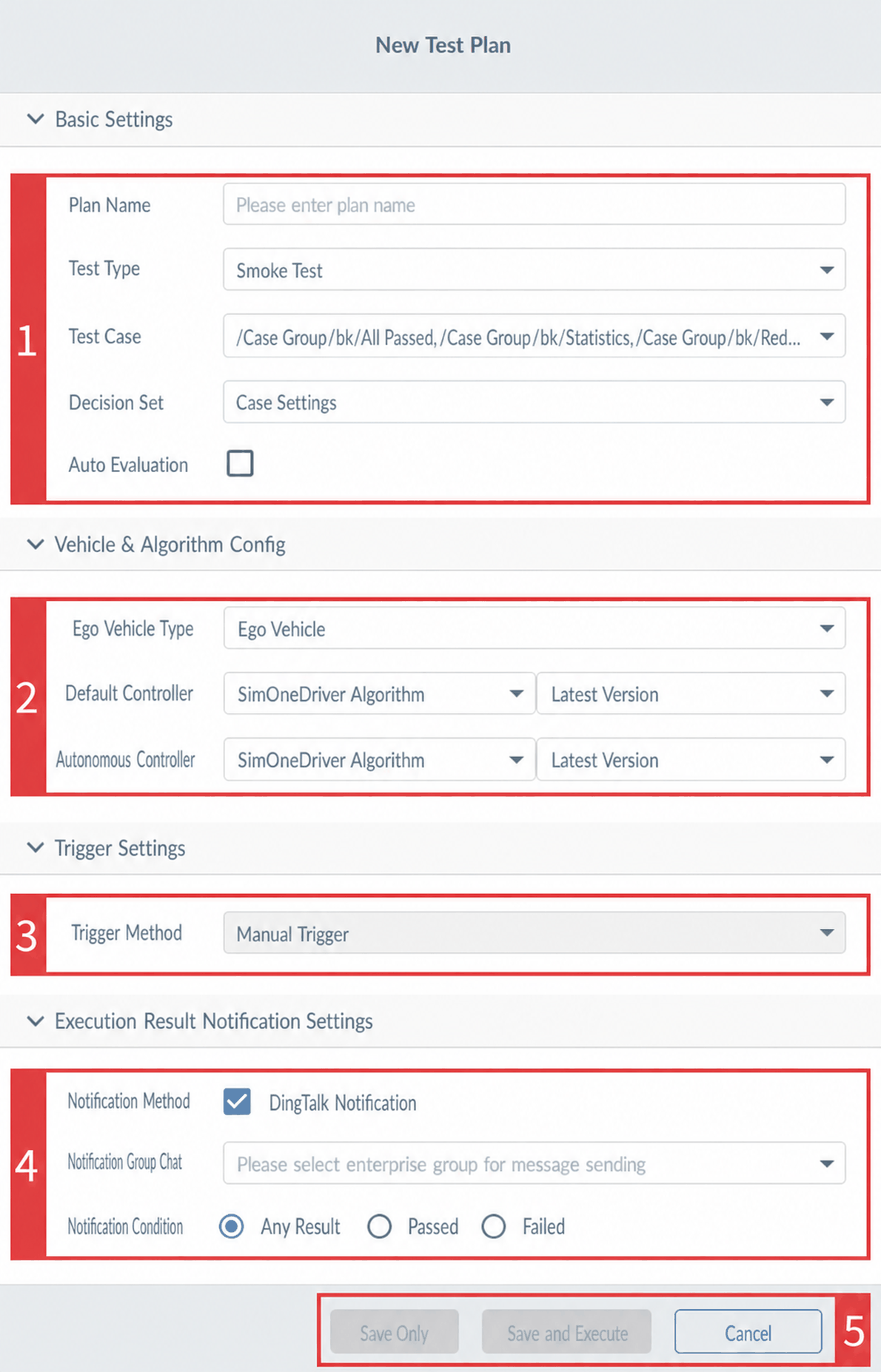
| ID | Module | Feature | Description |
|---|---|---|---|
| 1 | Basic Settings | Plan Name | Enter a custom test plan name. |
| Test Type | Select the test plan type from the dropdown. Currently supported types: Smoke Test, Regression Test, Unit Test, Functional Test, System Test, and more. | ||
| Test Use Cases | Defaults to empty. Select Use Case Groups or Use Case Set Groups from the team use cases dropdown (multiple selection supported). | ||
| Judgment Group | Defaults to the use case setting; modification by users is not currently supported. | ||
| Auto Evaluation | Disabled by default. Click to enable and configure an evaluation preset template. After the task set created by the test plan completes execution, the system automatically evaluates the results based on the selected template. | ||
| 2 | Vehicle & Algorithm Configuration | Ego Vehicle Type | Hidden by default. After test use cases are configured, the display is aggregated based on the Ego Vehicle IDs in those use cases. Click to open a popup showing the Ego Vehicle management list, where a single Ego Vehicle can be selected. |
| Algorithm Configuration |
Hidden by default. After test use cases are configured, the display is aggregated based on the controllers set for the Ego Vehicles in those use cases. Users can assign algorithms and versions to controllers. Click the dropdown to view the algorithm list and the corresponding version list. If "Latest Version" is selected, the most recent version in the algorithm version list is used when the test plan executes. |
||
| 3 | Trigger Settings | Trigger Method | Defaults to Manual Trigger. Click the dropdown to select a trigger method. Currently supported methods:
|
| 4 | Execution Result Notification Settings | Notification Method | Disabled by default (no notifications sent). Click to enable and configure the notification group and condition. |
| Notification Group | Defaults to empty. Select a DingTalk group from the third-party integration list configured in the Admin System. | ||
| Notification Condition | Defaults to "Any Result". Users can switch to other conditions. Currently supported:
|
||
| 5 | Save Settings | Save Only | Saves the current test plan without triggering execution. |
| Save and Execute | Saves the current test plan and immediately triggers execution. | ||
| Cancel | Cancels the current create/edit operation, closes the dialog, and discards all changes. |
3. Test Plan Associated Task Sets
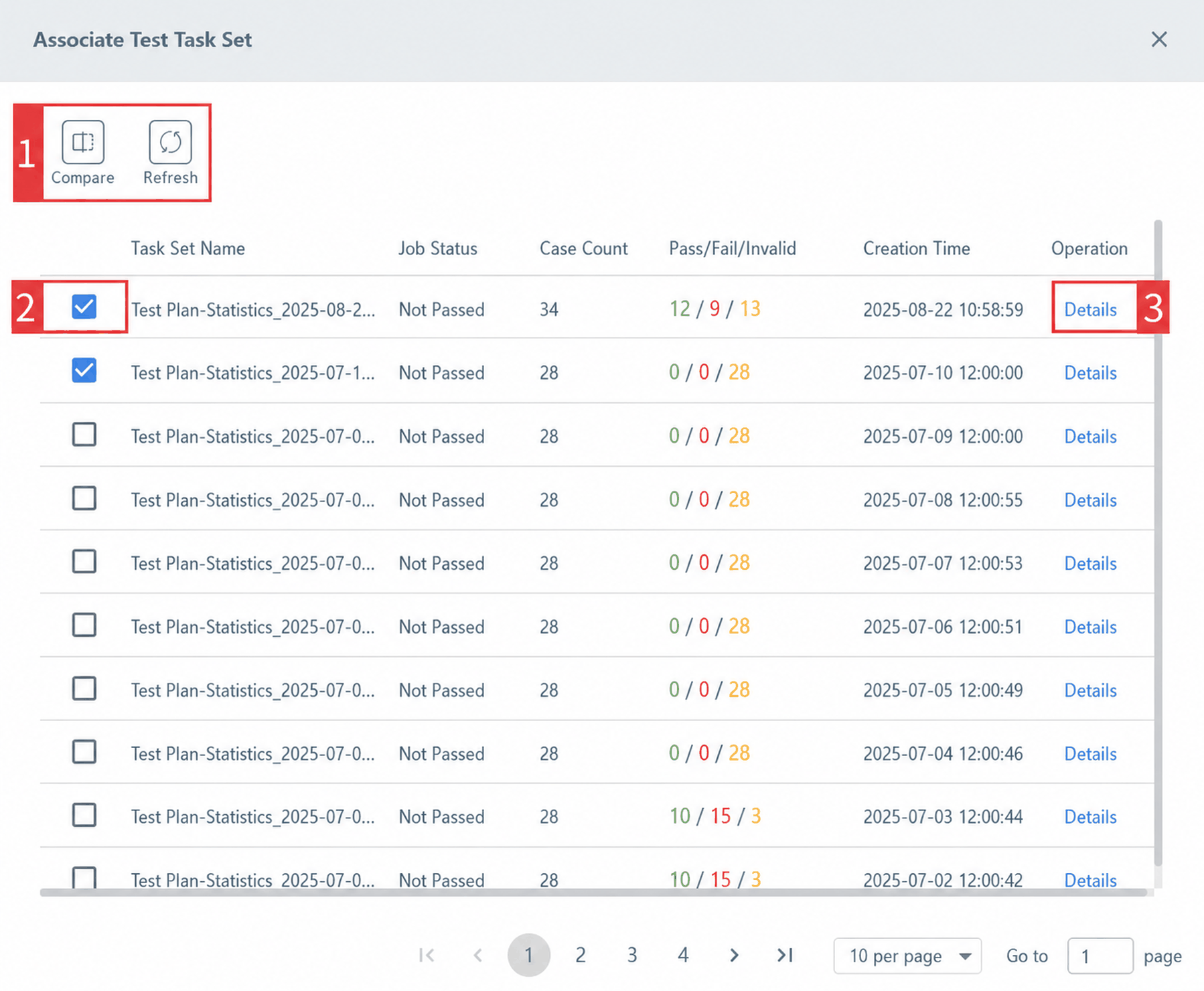
| ID | Module | Feature | Description |
|---|---|---|---|
| 1 | Actions | Compare | Select two task sets and click to open a new browser page showing the comparative analysis details. |
| Refresh | Click to refresh the task set list created by the current test plan execution. | ||
| 2 | Selection | Checkbox | Check to select a single task set for operations. |
| 3 | Actions | Details | Click to open a new browser page showing the task set details. |
4. Task Set Comparison Analysis
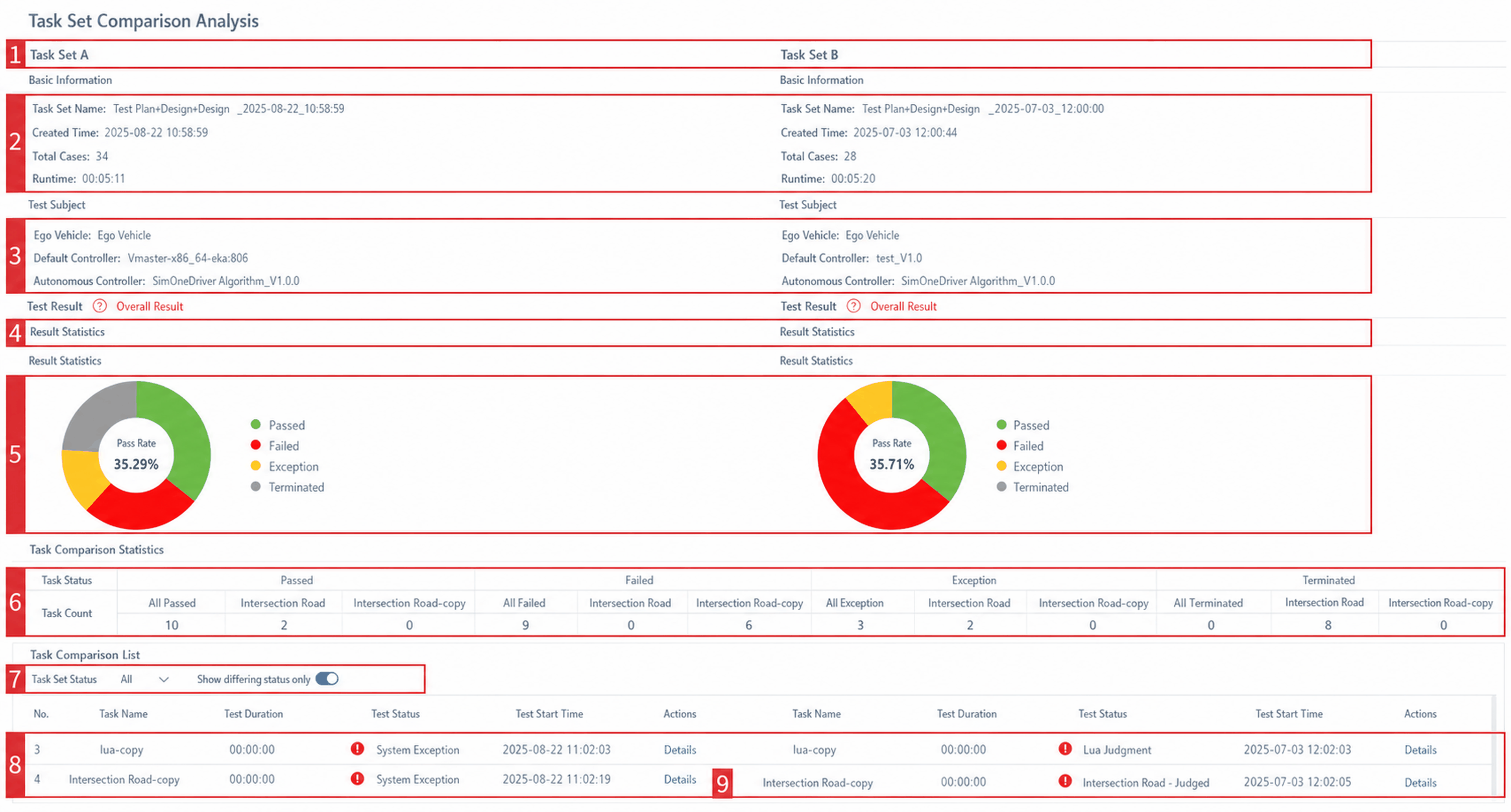
| ID | Feature Module | Description |
|---|---|---|
| 1 | Title | Displays Task Set A and Task Set B by default, used to distinguish the two task sets for side-by-side comparison. |
| 2 | Basic Information | Shows the task set name, creation time, total use case count, run duration, and other information. |
| 3 | Test Subject | Shows the name of the tested Ego Vehicle, along with the specific algorithm name and version configured for the controller. |
| 4 | Test Result | Indicates whether the overall task set passed the test. |
| 5 | Task Result Statistics | Displays the proportion of task statuses (Pass, Fail, Exception, Terminated) in the task set using charts. |
| 6 | Task Comparison Statistics | For tasks in Task Set A/B, analyzes the number of tasks with differing results across various task result statuses. |
| 7 | Task Status Filter | Filter the task comparison list by selecting a task status or showing only tasks with different statuses. |
| 8 | Task Comparison List | Detailed display of each task's name, test duration, test status, test start time, and available actions. |
| 9 | Details | Click the Details button for any task to open a new browser page showing the full content of that task. |