Build a Simple Use Case and View Results
Abstract
Welcome to SimOne! In this section, we build a simple simulation Use Case from scratch and run it to view the results. No complex configuration is required. Just three steps — create a Use Case, edit the scenario, and run the task — to experience SimOne's complete simulation workflow.
Before You Begin
This tutorial uses the system's built-in resources by default, so you can run through the workflow first.
If you want to use a custom map, ego vehicle, or custom algorithm, first refer to the Assets Management chapters, Ego Vehicle Management, and Algorithm Management.
1. Create a New Use Case
Launch SimOne and open the Cases page.
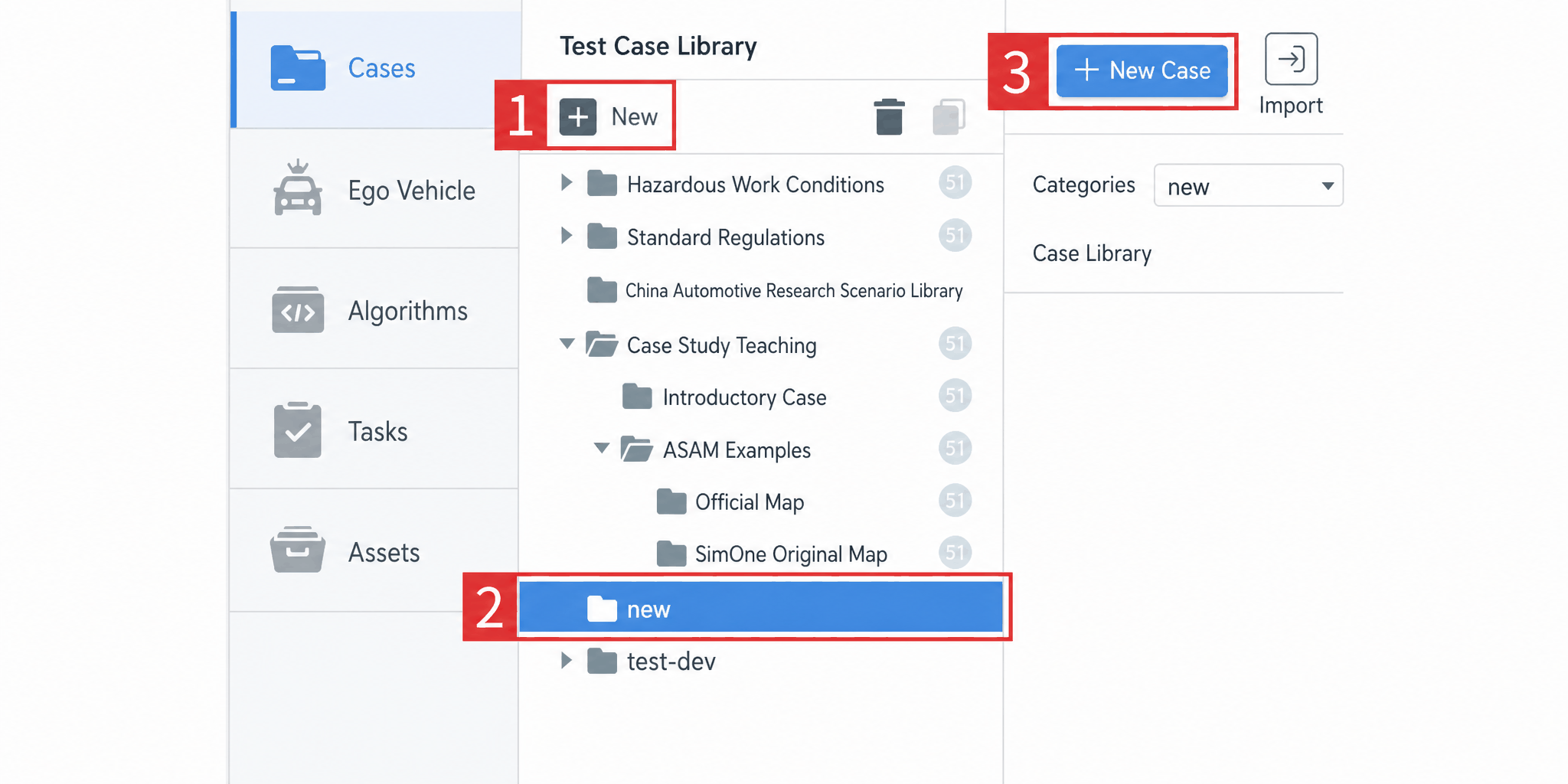
(1) Click New in the test Use Case library.
(2) Select the newly created new folder in the test Use Case library.
(3) Click New Use Case.
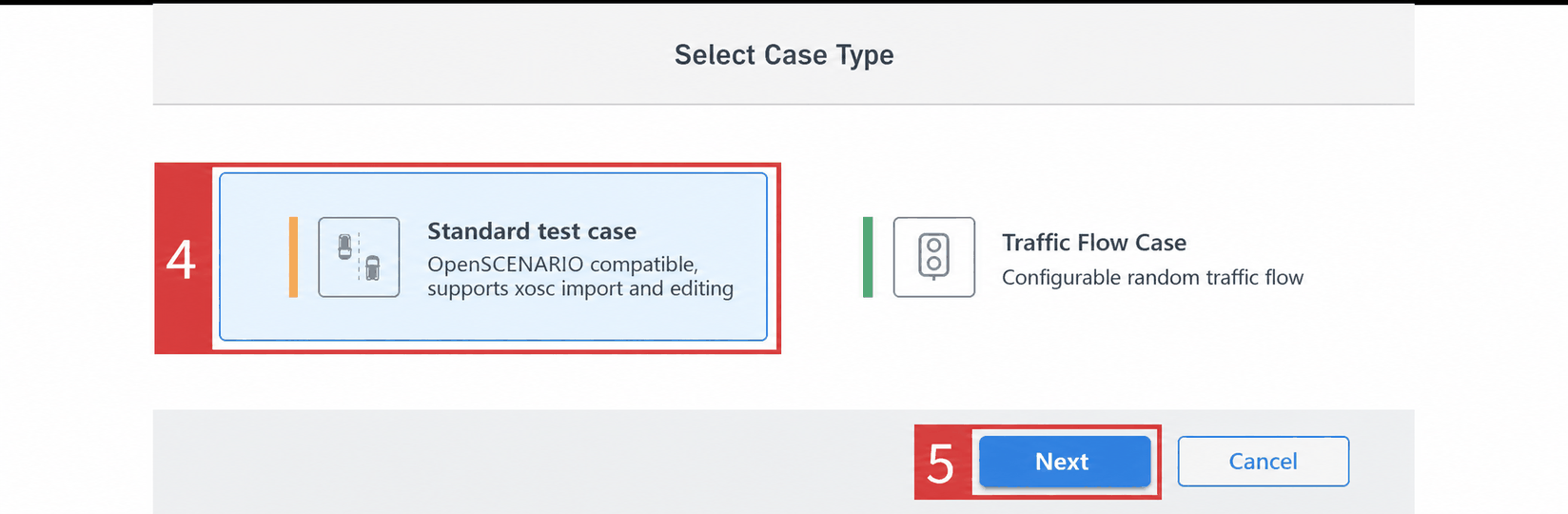
(4) In the Select Use Case Type dialog, select Standard Use Case.
(5) Click Next.
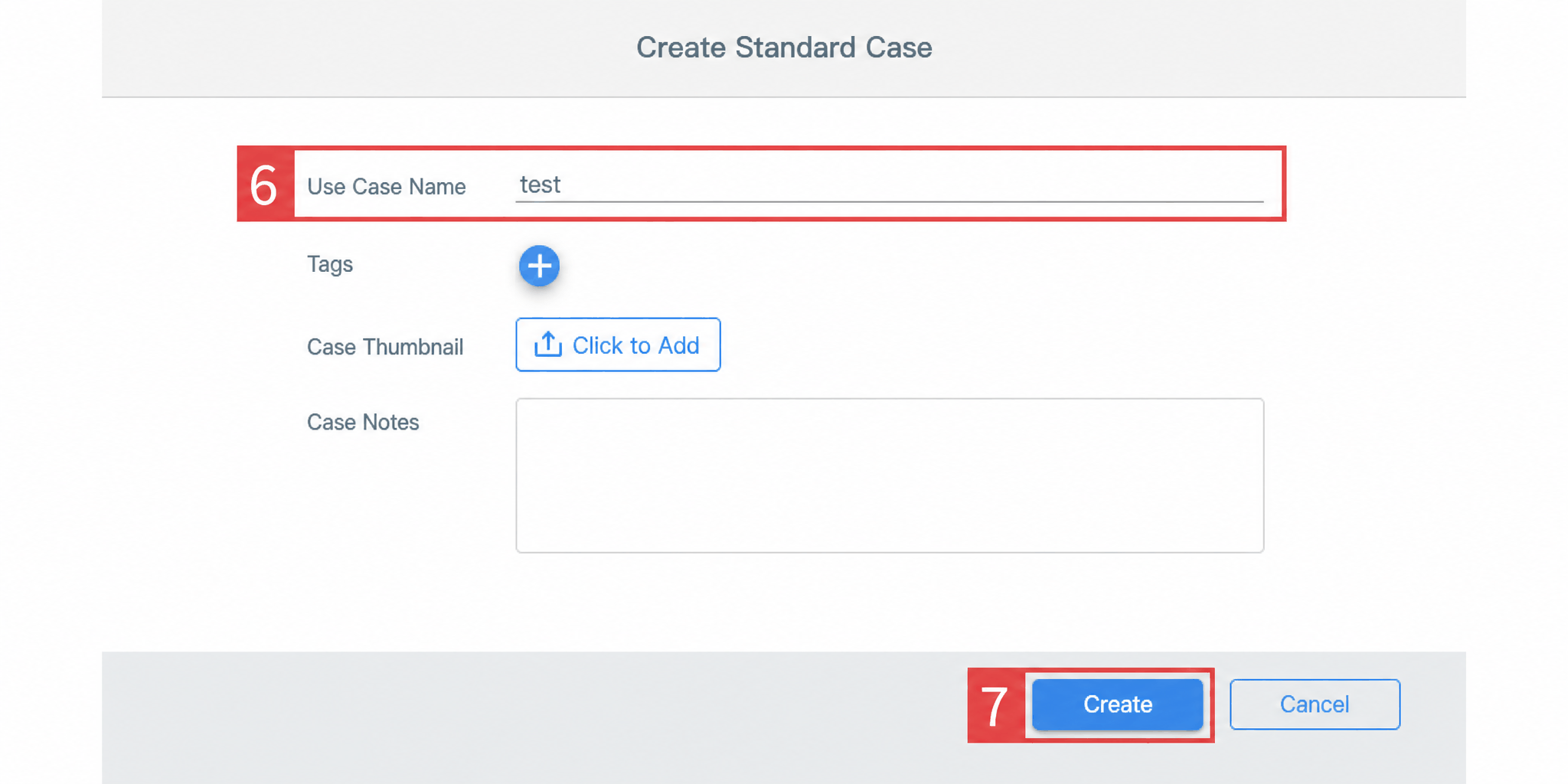
(6) Enter the Use Case name.
(7) Click Create. The page automatically jumps to the Use Case editor, completing the new Use Case creation.
2. Edit the Use Case
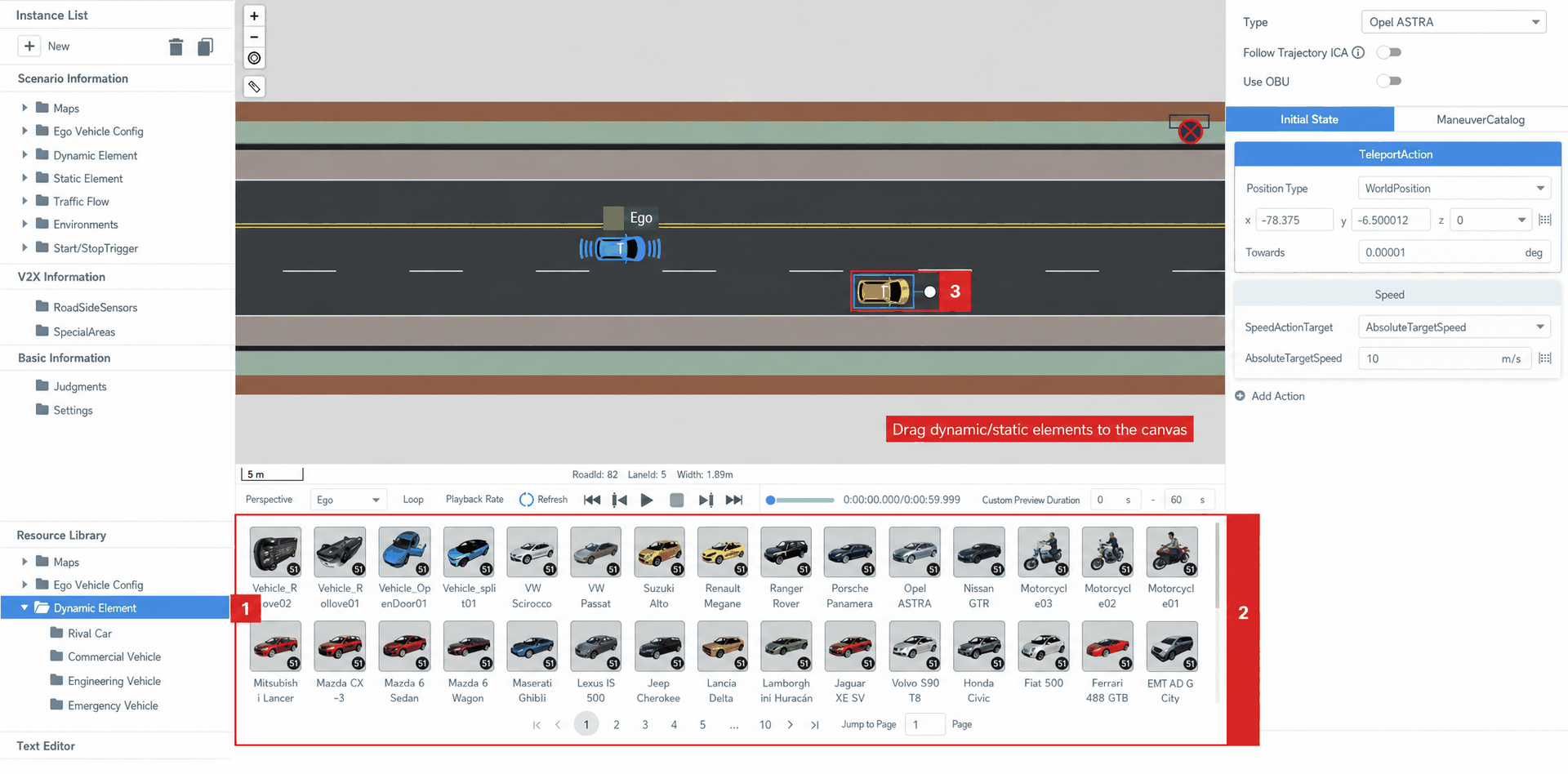
After the editor opens, click on the ego vehicle to see that it has a default speed.
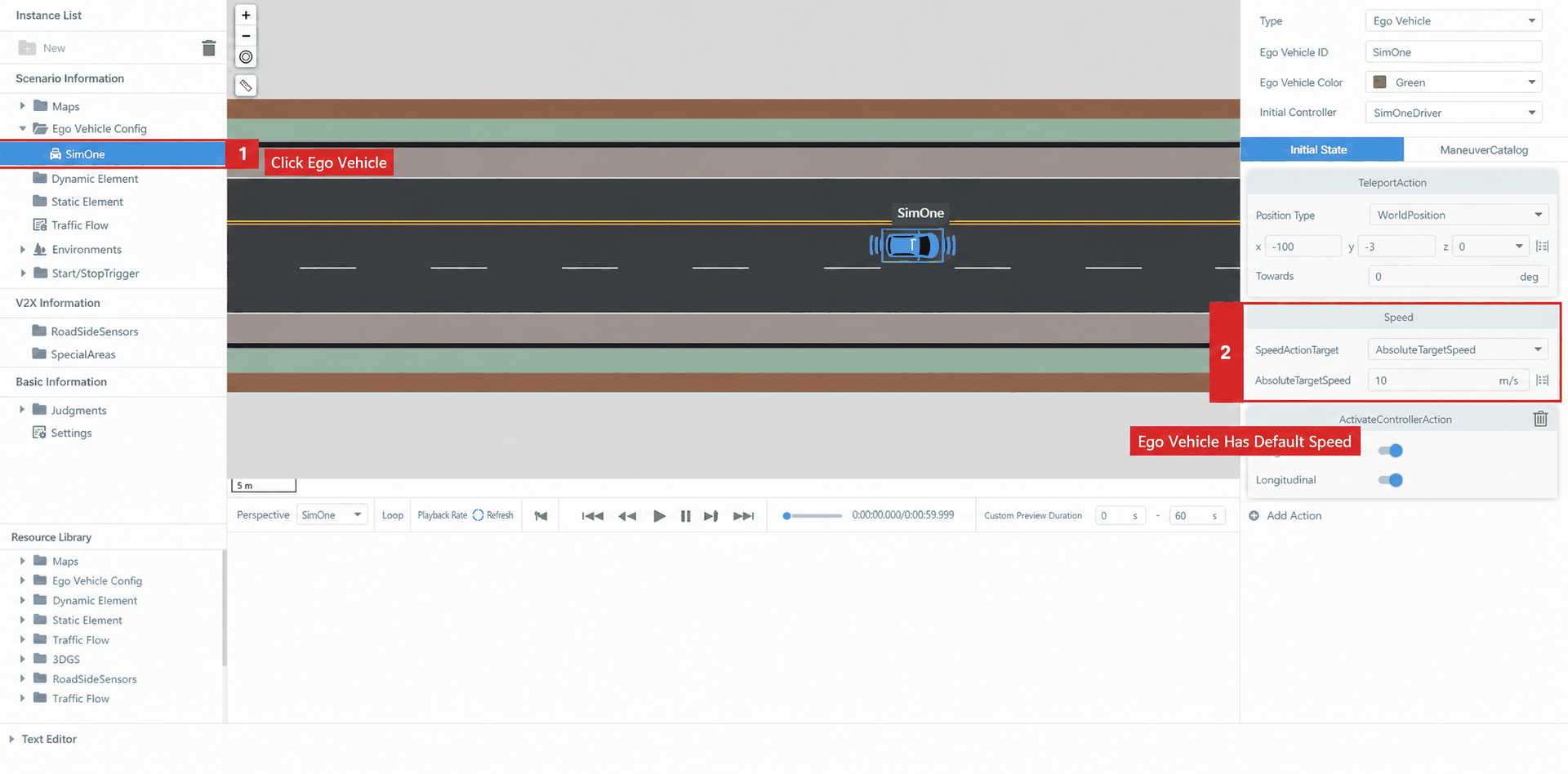
Then click the resource library at the bottom, select Dynamic Elements, and drag a resource into the viewport.
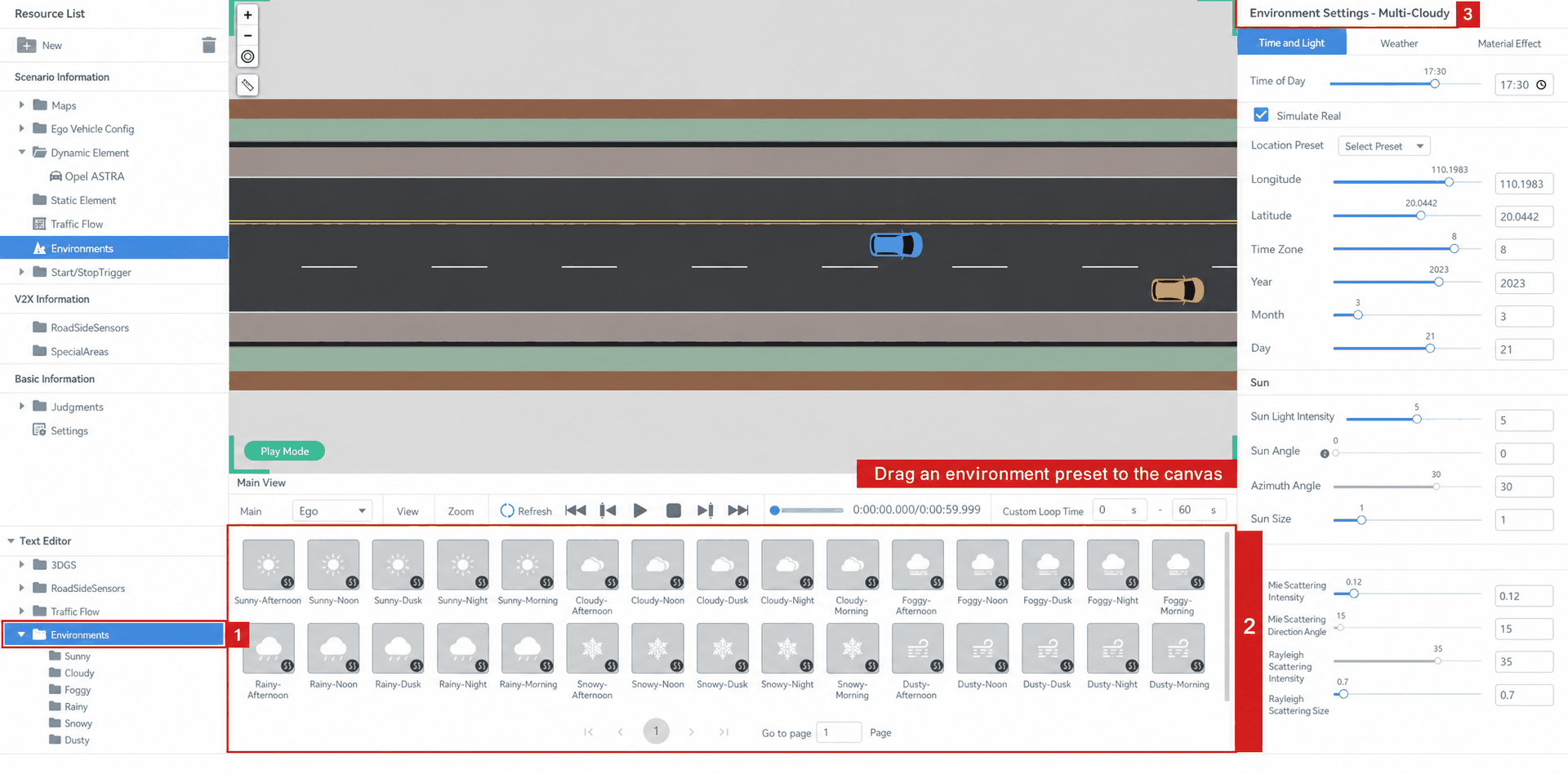
Select an environment preset and drag it into the viewport. You can also adjust specific environment parameters on the right panel.
3. Run the Use Case
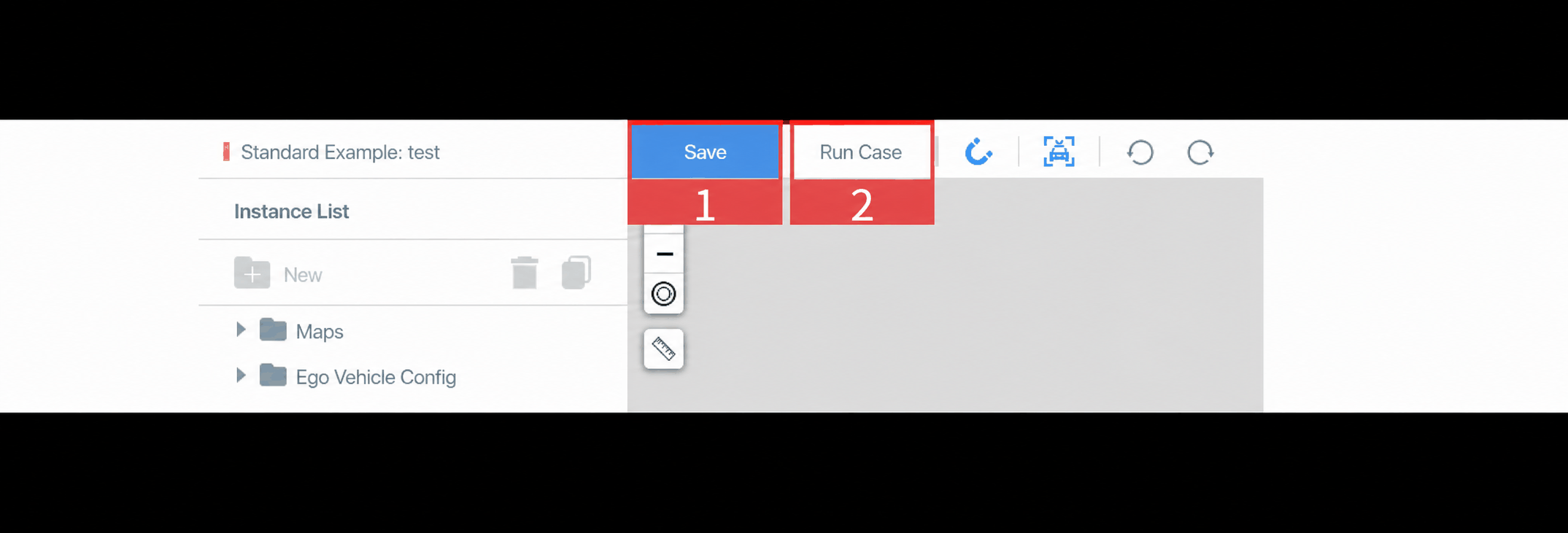
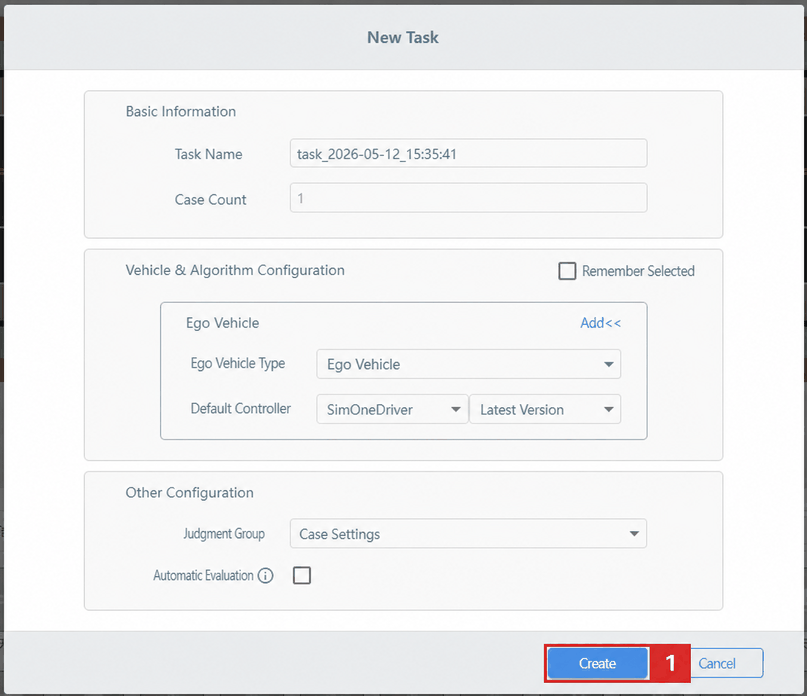
(1) Click the Save button in the top toolbar. When the Save button turns gray, the Use Case has been saved successfully. Click Run Use Case. In the New Task window that appears, you can replace the ego vehicle configuration with one that has an algorithm connected.
(2) If the controller configured in the Use Case editor is the Default Controller, you only need to modify the corresponding algorithm — for example, set it to the SimOneDriver algorithm. Click Create and the system will automatically add the test task.
Tip
After clicking Run Use Case here, the visualization window pops up automatically. If it does not pop up, click the Video Monitor button in the task list to open it manually. To view the test process and results, click Exit Editor in the upper-right corner of the interface and check the Tasks section on the SimOne home page.