Configure Built-in Traffic Flow
Select Traffic Flow from the Case Resource Library and drag it into the Case Editor workspace. Configure parameters in the properties panel on the right.
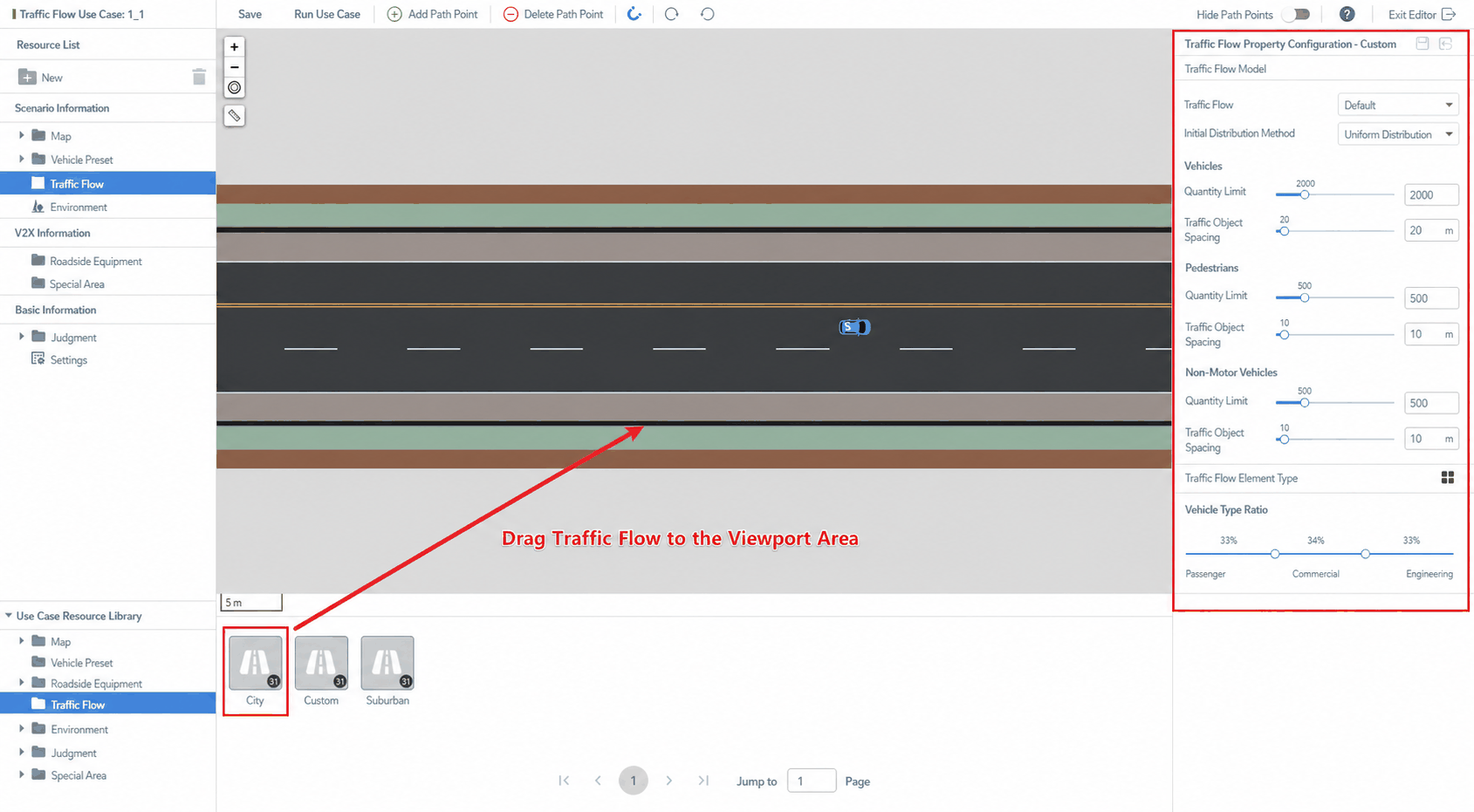
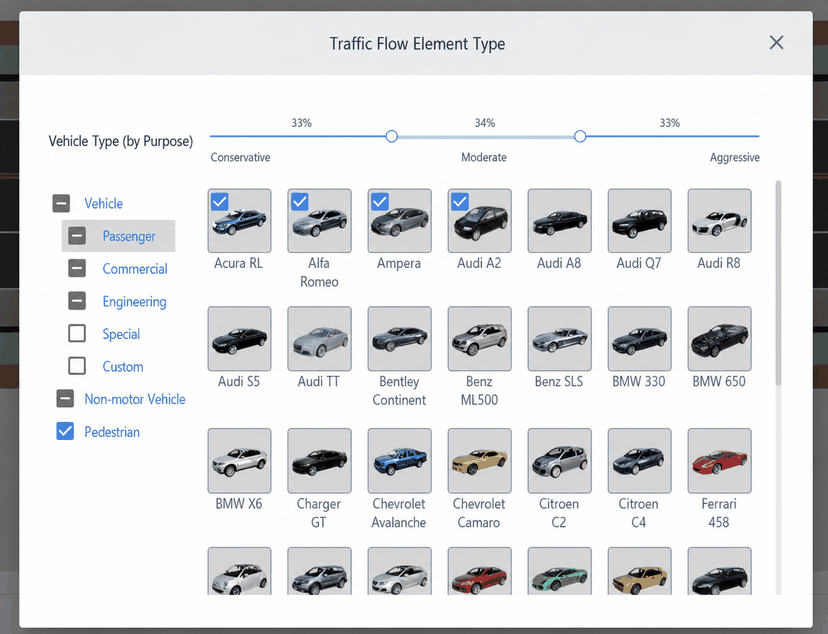
Traffic flow-based testing can automatically generate traffic participants in the virtual scene, simulating complex real-world traffic conditions through a traffic behavior model.
- Vehicle Types: Users can select or deselect vehicle types based on category and thumbnail. For each category, a behavior slider allows adjustment of vehicle behavior strategy between conservative, moderate, and aggressive.
- Vehicle Type Ratio: Users can flexibly adjust the proportion of different vehicle types to match the target simulation environment (e.g., suburban, urban).
- Element Density: Users can set the traffic congestion level in the virtual scene for different element types (vehicles, pedestrians, bicycles) using the traffic flow slider.
SUMO Configuration
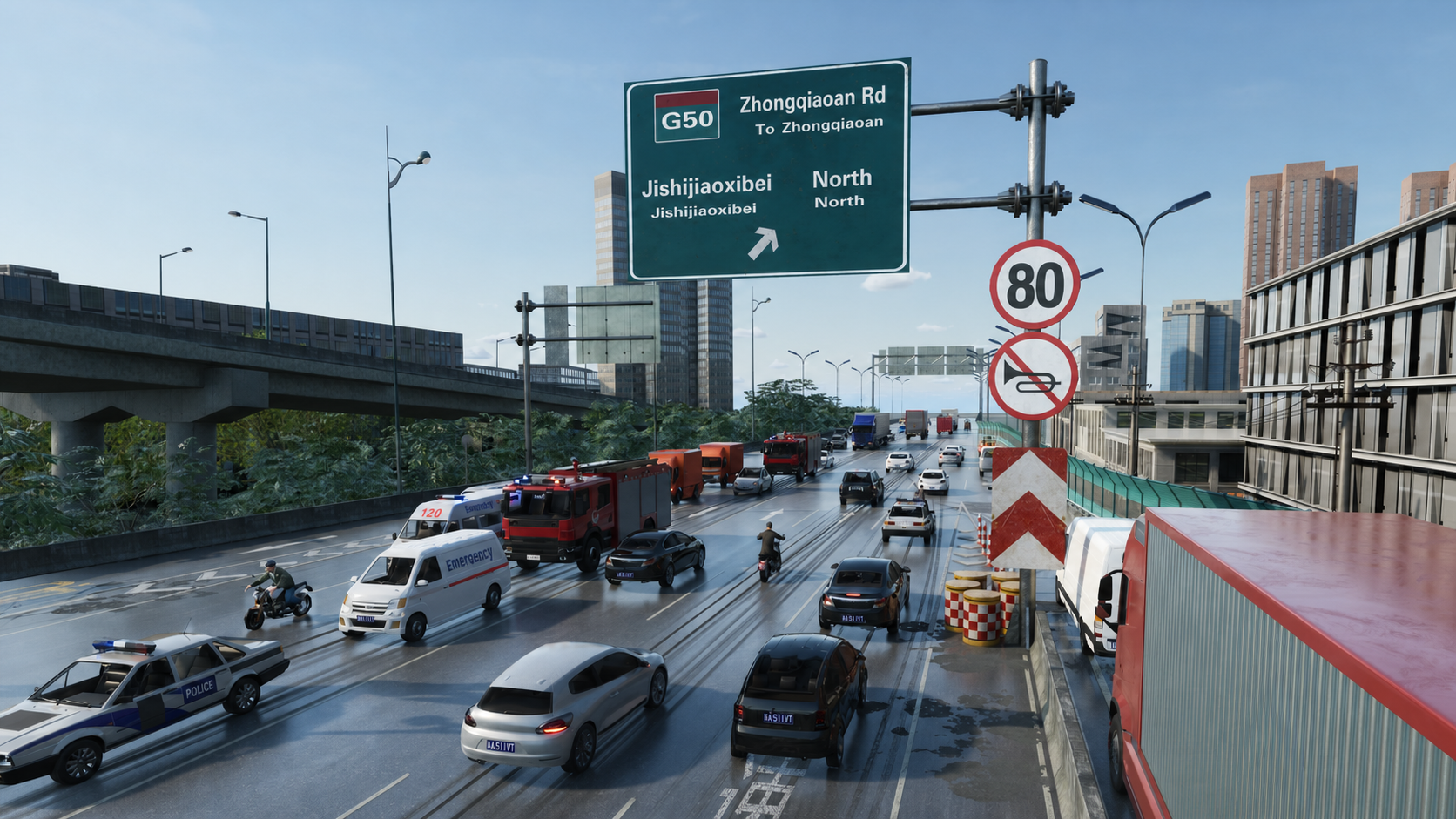
The built-in traffic flow module in SimOne is developed based on SUMO. Additional parameter adjustments can be made by modifying configuration files.
Configuration Files
| Config Type | Location | Description |
|---|---|---|
| Global Config | SUMO\config\sumoConfig.json | Global configuration affecting all maps |
| Map Config | SUMO\ | Private configuration for the current map |
| Map Config | SUMO\ | SUMO runtime configuration |
| Map Config | SUMO\ | SUMO vehicle type configuration |
Global Configuration
SUMO\config\sumoConfig.json
| Parameter | Default | Description |
|---|---|---|
| SUMOIP | 127.0.0.1 | SUMO service IP address |
| SUMOPort | 58289 | SUMO service port |
| StepLength | 0.03 | Simulation step length |
| SUMOWindowsExe | sumo.exe | SUMO executable name on Windows |
| SUMOLinuxExe | sumo | SUMO executable name on Linux |
| HasMainVehicle | TRUE | Whether an Ego Vehicle is present |
| NewVehicleForbiddenRange | 200 | Spawn exclusion radius around the Ego Vehicle (meters) — SUMO vehicles will not spawn within this range |
| DensityCoefficient | 1 | Density coefficient |
| EnablePrediction | FALSE | Enable SUMO trajectory prediction (10 prediction points) |
Map Configuration
SUMO\
| Parameter | Default | Description |
|---|---|---|
| MaxVehicleNumber | No limit | Maximum number of SUMO vehicles |
| PreRunDuration | 90 | Wait time (seconds) for vehicle loading. If set below 0, the default value of 90 is used |
| LaneChangeAggressive | FALSE | Enable vehicle following diversity |
| VehicleRange | 200 | SUMO vehicle subscription range (meters) — vehicles within this range of the Ego Vehicle are subscribed; those outside are ignored |
| PersonRange | 100 | SUMO pedestrian subscription range (meters) |
| EdgeRange | 10 | Edge subscription range |
| SkippedFrameCount | 10 | Number of frames to skip at the start of simulation |
| CreateEvenTrafficflowAtStart | FALSE | Generate uniform traffic flow at simulation start |
| TimeToTeleport | 0 | How long a vehicle may wait before being teleported; defaults to 300. Non-positive values disable teleporting |
| VehicleDensityPerMap | 1 | Vehicle density setting for the current map; supplements the DensityCoefficient setting |
SUMO\
| Parameter | Default | Description |
|---|---|---|
| gui-message | TRUE | Enable SUMO-GUI log output. Set to false if the SUMO GUI becomes unresponsive |
| pedestrian.behavior | onlyonce | Pedestrian behavior; valid values: round, onlyonce |
| pedestrian.max-num | Maximum number of pedestrians | |
| pedestrian.frozen | Enable pedestrian freezing — SUMO freezes pedestrians outside a certain range of the Ego Vehicle to improve performance | |
| pedestrian.frozen-range | Pedestrian freeze range; only effective when pedestrian.frozen value="true" | |
| bike.behavior | onlyonce | Bicycle behavior; valid values: round, onlyonce |
| bike.max-num | Maximum number of bicycles | |
| lane.bike-num | 3 | Maximum number of bicycles per lane |
SUMO\

| Parameter | Description |
|---|---|
| length, width, height | Vehicle dimensions |
| maxSpeed | Maximum vehicle speed (m/s) |
| accel | Vehicle acceleration |
| decel | Vehicle deceleration |
| minGap | Minimum gap between vehicles (m) |