Configure Environment (Weather/Time)
This tutorial uses a worked example to help users learn how to configure the case environment.
Day-to-Night Lighting Effect
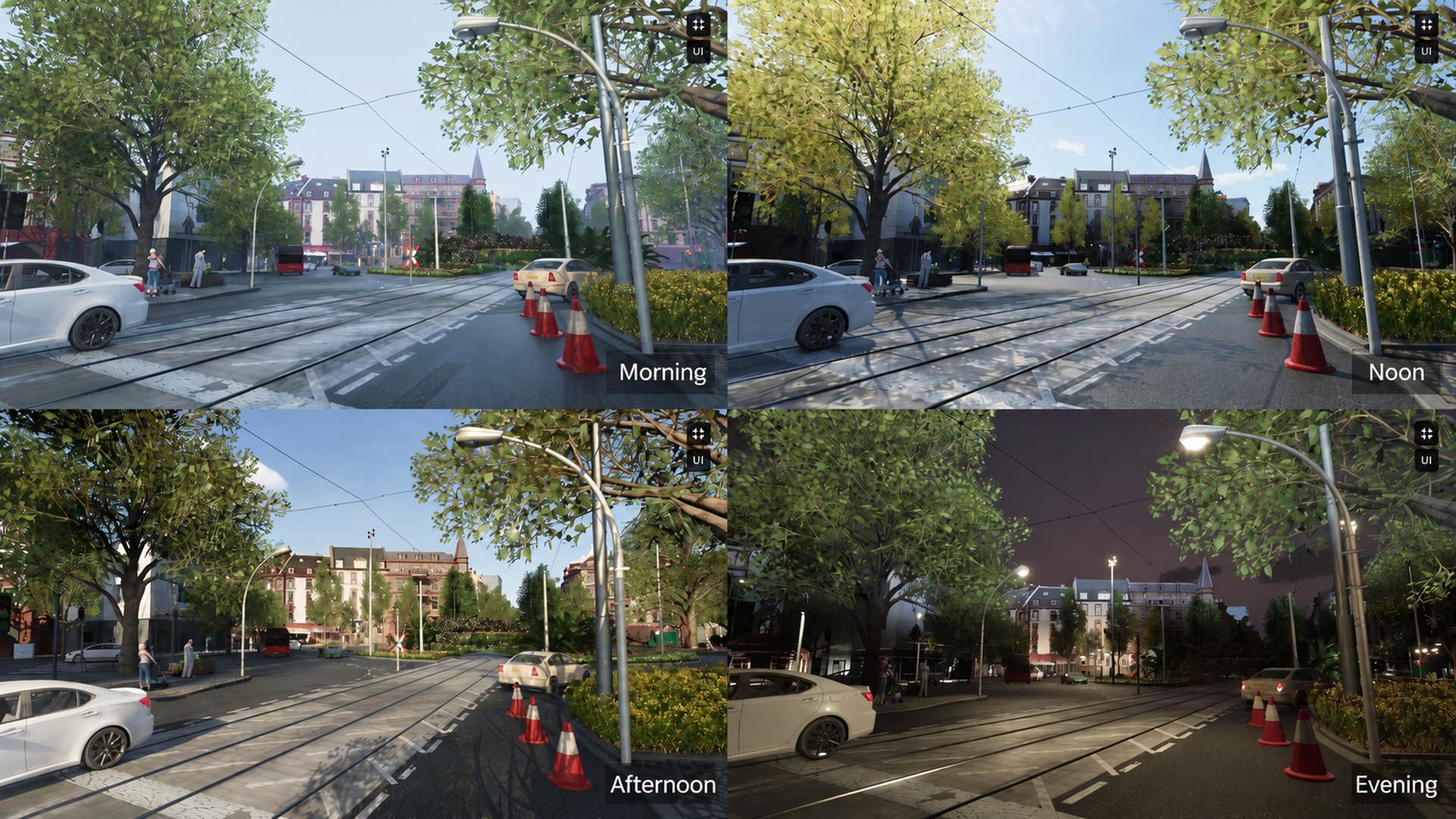
Weather Effects
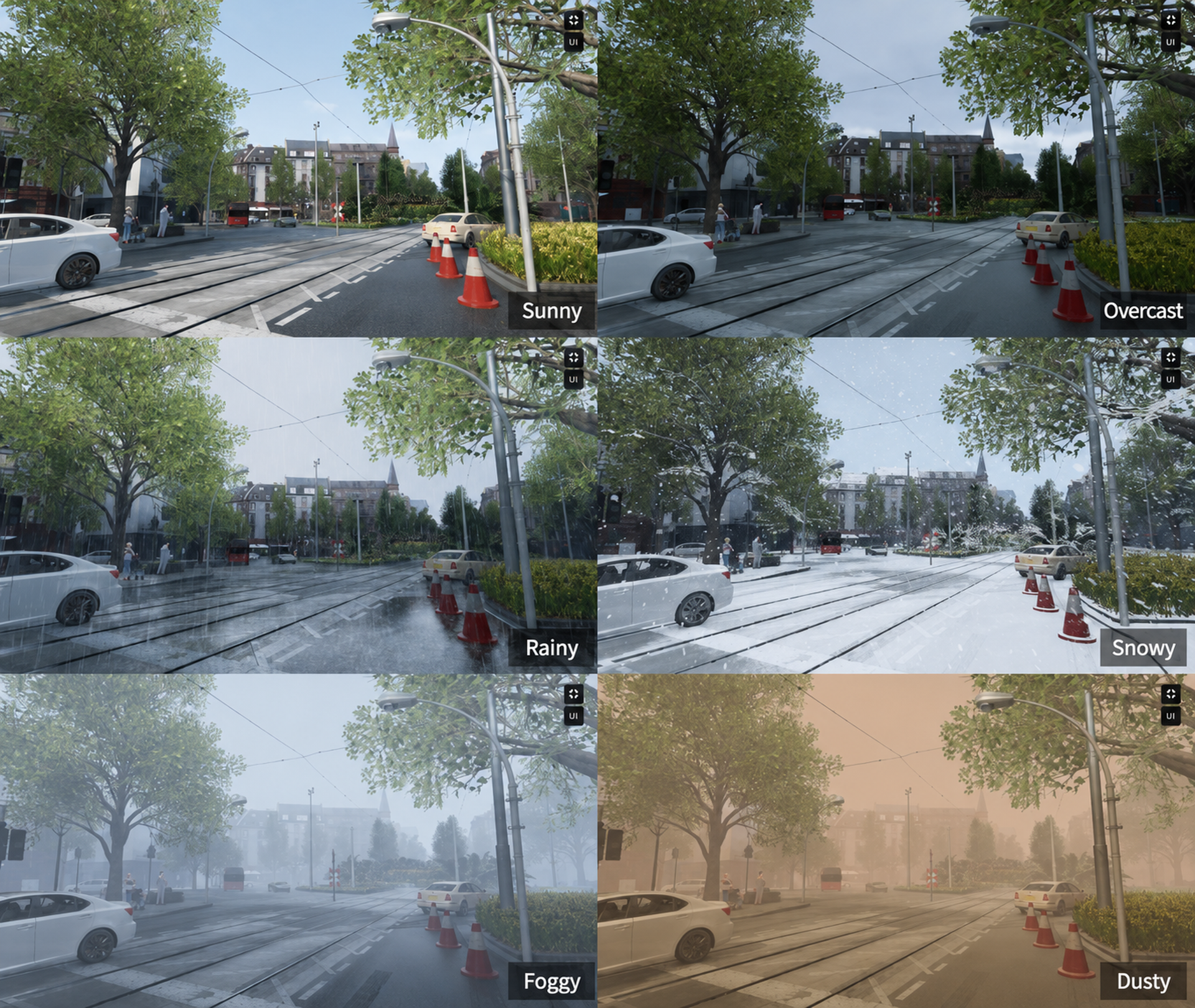
How to Configure the Case Environment (TOD + Weather System)
SimOne leverages the UE5 UDS plugin and proprietary parameters to configure time & lighting, weather, and material effects in the simulation environment.
| Abbreviation / Name | Definition |
|---|---|
| TOD | Time of Day |
| UE5 | Unreal Engine 5 — the visual rendering engine used by SimOne |
| UDS / UDW | Ultra Dynamic Sky / Ultra Dynamic Weather |
Tip
Two methods are available for adjusting environment parameters.
- Case Editor Environment Panel: Configure parameters directly in Case Editor > Environment. You can also drag Environment Presets from the Case Resource Library into the case editor viewport.
- UE Visualization Console: Press the
`key in the UE visualization console, then enterweather.<parameter> <value>to modify weather conditions in real time.
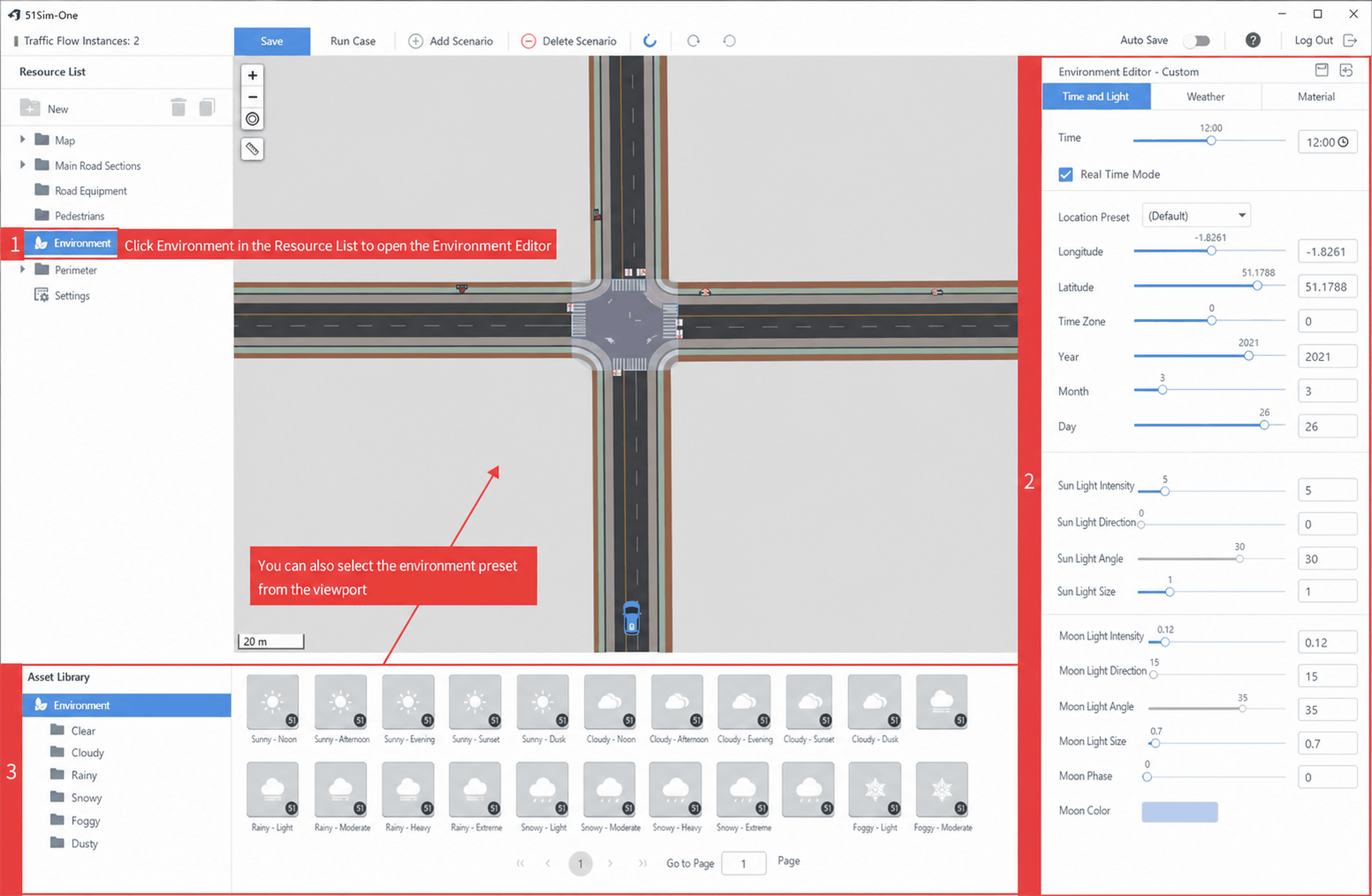
1. Adjusting Environment Parameters via the Environment Editor
The environment editor panel provides parameters for Time & Lighting, Weather, and Material Effects.
(1) Create a new case.
(2) Click Resource List > Environment to open the environment editor.
(3) Adjust the Time & Lighting, Weather, and Material Effects parameters as needed.
(4) Alternatively, select an Environment Preset and drag it into the viewport.
Tip
See Appendix: Parameter Reference for detailed descriptions and reference images.
(5) Click Save (top-left) to save the case, then Run the case (launch the UE high-fidelity visualization tool) to preview the result.
Tip
Use the Save button in the top-right corner of the Environment Parameter Panel to save your customized weather preset for reuse in other cases.
2. Adjusting Parameters via the Visualization Console
Press the ` key in the UE visualization console to open the console. Enter weather.<parameter> <value> to modify weather conditions directly. Parameter names can be found in Appendix — Parameter Reference.
(1) In the UE visualization tool, press the ` key to open the console.
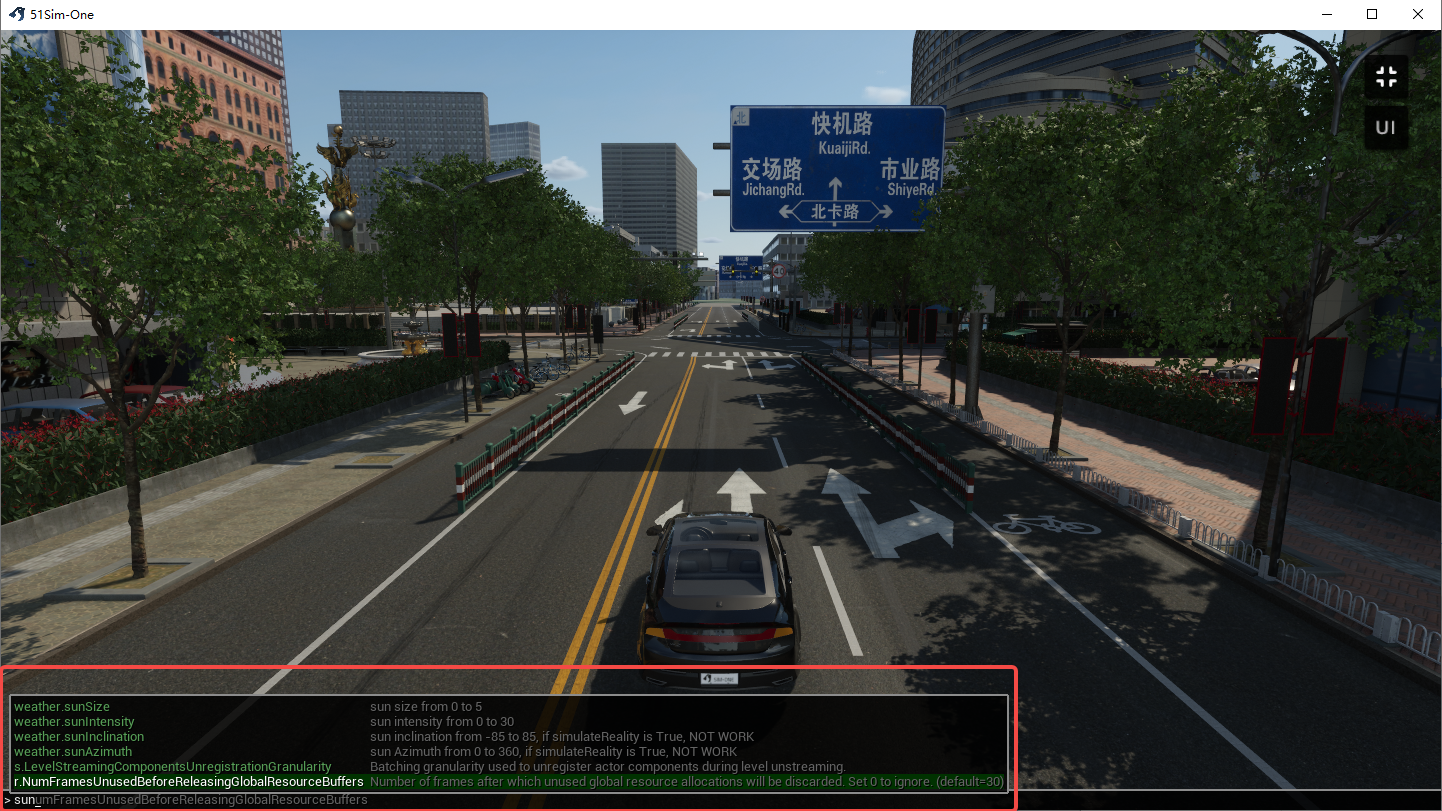
(2) Type sun — relevant parameter suggestions will appear. Use the arrow keys to navigate, then press Space to select a parameter and adjust its value.
Tip
Typing weather. will directly jump to the TOD + Weather System parameters.
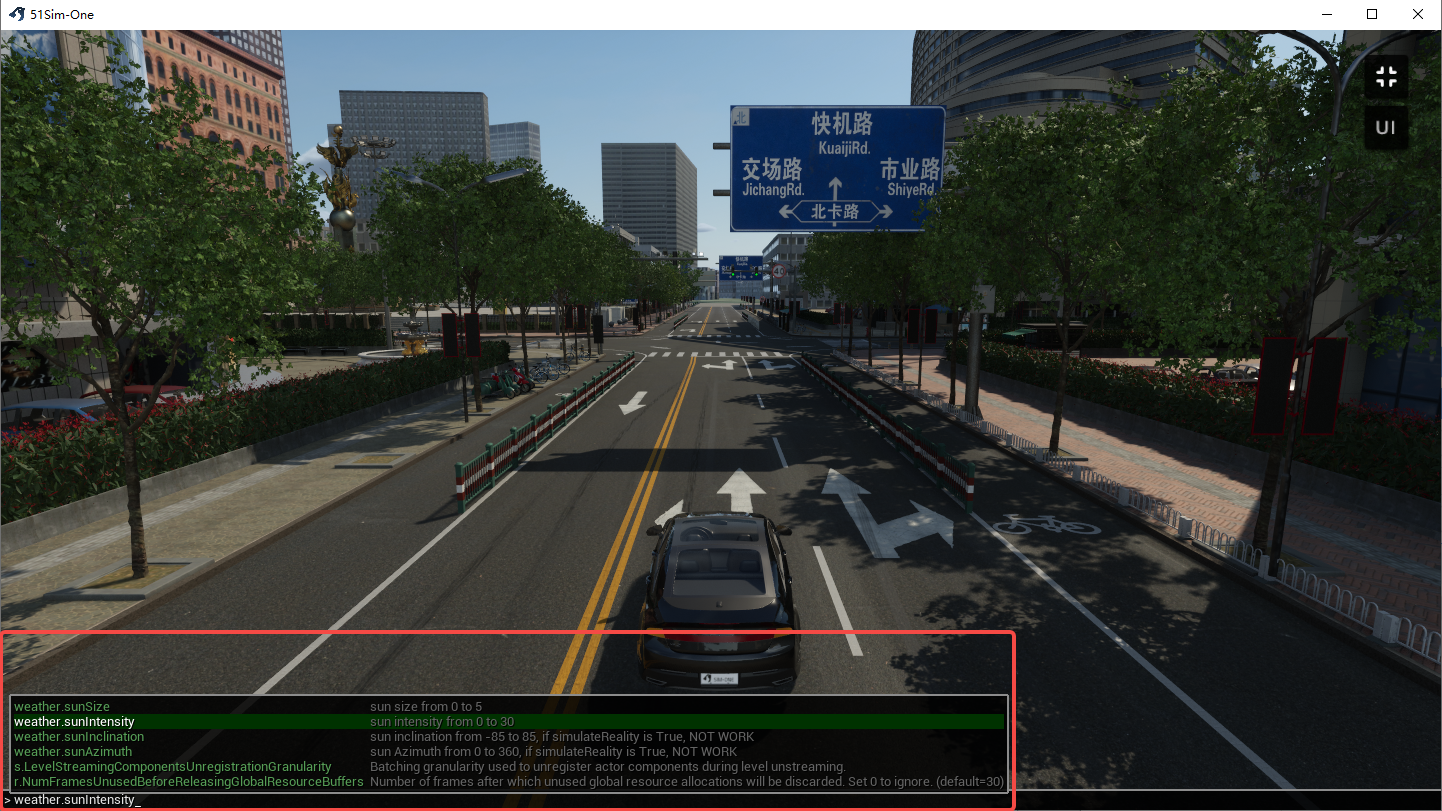
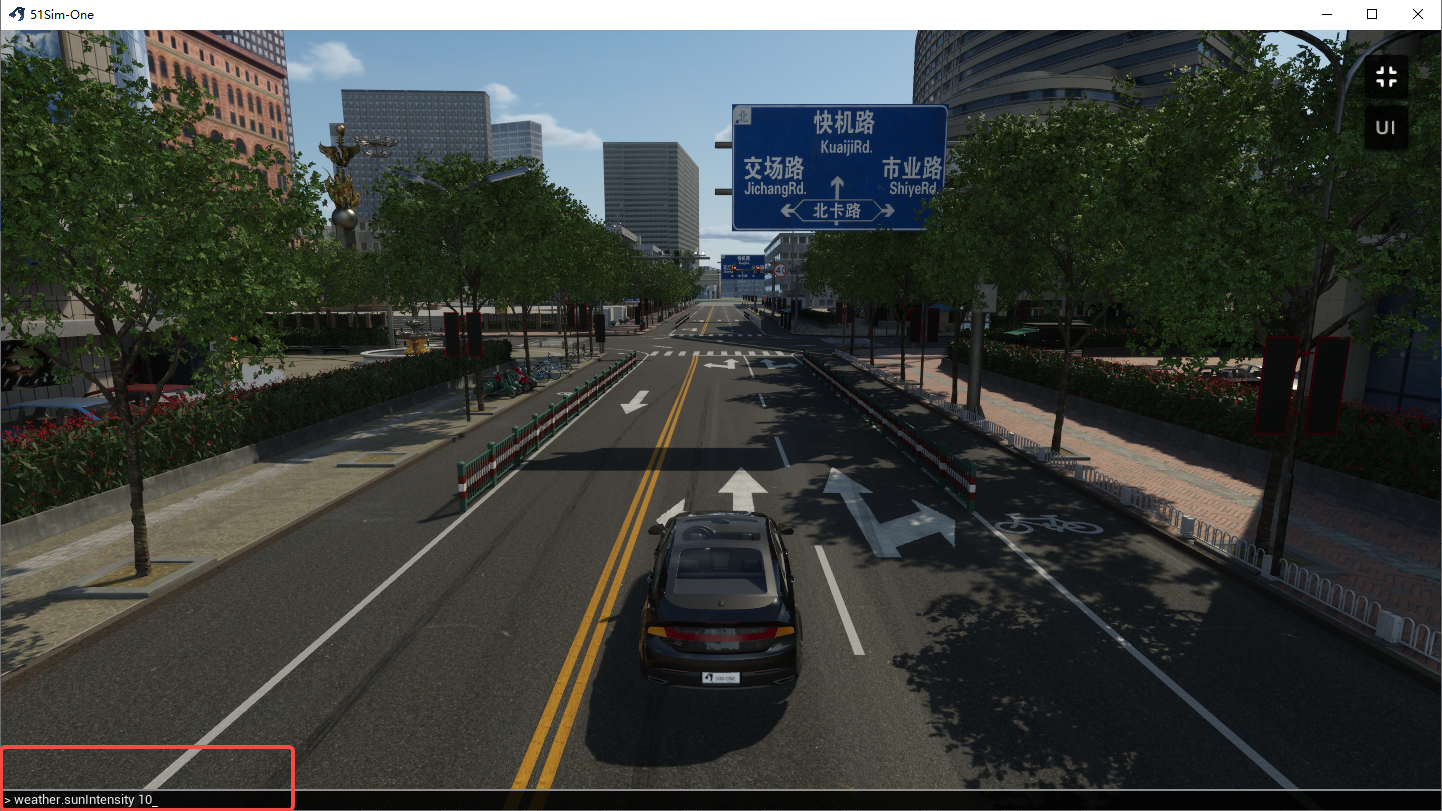
(3) The right column shows the parameter range. Enter a value such as 10 and press Enter to see the effect.
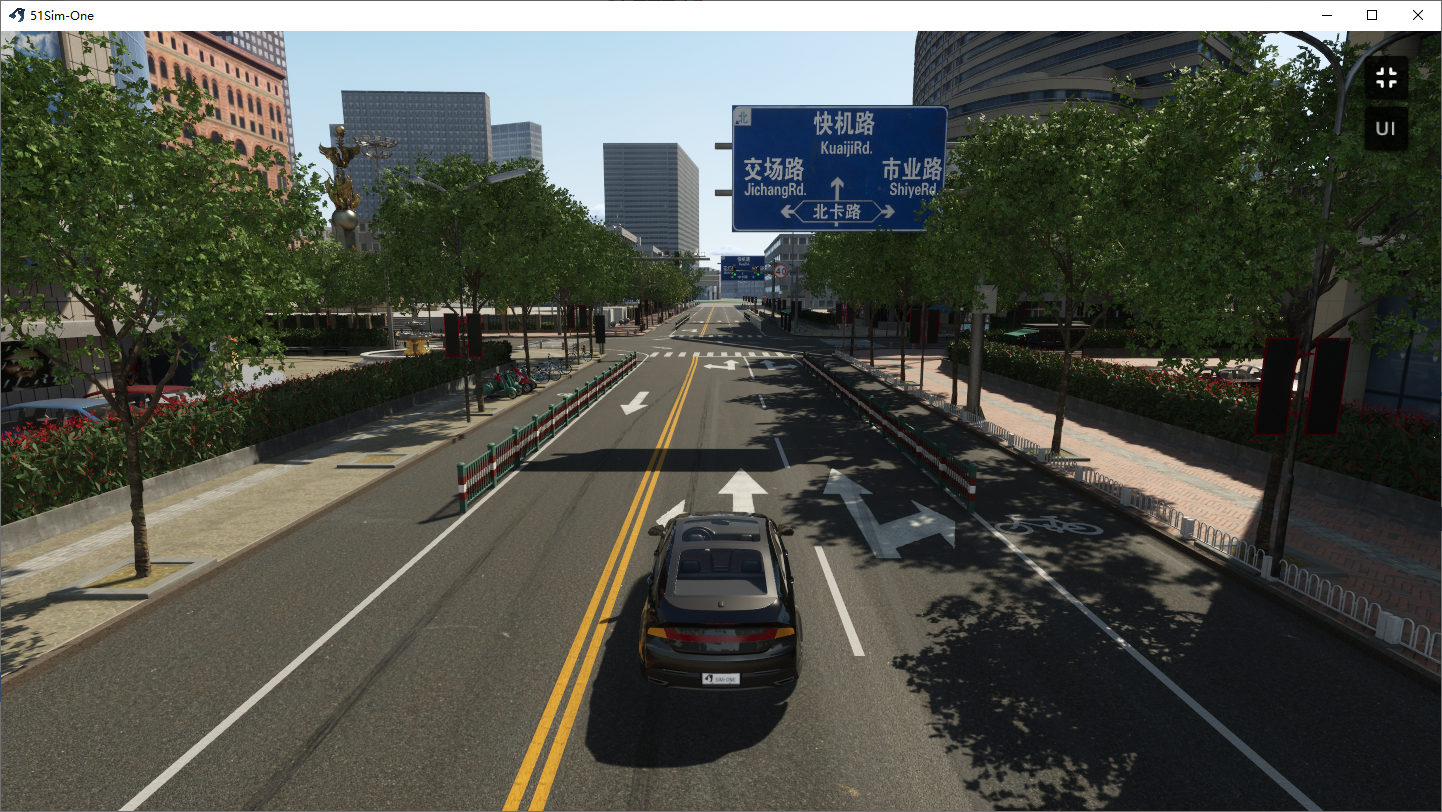
(4) The sunlight will now appear brighter.
Appendix: Parameter Reference
1. Time & Lighting
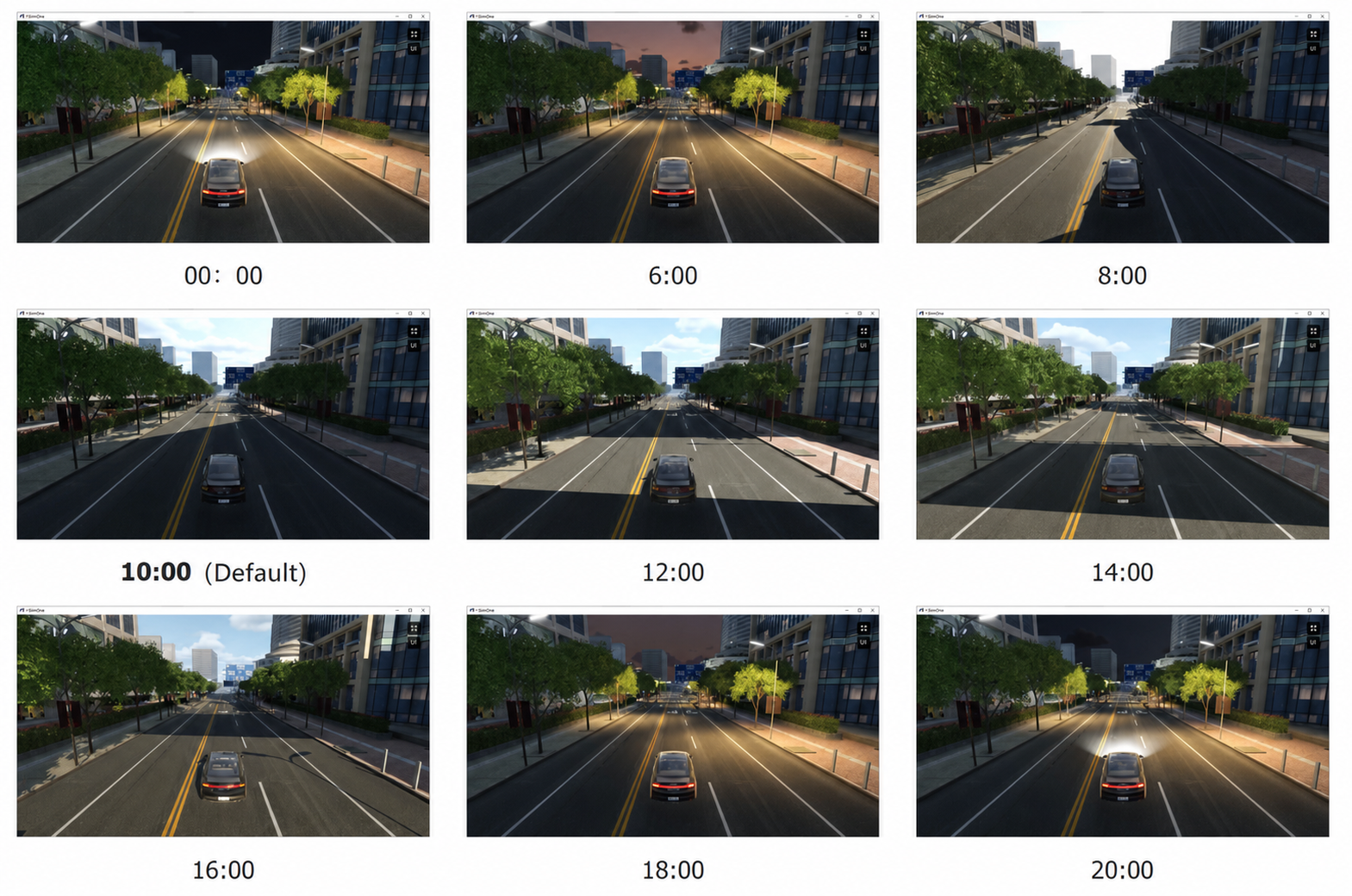
1.1 Current Time / timeOfDay
Tip
Street lights turn off at 7:00 AM; vehicle lights turn off at 6:00 AM.
Street lights turn on at 6:00 PM; vehicle lights turn on at 6:01 PM.
| Parameter | Console | Range | Default | Unit | UE5 Location |
|---|---|---|---|---|---|
| Current Time | timeOfDay | 0:00 – 24:00 | 10:00 | — | Sky > Basic Controls > Time Of Day |
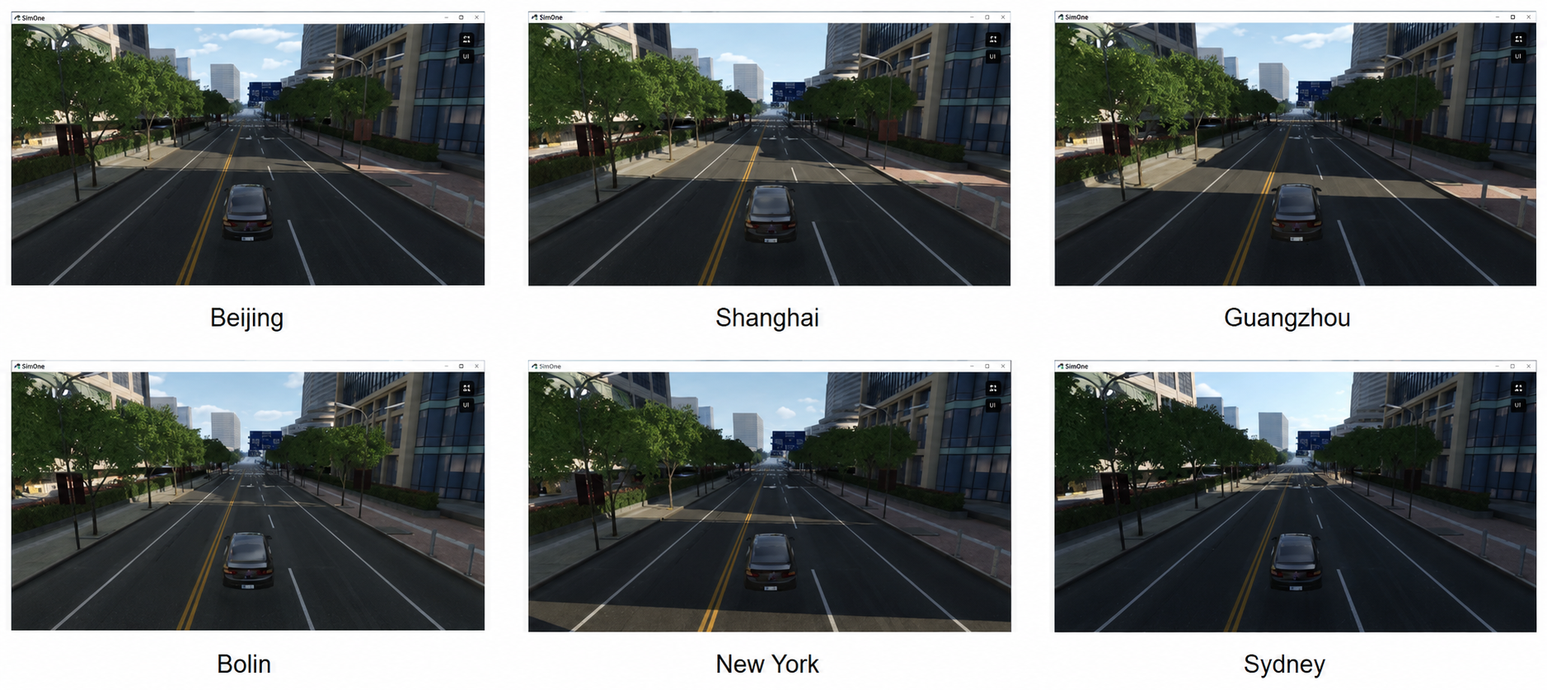
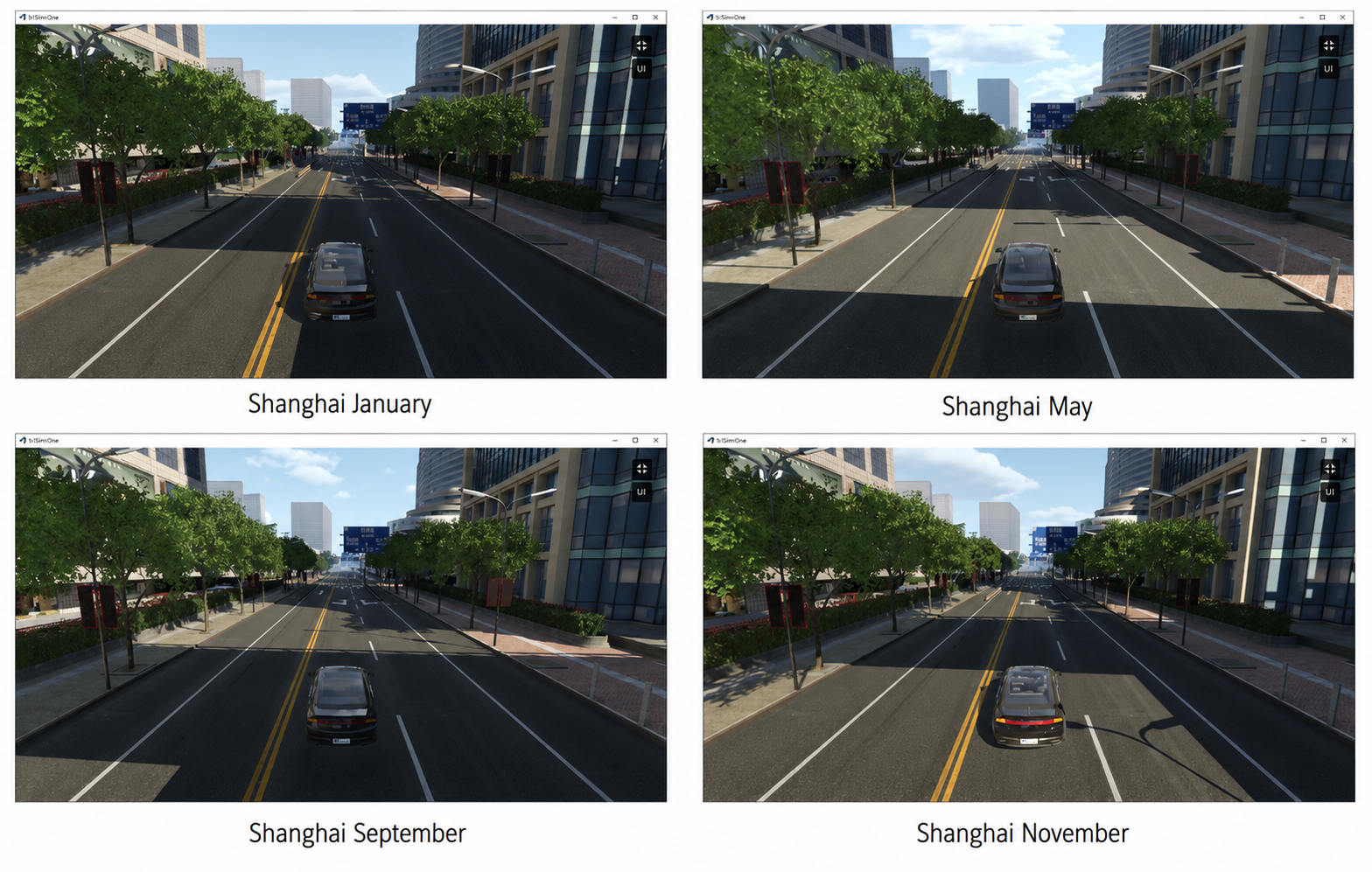
1.2 Simulate Reality / simulateReality
Tip
The Simulate Reality feature simulates real sun and moon positions based on the actual location and time.
When enabled (default), the Sun Azimuth, Sun Inclination, Moon Azimuth, and Moon Inclination parameters are disabled and grayed out.
| Parameter | Console | Range | Default | Unit | UE5 Location |
|---|---|---|---|---|---|
| Enable Simulate Reality | simulateReality | True / False | True | — | Sky > Simulation > Simulate Real Sun/Moon |
| Location | / | Select location | — | — | Sky > Simulation > Location Preset |
| Longitude | longitude | -180 – 180 | 110.1983 | ° | Sky > Simulation > Longitude |
| Latitude | latitude | -90 – 90 | 20.0442 | ° | Sky > Simulation > Latitude |
| Time Zone | timeZone | -12 – 12 | 8 | tz | Sky > Simulation > Time Zone |
| Year | date | 1800 – 2100 | 2023 | yr | Sky > Simulation > Year |
| Month | 1 – 12 | 3 | mo | Sky > Simulation > Month | |
| Day | 1 – 31 | 21 | d | Sky > Simulation > Day |
Tip
The orientation convention follows the editor viewport: North ↑, South ↓, West ←, East →.
Tip
When Simulate Reality is enabled, the sun rises from the east.
When Simulate Reality is disabled (sun azimuth = 0°), the sun rises from the north by default.
1.3 ☀ Sun / sun
| Parameter | Console | Range | Default | Unit | UE5 Location |
|---|---|---|---|---|---|
| Sun Light Intensity | sunIntensity | 0 – 10 | 5.0 | lux | Sky > Sun > Sun Light Intensity |
| Sun Azimuth | sunAzimuth | 0 – 360 | 0.0 | ° | Sky > Sun > Sun Angle |
| Sun Inclination | sunInclination | -85 – 85 | 30.0 | ° | Sky > Sun > Sun Inclination |
| Sun Size | sunSize | 0 – 5 | 1.0 | — | Sky > Sun > Sun Radius |
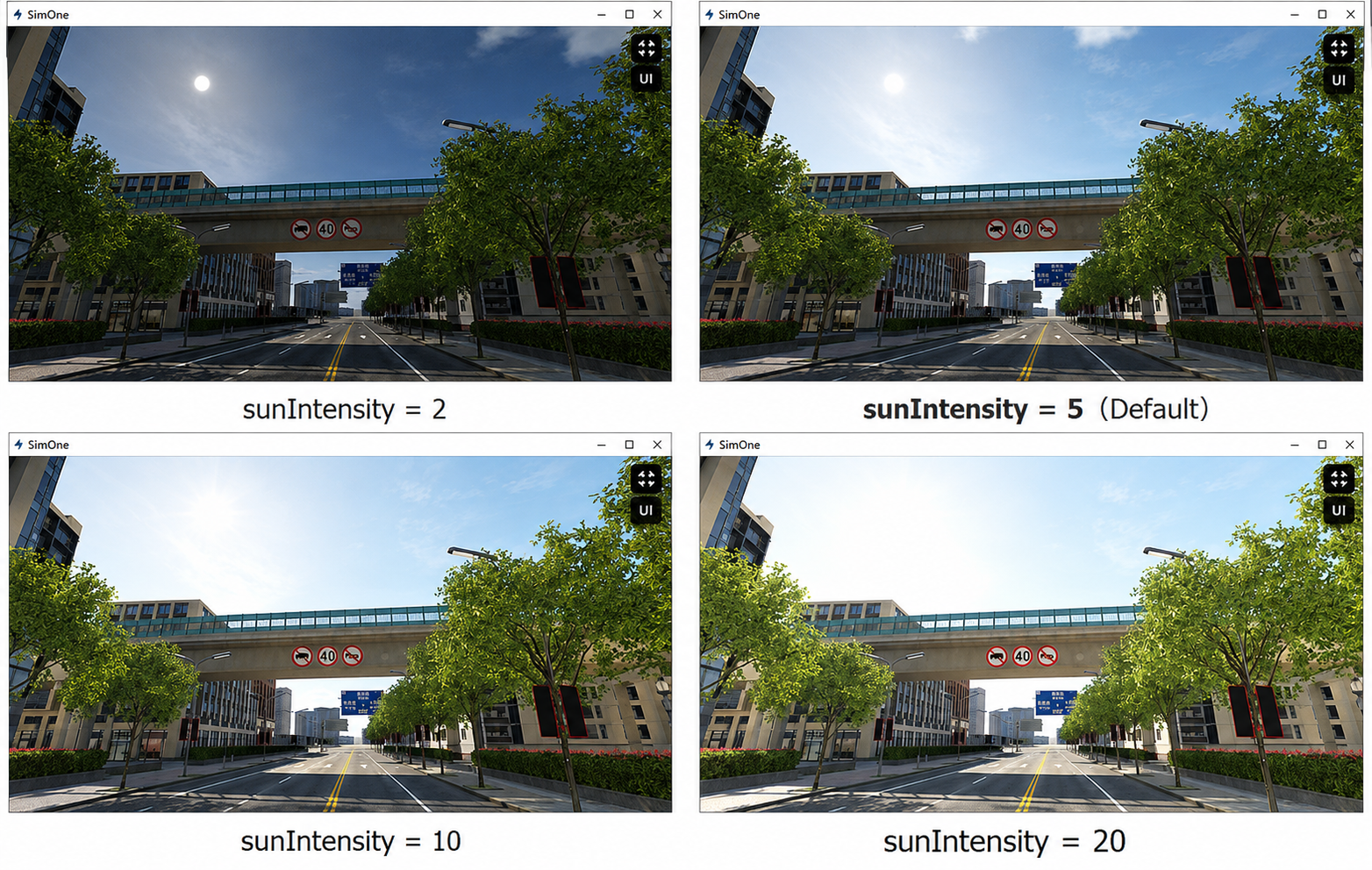
1.3.1 Sun Light Intensity / sunIntensity
| Parameter | Console | Range | Default | Unit | UE5 Location |
|---|---|---|---|---|---|
| Sun Light Intensity | sunIntensity | 0 – 10 | 5.0 | lux | Sky > Sun > Sun Light Intensity |
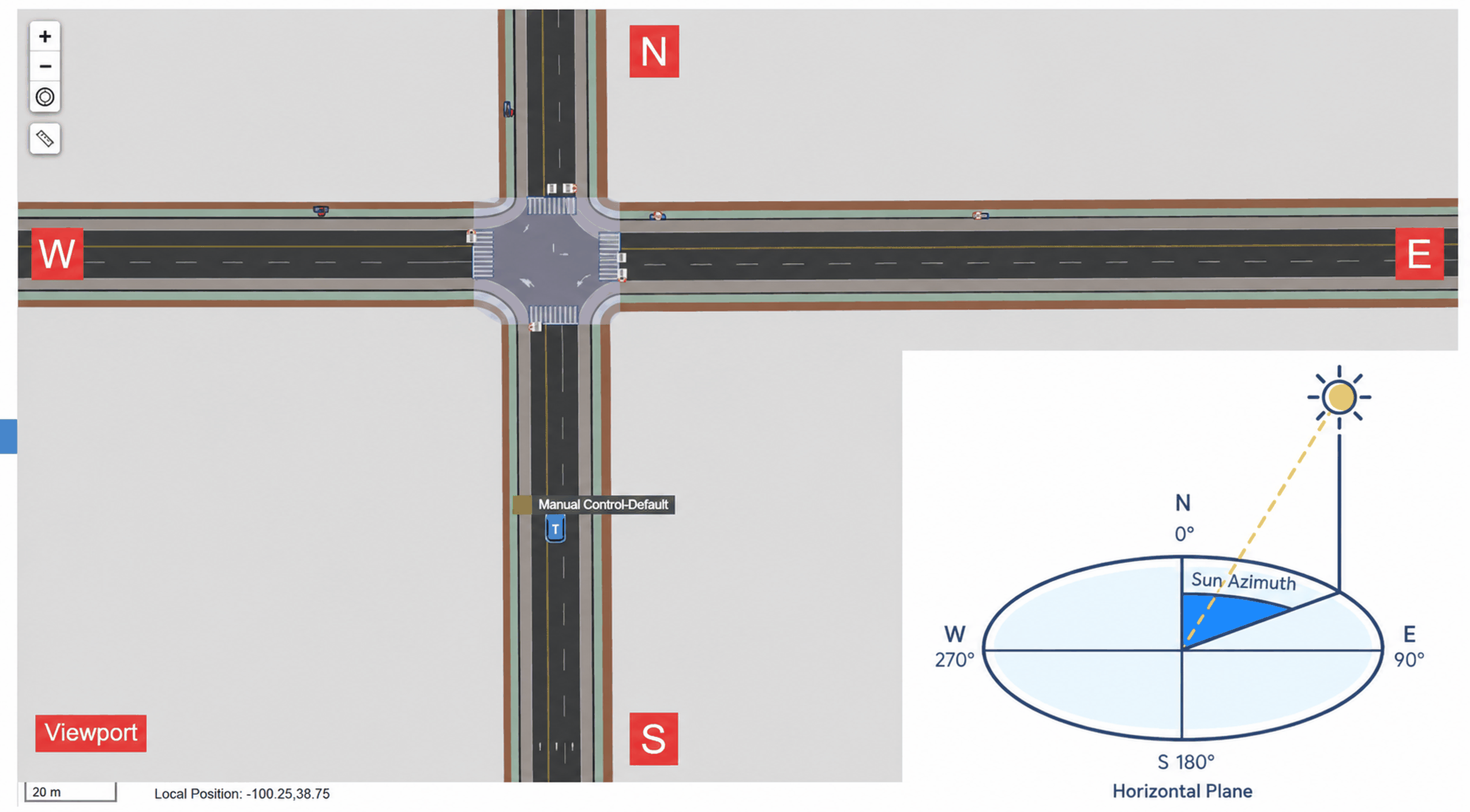
1.3.2 Sun Azimuth / sunAzimuth
Tip
The orientation convention follows the editor viewport: North ↑, South ↓, West ←, East →.
| Parameter | Console | Range | Default | Unit | UE5 Location |
|---|---|---|---|---|---|
| Sun Azimuth | sunAzimuth | 0 – 360 | 0.0 | ° | Sky > Sun > Sun Angle |
Tip
The compass direction of the sun (0–360°). Measured clockwise from due north (0°) along the horizon — determines the direction of sunrise/sunset. Disabled when Simulate Reality is active.
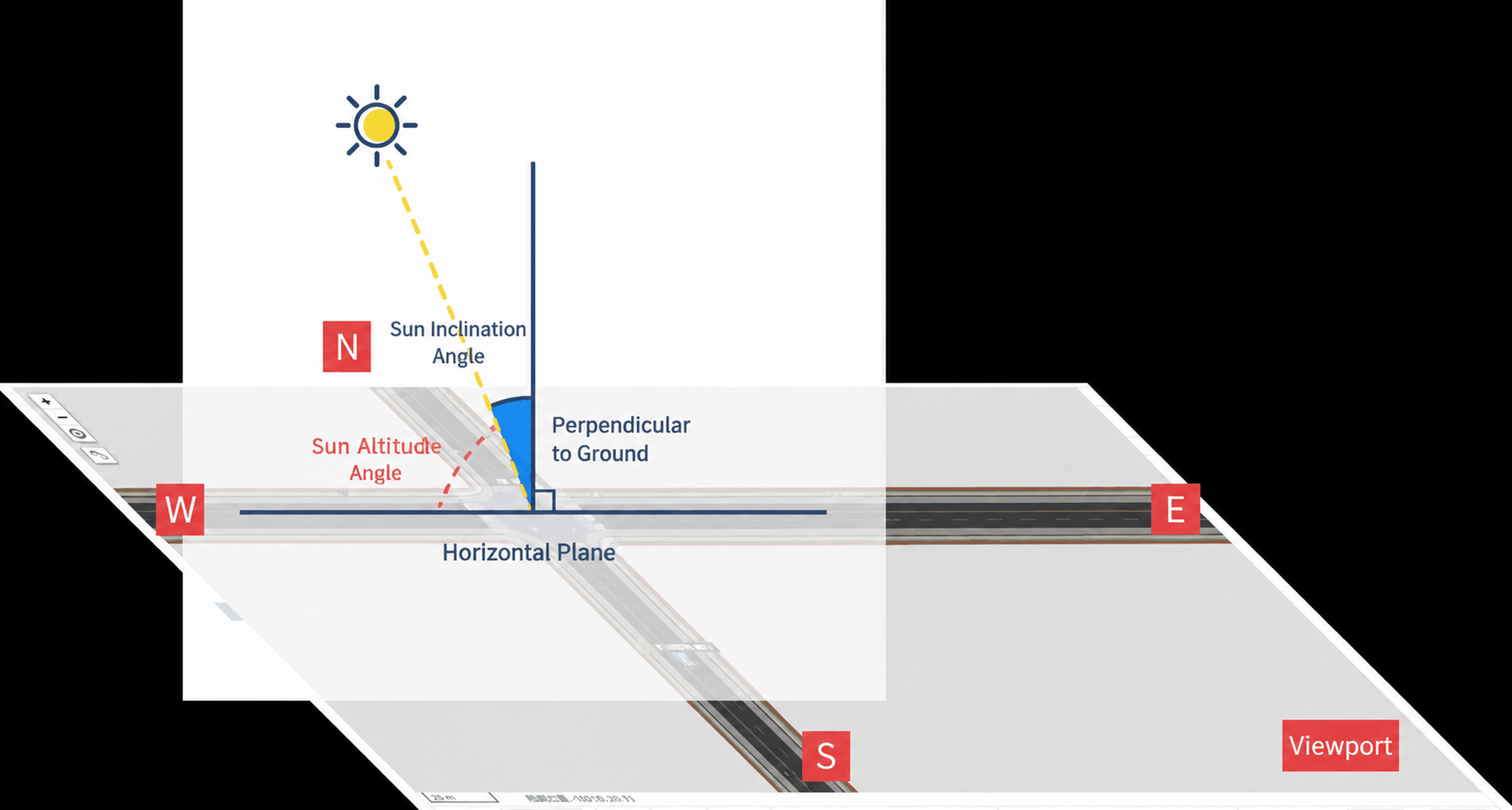
1.3.3 Sun Inclination / sunInclination
| Parameter | Console | Range | Default | Unit | UE5 Location |
|---|---|---|---|---|---|
| Sun Inclination | sunInclination | -85 – 85 | 30.0 | ° | Sky > Sun > Sun Inclination |
Tip
The angle between the sun's incident direction and the zenith. Disabled when Simulate Reality is active.
1.3.4 Sun Size / sunSize
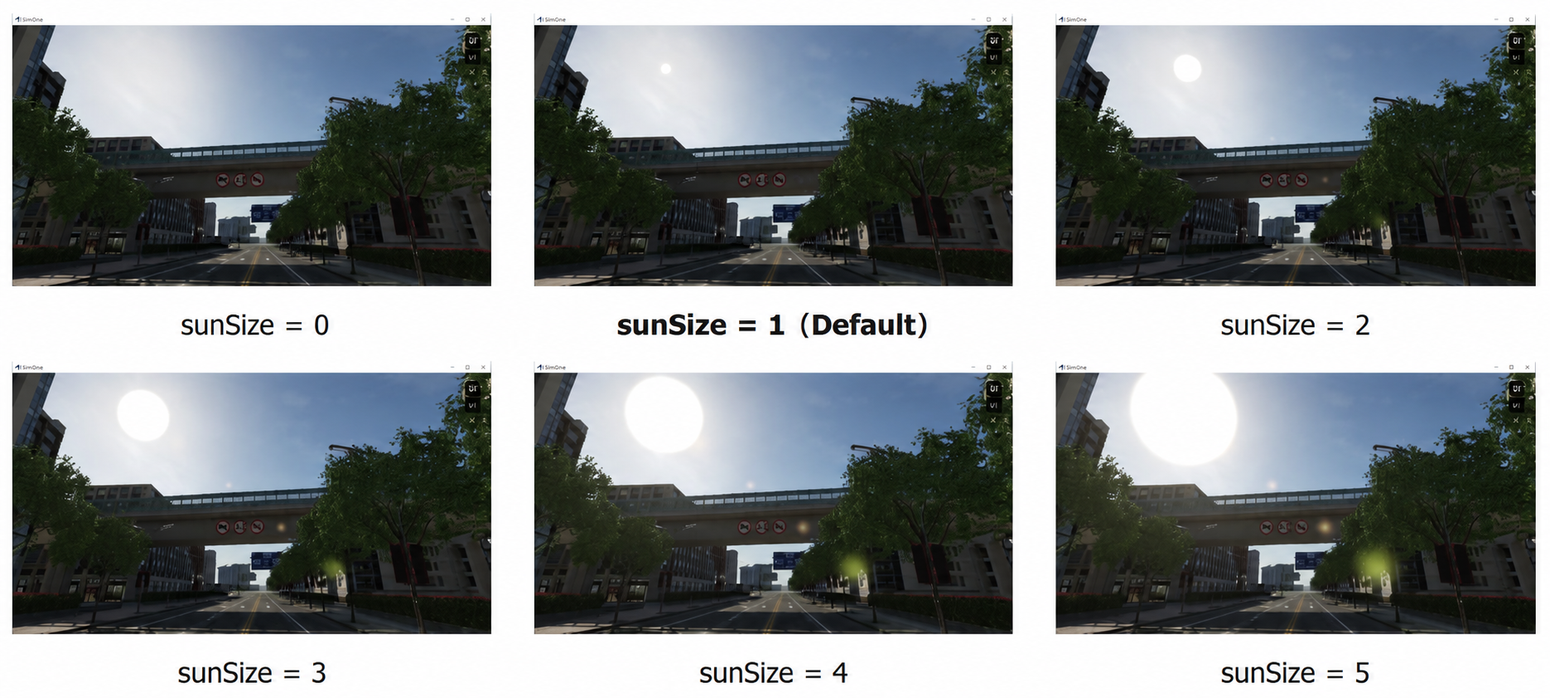
| Parameter | Console | Range | Default | Unit | UE5 Location |
|---|---|---|---|---|---|
| Sun Size | sunSize | 0 – 5 | 1.0 | — | Sky > Sun > Sun Radius |
1.4 🌙 Moon / moon
Tip
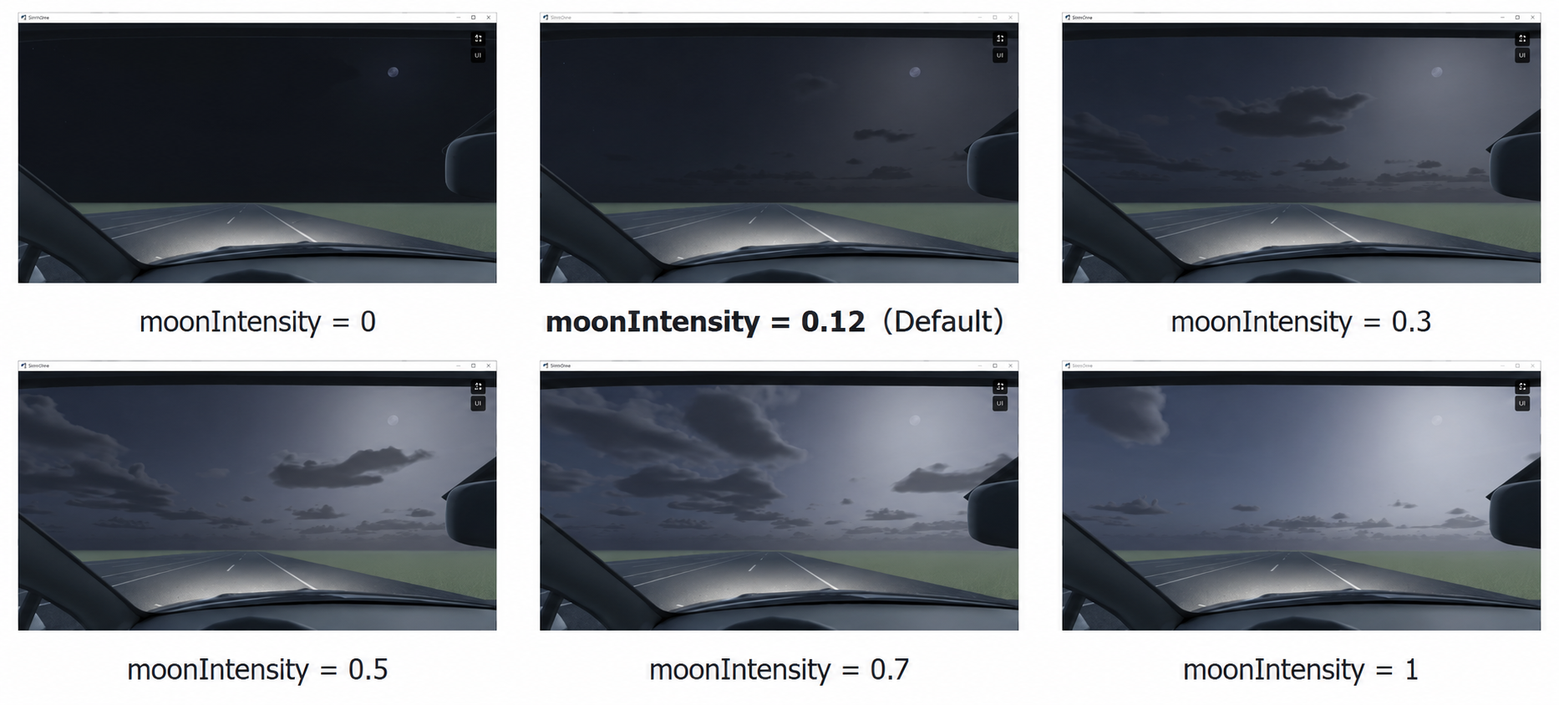
Reference images for moon parameters use a default time of 20:00.
| Parameter | Console | Range | Default | Unit | UE5 Location |
|---|---|---|---|---|---|
| Moon Light Intensity | moonIntensity | 0 – 1 | 0.12 | — | Sky > Moon > Moon Light Intensity |
| Moon Azimuth | moonAzimuth | 0 – 360 | 15.0 | ° | Sky > Moon > Moon Angle |
| Moon Inclination | moonInclination | -90 – 90 | 35.0 | ° | Sky > Moon > Moon Inclination |
| Moon Size | moonSize | 0 – 12 | 0.7 | — | Sky > Moon > Moon Scale |
| Moon Phase | moonPhase | 0 – 29.53 | 0.0 | — | Sky > Moon > Moon Phase |
| Moon Color | moonColorA moonColorR moonColorG moonColorB |
R G B A | R 0.486328, G 0.574971, B 0.864583, A 1.0 |
— | Sky > Moon > Moon Material Color |
1.4.1 Moon Light Intensity / moonIntensity
| Parameter | Console | Range | Default | Unit | UE5 Location |
|---|---|---|---|---|---|
| Moon Light Intensity | moonIntensity | 0 – 1 | 0.12 | — | Sky > Moon > Moon Light Intensity |
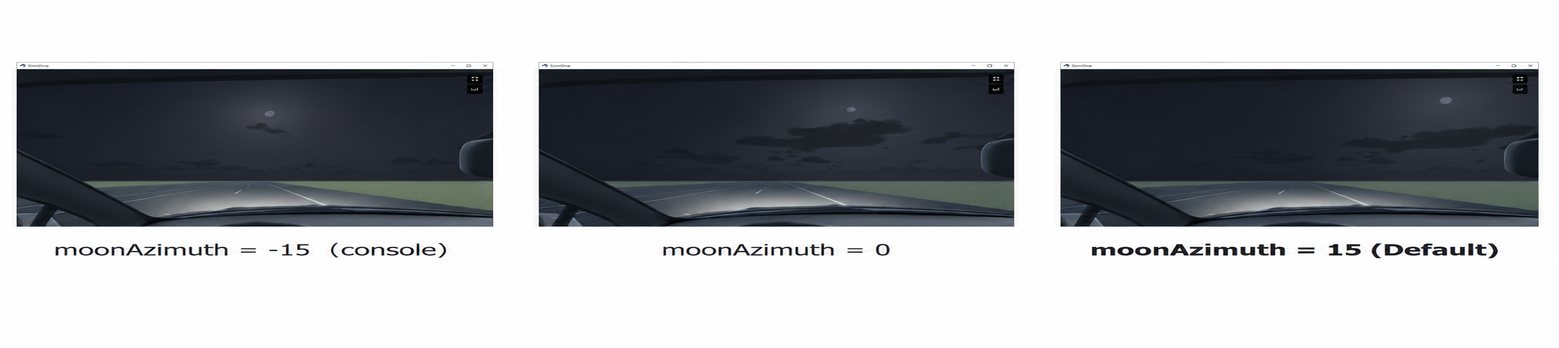
1.4.2 Moon Azimuth / moonAzimuth
| Parameter | Console | Range | Default | Unit | UE5 Location |
|---|---|---|---|---|---|
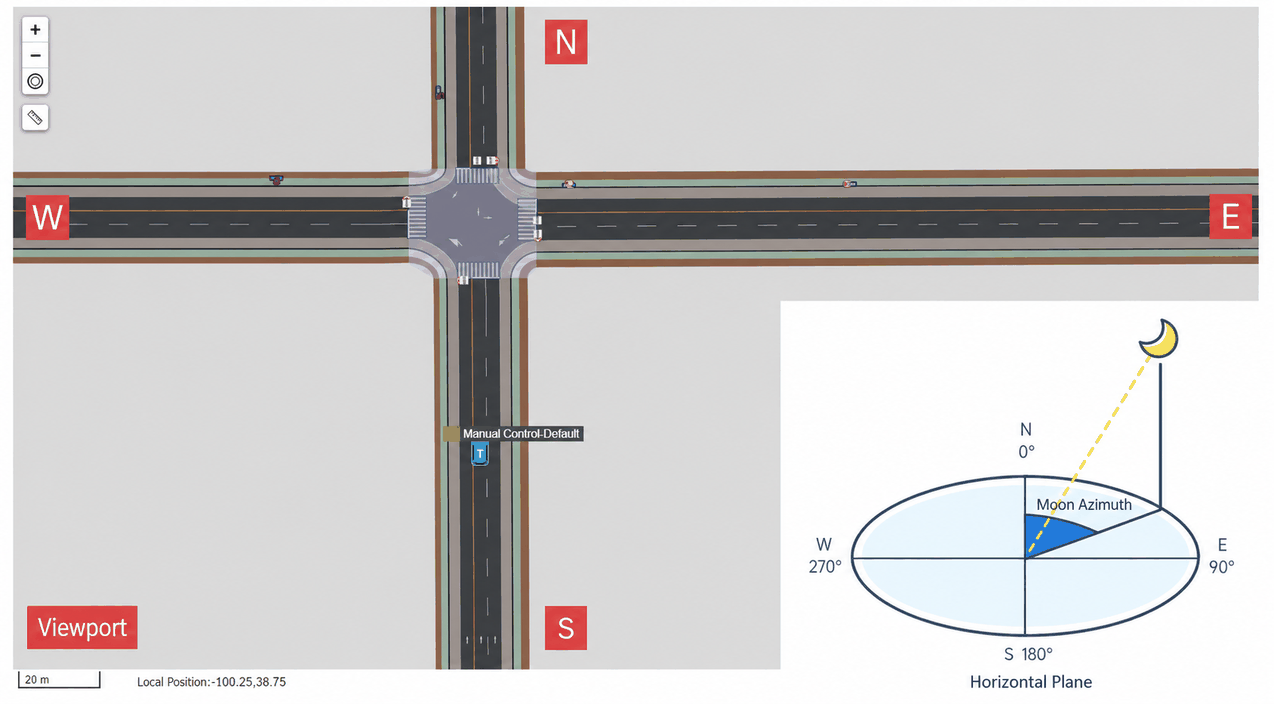
| Moon Azimuth | moonAzimuth | 0 – 360 | 15.0 | ° | Sky > Moon > Moon Angle |
Tip
The compass direction of the moon (0–360°). Measured clockwise from due north (0°) along the horizon — determines the direction of moonrise/moonset. Disabled when Simulate Reality is active.
Tip
The orientation convention follows the editor viewport: North ↑, South ↓, West ←, East →.
Tip
In the visualization interface, press ` to open the console and enter weather.moonAzimuth -15. Press Enter to see the effect of an out-of-range value.
1.4.3 Moon Inclination / moonInclination
| Parameter | Console | Range | Default | Unit | UE5 Location |
|---|---|---|---|---|---|
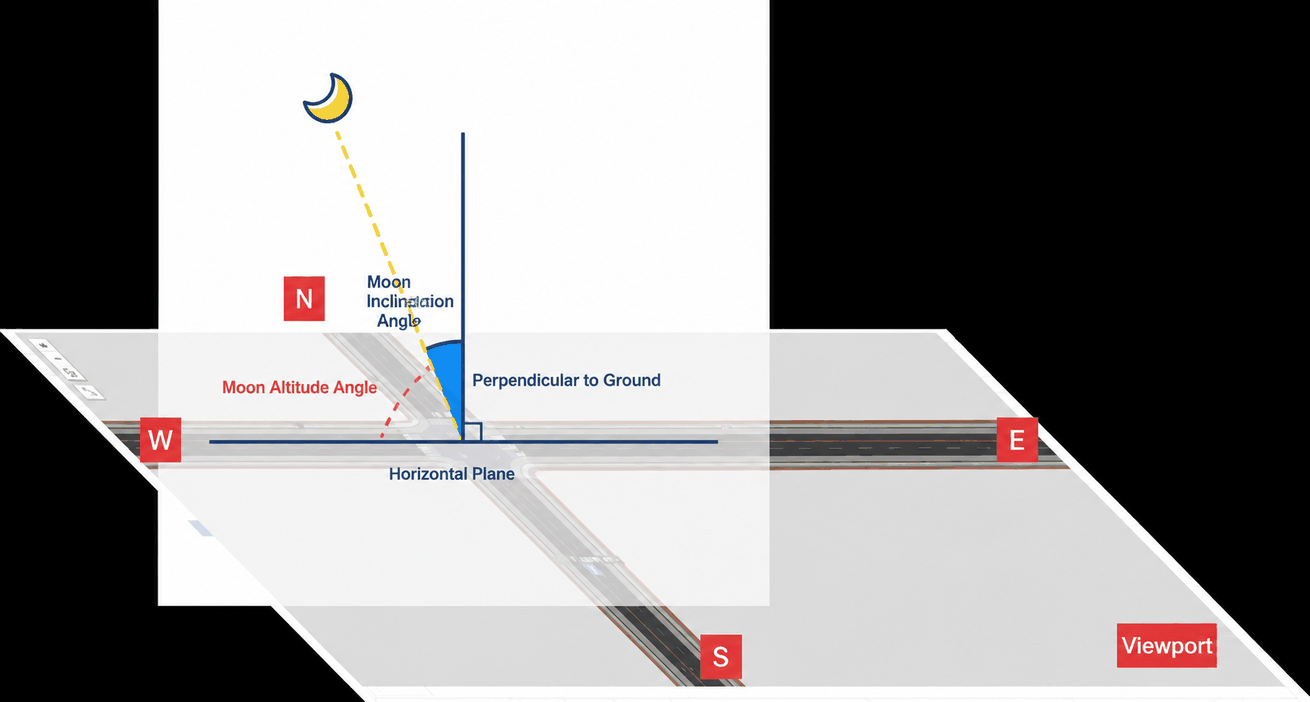
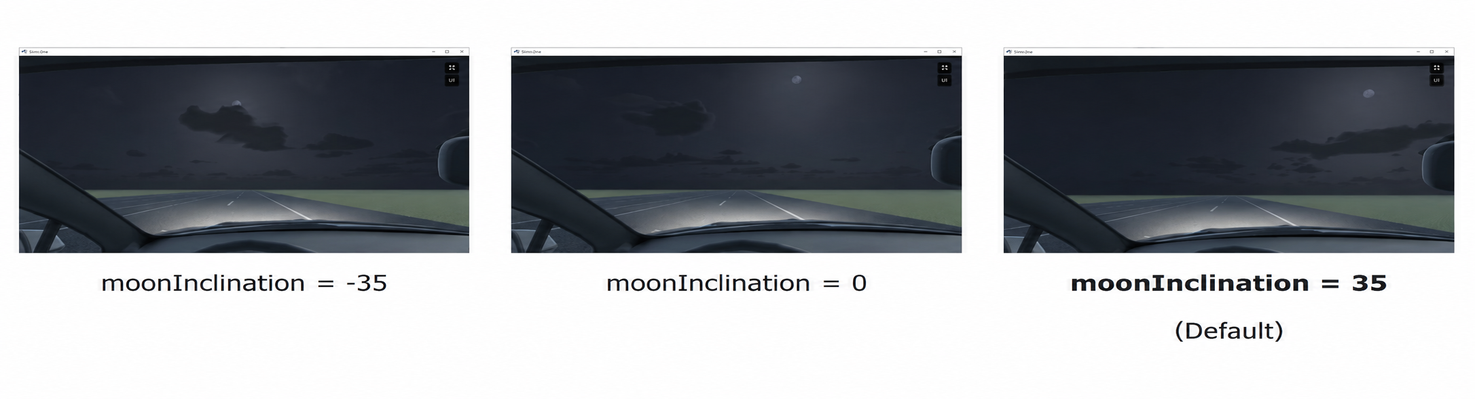
| Moon Inclination | moonInclination | -90 – 90 | 35.0 | ° | Sky > Moon > Moon Inclination |
Tip
The angle between the moon's incident direction and the zenith. Disabled when Simulate Reality is active.
1.4.4 Moon Size / moonSize
| Parameter | Console | Range | Default | Unit | UE5 Location |
|---|---|---|---|---|---|
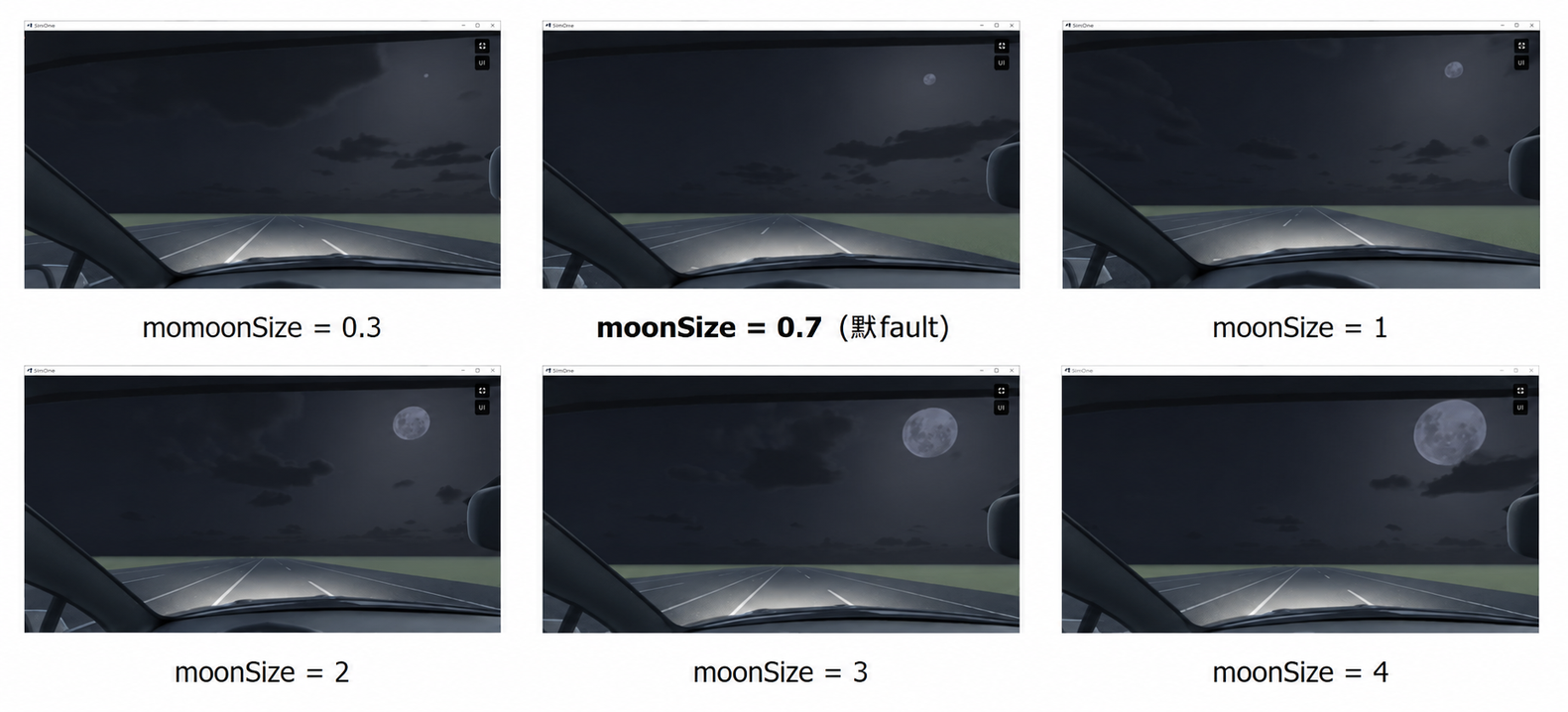
| Moon Size | moonSize | 0 – 12 | 0.7 | — | Sky > Moon > Moon Scale |
1.4.5 Moon Phase / moonPhase
| Parameter | Console | Range | Default | Unit | UE5 Location |
|---|---|---|---|---|---|
| Moon Phase | moonPhase | 0 – 29.53 | 0.0 | — | Sky > Moon > Moon Phase |
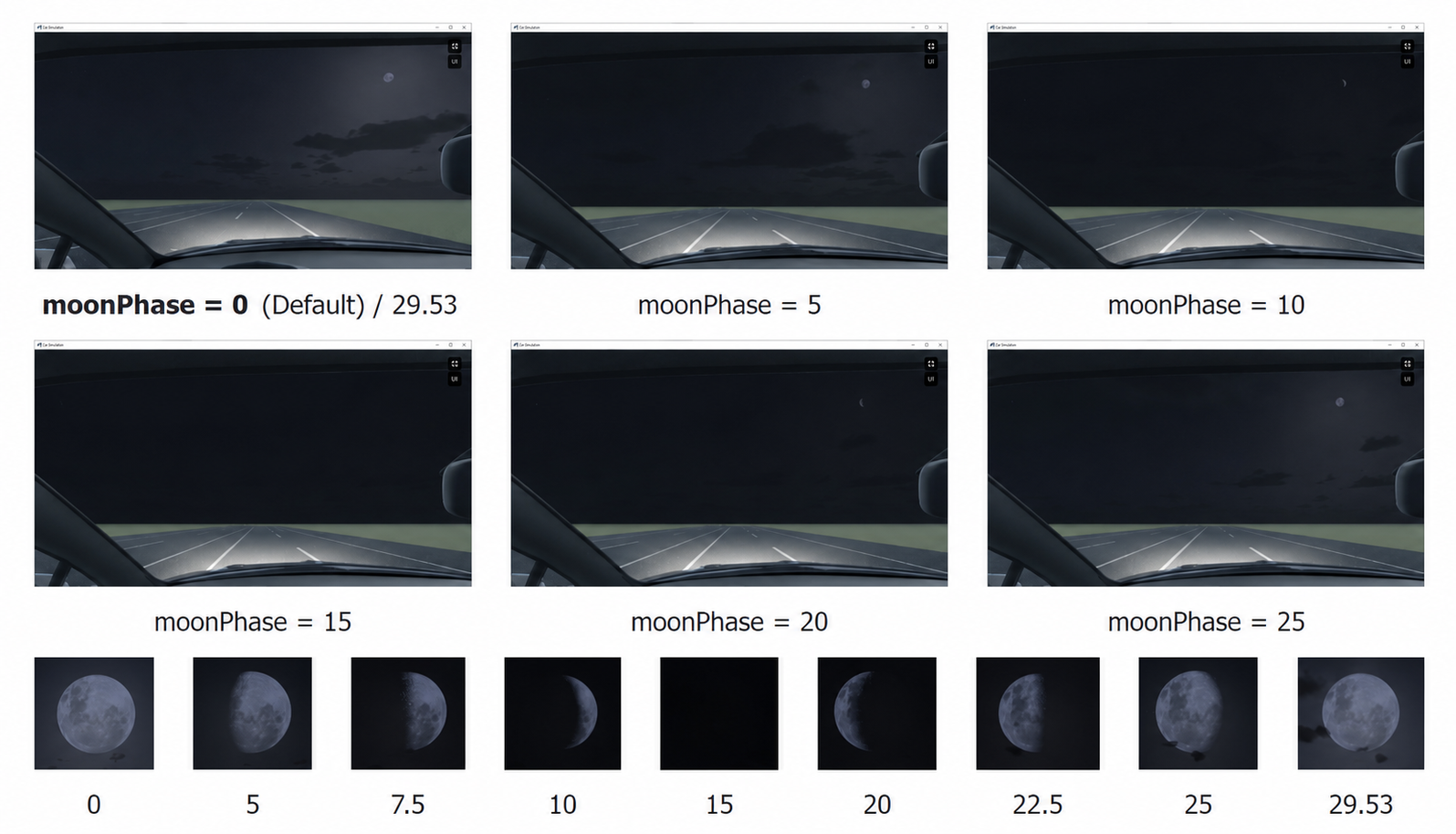
1.4.6 Moon Color / moonColorA moonColorR moonColorG moonColorB
| Parameter | Console | Range | Default | Unit | UE5 Location |
|---|---|---|---|---|---|
| Moon Color | moonColorA moonColorR moonColorG moonColorB |
R G B A | R 0.486328, G 0.574971, B 0.864583, A 1.0 |
— | Sky > Moon > Moon Material Color |
2. Weather
2.1 ☁ Cloud / cloud
| Parameter | Console | Range | Default | Unit | UE5 Location |
|---|---|---|---|---|---|
| Cloud Coverage | cloudDensity | 0 – 7.5 | 2.0 | % | Weather > Manual Weather State > Cloud Coverage |
| Cloud Altitude | cloudHeight | 0 – 2 | 0.6 | km | Sky > Volumetric Clouds > Bottom Altitude |
| Cloud Thickness | cloudThickness | 0.1 – 2 | 1.0 | — | Sky > Volumetric Clouds > Layer Height Scale |
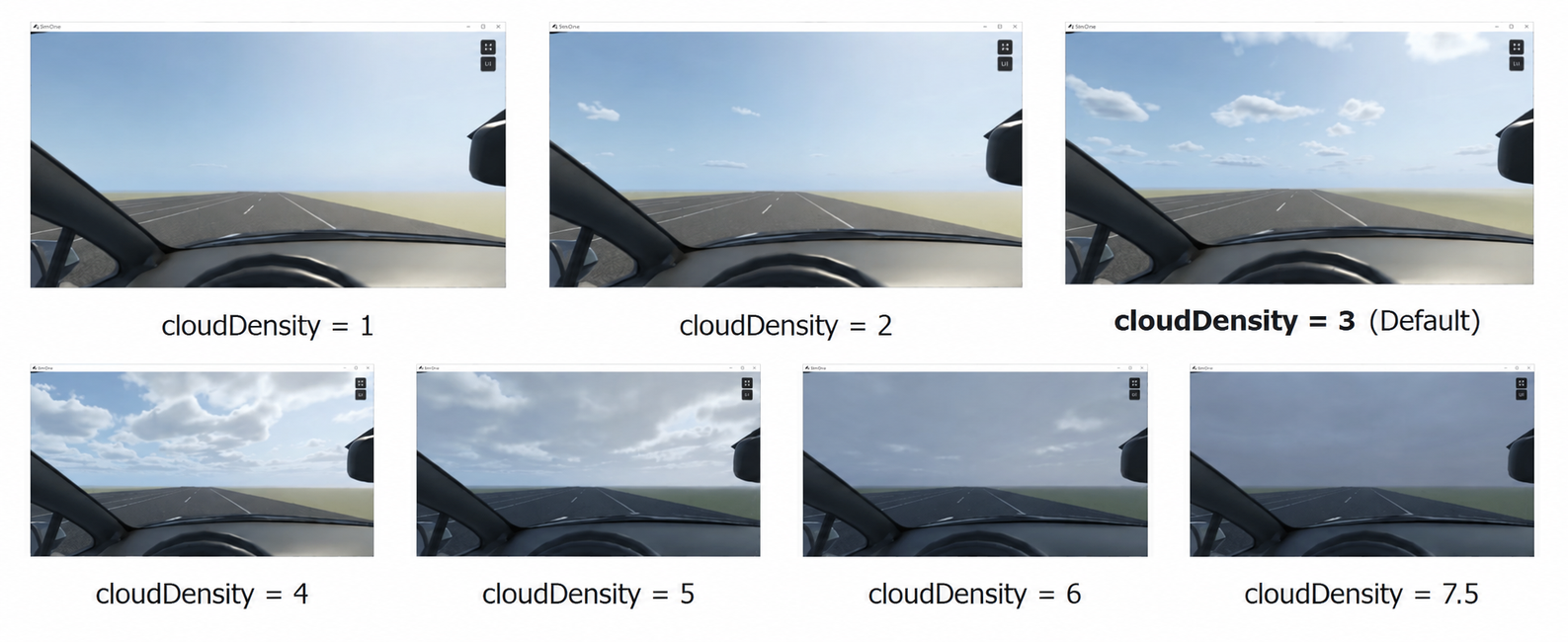
2.1.1 Cloud / cloudDensity
| Parameter | Console | Range | Default | Unit | UE5 Location |
|---|---|---|---|---|---|
| Cloud Coverage | cloudDensity | 0 – 7.5 | 2.0 | % | Weather > Manual Weather State > Cloud Coverage |
2.1.2 Cloud Altitude / cloudHeight
| Parameter | Console | Range | Default | Unit | UE5 Location |
|---|---|---|---|---|---|
| Cloud Altitude | cloudHeight | 0 – 2 | 0.6 | km | Sky > Volumetric Clouds > Bottom Altitude |
2.1.3 Cloud Thickness / cloudThickness
| Parameter | Console | Range | Default | Unit | UE5 Location |
|---|---|---|---|---|---|
| Cloud Thickness | cloudThickness | 0.1 – 2 | 1.0 | — | Sky > Volumetric Clouds > Layer Height Scale |
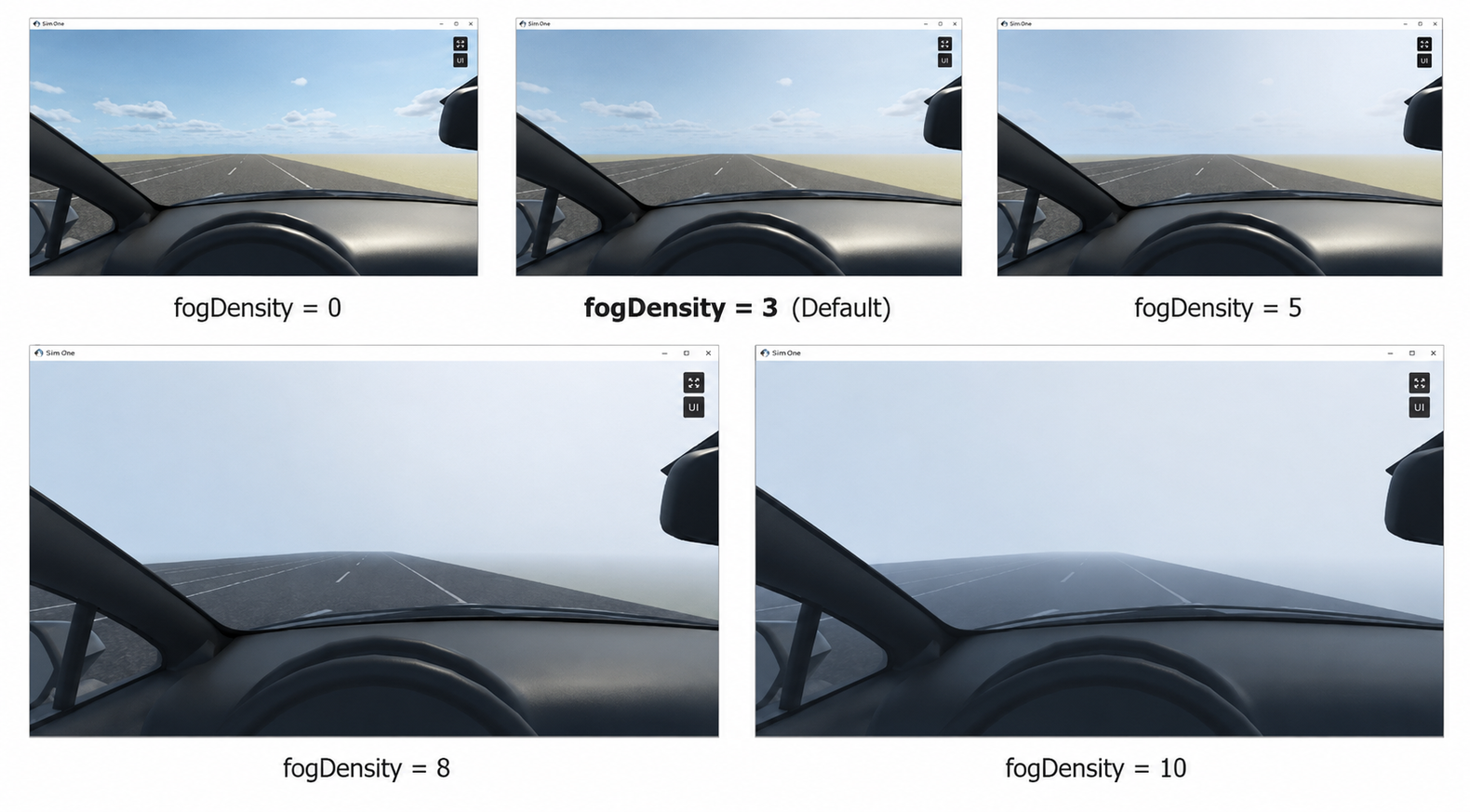
2.2 🌫 Fog / fogDensity
| Parameter | Console | Range | Default | Unit | UE5 Location |
|---|---|---|---|---|---|
| Fog | fogDensity | 0 – 10 | 0 | m | Weather > Manual Weather State > Fog |
2.3 🌀 Wind / wind
| Parameter | Console | Range | Default | Unit | UE5 Location |
|---|---|---|---|---|---|
| Wind Speed | windDensity | 0 – 10 | 3.0 | m/s | Weather > Manual Weather State > Wind Intensity |
| Wind Direction | windDirection | 0 – 360 | 180.0 | ° | Weather > Basic Controls > Wind Direction |
2.3.1 Wind / windDensity
| Parameter | Console | Range | Default | Unit | UE5 Location |
|---|---|---|---|---|---|
| Wind Speed | windDensity | 0 – 10 | 3.0 | m/s | Weather > Manual Weather State > Wind Intensity |
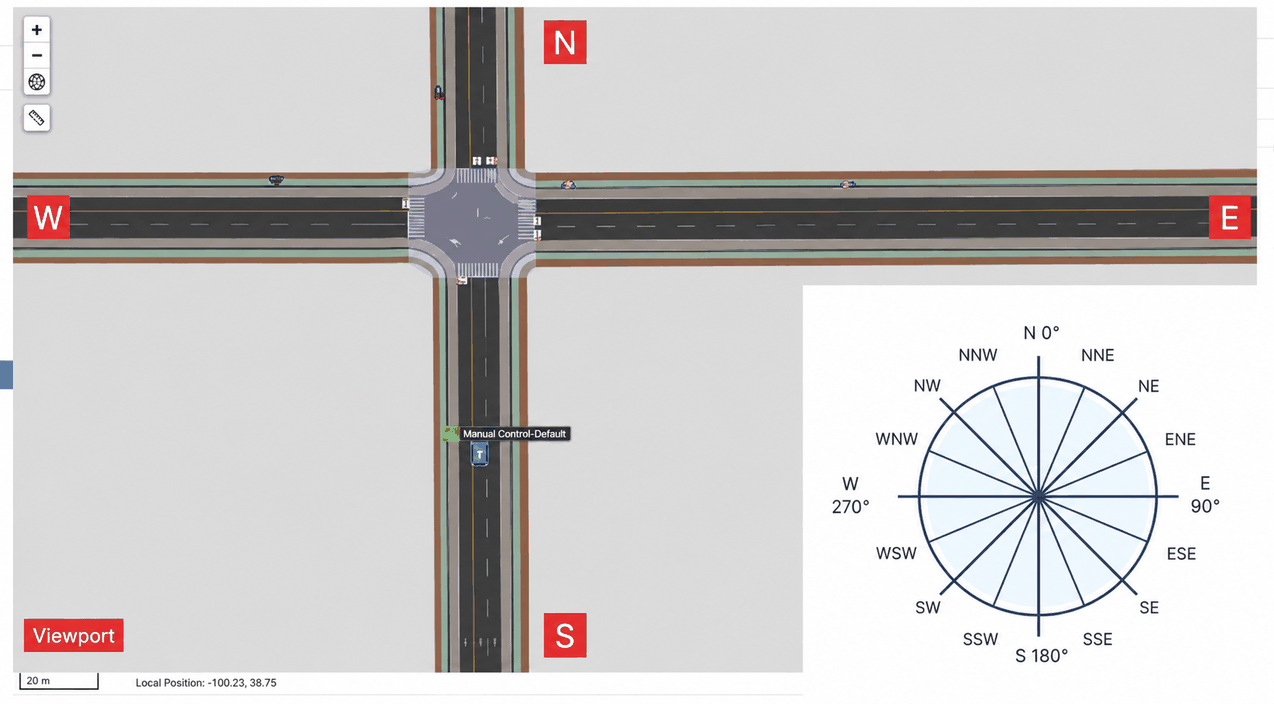
2.3.2 Wind Direction / windDirection
| Parameter | Console | Range | Default | Unit | UE5 Location |
|---|---|---|---|---|---|
| Wind Direction | windDirection | 0 – 360 | 180.0 | ° | Weather > Basic Controls > Wind Direction |
Tip
The direction the wind is coming from. 0° = North; measured clockwise, dividing the compass into 8 main directions.
2.4 🌧 Rain / rain
| Parameter | Console | Range | Default | Unit | UE5 Location |
|---|---|---|---|---|---|
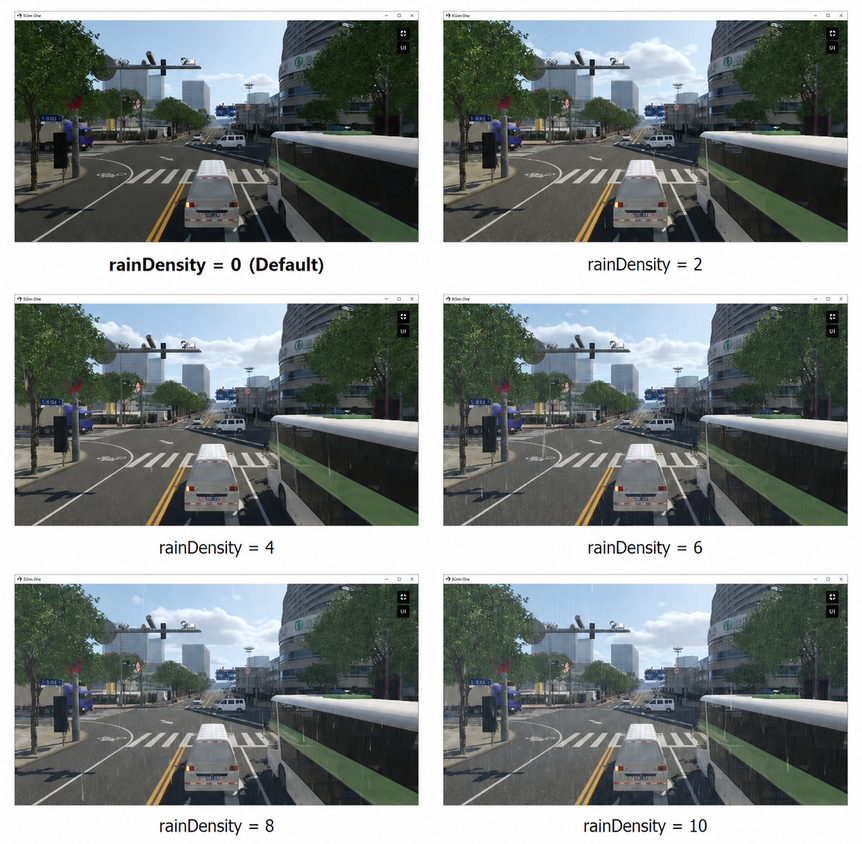
| Rain Intensity | rainDensity | 0 – 10 | 0 | mm | Weather > Manual Weather State > Rain |
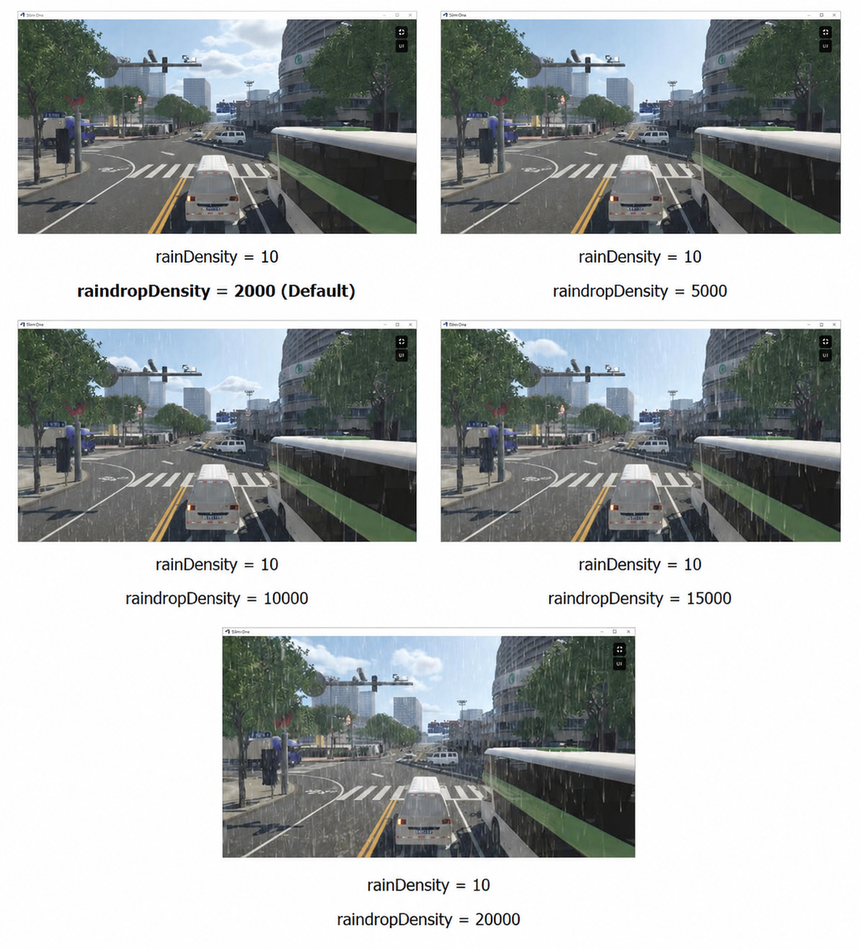
| Raindrop Density Factor | raindropDensity | 0 – 20000 | 2000 | — | Weather > Rain Particles > Max Rain Particle Spawn Rate |
| Raindrop Particle Size | raindropParticle | 0 – 3 | 1.0 | — | Weather > Rain Particles > Rain Drops Scale |
2.4.1 Rain / rainDensity
| Parameter | Console | Range | Default | Unit | UE5 Location |
|---|---|---|---|---|---|
| Rain Intensity | rainDensity | 0 – 10 | 0 | mm | Weather > Manual Weather State > Rain |
2.4.2 Raindrop Density Factor / raindropDensity
| Parameter | Console | Range | Default | Unit | UE5 Location |
|---|---|---|---|---|---|
| Raindrop Density Factor | raindropDensity | 0 – 20000 | 2000 | — | Weather > Rain Particles > Max Rain Particle Spawn Rate |
Tip
When Rain Intensity (rainDensity) is at its maximum of 10, use the Raindrop Density Factor (raindropDensity) to multiply the effect and achieve heavier rainfall.
2.4.3 Raindrop Particle Size / raindropParticle
| Parameter | Console | Range | Default | Unit | UE5 Location |
|---|---|---|---|---|---|
| Raindrop Particle Size | raindropParticle | 0 – 3 | 1.0 | — | Weather > Rain Particles > Rain Drops Scale |
2.5 ❄ Snow / snow
| Parameter | Console | Range | Default | Unit | UE5 Location |
|---|---|---|---|---|---|
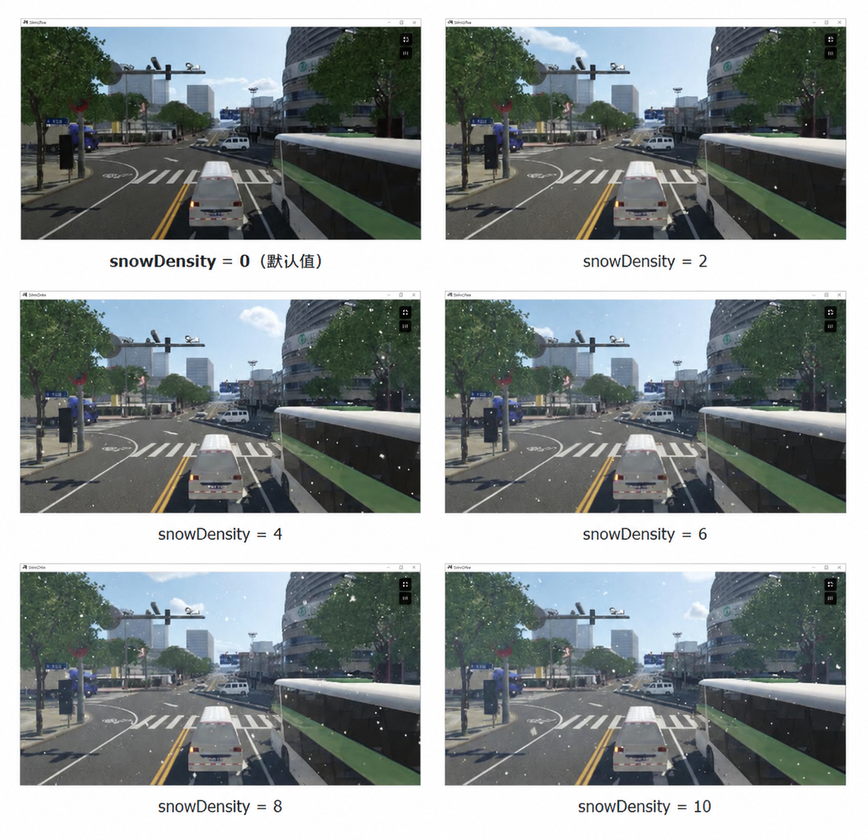
| Snow Intensity | snowDensity | 0 – 10 | 0 | mm | Weather > Manual Weather State > Snow |
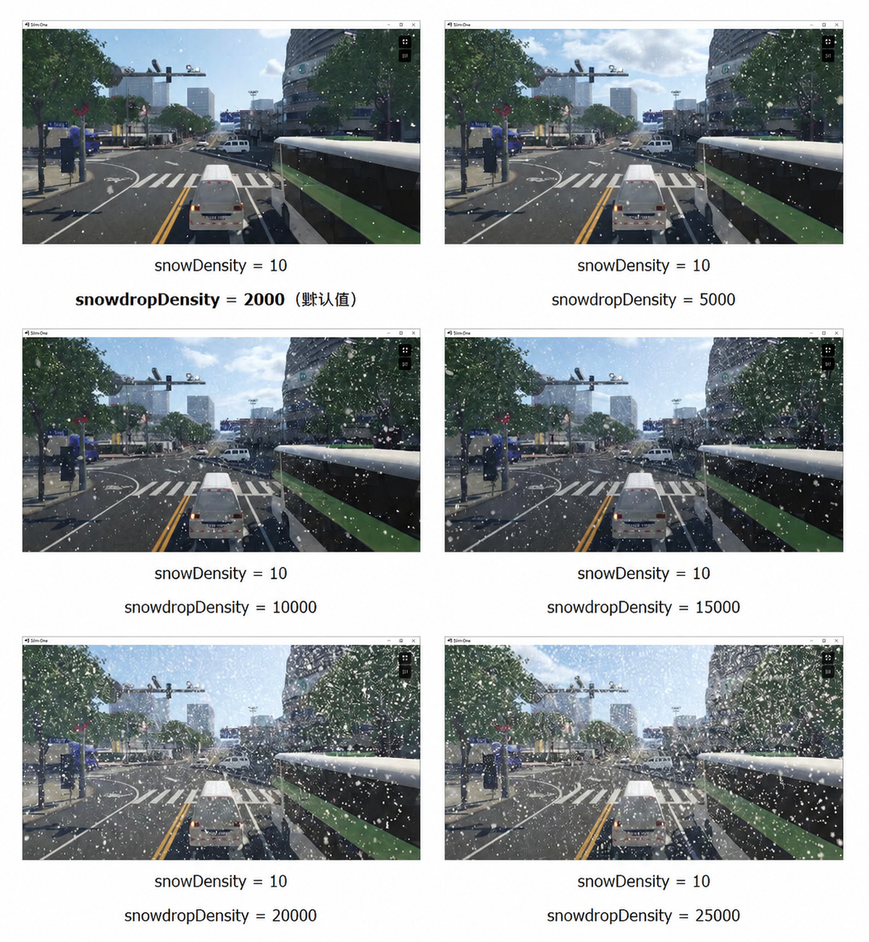
| Snowflake Density Factor | snowflakeDensity | 0 – 30000 | 2000 | — | Weather > Snow Particles > Max Snow Particle Spawn Rate |
| Snowflake Particle Size | snowflakeParticle | 0 – 3 | 1.0 | — | Weather > Snow Particles > Snow Flakes Scale |
2.5.1 Snow / snowDensity
| Parameter | Console | Range | Default | Unit | UE5 Location |
|---|---|---|---|---|---|
| Snow Intensity | snowDensity | 0 – 10 | 0 | mm | Weather > Manual Weather State > Snow |
2.5.2 Snowflake Density Factor / snowflakeDensity
| Parameter | Console | Range | Default | Unit | UE5 Location |
|---|---|---|---|---|---|
| Snowflake Density Factor | snowflakeDensity | 0 – 30000 | 2000 | — | Weather > Snow Particles > Max Snow Particle Spawn Rate |
2.5.3 Snowflake Particle Size / snowflakeParticle
| Parameter | Console | Range | Default | Unit | UE5 Location |
|---|---|---|---|---|---|
| Snowflake Particle Size | snowflakeParticle | 0 – 3 | 1.0 | — | Weather > Snow Particles > Snow Flakes Scale |
2.6 ⚡ Thunder / Lightning / thunder
| Parameter | Console | Range | Default | Unit | UE5 Location |
|---|---|---|---|---|---|
| Thunder / Lightning | thunderLightning | 0 – 10 | 0 | — | Weather > Manual Weather State > Thunder/Lightning |
| Lightning Interval | thunderInterval | 0 – 10 | 7 | — | Weather > Lightning > Lightning Flash Interval (Min/Max) |
| Lightning Brightness | thunderBrightness | 1 – 25 | 14.0 | — | Weather > Lightning > Maximum Lightning Flash Light Intensity |
Tip
For best effect with lightning parameters, set the time to night (after 18:00).
2.6.1 Thunder / Lightning / thunderLightning
| Parameter | Console | Range | Default | Unit | UE5 Location |
|---|---|---|---|---|---|
| Thunder / Lightning | thunderLightning | 0 – 10 | 0 | — | Weather > Manual Weather State > Thunder/Lightning |
Controls lightning frequency.
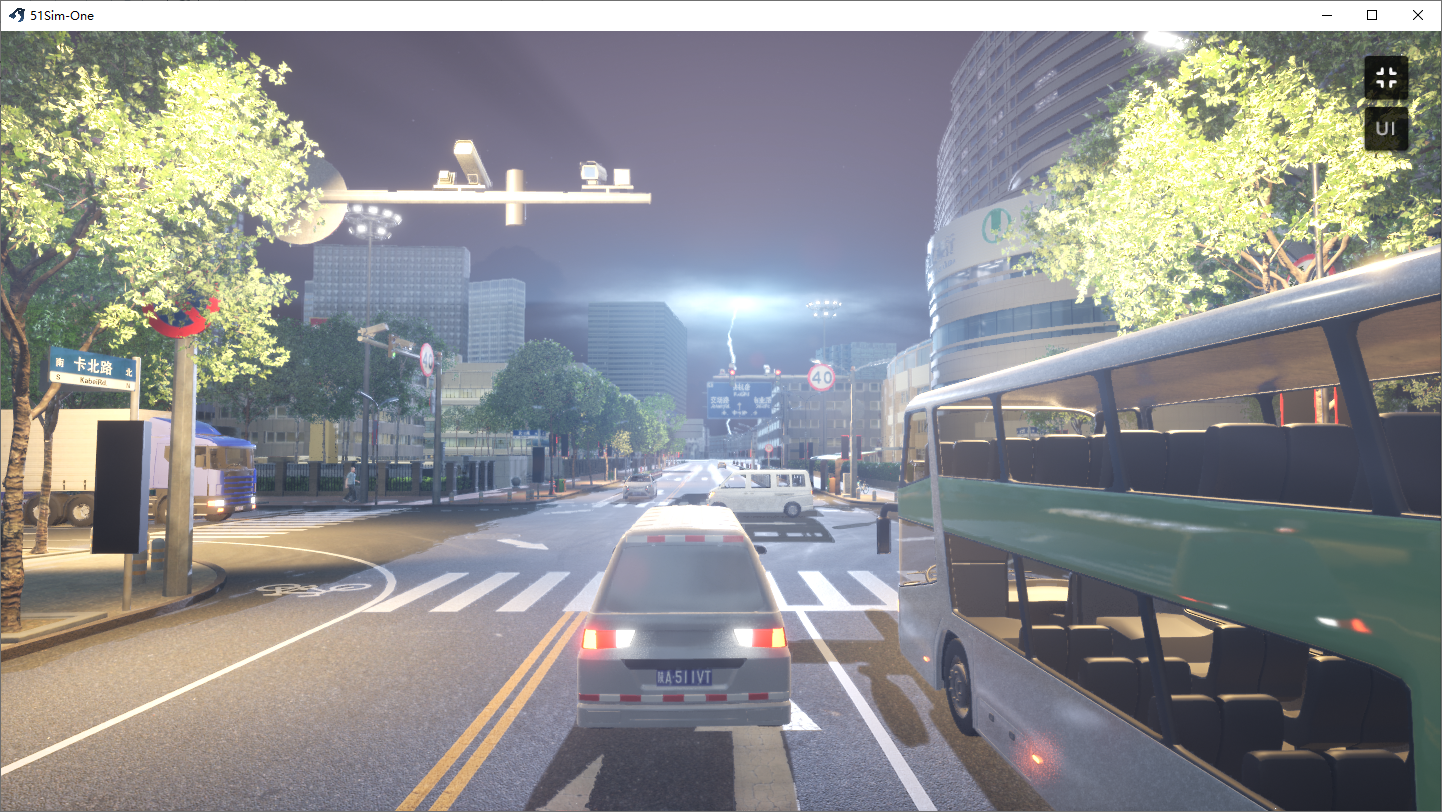
2.6.2 Lightning Interval / thunderInterval
| Parameter | Console | Range | Default | Unit | UE5 Location |
|---|---|---|---|---|---|
| Lightning Interval | thunderInterval | 0 – 10 | 7 | — | Weather > Lightning > Lightning Flash Interval (Min/Max) |
2.6.3 Lightning Brightness / thunderBrightness
| Parameter | Console | Range | Default | Unit | UE5 Location |
|---|---|---|---|---|---|
| Lightning Brightness | thunderBrightness | 1 – 25 | 14.0 | — | Weather > Lightning > Maximum Lightning Flash Light Intensity |
2.7 🌪 Dust / dust
| Parameter | Console | Range | Default | Unit | UE5 Location |
|---|---|---|---|---|---|
| Dust Intensity | dustDensity | 0 – 10 | 0 | m | Weather > Manual Weather State > Dust |
| Dust Density Factor | dustDensityCoefficient | 0 – 3000 | 300 | — | Weather > Dust Particles > Max Dust Particle Spawn Rate |
| Dust Particle Size | dustParticle | 0 – 3 | 1.0 | — | Weather > Dust Particles > Dust Particle Scale |
2.7.1 Dust / dustDensity
| Parameter | Console | Range | Default | Unit | UE5 Location |
|---|---|---|---|---|---|
| Dust Intensity | dustDensity | 0 – 10 | 0 | m | Weather > Manual Weather State > Dust |
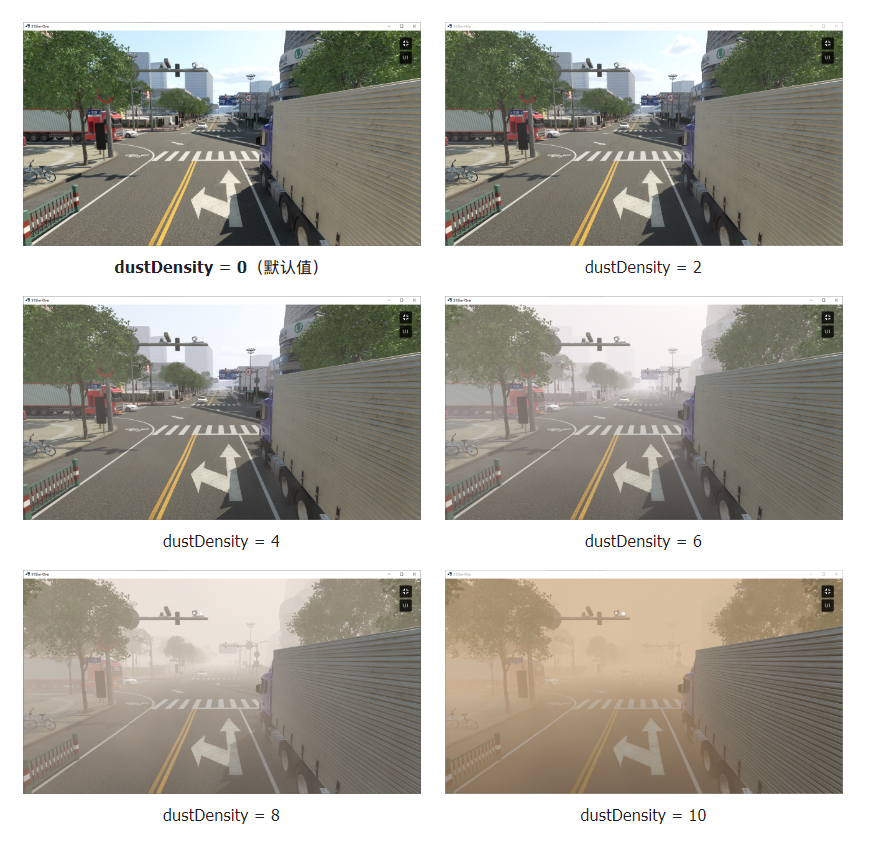
2.7.2 Dust Density Factor / dustDensityCoefficient
| Parameter | Console | Range | Default | Unit | UE5 Location |
|---|---|---|---|---|---|
| Dust Density Factor | dustDensityCoefficient | 0 – 3000 | 300 | — | Weather > Dust Particles > Max Dust Particle Spawn Rate |
2.7.3 Dust Particle Size / dustParticle
| Parameter | Console | Range | Default | Unit | UE5 Location |
|---|---|---|---|---|---|
| Dust Particle Size | dustParticle | 0 – 3 | 1.0 | — | Weather > Dust Particles > Dust Particle Scale |
3. Material Effects
3.1 Ground Friction Coefficient
| Parameter | Console | Range | Default | Unit | UE5 Location |
|---|---|---|---|---|---|
| Ground Friction Coefficient | 0 – 1 | 1 | — | Proprietary |
3.2 Surface Coverage
| Parameter | Console | Range | Default | Unit | UE5 Location |
|---|---|---|---|---|---|
| Ground Wetness | groundHumidityLevel | 0 – 1 | 0 | — | Weather > Manual Weather State > Material Wetness |
| Snow Coverage | groundSnowLevel | 0 – 1 | 0 | — | Weather > Manual Weather State > Material Snow Coverage |
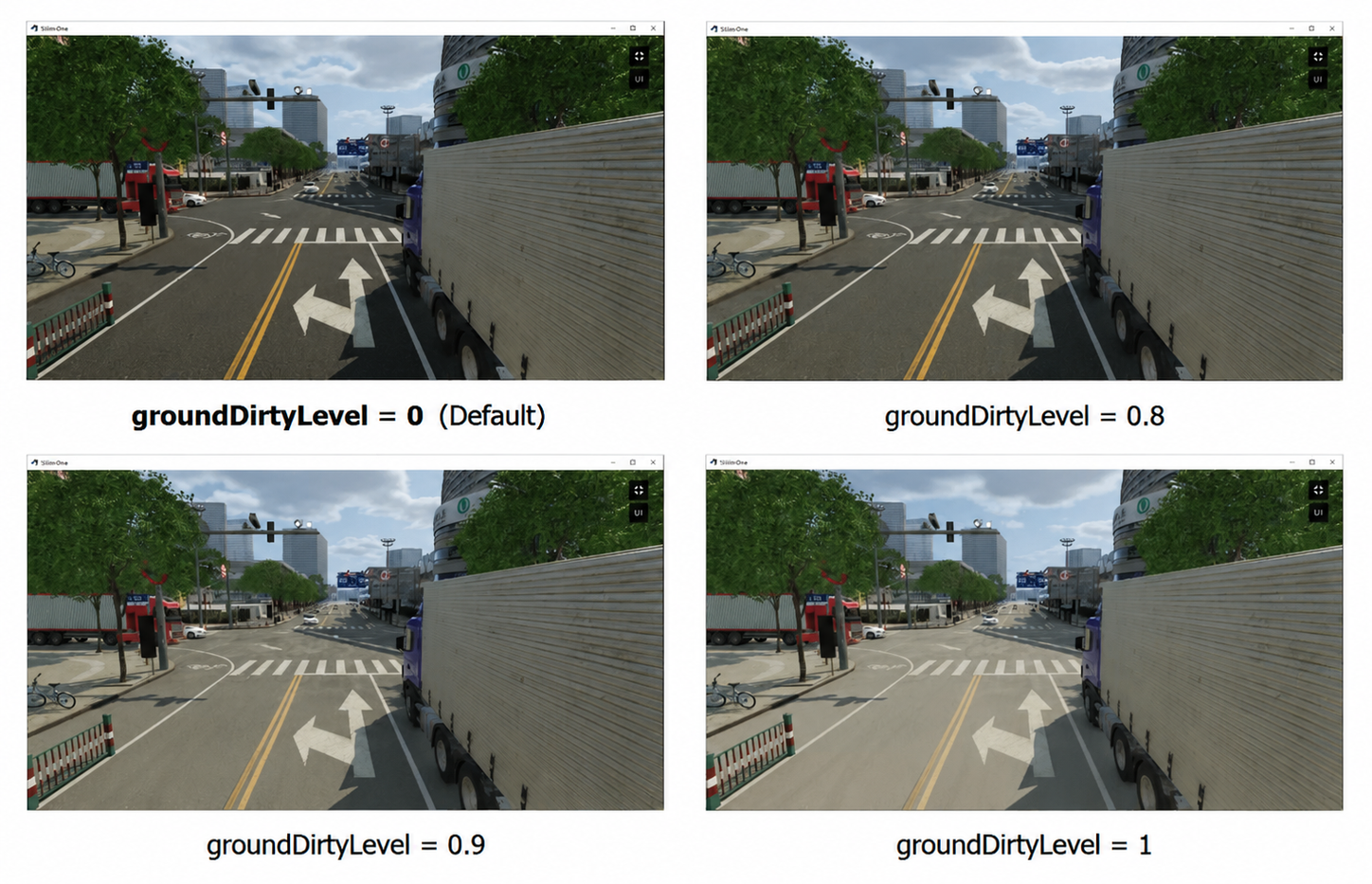
| Dust Coverage | groundDirtyLevel | 0 – 1 | 0 | — | Weather > Manual Weather State > Material Dust Coverage |
3.2.1 Ground Wetness / groundHumidityLevel
| Parameter | Console | Range | Default | Unit | UE5 Location |
|---|---|---|---|---|---|
| Ground Wetness | groundHumidityLevel | 0 – 1 | 0 | — | Weather > Manual Weather State > Material Wetness |
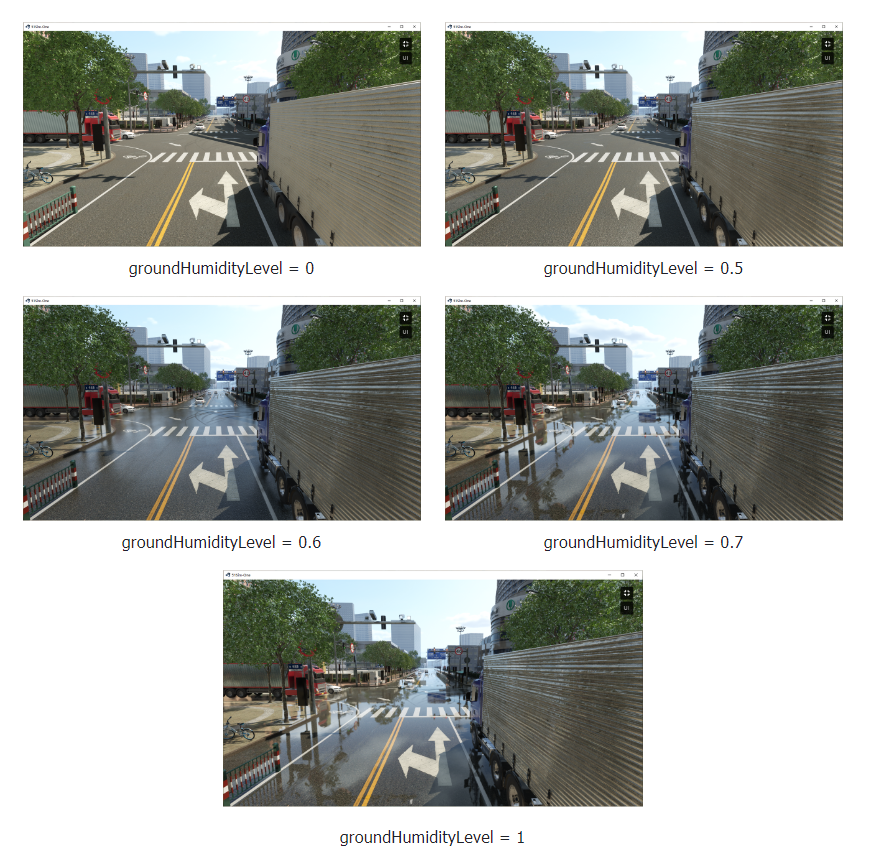
3.2.2 Snow Coverage / groundSnowLevel
| Parameter | Console | Range | Default | Unit | UE5 Location |
|---|---|---|---|---|---|
| Snow Coverage | groundSnowLevel | 0 – 1 | 0 | — | Weather > Manual Weather State > Material Snow Coverage |
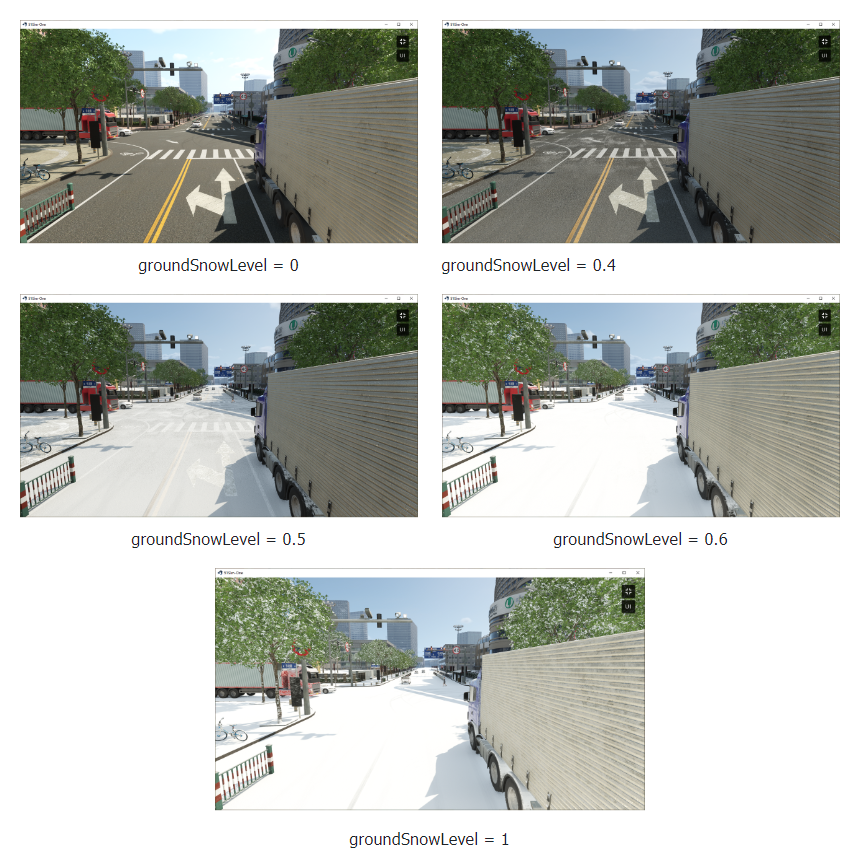
3.2.3 Dust Coverage / groundDirtyLevel
| Parameter | Console | Range | Default | Unit | UE5 Location |
|---|---|---|---|---|---|
| Dust Coverage | groundDirtyLevel | 0 – 1 | 0 | — | Weather > Manual Weather State > Material Dust Coverage |
3.3 Damage and Dirt
| Parameter | Console | Range | Default | Unit | UE5 Location |
|---|---|---|---|---|---|
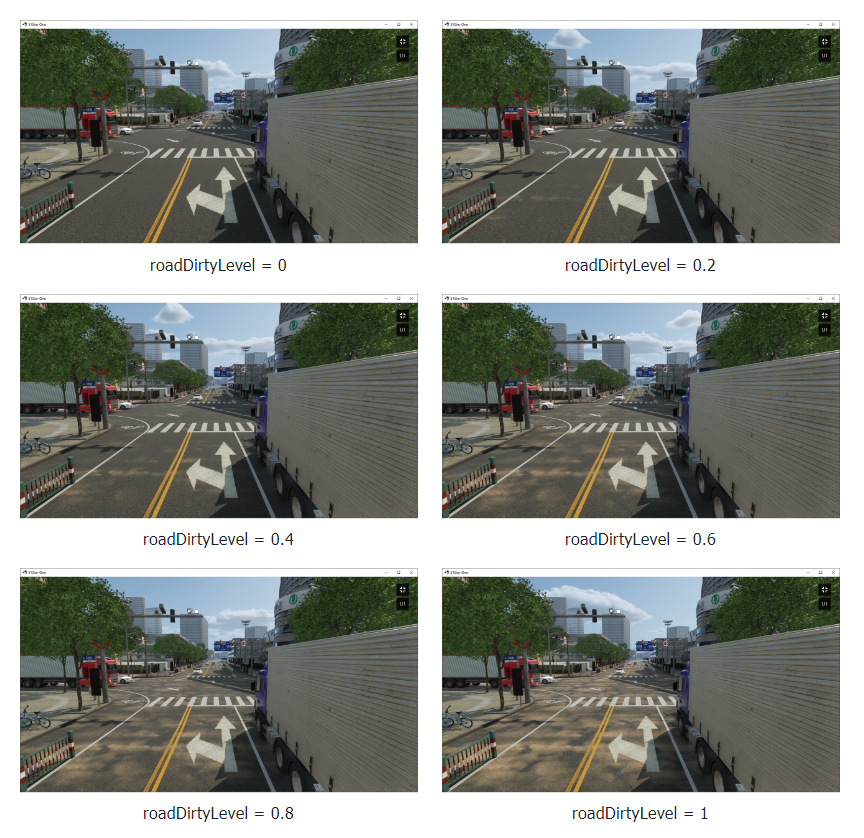
| Road Dirt Level | roadDirtyLevel | 0 – 1 | 0 | — | Proprietary |
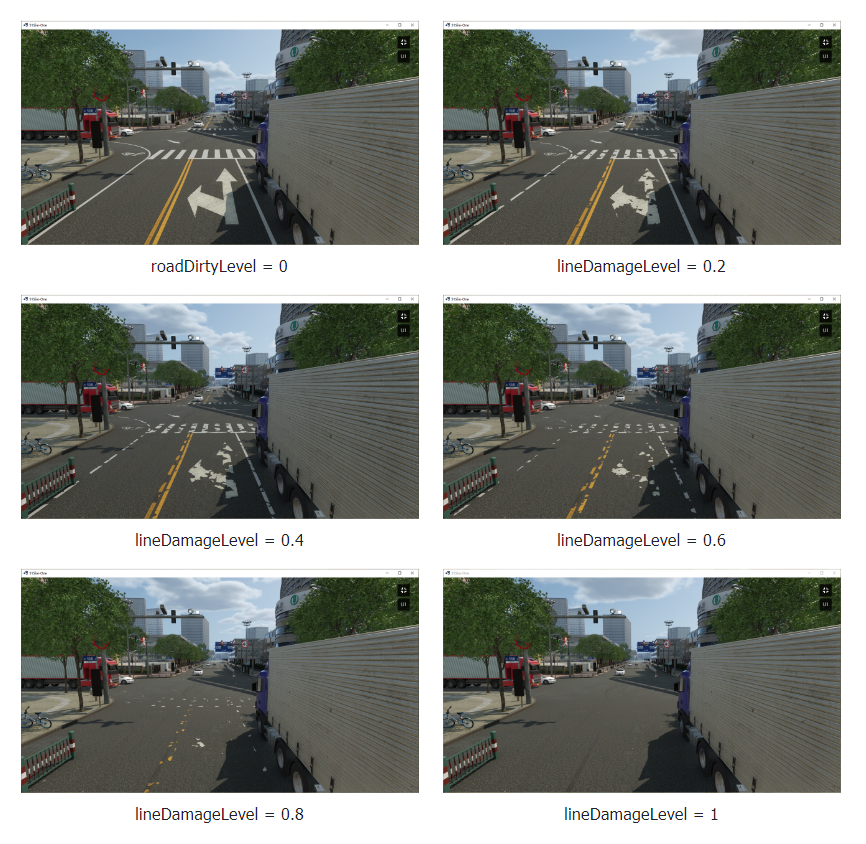
| Lane Marking Damage | lineDamageLevel | 0 – 1 | 0 | — | Proprietary |
| Sign Dirt Level | signDirtyLevel | 0 – 1 | 0 | — | Proprietary |
| Sign Damage Level | signDamageLevel | 0 – 1 | 0 | — | Proprietary |
3.3.1 Road Dirt Level / roadDirtyLevel
| Parameter | Console | Range | Default | Unit | UE5 Location |
|---|---|---|---|---|---|
| Road Dirt Level | roadDirtyLevel | 0 – 1 | 0 | — | Proprietary |
3.3.2 Lane Marking Damage / lineDamageLevel
| Parameter | Console | Range | Default | Unit | UE5 Location |
|---|---|---|---|---|---|
| Lane Marking Damage | lineDamageLevel | 0 – 1 | 0 | — | Proprietary |
3.3.3 Sign Dirt Level / signDirtyLevel
| Parameter | Console | Range | Default | Unit | UE5 Location |
|---|---|---|---|---|---|
| Sign Dirt Level | signDirtyLevel | 0 – 1 | 0 | — | Proprietary |

3.3.4 Sign Damage Level / signDamageLevel
| Parameter | Console | Range | Default | Unit | UE5 Location |
|---|---|---|---|---|---|
| Sign Damage Level | signDamageLevel | 0 – 1 | 0 | — | Proprietary |
