Global Settings
Related Documents
Click the settings icon in the upper-right corner of the page to open the Global Settings dialog.
The available options in the Global Settings differ between the Local and Cloud deployments of SimOne Collaboration Edition.
- Local includes five sections: Visualization Tool, System Settings, System Info, System Configuration, and Agent List.
- Cloud includes only the Visualization Tool section.
1. Visualization Tool Settings
Configure visualization window parameters for test case execution.
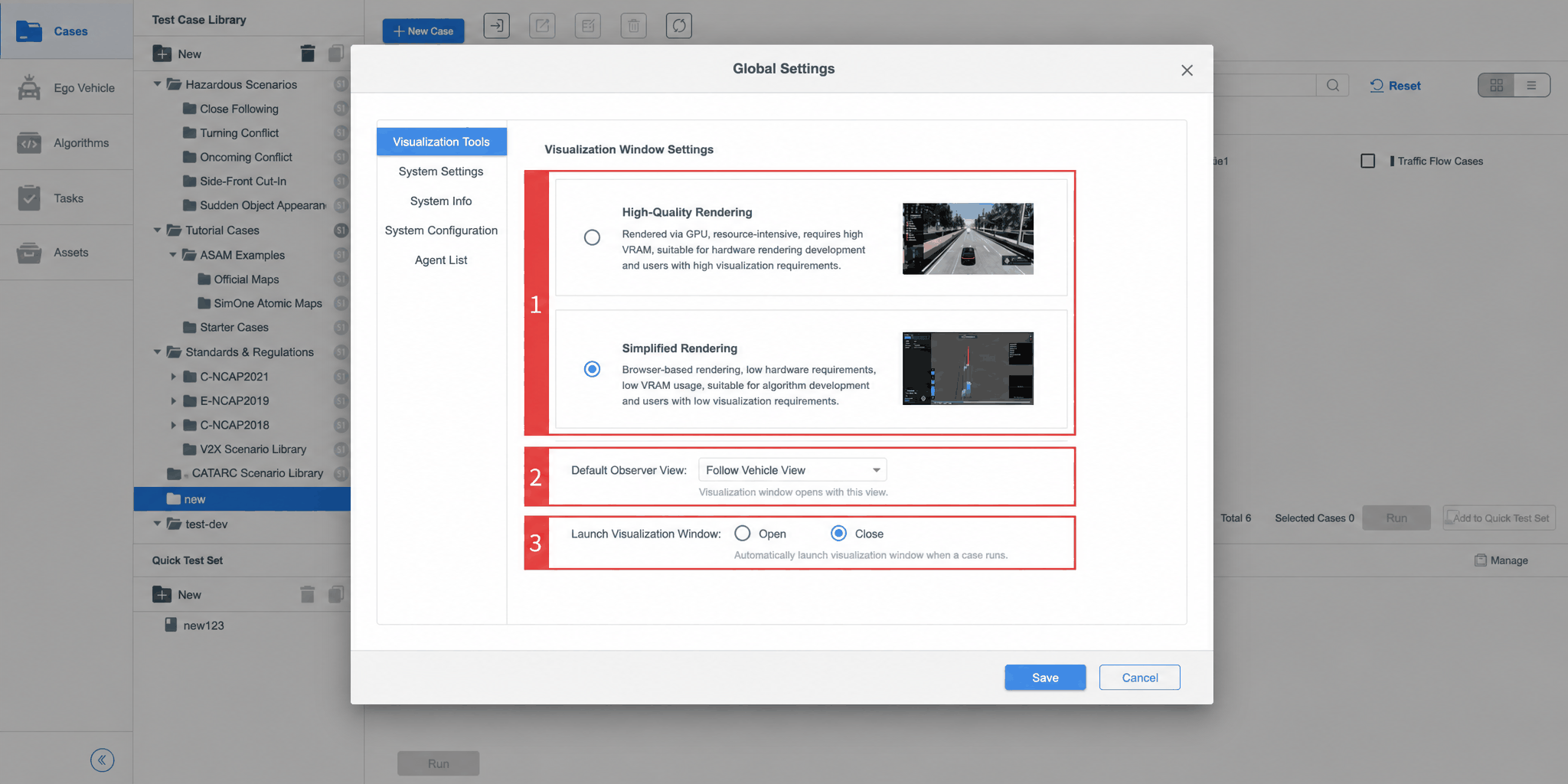
| ID | Item | Description |
|---|---|---|
| 1 | Visualization Window Mode | Currently supports High-Fidelity Rendering and Simplified Rendering modes |
| 2 | Default Observer View | Observer view options include Follow View, Free View, Top View, and Driver View |
| 3 | Launch Visualization Window | Can be set to Open or Closed. When set to Open, the visualization window automatically pops up when a test case runs. When set to Closed, the window only opens when the user clicks the Video Monitor button in Tasks |
2. System Settings
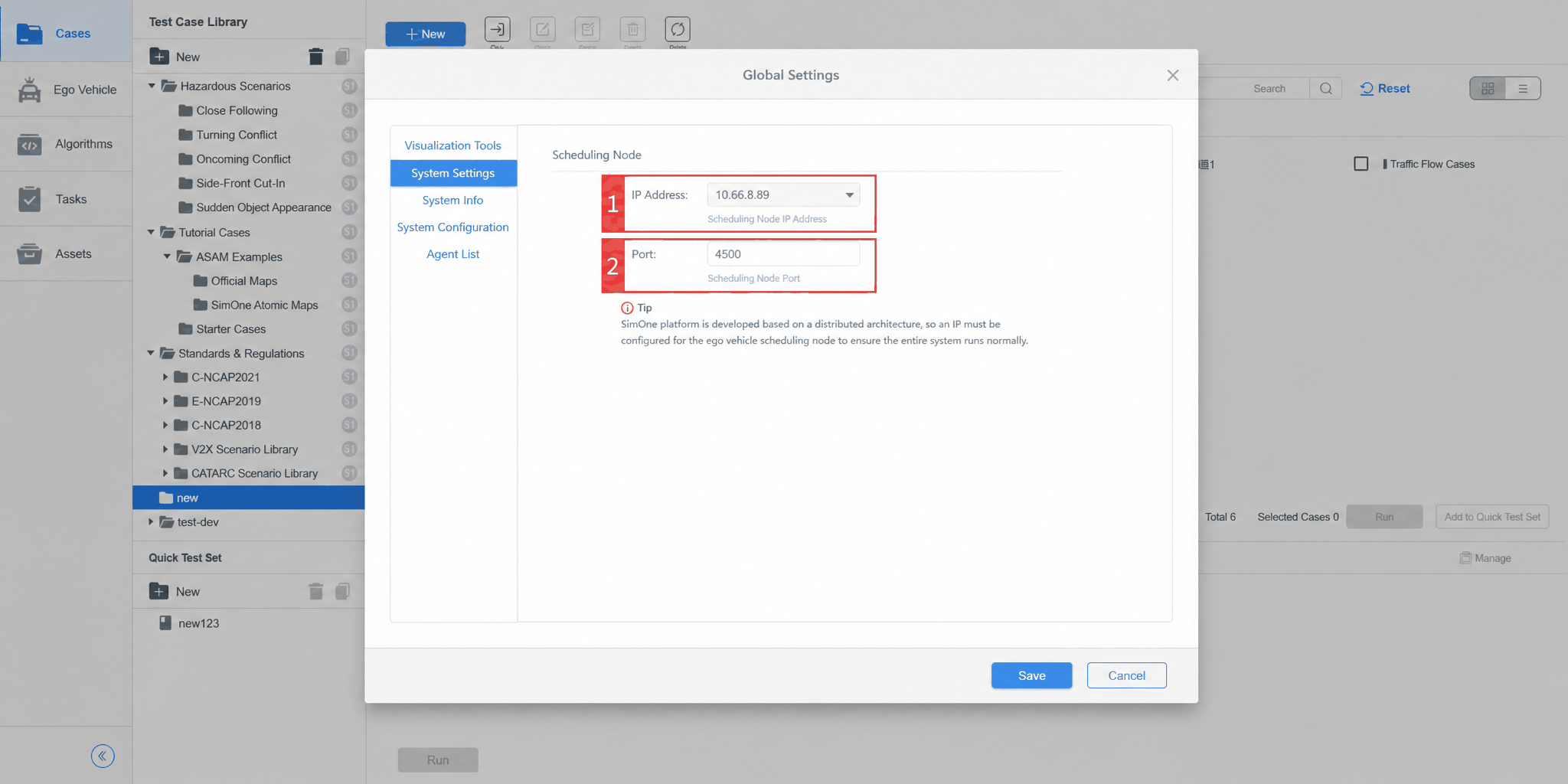
| ID | Item | Description |
|---|---|---|
| 1 | IP Address | IP address of the dispatch node |
| 2 | Port | Port of the dispatch node |
3. System Info
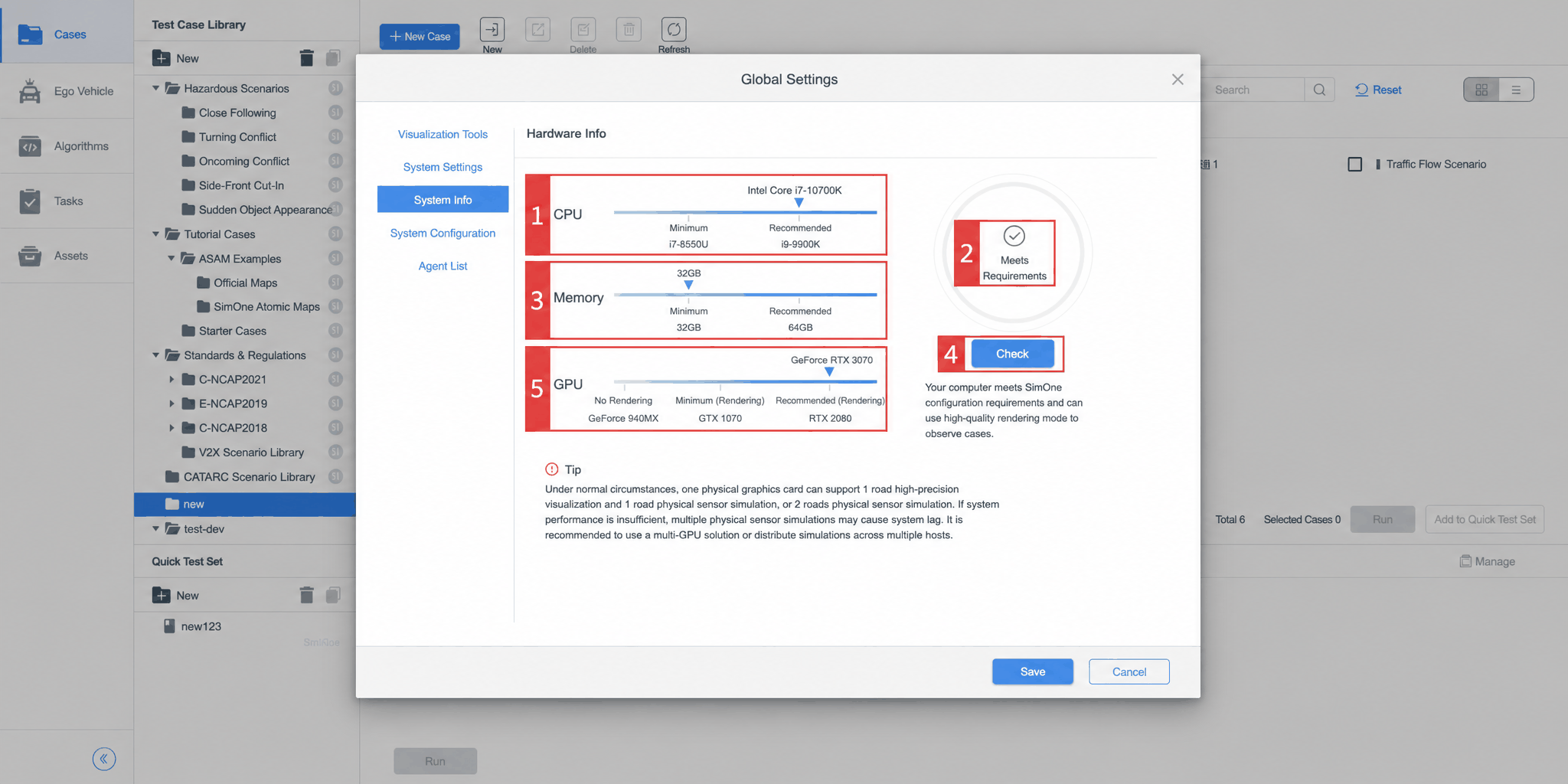
| ID | Item | Description |
|---|---|---|
| 1 | CPU Range | The CPU performance tier. Currently divided into three tiers based on minimum and recommended thresholds, with a prompt for users |
| 2 | Test Result | Indicates whether the hardware meets requirements |
| 3 | Memory Range | The memory performance tier. Currently divided into three tiers based on minimum and recommended thresholds, with a prompt for users |
| 4 | Detect | Click to re-run hardware detection after updating hardware configuration |
| 5 | GPU Range | The GPU performance tier. Currently divided into four tiers: No Rendering, Minimum, and Recommended, with a prompt for users |
4. System Configuration
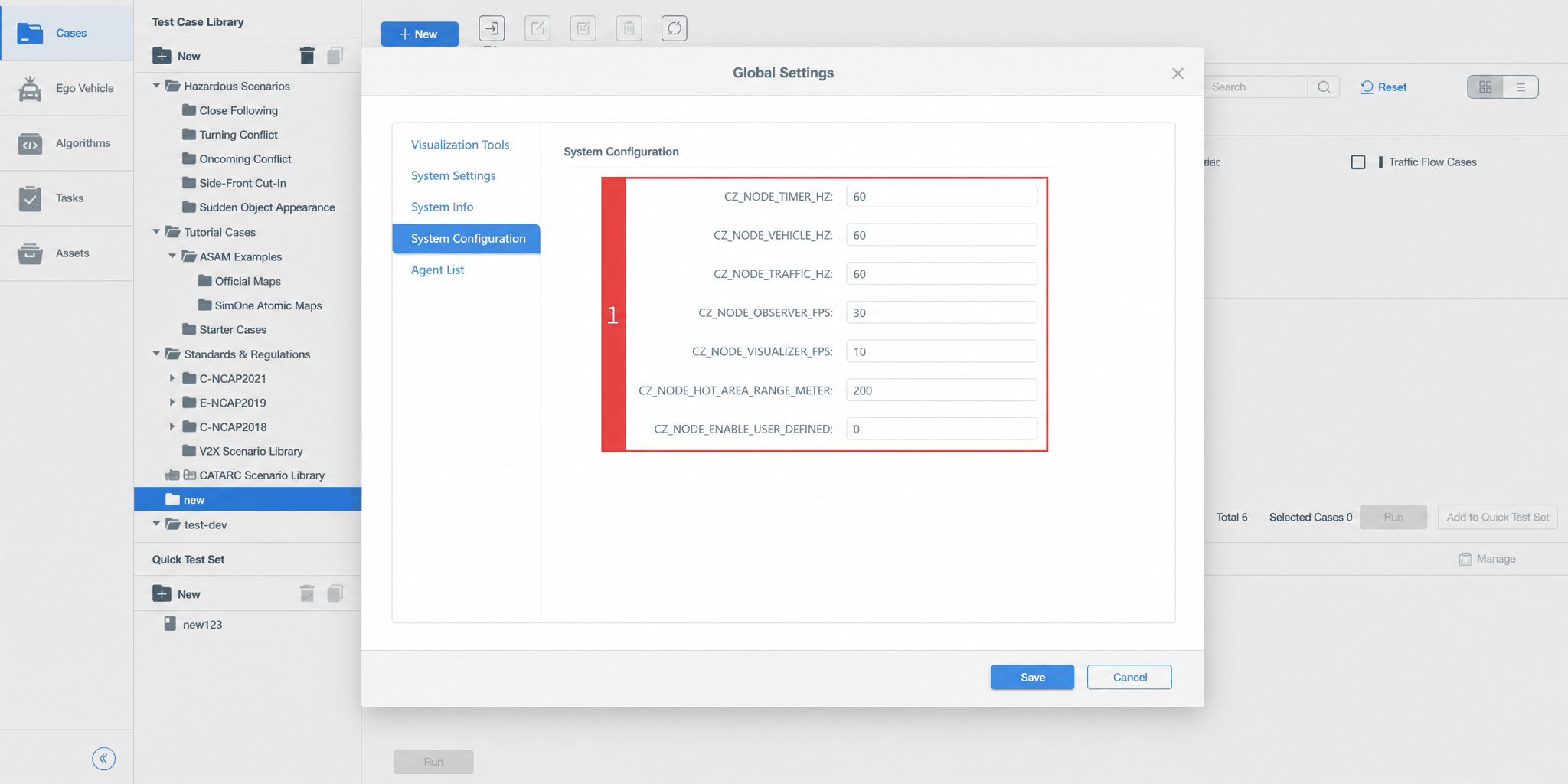
| ID | Item | Description |
|---|---|---|
| 1 | System Configuration | Commonly used variable values, including node port settings, observer port settings, etc. |
5. Agent List
For details, refer to Distributed System Overview.
6. Controller Settings
Controller Settings apply only to [SimOne — Enterprise Edition]. For [SimOne — Collaboration Edition], configuration is done in the Admin System backend.
Supports user-defined controller configurations, allowing users to assign the same or different controller configurations to ego vehicles across different test cases in the case editor.
Through this feature, users can flexibly assign the same controller to multiple ego vehicles, or assign different controllers to specific ego vehicles, to meet diverse testing requirements.
Additionally, when creating tasks, algorithms can be run based on controller configurations, enabling:
- Ego vehicles using the same controller can be assigned the same algorithm uniformly;
- Ego vehicles using different controllers can each be assigned a different algorithm.
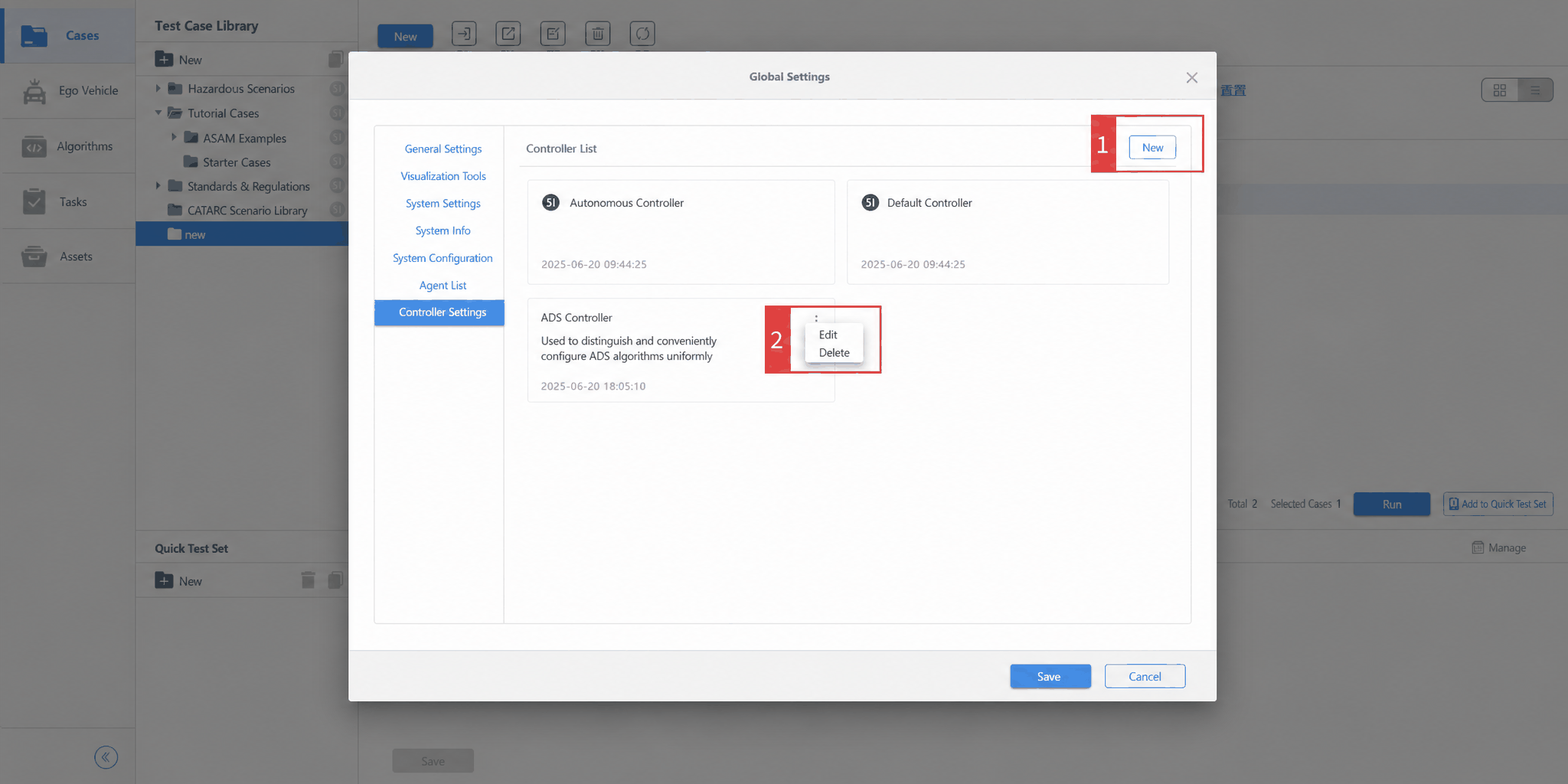
| ID | Item | Description |
|---|---|---|
| 1 | New | Add a user-defined controller |
| 2 | Edit | Modify a user-defined controller |
| 3 | Delete | Delete a user-defined controller |